Six Colors
Six Colors

Apple, technology, and other stuff

This Week's Sponsor

Clic for Sonos: The fastest native Sonos client for iPhone, iPad, Mac, Apple Watch, Apple TV, and visionOS.

By Dan Moren

Mystery machine: Automating puzzle hunting

Since 2005, I’ve partaken in a peculiar pastime every January1: the MIT Mystery Hunt. This weekend-long competition sees teams attempt to solve around two hundred puzzles involving everything from obfuscated songs to labyrinthine text adventures. It’s an incredibly fun (and incredibly challenging) event, and one that, in addition to critical and lateral thinking skills, also requires a lot of logistics.

Over the last couple years—especially as both last year’s hunt and this year’s upcoming hunt have been impacted by COVID—I’ve taken on a larger role in helping set up the technology for our Mystery Hunt team of about 25 people.

While I’ve mentioned this obliquely in my previous post on Integromat, I thought it might be interesting to run down the various tools we’re using to automate what’s informally called our “puzzle collateral” system. This largely involves metadata about puzzles that help us track our solving status, as well as the collaborative systems we use in the actual solving. In the past few years, those systems have become inextricably linked, especially as puzzling moves to a remote-only footing. So here’s an overview of what we’re currently using to aid our process.

Discord
Our Discord channels, including our national park-themed “conference rooms.”

Discord

The 2021 Mystery Hunt was the first to go fully remote.2 In the past, some teams have had remote components of various sizes, to help far-flung members who can’t travel still participate, or to take advantage of timezones to provide a 24-hour puzzle-solving crew.

Though our team doesn’t generally have a large remote presence, we’ve still traditionally needed a central communication system to help manage our collaboration and information flow, and also provide access for parts of the hunt where people might be offsite. In past years, we’ve relied on Slack, but with the shift to a fully remote hunt, 2021’s hunt saw us shift to Discord, for two major reasons. First, Discord’s integrated—and, more importantly, free—multi-person video and audio chats make it much easier to have a collaborative environment. Second, integration with automation tools seems to be more accessible and more powerful with Discord.

In addition to a handful of channels for general chatting, non-hunt socializing, burritos3, and administration, our Discord contains a text channel for each puzzle that we unlock, organized into channel categories based on their meta puzzles.4

Rather than create a video/audio channel for each puzzle that we unlock, we opted instead to create a half dozen “conference rooms” where ad hoc groups could gather while working on a specific puzzle. That ended up being easier to manage, especially for the size of our group, and there’s always the ability to create another conference room as needed.

Google Sheets

The backbone of puzzle solving is collaborative data crunching. For that, there’s nothing better than a Google Sheet. For each puzzle, we create a spreadsheet that’s put in a Google Drive folder for the related meta puzzle. Multiple users can join those spreadsheets and view the same data as it’s manipulated (and, if necessary, duplicate and experiment with data on their own). Links to the Google spreadsheet for a particular puzzle are included in the topic of the Discord text channel for that puzzle.

We also use a Google Sheet as our “master puzzle list.”5 This is a Google Sheet that contains the puzzle name, its associated meta, the URL for the puzzle itself, the Discord channel name and ID, the Google Sheets ID and URL, and the solution (if any). But how to populate that?

Puzzlemaker Form
The Google Form to enter new puzzles, with a dynamically updated dropdown of available meta puzzles.

Google Forms

A pair of Google Forms allow us to keep our puzzle list easily updated. At any given time, someone on the team is the “puzzle lead”, in charge of inputting new puzzles into our master list as they’re unlocked. They fill out a Google Form with the puzzle name, the associated meta (or nothing, if it’s a new meta), and the puzzle URL and those results are automatically dumped into the master puzzle list. There’s also a puzzle solver form that allows the puzzle lead to input the answer to a puzzle once it’s been solved.

In both of these cases, I rely on a little Google Apps Script magic to create a drop-down menu in the form where the options are themselves pulled from data in a spreadsheet. That helps eliminate data errors that might come from, for example, a typo in a puzzle name. The one downside is that those scripts can only be triggered at maximum once a minute, which means there can be some lag time between inputting a puzzle and having it show up in the drop down list, although it’s rarely a problem that actually has an effect, given the time between these actions.

Integromat

Now for the duct tape that binds the galaxy together. Integromat is a web-based workflow system that lets you have various services communicate with one another. It’s the main workhorse of our collateral system, because it allows us to take information from the master puzzle list, create the necessary ancillary materials, and then update any records accordingly. We use two Integromat scenarios, of which the more complicated is the Puzzlemaker workflow. Here’s a quick look:

Puzzlemaker

To sum up, the Puzzlemaker workflow is triggered by a webhook that’s manually clicked by the current puzzle lead. (Previously we used a system where it watched for new records every five minutes, but that proved to be not only too slow, requiring manual intervention anyway, but also introduced the potential for collisions depending on the current state of the workflow. This year we’re attempting to batch puzzle creation, which also helps save on the number of times the scenario is triggered, and thus any resultant quotas from Integromat.)

When the webhook is triggered, Puzzlemaker looks for new records within the master puzzle Google spreadsheet. It then creates a new Google Spreadsheet for each new puzzle and shares that sheet with our Google Group so that everybody has access. There’s then a series of branches for various actions, not all of which are executed for every puzzle.

If the puzzle is a new meta, a corresponding Discord channel category is created and a record for the meta puzzle and that channel ID are created in our master puzzle list. A Google Drive folder for that meta is also created and placed in a Metas folder.

If the new puzzle is not a meta, the newly created Google Sheet is placed in a Google Drive folder associated with its parent meta.

In every case, the associated meta puzzle for a new puzzle is located within our master list of metas, so that when the next step creates the Discord text channel for the new puzzle, it can be placed under the category associated with that meta (or, if it’s a meta itself, put under a top level “Metas” category). The master puzzle list is then updated with all the new information about Google Sheets and Discord Channels, and a confirmation message is sent to a read-only “puzzle log” channel in Discord.

By comparison, the Solver workflow is much more straightforward.
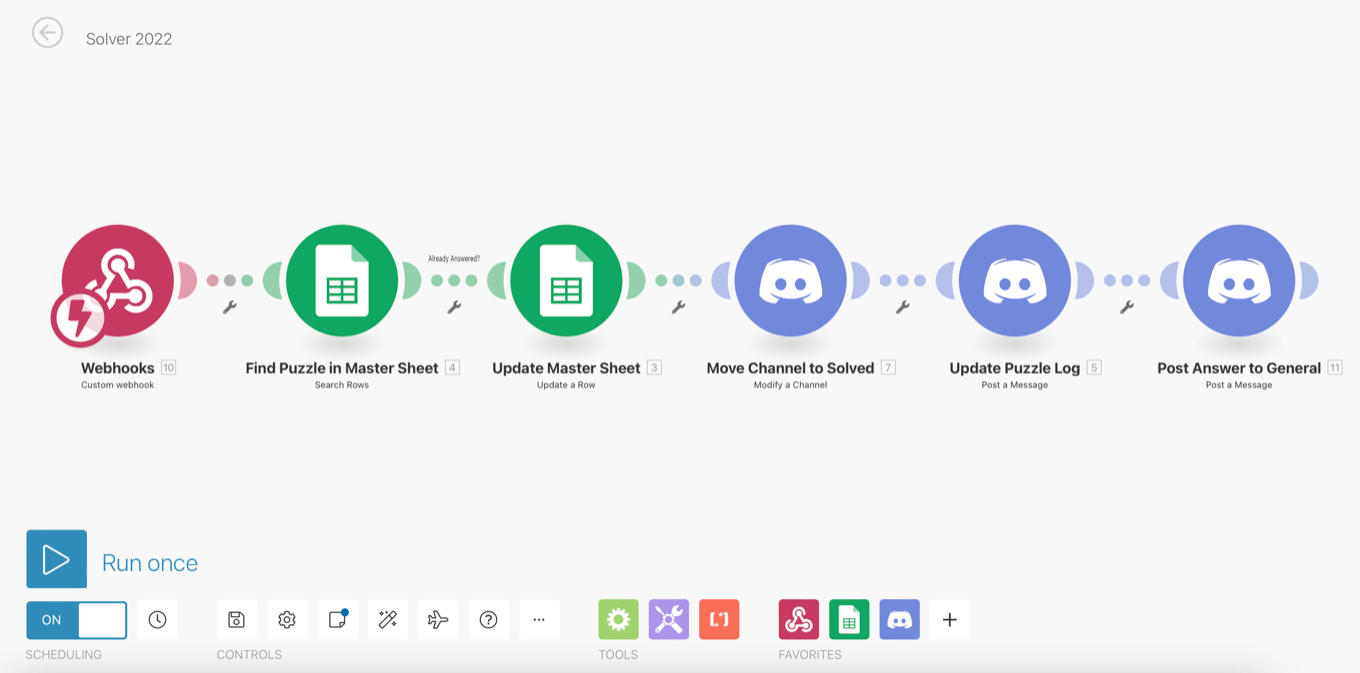
Solver

A webhook is, in this case, automatically triggered by the submission of the relevant Google Form. The puzzle in question is located in the master puzzle list, updated with the answer, and the Discord channel is moved to a category for solved puzzles. Then both our puzzle log channel and out Discord’s general channel are pinged with a celebratory message indicating that a puzzle has been solved, along with the solution.

Grav

The last main tech component for our Mystery Hunt team is a basic website that hosts two main types of information: team-level information that don’t change much during the hunt (such as a team roster, basic tips and reference, and details about the hunt itself), as well as a Puzzle Dashboard.

The latter is an embedded frame that provides a list of our current puzzle status, including whether a puzzle is solved; the puzzle name; links to the puzzle page, Discord channel, and Google Sheet; and the answer, if applicable. This is sort of a central clearing house that can at a glance show what puzzles still need solving, and how we’re progressing on any given meta, as well as provide quick access to puzzle collateral.

Puzzle Dashboard

To host of all this, we use a basic CMS called Grav. Its flat-file approach avoids the need for a database server, and it’s intended to be lightweight, easily editable, and quick-loading. It also has a robust plugin architecture in the case that it needs to be extended. However, as it doesn’t get a lot of use during the hunt—with the exception of the Dashboard itself—it’s not the most critical piece of infrastructure.

Hunt and ye shall find

And there you have it: one team’s approach to keeping track of puzzles. Our tool usage is tuned for our particular team, of course, and it’s anything but a one-size-fits-all approach. What works for us probably won’t work for most other teams, though we are always on the lookout for new tools and improved workflows that can help us simplify things. But, all of that said, we tend not to tinker too much, especially if something is working pretty well so far. And really, it’s quite astounding what you can achieve with a small amount of off-the-shelf software, most of which is free.

I hope you enjoyed this look into our technology infrastructure. If you’re a fellow puzzler, perhaps it’s of interest to you. And if not, perhaps I at least intrigued you enough to check out the Mystery Hunt for yourself. Happy puzzling!


  1. I’ve only missed one year, 2007, thanks to a conflict with Macworld Expo. 
  2. Amazingly, it involved a whole massively multiplayer world that you could wander around. For more on that, check out this post-mortem from the team that ran the event that goes into the behind-the-scenes details. 
  3. To explain: for some reason, our team started keeping track of how many burritos we ate during the hunt. That’s because one of the popular haunts on MIT campus is Anna’s Taqueria. So, of course, this year I added a bot that I programmed in Python to help us log burritos as we eat them. 
  4. Hunt puzzles generally solve to a single word or phrase. Each puzzle is associated with a meta puzzle (or, occasionally, more than one); clues for the meta puzzle’s clues are made up of the solutions to the puzzles within that category. 
  5. Yes, I know this should by all rights be a true database. But Google Sheets is very widely available, easy to manage, and scriptable. I’ve investigated AirTable, and I’d potentially consider switching to it in the future if there were a real reason to, but for now, if it ain’t broke… 

[Dan Moren is the East Coast Bureau Chief of Six Colors, as well as an author, podcaster, and two-time Jeopardy! champion. You can find him on Mastodon at @dmoren@zeppelin.flights or reach him by email at dan@sixcolors.com. His next novel, the sci-fi adventure Eternity's Tomb, will be released in November 2026.]


The last apps we purchased, how we’d handle third-party payment options on our Apple devices, our experience with Exposure Notifications, and how we track our resolutions, themes, and habits for the new year.


You thought you were going to get out of the year without a Epidemiology Corner segment? Fat chance.


WinterFest 2021

WinterFest 2021 is on now. It’s a holiday-themed sale of great independent Mac apps, at discounts of 20 or 25 percent:

The new year brings new plans, fresh projects, and great new ideas. Whether you’re mapping out your next novel, finishing your dissertation, planning a product, or writing memories for your grandkids, these great tools will help. As is our custom in this season, we’re hosting a gathering of software artisans who are working to transform research and writing for a new era. We’ve all finished our latest updates, we’re working together to save you lots of money. Get the tools you need at a terrific price, for a very limited time.

Included in the list are some of my favorites, including Scrivener, BBEdit, and Marked. It’s also got some very interesting apps that I mean to use more in the future—I’m probably going to buy myself a license for Hook Pro, since David Sparks keeps evangelizing it.

Check the whole list out and see if any of them strike your fancy.


In this Upgrade Holiday Special, Jason and Myke answer the holiday-themed questions of Upgradians everywhere. Smart decorations, holiday wardrobes, the definition of fairy lights, monkey strategies, an eggnog recipe, and Santa’s complex cloud-based organizational system are just some of the topics covered.


By Six Colors Staff

2021 Favorites: Hardware

Note: This story has not been updated since 2021.

As we reach the end of the year, it’s time for us to share some of the stuff that we liked this year. Here are our picks for our favorite hardware of the year. Some are obvious… some less so.

24-inch iMac

The iMac kept the same design for most of the 2010s. It was a design built for processors and disk drives of a very different era, and with each late-2010s revision, I kept waiting for it to be replaced. But the old design soldiered on.

It took the transition to Apple silicon to finally force Apple’s hand and release the 24-inch iMac, an entirely new computer for the era of SSDs and power-efficient Apple-built processors.

But while the 24-inch iMac more or less performed like the other M1-based Macs that preceded it, those other systems were visually unchanged from their Intel versions. The new iMac is visibly different, offered in six eye-popping colors (plus good ol’ silver) that suggest this iMac is meant to stand out, not blend in. It’s the first iMac with bright colors since the original G3 models.

The tiny details also suggest a new direction for Mac desktop hardware design, from the magnetic power cord to the detached power supply (with optional Ethernet jack) to the color-matched braided accessory cables. The iMac has a new lease on life for the 2020s.—Jason Snell

14-inch MacBook Pro

After a rough five or so years for Apple’s laptop designs, is all forgiven? The new MacBook Pro models introduced two new processors that provide Mac Pro-level performance, and that’s incredibly exciting. But while MacBook Pro users need processing power to do their jobs, what makes them happy is often the day-to-day stuff around the edges.

The keyboard was addressed beginning in late 2019. But the rest of it… The new MacBook Pro brings back an SD card slot and an HDMI port and a MagSafe charging connector. Pro laptops are tools—they need to be fast and flexible, and the new MacBook Pro obliges.

Then there’s the screen, which so often gets missed, either because everyone’s focused on that M1 Pro/Max processor, or because it’s got a camera notch in it. But the screen might be the most impressive feature of the whole laptop, thanks to its bright, high-dynamic-range mini-LED backlighting and its ProMotion high refresh rate.

After years of misunderstanding what its pro laptop users really want, Apple proved this year that the company gets it. It found the plot. We might not forget, but forgive? I think it’s time.—J.S.

ScanSnap ix1600

A scanner might seem like the height of late 20th century technology, but this is not your parents’ janky flatbed model. No, the ScanSnap ix1600, like much of the rest of Fujitsu’s well-regarded product line, is designed for one thing and one thing only: consuming documents at an amazing pace. A couple days ago I popped in 30 pages of car maintenance records and it not only chewed through them, but used optical character recognition to digitize all the text, creating a massive PDF with searchable contents. The kicker? It took less than a minute.

At $399, the ScanSnap isn’t cheap, but as someone who has boxes of old paper documents that need digitizing and shredding, it’d be a steal at twice the price. It’s fast, efficient, works wirelessly, and even folds up to not take up too much space.

Sure, the ScanSnap software is a little bit on the cumbersome side, but once you’ve set up the shortcuts to quickly scan to the folder of your choice, you rarely have to spend much time futzing with it. I’ve had it just drop those files into iCloud, where they’re saved and easy for me to find. Other than the occasional paper feed issue (easily fixed), I’ve found the ScanSnap experience good enough that I almost want to spend time feeding documents in.

Almost.—Dan Moren

iPad mini

The 2021 iPad mini is a little miracle. It’s a thoroughly modern iPad, integrating loads of iPad Pro technology into a very small body.

While it is a smaller iPad, it’s not a lesser iPad. I was able to edit a podcast with eight separate audio tracks using Ferrite Recording Studio and an Apple Pencil, and it didn’t skip a beat.

Most people probably won’t use the iPad mini to write using an external keyboard or edit a podcast or video. Fortunately, its small size makes it a much more manageable device for using Safari or various reading apps or social media or email. It does it all—and fits in all sorts of use cases that might cramp the style of larger iPads.—J.S.

Kobo Libra

Kobo Libra 2

As a writer, I unsurprisingly read quite a bit. Over the last couple years, I’ve increasingly shifted to ebooks, thanks in large part to the instant gratification aspect. While I’ve owned a few different Kindles, I found myself wondering what else was out there, so when Jason wrote up the first-generation Kobo Libra, it seemed like a good time to take a step into a larger world.

I like everything about the Libra, from its variable backlighting (including the very handy gesture of swiping up and down on the left side of the screen to adjust the intensity) to its waterproof nature. The latest Paperwhite has adopted many of these features, but the Libra still comes out ahead, thanks to its superior typography, better library integration, and yes, physical page-turning buttons. My 10th-generation Kindle Paperwhite looks positively antiquated by comparison.

At $180, the latest version of the Libra is a little more expensive than the Paperwhite (though if you opt for the ad-free version of the Paperwhite, not that much more), but it’s still $80 cheaper than the only Amazon option with physical page-turn buttons, the high-end Kindle Oasis.

The Libra has become my go-to e-reader, but it’s not just about all those features: for me, the Libra gets closer than any Kindle has to make me feel like I’m reading a real book. And you can’t put a price tag on that.—D.M.

Stream Deck

I was absolutely a Stream Deck skeptic when I first heard about it. I have a keyboard, full of keys and modifiers! Why do I need more keys when I already have an impossible number of combinations ready to be assigned to macros, obscure commands, whatever.

But I’ve come around. The Stream Deck is transformative because it’s got a programmable LCD display under its keys, allowing you to program actions and visually represent them with an icon. And if you need more buttons, just add more pages, or set a page full of buttons to appear automatically in particular apps.

What makes Stream Deck take flight is that it’s got fantastic app integration. Owing to its origins as a game streamer utility, it’s well integrated with OBS, Streamlabs, Wirecast, and Ecamm Live. But the game-changer for me was its two integrations with Keyboard Maestro. Once Keyboard Maestro is involved, you can wire up almost anything on your Mac to a custom button with an icon.

How fast did I turn around on Stream Deck? After buying a six-button $80 Stream Deck Mini and using it for a few months, I upgraded to the $150 15-button Stream Deck. (I got it used, from my friend Stephen Hackett… because he upgraded to the $250 32-button Stream Deck XL.)

Sure, you could assign an automation to command-control-shift-1. Or you could pop it on a Stream Deck button with a memorable icon behind it. It’s better.—J.S.

Sonos Arc

For a long time, my home theater audio setup relied upon the same stereo receiver and bookshelf speakers that my dad gave me back in the mid-90s. This year, however, I decided to make the switch and replace that venerable equipment with a Sonos Arc sound bar.

The Arc was my choice for a few reasons: its sound was well-regarded, it supports the ARC protocol that lets me reduce the number of remotes floating around, and it works with both AirPlay and my other existing Sonos speakers, including the two Play:1s that I repurposed as rear surround speakers. The result has been a tremendous upgrade to my home theater that brings real presence to TV, movies, and games.

The Arc isn’t cheap: at $899, you’re best off using a discount code or waiting until it goes on sale. It’s also quite large, so make sure you have room for it. (From what I’ve heard, the second-generation Sonos Beam, the company’s less expensive soundbar, has many of the same features and is much more compact, for about half the price.) But it’s hard to argue that you don’t get some bang—and some bass—for your buck.—D.M.


By Dan Moren for Macworld

Apple’s most significant moves of 2021

As 2021 draws to a close, it’s only natural to look back at the year that was and cast our appraising glances over all the things that Apple did during the last 12 months. Despite a global pandemic, the company managed another year of record quarters, released a slew of new products, and fended off some significant challenges.

But when history considers 2021, what will be the stand-out developments, the ones that end up having a long-term effect on Apple and its customers? I’ve picked out what I think are three of the biggest things to happen in Apple-land over the last year. Let’s take a look.

Continue reading on Macworld ↦


Apple adds device bezels to resource page

Imacscreenshot

If you’ve ever struggled to put a screenshot into a photo of Apple hardware to make it fit in an appropriate context, you’ll appreciate this: Apple has just added a Product Bezels section to a redesigned design resources page and added a bunch of new device images.

They’re all available as layered Photoshop files and are free to download, no login required. Apple’s marketing and identity guidelines apply, of course. This could especially be good for anyone making use of Keynote’s new live device display features.


By Jason Snell

What’s in my office, 2021 edition

This week my friend Stephen Hackett posted a video tour of his new home studio and along with it, updated the page detailing all the gear he uses.

Last month, we passed the seventh anniversary of this post about my home office set-up. No, I can’t believe there are posts on Six Colors that are seven years old, but here we are. And when I look at the photo that accompanies that post, I am amazed at how much has changed in the intervening time. Same old floor lamp, same foam nerf-ball brain, same monitor and microphone arms, same chair, same carpet. Everything else has changed. So consider this my end-of-2021 update about what’s in my workspace.

On the desk

It’s hard to believe I’ve had my 8-core iMac Pro for four years, but here we are. I suspect 2022 will be the year I replace it, but for that to happen, Apple’s going to need to release a new big iMac or an affordable external display or both.

Since you can remove the stand from the iMac Pro, I’ve got mine attached to a Hover Series 2 monitor arm that came with my original desk, back when I set up this office in late 2013.

The desk itself is the second one I’ve had in this space. After a few years I realized I had built this space more as a home office than an all-the-time office, and I cheaped out on the desk a bit. So I bought an Uplift V2 adjustable-height desk with a 30-by-60-inch desktop made from reclaimed wood.

The desk came with a keyboard tray, on which sits my Vortex Race 3 keyboard with Cherry Brown tactile switches and Drop MT3 Camillo keycaps. That sounds fancy, doesn’t it—but my pointing device is still a good ol’ Magic Trackpad 2. A new addition to the keyboard tray is an elgato Stream Deck, for quick access to various automations, shortcuts, and smart-home devices.

Attached directly to the back of my Mac is a 2TB Samsung T5 USB-C SSD that serves as my backup drive. Every day, Carbon Copy Cloner wakes up and copies the contents of my iMac’s internal drive to that disk, which lives in the little empty space at the top of the iMac’s VESA mount adapter. (This is just one part of my larger backup strategy.)

Under the desk

There are a couple more USB cables snaking their way away from my iMac, however. One goes directly to my Sound Devices USBPre 2, a ridiculously over-engineered audio interface that lives on the underside of my desk in a metal under mount. It’s in turn attached to a Rolls MS111 mute switch, and my microphone, a Shure SM7B. The boom arm is a Heil PL2T. My headphones are UltimateEars 900s with custom silicone tips from ADV sound, though I’m in the process of getting a pair of custom monitors from ADV. My headphones hang off of a little rubber headphone hanger that’s meant for big cans, but they don’t mind.

You probably shouldn’t use this audio set-up if you want to do podcasting. I recommend the Audio-Technica ATR2100 instead.

The other USB cable coming off my iMac goes to a 4-port Anker USB 3.0 hub velcroed to the bottom of my desk. It’s attached to my keyboard, Stream Deck, Magic Trackpad, and CyberPower backup power supply.

And the rest

As for the rest of my office, I am one with the Kallax, with two of Ikea’s ubiquitous square storage units loaded with bins of old tech, boxes, and a ridiculous amount of cables. The floor lamp in my office is a Philips hue bulb, and I’ve got Philips hue lightstrips encircling the window in my office, lighting a wall I painted bright orange last year. (I love it. The other walls are an orangey off-white, to complete the desired effect—I work inside the skin orange.) On the wall of my entryway is a Philips Smart Tap Switch, which lets me control those light when I’m entering or exiting the space.

Though I used an iPod Hi-Fi as my desktop speakers for many years, recently I’ve been using a pair of Sonos One speakers instead. AirPlay’s a little janky, but I’m happy to have the big speaker off of my desk and a little more stereo separation when I listen to music while I write.

I switched to gigabit fiber this year, so my Internet is provided by a smart little fiber router, which is connected to an eero Pro 6 base station. I’ve got various Ethernet hubs to connect to the rest of my house, and there’s a second Eero unit in the back bedroom, helping spread the Wi-Fi throughout the premises. (Yes, there’s also an Ethernet cable snaking across the roof of our house to connect the back bedrooms to the rest of the network. It’s still holding up!)

For video, I’ve got two LED lights clamped to a beam above my desk, controlled by a smart switch. And the newest edition to my tech landscape is the Sony Alpha a6400 camera, which I’m using combined with an elgato Cam Link 4K to shoot overhead video of my desk when I’m recording videos or doing live streams. I hope to put the Sony camera to more use in the future! It’s an amazing bit of technology.

Off in the corner of my office is an M1 MacBook Air, which I use when I travel. There’s also a Keychron K6 keyboard and Twelve South HoverBar Duo tucked into a Kallax square; I combine these with my M1 iPad Pro to create a workspace for myself in my kitchen when I want to get out of my office, since going to Starbucks really isn’t the cards right now. (I’ve also got an iPad Magic Keyboard for writing in my backyard when the weather is warmer.)

In the far corner of the office, there’s an HP Color LaserJet Pro for printing various school assignments, boarding passes, and other documents. And of course, in a topic that is especially relevant to recent Six Colors Members posts, I have an LG washing machine with Wi-Fi very similar to Shelly Brisbin’s combination washer and dryer.

That’s the current state of affairs. If you’ve got any questions or want to know more, drop me an email or pop into the Six Colors members-only Slack and ask!


Some people want to fill the world with silly notch apps

So back in October I tweeted about how it was easy to lose the pointer under the notch on the 14-inch MacBook Pro, and that someone should do something about that:

The thing is, mad genius Craig Hockenberry of The Iconfactory heard me. And the result, less than two months later, is this:

This holiday season we have a special gift for Mac users everywhere, especially ones with a new MacBook Pro and notch. We’re proud to announce the immediate availability of Notchmeister.

It’s true. Notchmeister will festoon your MacBook Pro’s notch with Christmas light, or a radar scanner, or a Cylon eye. Or it’ll make your Mac pointer throw off sparks or glow when it’s behind the notch. It’s silly, and fun, and reminds me of the old “desktop distraction” Underware for Classic Mac OS.

Notchmeister is free on the App Store and open source. What’s wrong with that?1


Apple’s challenges to improve Shortcuts

Shortcuts maven Matthew Cassinelli has a story up at iMore about eight ways for Apple to improve Shortcuts:

Combined with architecture changes, a lack of integration across Apple’s other teams, and the natural growing pains of a brand new paradigm for computing, I’ve noticed a group of issues that Apple could address to pave the way and make Shortcuts an experience everyone can enjoy.

It’s a good list. The big lift for Shortcuts over the next few years is to get much more support for actions in apps—starting with Apple’s. As AppleScript atrophied, the need to support user automation evaporated from the to-do lists of app developers. It will take some serious evangelism from Apple and elsewhere for app developers to make proper Shortcuts support a priority.


Swift Playgrounds 4 arrives, including App Store submission

Promised at WWDC, a new version of Swift Playgrounds arrived this week, with its most notable feature addition being support for submitting projects to the App Store. John Voorhees of MacStories provides a good overview:

Starting a coding project from Playgrounds isn’t new either. However, now, you can take that project, submit it to the App Store and sell it once the app clears the App Review process – all from an iPad. That’s a very big deal because it’s the first time an app can be created end-to-end on the same device that runs it. Swift Playgrounds can be used to create apps with iOS and iPadOS 15.2 that run on iPhones, iPads, and M1 Macs, but you cannot create Apple Watch apps or Mac apps that aren’t built with iOS or iPadOS.

Other impressive features in Playgrounds include support for including public swiftpm packages. And according to developer Steve Troughton-Smith, the new version is much more pleasant to use.

Keep in mind, though, that Swift Playgrounds only supports building iOS apps that use Swift and SwiftUI. Xcode on the Mac can do all that, plus building all sorts of other stuff in many other languages. Troughton-Smith also points out that you can’t build apps with in-app purchases using Swift Playgrounds.

It may be that Swift Playgrounds just passes the threshold of making the iPad, at last, a computer that can be used to develop software for itself. That argument might win a bar bet, but the truth remains that Swift Playgrounds is much more focused on teaching people how to build apps in Swift, and I’d guess that most of the apps submitted to the App Store from within Playgrounds will be by students or other young people who are experimenting with the process, not by grizzled developers.

And that’s just fine. Imagine a programming class that ends with every student’s app being submitted to the App Store. And if the app is rejected, that’ll just be an extra learning experience.


December 16, 2021

Why we’re not using Obsidian, favorite iOS apps, photos, and thoughts of spring.

[We’ve been told to take next week off. The podcast will be back in two weeks.]


Pixelmator Photo comes to iPhone

Smart retouching in action.

The Pixelmator team has released Pixelmator Photo 2.0, which brings Pixelmator Photo to the iPhone for the first time.

Pixelmator Photo has been my go-to photo editing app on the iPad since it was first released. It’s a great companion to the Photos app that lets you edit photos from your library and and save them right back into place in your library when you’re done. (The Photos database always retains the original version of photo, so if you don’t like the changes you’ve made, you can always revert.)

Pixelmator Photos has a nice machine-learning-driven feature that analyzes your image and automatically adjusts it; to my eye, it does a better job than the Photos app’s equivalent feature. There are also a huge number of individual adjustments you can make yourself. The new version supports numerous RAW formats including Apple’s ProRAW.

But the real standout feature of Pixelmator Photo remains its smart retouch tool, which lets you quickly fix blemishes on faces, remove people from the background, eliminate dust, and the like. It’s amazingly good. It’s much better than the one in Photos on the Mac, and the iOS version of Photos doesn’t offer any sort of retouching feature at all!

Pixelmator Photo is currently on sale for $4, off the standard price of $8. If you ever do photo editing on your iPad or iPhone, it’s worth every penny.


By Six Colors Staff

2021 Favorites: iOS Apps

Note: This story has not been updated since 2021.

Here are six iOS apps that stood out for us this year, but weren’t part of the old standbys list. They’re not all new, but they’re ones we used a lot more this year.

Noir

I use Dark Mode in iOS all the time, especially on my iPad at night. And there’s not much more frustrating than tapping a hyperlink while reading in dim or no light and having my retinas blasted with a bright white webpage. Sure, conscientious sites (like this one) have updated their designs to support a dark-mode color scheme, but some sites refuse to get with the program!

Thanks to the $3 Noir, one of the new generation of Safari extensions that runs on iOS 15, my retinas are saved from blasting. Noir scans a site’s stylesheet, and if it doesn’t provide a dark mode, it creates one on the fly. You can set, on a per-site basis, whether to enable or disable Noir, and even give it the option of overriding a site’s own dark mode with a Noir version.—Jason Snell

NetNewsWire

I rediscovered NetNewsWire because of newsletters. I was getting a lot of newsletters in my email inbox, which is not actually where I wanted to read them. I wanted a dedicated reading app—and my RSS feed service, FeedBin, offers an email-to-FeedBin gateway.

To use as my reader, I chose NetNewsWire, the venerable open-source RSS reader that arrived on iOS a couple of years ago. It’s a solid, simple feed reader that works the way I want it to.

I started reading my newsletters in NetNewsWire every day. And of course, once you’ve got an RSS reader in your life, you start to add RSS feeds, and one thing leads to another, and now reading newsletters and RSS feeds in the morning has become part of my daily routine.

NetNewsWire even works well for sites I subscribe to that don’t offer full-content RSS feeds; the app’s Reader view can load some page content directly into view, but for subscriber-only sites, one tap opens the story in a web view within NetNewsWire. My only complaint is that some of the sites that I subscribe to don’t offer RSS versions of their content. (Looking at you, San Francisco Chronicle.)—J.S.

Streaks


If there was a theme for me this year, it was about trying to motivate myself to be more consistent with some of my habits, and Streaks ($5) has been a big part of that. It’s a simple, highly customizable app that lets you create lists for all those things you mean to do every day (or every week, or every few days). I use it for everything from making sure I keep my crossword streak alive to ensuring that I’ve done my physical therapy exercises. I particularly appreciate its integration with other iOS features, such as the Health app (more on which in my next entry), and the fact that it comes with lots of built-in options for common habits. While I’ve been happy with the degree I’ve set it up, I’m sure I’ve only scratched the surface of its capabilities.—Dan Moren

Taio

Taio is a promising iOS Markdown text editor. I’m always on the lookout for those, and this one’s impressive, with its own clipboard manager and Shortcuts-style actions system, plus JavaScript-based scripting support. I’m not quite ready to switch to it yet from 1Writer and Drafts, but I’m keeping an eye on it and its rapid development.—J.S.

WaterMinder

Like I said, I’ve been trying to improve some of my habits this year, and one of them is making sure I drink enough water. For that I’ve turned to WaterMinder ($5), which lets you set a goal for hydration each day and log your progress as you go. I like that WaterMinder lets me keep track of different things that I drink (water, tea, seltzer and, yes, the occasional beer) and that it integrates with the Health app and, through that, my hydration goal in Streaks. There’s also an excellent Apple Watch app with a nice complication that lets you quickly log a drink even if you’re nowhere near your phone. If I have one wish for improvement, it’s that WaterMinder reform its notification system to be a little smarter: there’s nothing more annoying than getting a reminder to drink more water after I’ve just downed a full pint glass.—D.M.

Pushover

Not all apps are beautiful. The $5 Pushover is not much to look at, but it solved a very specific problem for me. I wanted a push notification, on my phone and my Apple Watch, every time someone uploaded a podcast file for me via my Dropbox File Request.

Pushover is an app that essentially lets you create your own push notifications for whatever you want, either via Pushover’s API or via an email gateway. That’s the path I chose. I created a filter in Gmail that forwards the email Dropbox sends to me every time someone uploads a file to my Pushover email address.

And that’s all it took. Now my watch buzzes when that upload has finally arrived, signalling that it’s time for me to get to editing.-J.S.


Moving from 1Password to iCloud Keychain

This is a nice post from developer Simon B. Støvring about getting data out of 1Password and into iCloud Keychain:

Ensuring all items in 1Password have a valid website address is necessary in order to import the items. iCloud Keychain will skip any items that do not have a valid website address.

After ensuring all items have a valid website address, they can be exported from 1Password by selecting a single vault and navigating to File -> Export -> All items…. After entering the Master Password the dialog below is presented. It’s important to change the file format to “iCloud Keychain (.csv)” before exporting.

The article also includes a link to Ricky Mondello’s shortcut for opening the Passwords interface directly on macOS or iOS.


We dig into why CNN+ has to exist, even though it doesn’t make a lot of sense. Also, the strange divisions between what’s on HBO and what’s on HBO Max, we talk a surprising amount about The CW (again), and Netflix has… a blog?


Search Six Colors