Six Colors
Six Colors

Apple, technology, and other stuff

This Week's Sponsor

Magic Lasso Adblock: Effortlessly blocks ads, trackers and annoyances on your iPhone, iPad, Mac and Apple TV

By Dan Moren

Automate This: Revisiting Home automations

Note: This story has not been updated since 2021.

On last week’s episode of the Six Colors Podcast (available to members of this fine website), I mentioned to Jason that my alarm clock was starting to shuffle off this mortal coil, so I’d replaced it with a high-tech equivalent: a Shortcut automation. At 7:00 am, the iPhone would start playing the local radio station via AirPlay to the IKEA Symfonisk speaker in the bedroom.

HomeKit Automation

But I ran into one problem: even though there’s a Set Volume action in Shortcuts, it seems to relate specifically to the iPhone‘s volume, not the speaker to which you may be outputting audio.1 So at one point, when I had to unplug the speaker and plug it back in, it forgot the low volume I’d set it at, meaning we were in for a literal rude awakening the following morning when it started blaring the news very loudly. Likewise, any time that I then used the speaker for something else and raised the volume, I would have to remember to lower it again.

On the podcast, Jason mentioned that it might be possible to make it a Home automation, rather than a Personal (or Shortcut) automation.2 At the time, I regret to say I may have dismissed this idea, as I didn’t think it was possible, but my interest was piqued and I took a closer look. And yes, it turns out that AirPlay-compatible speakers are considered HomeKit devices, which means that you can indeed create Home automations that use them.

Better yet, the audio automation also allow you to explicitly set the volume for that speaker when an automation triggers, though the interface is a little opaque since it relies on your visually figuring out the speaker volume using a slider; providing a percentage, or say, a feedback sound to let you calibrate would definitely be handy.

My initial thought was that since the Home automation provides an “Adjust Volume Only” action, I could set it to lower the volume one minute before my main shortcut automation triggered, but I immediately realized that was a ridiculous idea: this did everything my Shortcut automation did and more, so it made far more sense to replace it with the Home automation altogether.

To be honest, I’ve predominantly used Home automations for controlling our house’s lights at certain times, and it hadn’t occurred to me that it would work for speakers as well. When Home automations launched they were very limited—and there are still restrictions in terms of, say, which sensors it supports for triggering automations—but there were more options than I gave it credit for. Just another reason that HomeKit is becoming a more significant player in the smart home market.


  1. This is made more confusing by the fact that, in more recent versions of iOS, there’s a difference between AirPlaying to an external speaker and controlling an external speaker. Ugh. 
  2. I get why these are separate things, and I’m glad that both Home and Shortcuts group them together, but it is a little bit on the clunky side. 

[Dan Moren is the East Coast Bureau Chief of Six Colors, as well as an author, podcaster, and two-time Jeopardy! champion. You can find him on Mastodon at @dmoren@zeppelin.flights or reach him by email at dan@sixcolors.com. His next novel, the sci-fi adventure Eternity's Tomb, will be released in November 2026.]

Apple HomeKit can be a bigger player in the smart home market

In the past few years, smart home tech has gone from a niche category to one that’s started to worm its way throughout our entire world. Apple’s HomeKit has played a part in that, but as the market becomes more advanced, Cupertino’s implementation is starting to strain at the seams.

Perhaps it’s time for a serious re-think of HomeKit: not just how it works, but the very fundamentals that have taken us this far. The good news is that there’s some evidence Apple may be headed down that road already, and hopefully, we’re getting closer to seeing exactly what that reality might look like.

Continue reading on Macworld ↦


Intel gins up some M1-unfriendly benchmarks

Andrew E. Freedman, reporting for Tom’s Hardware:

After several months of silence, [Intel is] firing back at Apple. Slides from the Santa Clara, Calif.-based chipmaker shows how it tested, and why it thinks Windows 10 laptops can beat back Apple’s ARM-based solution.

Inconsistent test platforms, shifting arguments, omitted data, and the not-so-faint whiff of desperation. Today’s M1 processor is a low-end chip for low-end systems, so Intel only has a small window to compare itself favorably to these systems before higher-end Apple silicon Macs ship and make its job that much harder.


By Jason Snell

The mortality of software

Note: This story has not been updated since 2021.

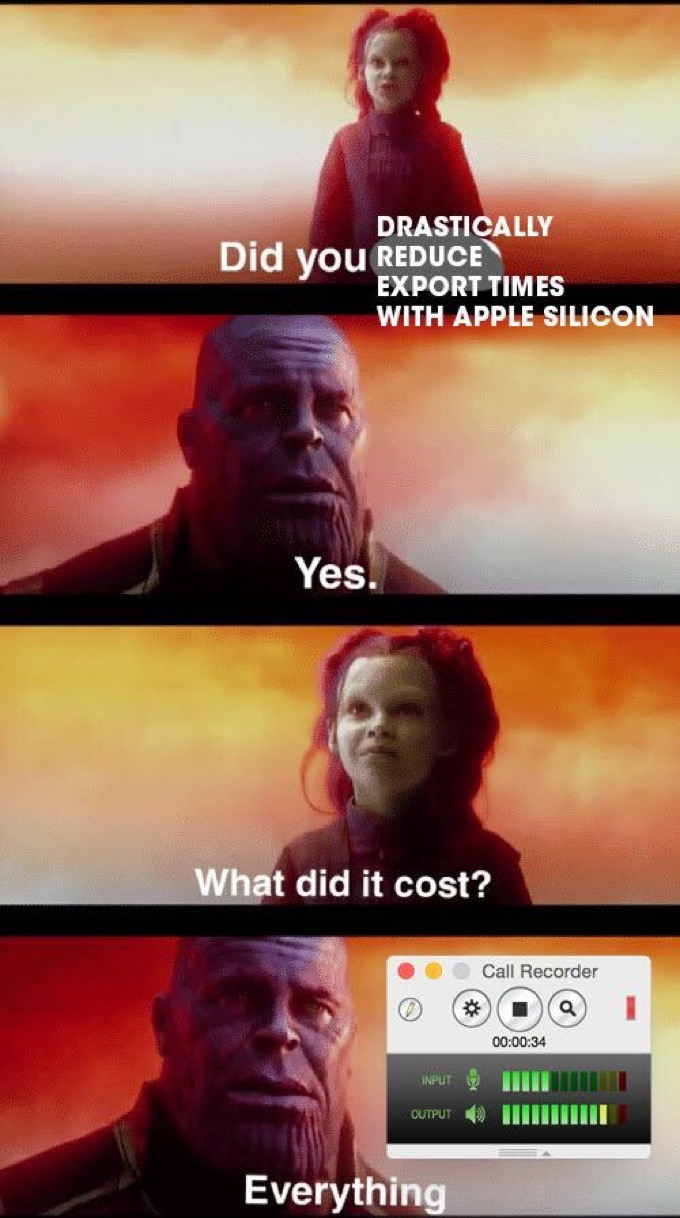
Thanos regrets killing Call Recorder.
Via Simone de Rochefort on Twitter.

On one level, the impending death of Call Recorder, a utility I’ve relied on for more than a decade, shouldn’t actually be a big deal. As useful and easy as it was, it’s not as if there aren’t alternatives.

In fact, if I’m being honest, Call Recorder hasn’t been my primary audio-recording tool for years. That distinction goes to Audio Hijack, which works with any app (not just Skype). But I have kept Call Recorder running for every Skype call I make, sometimes as my primary recorder, more often as a backup.

There’s a broader issue here, though. We rely on tools, and we build whole workflows around those tools. Remove the core tool from the bricolage of software, hardware, and mental calculation that forms a computer workflow, and you might end up never noticing—or the whole thing might collapse like a wobbly Jenga tower.

For most people, in most cases, change comes at a high cost. It’s human nature to want to maintain a comfortable status quo once you’ve managed to find one. Choosing to swap out or modify a portion of your status quo rather than just stick with inertia is a big step. The potential benefit can’t be marginally better than what you’re doing now, it needs to be appreciably better, or that change will never happen.

When I switched from editing podcasts in GarageBand to Logic Pro, it meant throwing away all the shortcuts and tricks and habits I’d built up over years in order to make the editing process as quick as possible. The Logic learning curve was high, and I knew that in the short term I was going to be paying a large price in terms of productivity, but the potential for far greater productivity on the other side finally forced me to make the move. And on the third attempt to break away, I finally did it.

Choosing change is tough, but sometimes you don’t choose, and there’s no obvious benefit at the end of the process. If one of your key tools is discontinued, or becomes incompatible with the next version of your operating system or the new hardware you just bought, you’re going to be forced to move eventually. Call Recorder users can keep using it for now, but as soon as they buy a Mac that’s running Apple silicon, the jig is up. Change is coming, inevitably.

It’s an opportunity

Since change is inevitable, you might as well look at the bright side. Once one of your assumptions is invalidated, it’s an opportunity to revisit everything and make changes that might have previously been unthinkable. When I was at Macworld, I tried to use our shift from print to the Web to shake people out of using Microsoft Word as the writing tool of choice. (I was only partially successful, alas.)

My use of Skype for podcasting was waning already, but the impending departure of Call Recorder suggests that any remaining resistance to abandoning Skype may be about to fade away. Skype’s great advantage was that it was free and ubiquitous; these days everyone has Zoom and I have a paid Zoom account. There are also web-based services that solve the entire “use special software to record your voice locally” problem; Zencastr is currently free during the pandemic, I used Cast for one of my podcasts for several years with good results, and SquadCast has a lot of adherents. (All of these services require Chrome or Firefox and don’t work with Safari.)

I also need to use this opportunity to remind myself that I shouldn’t let perfect be the enemy of good. I have a very specific dream set of features I’d like to see in a voice-over-IP tool: cross-platform support including mobile and automatic local recordings saved to cloud storage are the big ones. But if no tool offers that (and none do, so far as I can tell), I need to be open to any workflow that results in an understandable conversation with a high-quality and editable recorded result. If that leads me to weird places like a Discord recording bot or a weird VOIP app I’ve never heard of, so be it. I wouldn’t have chosen this moment to revisit all of this, but the moment is here regardless.

By the way, here’s a tip if you’re wondering what you’ll use to record calls when Skype Call Recorder dies. The Podcast Guest Guide by my friend Antony Johnston has the answers, but if you’re using a Mac, you already have the software required to record your voice: QuickTime Player will do it. For more complicated Mac recording set-ups, I again recommend Audio Hijack, but it’s not necessary if you’re just recording your own voice on a podcast.

The fate of the future

Every time an app I rely on exposes its mortality, I realize that all the software I rely on is made by people. And some of it is made by a very small group of people, or even largely a single person. And it gives me pause, because whether that person decides to stop development or retires or is hit by the proverbial bus, the result is the same: That tool is probably going to fade away.

A lot of the software I rely on is a couple of decades old. And while those apps have supported the livelihoods of a bunch of talented independent developers, it can’t last forever. When James Thomson decides to move to the Canary Islands and play at the beach all day, what will become of PCalc? When Rich Siegel hangs up his shingle at Bare Bones Software, will BBEdit retire as well? Apps can last as abandonware for a while, but as the 32-bit Mac app apocalypse taught us, incompatibility comes for every abandoned app eventually.

Of course, Indie software isn’t alone in these risks—it’s just concentrated a bit more. Larger businesses often change direction, lay off staff, or even declare bankruptcy.

Nothing lasts forever. That’s the truth whether we like it or not—so we might as well be optimistic about it. As the saying goes, when one door closes, another opens.


February 5, 2021

Nothing lasts, especially not software.


Our thoughts on tech obscurity, the quality-of-life improvements in iOS 14.5, the software feature we want to see come to our favorite platform(s), and Tim Cook’s take on Big Social.


Stalwart call-recording tool succumbs to Apple silicon

A tool I have used for a dozen years seems to be officially, finally on its way into oblivion, as noted in an Ecamm Network tech note posted last week:

Call Recorder for Skype will not be updated for compatibility with M1 Macs.

Ecamm confirmed to me that the company “currently [has] no plans to support Apple Silicon.”


I still use Call Recorder for Skype for every podcast I record with Skype, mostly because it’s directly integrated into Skype and records calls automatically.

But I suppose the writing has been on the wall for quite a while now. Over the past year, nearly every Skype update has broken compatibility with Call Recorder, requiring Ecamm to issue repeated updates and even change how the app behaves so that it automatically reinstalls itself after Skype kicks it out. It’s been ugly.

Meanwhile, the app’s publisher has seemingly moved on, focusing on its new (and very nice) live-streaming product, Ecamm Live.

I guess it’s the end of an era, or at least it will be once the transition to Apple silicon is complete. Perhaps this will be the final change that drives a lot of podcasters out of Skype and into other, better options. (I use Zoom for many of my podcasts, because of its superior sound quality and recording options, and am always recording with Rogue Amoeba’s excellent Audio Hijack.)

Update: Ecamm has added a blog post confirming the situation.


By Stephen Hackett

The Hackett File: A Look at GoodLinks

GoodLinks
GoodLinks runs on the Mac, iPad and iPhone.

Since the dawn of time the App Store, I’ve used Instapaper to save links for later, but last year I checked out GoodLinks, thanks to John Voorhees’s review at MacStories.

GoodLinks is developed by Ngoc Luu, who also develops Jason’s favorite iPad text editor, 1Writer. And like that app, GoodLinks has a simplicity about it that betrays the complexity it offers.

The Mac app is admittedly much simpler than its mobile sibling, but it looks good and offers a sharing extension, so getting links into it from something like Safari is just a couple of clicks away.

Both versions support tagging for organization, as well as the ability to star an item to find it later more quickly. Additionally, the title and summary of saved items can be manually edited, which is a nice touch if a webpage has some wonky metadata that GoodLinks can’t parse.

Both apps also save article content for off-line reading, which is standard for this genre of apps, as Instapaper was designed by Marco Arment for reading web content on the subway.

The iPad and iPhone version also offer an extension for quickly saving links from the Share Sheet. Details can be manually edited while being saved, but I prefer the app’s “Quick Save” feature, which imports the link without the intermediate step of updating its metadata. It’s really, really fast.

Unlike some of its competitors, GoodLinks syncs via iCloud, so there’s no third-party server in the middle to worry about and no new account to set up. In my experience, sync between my devices has been very good, even when I dumped 10,000+ links into it from my Instapaper account. It took iCloud several minutes to figure out what I had done, but after that things have been really smooth.

If you do run into issues, iCloud data can be forcibly re-synced or deleted altogether. And, of course, data can be easily exported.

When it comes to reading, GoodLinks uses a Safari Reader-like experience that is easily customizable. If, for whatever reason, GoodLinks can’t render the article in its own view, loading the page in an in-app browser is easily done. There, GoodLinks defaults to using Safari’s native Reader mode to help keep things minimal.

If you’re the type of iOS or iPadOS user who is into automation, GoodLinks has you covered there as well. The mobile app comes with a long list of Shortcut actions as well as deep URL scheme support, as Voorhees wrote in his review last year:

On the iPhone and iPad, the Action menu can also include Custom Actions defined by the user that allows components of an article saved in GoodLinks to be passed to another app using URL schemes. Among the data that can be passed is an article’s URL (escaped or unescaped), image URL (also escaped or unescaped), title, description, author, and content in HTML, plain text, or Markdown.

GoodLinks also has extensive Shortcuts support with actions to show a specified list of articles, add links, display a list of all links or just links tagged with a specific tag, open links, open the last unread link, open a random link, retrieve links with a specific tag, get all links with a specific tag, and get a list of tags. It’s a long list of actions that, along with GoodLinks’ own URL scheme, opens up some interesting possibilities.

GoodLinks is a universal app with a one-time cost of $5. If you’re looking for a Read-it-Later app without a subscription, or one with a more modern feel than its competitors, it’s well worth the price of admission.

[Stephen Hackett is the author of 512 Pixels and co-founder of Relay FM.]


By Jason Snell

Hands on with Big Sur beta 11.3

Note: This story has not been updated since 2021.

On Tuesday, Apple released its first developer beta of the next macOS cycle: Big Sur version 11.3. (I’m still getting used to typing “11” after all these years.)

First, the warning: This beta is rough. Like, so rough that I’m reverting to macOS 11.2 on my MacBook Air as I write this story. You know the kind of beta that’s safe enough to install and use despite the warnings? Well, this isn’t that kind of beta.

It was so rough, in fact, that I couldn’t test some of the exciting new features, like support for stereo-paired HomePods as a default output device at long last.

This list is much better when it’s sorted by priority.

Reminders has gotten a nice tweak, allowing you to sort lists via priority, due date, the date they were entered, or even by title. You can perform sorts in either ascending or descending order, and if you don’t like sorting, you can rearrange items by dragging them around.

I can confirm that iOS apps running on the Mac do launch at larger sizes when available, which is nice, and the confusing “Touch Alternatives” menu item on iOS apps—which was intended to give Mac users ways to navigate more touch-focused iOS apps—has been relocated to a preference pane, with the ability to turn off individual features instead of the old all-or-nothing approach.

Safari reordering things
Reorder that start page!

Safari picks up a few new features in this beta, including the ability to reorder the contents of the new start page design introduced in 11.0. There are apparently also some new extension types and support for the Web Speech API, but I couldn’t test those.

Other new features in the betas include a new Made For You Library shortcut in the Music app that unearths personal mixes and other personalized playlists, a redesigned News+ tab in the News app to highlight News+ newspapers and magazines, and support for Xbox Series X and Playstation 5 controllers.

So, in short: Big Sur development continues, at least for the moment. At some point, Apple’s attention will undoubtedly turn to building out whatever is going to be shown off in June at WWDC as the next major update to the Mac. (Will it be 12.0? 11.5?) But in the meantime, there’s at least one major milestone left in the life of Big Sur on the way.


By Jason Snell for Macworld

The Mac’s audio and AirPods support needs to be more like iOS

There’s a lot to prefer about how macOS handles sound compared to iOS. On the Mac, more than one app can play audio at one time, and the audio just plays—on iOS, only one app is supposed to play audio at once. On the Mac, apps like Rogue Amoeba’s Audio Hijack, SoundSource, and Loopback make it possible to route different audio between different apps, speakers, and microphones, while recording and streaming live at the same time. On iOS, it’s just not possible.

And yet the more I use my M1 MacBook Air with my AirPods, the more I am reminded that there are so many ways in which the Mac doesn’t live up to the standard set by iOS. I expect Apple’s products to behave in a certain way… and get let down when the Mac can’t keep up with its younger cousins.

Continue reading on Macworld ↦


By Jason Snell

Bad AppleScript: Fake RSS, real newsletter

Note: This story has not been updated since 2021.

It came from AppleScript?!

The big benefit of this site’s move to WordPress was the ability to post our members-only articles to the site. The result has been an influx of new members, for which we are very grateful.

However, this change led me to decide that I wanted to change what I had been doing with our members-only newsletter. And that led me down a rabbit hole that led to a very large AppleScript script, which will come as no surprise to some of you.

Previously, we’d write four or five original pieces and mail them out to subscribers as a part of a monthly newsletter. Once the WordPress site was up and running, the newsletter no longer needed to be the (only) vehicle by which subscribers received their members-only content. If you like reading on the web, you can read them there. If you like reading them in RSS, you can read them there. And of course, there’s a newsletter, too.

I also wanted to spread those pieces out across the month and post one every week. And with that, I wanted to change the newsletter from a monthly schedule to a weekly one. On a weekly basis, members could get a members-only article—as well as the other articles we posted every week. It would make the newsletter a good fit for people who prefer to read stuff in email—and those who didn’t, didn’t need to read it anymore since all the members-only stuff was on the website.

So it’s decided, then. Time to make a weekly newsletter. But I didn’t want to spend time building a newsletter every week. I wanted it to happen automatically.

This was the rabbit hole. And what plunged me down that hole was my discovery that MailChimp, the email provider I’ve used for Six Colors since the beginning, supported RSS-generated newsletters.

Now by default, these newsletters were disappointing. Automated blog-to-newsletter systems just want to dump all your blog posts into a newsletter template and send it out. I wanted control over the order and design of the newsletter, with like posts grouped together.

This desire to have it just the way I wanted it is also why I spent months building my own WordPress theme for Six Colors, overriding dozens of default behaviors along the way. I want it the way I want it! Is that so wrong?

Most great user automation projects are the result of a “Bad Idea” moment. “I could do it this way—oh, that’s a bad idea. But…”

Here was my bad idea: Just because MailChimp’s RSS system didn’t work the way I wanted it to didn’t mean I couldn’t make it work the way I wanted it to. I could set MailChimp to automatically mail out an email on Friday evenings to all Six Colors subscribers, based on an RSS feed.

And then I could write a script that would generate an RSS feed with a single entry, containing exactly the newsletter I wanted to send.

Yep, that happened.

Continue reading “Bad AppleScript: Fake RSS, real newsletter”…


It’s now February 2021, but before we turn the page entirely it’s time to look back one last time at 2020. Apple had a record holiday quarter with growth across the board, and Apple watchers filled out the annual Six Colors Apple Report Card. Spoiler: It was the best of times, it was the worst of times.


By Jason Snell

Apple rolls out Big Sur 11.2, unmasks new iOS betas

Note: This story has not been updated since 2021.


On Monday Apple released macOS Big Sur 11.2, featuring improvements to Bluetooth reliability, some assorted bug fixes, and a bunch of stealth feature changes, like closing the hole in the wall that allowed Apple software to bypass macOS security limits.

Apple also began its next software-update cycle Monday, with the release of the first developer betas of iOS 14.5. New features include a more compact “type to Siri” interface, support for Xbox Series and PS5 controllers, sortable Reminders lists, worldwide dual-SIM 5G support, and a horizontal boot screen (!) for iPadOS.

Perhaps most intriguing, however, is a feature enabled by iOS 14.5 and watchOS 7.4 which will allow you to unlock your iPhone when wearing a mask by having a password-protected and unlocked Apple Watch in proximity to the iPhone. This is quite similar to the existing feature that lets Apple Watch unlock Macs that are nearby.

I just tried this feature and it worked flawlessly, unlocking my iPhone while wearing a mask, with an accompanying tap on my wrist to indicate that the Apple Watch had done the job. It’s my understanding that some authentications on iOS will still require a password or Face ID, such as Apple Pay and buying apps. But if you just want to check your shopping list while wearing a mask at the grocery store, things are looking good.

Keep in mind that these are currently only developer betas; eventually subscribers to Apple’s Public Beta stream will get them, and then in a few weeks they’ll appear for everyone through the normal software-update mechanism.


By Dan Moren

iCloud Keychain comes to Chrome, but sadly only on Windows

Note: This story has not been updated since 2021.

As I wrote just this week in Macworld, Apple has used a number of strategies to encourage users to switch to its products, among them, the “ice water in hell” approach of adapting some of its own software to rival platforms. That’s at least part of the reasoning behind Apple’s iCloud Keychain extension for Chrome, which extends the password manager feature from its own ecosystem to Chrome users on Windows.

But not, interestingly, to Chrome users on the Mac, even though the extension can be installed in that version of Google’s browser. However, according to the text on the extension’s page, it appears to be designed to specifically work with iCloud for Windows, so it doesn’t actually do anything on the Mac beyond providing a broken interface.

iCloud Keychain Chrome for Mac
The iCloud Keychain extension for Chrome doesn’t seem to work on the Mac.

That’s a bit of a disappointment for me: I end up using Chrome a decent amount for sites that Safari doesn’t support well or at all—for example, Roll 20, the virtual tabletop system that we use to record our Total Party Kill podcast over at The Incomparable.

Switching between browsers can often be a frustrating experience when it comes to passwords, since it either means a time-consuming process of looking up credentials or relying on multiple password managers, which itself adds overhead in time and energy. These days, I save the passwords for the sites I use in Chrome most frequently in Google’s own password-saving feature, and rely on 1Password for most of the rest, but it would certainly be a lot easier if Chrome on the Mac had access to an iCloud Keychain extension as well.

Something tells me this isn’t going to change any time soon—neither Apple nor Google have much incentive to make Chrome and iCloud Keychain play well together on the Mac—but as always, when big tech companies are at odds, it’s generally the users, caught in the middle, that end up losing.

[Dan Moren is the East Coast Bureau Chief of Six Colors, as well as an author, podcaster, and two-time Jeopardy! champion. You can find him on Mastodon at @dmoren@zeppelin.flights or reach him by email at dan@sixcolors.com. His next novel, the sci-fi adventure Eternity's Tomb, will be released in November 2026.]


By Dan Moren for Macworld

How Apple flips the switch and keeps bringing in new customers

The more things change, the more things stay the same. For the past several years, the comic strip Doonesbury has been in re-runs for its weekday strips; this past week’s series, hailing from 1995, dated from the release of Windows 95, in which one of the strip’s characters pointed out the superiority of Apple’s Macintosh, only to be brought back down to earth by the reality of Microsoft’s platform dominance.

More than a quarter of a century later, Apple has become one of the most valuable and pervasive companies in the world, but, some things clearly haven’t changed that much. CEO Tim Cook said in the firm’s latest quarterly financial call, “…we really don’t have a significant share in any market.” Cook was speaking specifically of the iPhone, which is a minority in the smartphone market when compared to Android, but the same can still be said of the Mac. Yet the company has always maintained an outsized presence, even when it’s in the minority.

Cook continues to see that as an opportunity for Apple. When most people in the market aren’t already your customers, that means they’re still potentially customers. And that theory seems to be borne out by the numbers; for years, Apple has said that around half of those buying Macs or iPads in a quarter are new to the product.

But even with such a big potential market, how do you convince people who haven’t already made the jump to switch?

Continue reading on Macworld ↦


By Dan Moren

The Back Page: How to rebuild the Spotlight index on your Mac

If you get unexpected, puzzling, or even downright befuddling results when searching your Mac, rebuilding the Spotlight index might help.

  1. Choose Apple menu > System Preferences, then click Spotlight.
  2. Click the Privacy tab.
  3. There is no Step 3.
  4. Just kidding.
  5. Step 3: Drag the disk or folder that you want to index again to the list of locations that Spotlight is prevented from searching. Or click the add button (+) and select the disk or folder to add.
  6. If you are running macOS Catalina or earlier, select the disk or folder that you just added.
    1. If you are in the Northern Hemisphere, single click on it.
    2. If you are in the Southern Hemisphere, control-double click it.

    <

  7. If you are running macOS Big Sur or later, carefully wave the mouse pointer over the disk or folder that you just added.
  8. Convert the name of the item that you have selected into Unicode notation.
  9. If the Unicode notation of the first character is an even number, skip to the next character.
  10. Repeat until you reach an odd number.
  11. Is this your card?
  12. Open Applications > Utilities > Terminal.
  13. Type tput bel. Press return.
  14. Quit Terminal.
  15. What day is it?
    1. If it is Monday, drink some water.
  16. Dance like nobody’s watching.
  17. Consider that someone, somewhere, is attempting to rebuild their Spotlight index, and that you may simply be a bit in that index, ready to be wiped away at a moment’s notice, only to be near instantaneously rebuilt from the ground up. Perhaps we are all just ones and zeroes, and nothing more. Makes you think, doesn’t it?
  18. GOTO 10
  19. Somebody is watching. Dance.
  20. This step intentionally left blank.
  21. ^C^C^C^C^C
  22. Time to stand! Stand up and move a little for one minute.
  23. Rethink your life choices.
  24. Do you still want to rebuild your Spotlight index? (y/n)
  25. Seriously? Why? How can you stand to go through this again?
  26. Read Twitter for a while.
  27. Okay, fine. Remember that disk or folder you selected way back in Step 6? I’ll wait.
  28. Click the remove button (–) to remove it from the list.
  29. There, was that so hard?
  30. Quit System Preferences. Spotlight will reindex the contents of the disk or folder. This can take some time, depending on the amount of information being indexed. Once finished, this might solve your problem.
  31. Or it might not. In which case, see step 1.
  32. Yes, this process is quite ridiculous.
  33. Bang on your computer in frustration.
  34. Buy a new Mac.

[Dan Moren is the East Coast Bureau Chief of Six Colors, as well as an author, podcaster, and two-time Jeopardy! champion. You can find him on Mastodon at @dmoren@zeppelin.flights or reach him by email at dan@sixcolors.com. His next novel, the sci-fi adventure Eternity's Tomb, will be released in November 2026.]


January 29, 2021

Good and bad grades, record results, and both the Home app and Facebook are bad.


By Jason Snell

Apple in 2020: The Six Colors report card

Note: This story has not been updated since 2021.

Tim Cook, photo by Apple

It’s time for our annual look back on Apple’s performance during the past year, as seen through the eyes of writers, editors, developers, podcasters, and other people who spend an awful lot of time thinking about Apple.

This is the sixth year that I’ve presented this survey to a hand-selected group. They were prompted with 12 different Apple-related subjects, and asked to rate them on a scale from 1 to 5 and optionally provide text commentary per category. I received 55 replies, with the average results as shown below:

average score chart

Since I used largely the same survey as in previous years, I was able to track the change in my panel’s consensus opinion on all but one question compared to previous years. The net changes between 2019 and 2020 surveys is displayed below:

score changes

Read on for category-by-category grades, trends, and commentary from the panelists.

Continue reading “Apple in 2020: The Six Colors report card”…


iOS 14 protects iMessages with “Blast Door”

Really interesting (albeit highly technical) look from Google security researcher Samuel Groß at a new iMessage protection scheme that Apple introduced in iOS 14:

As can be seen, the majority of the processing of complex, untrusted data has been moved into the new BlastDoor service. Furthermore, this design with its 7+ involved services allows fine-grained sandboxing rules to be applied, for example, only the IMTransferAgent and apsd processes are required to perform network operations. As such, all services in this pipeline are now properly sandboxed (with the BlastDoor service arguably being sandboxed the strongest).

In short, iMessage now has a custom security protocol that makes it harder for malicious messages (a known attack vector in earlier versions of iMessage) to compromise the whole system, while also keeping the service backwards compatible with devices running on earlier OS versions. Impressive work from Apple that’s all essentially happening invisibly to the end user.


Search Six Colors