Communication has always driven technology forward. From the telegraph to the telephone to the internet, it’s regularly been one of the killer apps for every technological development of the last century-plus. And Apple’s devices are no exception to that. When Steve Jobs introduced the original iPhone, he described it as a revolutionary mobile phone, but he also called the device that would go on to dominate Apple’s business was as a “breakthrough Internet-communication device.”
Fifteen years later, we use the iPhone to talk with others in a variety of ways, of which the phone capability may ironically be the least. But while Apple’s spent a lot of time investing in the communications powers of its platforms, it has a tendency to let those technologies languish once it’s rolled them out.
As Apple potentially preps a headset device for an announcement later this year, one of the key areas it’s reportedly looking to concentrate on is also communication. Might this signal a renewed interest in the company’s investment in this category? If so, here are a few ways that Apple could improve its current communications options.
This post is a basic who-what-why primer on the controversy involving new 5G wireless networks, and airline operations at major U.S. airports. It’s not meant to be conclusive but instead an introduction, with links to more detailed discussions.
In short, new 5G radio bands potentially conflict with critical flight-safety radio bands, and U.S. regulators have done a comparatively bad job of figuring out the rules. It’s more complicated than that, though—read Fallows for lots of great info and links.
My thanks to Kolide for sponsoring Six Colors again this week.
Kolide believes that the key to unlocking a new class of security detection, compliance, and threat remediation is the “average” person. So do the hundreds of organizations that send important security notifications to employees from Kolide’s Slack app.
Kolide knows that organizations can dramatically lower the risks they face with a structured, message-based approach. More importantly, they’ll be able to engage end-users to fix nuanced problems that can’t be automated.
Kolide’s “Honest Security” is part guide, part manifesto. It’s a user-first approach to security and IT compliance. Kolide doesn’t like the current trends toward human-hostile security and device management. That’s why you should check out Kolide today.
January 21, 2022
When to repair and when to retire old tech, networking adventures, and green bubbles.
With the advent of Shortcuts on macOS, automation on the Mac has become more accessible than ever. There is no part of our workflows that we can’t automate and thus there is no part of our workflows that we cannot overautomate.
While developing the Podcast Note shortcut that Jason and I collaborated on, I ran into a dilemma. I had just recently adjusted all my Audio Hijack sessions, where I maintain separate instances for most of my regular shows, to save audio files within corresponding subfolders in my Podcasts folder.1 (The impetus was to get those hefty files off my Desktop, which is now synced via iCloud. No need to have several hundred megabytes uploaded to the cloud only to be removed within the hour.)
But that made my Podcast Note shortcut tricky, because it assumes the files it’s looking for will be in a single folder, not strewn through any of several subfolders.
There were a few different ways this could have been solved—I’m sure I could have adjusted the Podcast Note shortcut to search through all the subfolders and find the most recently modified file, for example, but there’s a risk of error, and it feels like at that point I’ve adjusted it to be too specific to my workflow.
So the answer, for the moment, was a combination of adjusting my current workflow and, you guessed it, building another automation.
I started off by creating an In Progress subfolder in my Podcasts folder, and adjusting all of my Audio Hijack sessions to put the recording files there. And while I could just collect those files at the end of a recording session and put them in the appropriate show-related subfolder, that sure seemed like a job automation could handle.
At first, I figured that Noodlesoft’s Hazel might be the right tool for this task, since it excels at watching folders and then dealing with files. But after playing around with it for a while, I couldn’t quite get it to handle all the correct conditions without creating multiple rules, and that quickly got out of hand.
But, while perusing the menu of actions available, I noticed the most recent versions of Hazel have added the ability to run a shortcut as the action part of a rule.
Back to Shortcuts we go!
In Shortcuts, I created a new Podcast Sorter workflow, in which it looks in the In Progress folder for audio files that haven’t been modified in the last minute (to avoid moving any files that are part of a current recording), then grabs an MP3 file from that files (all my sessions save audio from my mics and remote ends as WAVs, but record the whole shebang as an MP3 for convenience).
Here’s where I had to make another adjustment to my workflow. In order to have the file identified as part of a specific show, I had to alter my Audio Hijack sessions to use the name of the show as the first part of that MP3 file. Fortunately, Hijack allows you to use tokens representing the name of your session in your file name, so I just made sure that all my sessions were named consistently with the the subfolders in my Podcasts directory.
So now the shortcut can grab the first part of the MP3 name and check it against all the subfolders in my Podcasts directory to find the correct place for it to live. If it finds a match, it creates a new subfolder and moves all the files it found way back in the first step. (This ought to include any notes files created by the Podcast Note workflow as well.) If it doesn’t find a matching folder, it drops a subfolder called “Recording” appended with the current date into a generic Miscellaneous folder.
The one thing I wanted to do that I couldn’t quite make happen was use the current episode number of the shows I host. So, for example, if it were the latest episode of Clockwise, it would ideally create the subfolder as “Clockwise 435.” I could look for the most recently modified subfolder and pull the number out of the name, but that would only work in certain cases, which would mean more filtering on the Shortcuts end. For now, I’ve just named the folders the show and the current date, which I can edit later at my leisure, but I may go back to this in the future.
I still have to have the Shortcut itself triggered by Hazel, since Shortcuts on macOS doesn’t have any automation options, as on iOS.2 In this case, that’s by having Hazel watch the folder for files not modified in the last minute, then running the Podcast Sorter shortcut.
Hazel is still needed to have the shortcut run automatically.
If anybody’s interested, I’ve provided the shortcut here, though it’s so specific to my setup that I’m not sure it will be of use to others as is. As always, if you’ve got suggestions or ideas, let me know!
I.e. Clockwise recordings go into Podcasts/Clockwise. ↩
Even iOS doesn’t have an option to run Shortcuts at automatic intervals, for obvious reasons. ↩
[Dan Moren is the East Coast Bureau Chief of Six Colors, as well as an author, podcaster, and two-time Jeopardy! champion. You can find him on Mastodon at @dmoren@zeppelin.flights or reach him by email at dan@sixcolors.com. His next novel, the sci-fi adventure Eternity's Tomb, will be released in November 2026.]
The decommissioned weather station, with cloudy solar panel, spiderwebbed shield, and mossy anemometer.
It’s rare that a piece of technology lasts so long and serves you so well that it’s a big occasion when you finally decommission it. But that’s what happened earlier this month when, in a quiet ceremony, my weather station was retired.
Your correspondent installing the Vantage Pro in August 2004.
It certainly had earned its retirement. I installed it and several other weather stations in August of 2004 for a story in Macworld. I liked the Davis Vantage Pro so much that I sent Davis a check and kept it running.
Seventeen years is a long time when it comes to computer-related technology. When I first hooked up the weather station, it communicated wirelessly to a receiver that could be attached to a Mac via a serial cable and a USB-to-serial converter box. A Java app on the Mac logged the data and generated a web page.
As you might expect, things evolved over time. Davis’s Java app was awful and ultimately deprecated, but I replaced it with WeatherCat from Trixology, which I still use today. Davis eventually created an add-on product for the Vantage console that let me drop the USB connection and replace it with an Ethernet-connected logger that uploaded data to both WeatherCat and Davis’s own cloud-based logging service.
Even a device designed to live outside can take some body blows over 17 years. I had to replace the rain gauge a few years ago and disassemble the entire thing several times to clean out detritus and spider webs. At several points I thought it was on its last legs, and finally this winter, some of its sensors just started going dead for long stretches of time.
Your correspondent, with much lighter hair and a new weather station.
I decided it was time. And so the weather station, adorned with some moss that had grown on it over the years, came off the pole mounted on the back of my house.
Though I considered buying a Netatmo station, which seems to be the best “starter” home weather station on the market, I decided that I had to reward Davis for the fact that it made a weather station that was installed when my son was a newborn and removed as he was about to enter his final semester in high school. I bought a Davis Vantage Vue, mounted it on the very same pole the old station had been on, connected it to WeatherCat, and the data just kept on rolling in.
(I bought the Vantage Vue, which is several hundred dollars cheaper than the direct successor to my old weather station, mostly because of the price. It’s a simpler design, and while it lacks a few of the sensors of the Vantage Pro, it’s a much better value. My old weather station arrived a few years before the Vantage Vue was introduced. If you’re considering a Vantage Vue, I’d recommend the WeatherLink Live Bundle, which includes the weather station as well as a receiver that directly connects to the Internet.)
No, having a weather station isn’t for everyone, but I love it. The current temperature appears on a Lametric Time in my living room, in my Mac menu bar, in a shortcut on my Apple Watch, in a widget on my iOS devices, and complete historical data and charts—recently augmented by a bunch of python scripts I wrote to parse WeatherCat’s data file directly—live on my home web server. I love it.
So thank you for your service, old moss-encrusted, spiderwebbed Vantage Pro. And welcome to the new Vantage Vue. Long may you measure.
Apple has tapped a new head of PR: longtime company spokesperson Kristin Huguet. She’ll replace Stella Low, former communications chief at networking giant Cisco, who joined Apple in May of 2021.
It’s almost as if Apple’s corporate culture is so very particular that hiring a top-level person from outside the company is rarely a good idea.
Apple killed off Dashboard at exactly the wrong time. Just one year after Catalina killed Dashboard, Apple started allowing developers to bring their iOS widgets over to the Mac in macOS Big Sur. Sadly, they all got stuffed into the slide-out Notification Center user interface.
I was not a fan of Dashboard, and I’m glad it (finally) died, but Stephen is exactly right here. Widgets in macOS deserve to not be hidden in Notification Center. In fact, they deserve to be placed on the Desktop, appear from drop-down menus, zoom out from Dock items, and, yes, appear in a floating Dashboard layer. Widget all the things!
In an email to administrators this morning, Google said it “will now transition all remaining users to an upgraded Google Workspace paid subscription based on your usage.” As such, Workspace’s only free plans are for Nonprofits and Education (Fundamentals).
After getting free Gmail, Drive, Docs, and other apps for the past several years, companies/people will need to start paying for those Google services and the ability to use your own custom domain (instead of just gmail.com).
I’ve been using Google Apps for Domains for 15 years, all for free. I knew the free ride would end eventually, and as of now, it has. But I love using Gmail (and Mimestream) and don’t mind paying $6/user/month for my extremely small user base in order to keep the ball rolling.
Still, it’s a weird feeling to pay Google for a product. Even one I’ve been using for 15 years.
Ty Burr, former Boston Globe film critic, writing at his Substack about movies that can’t be found online:
The problem, in 9 cases out of 10, is a rights issue. Who owns a movie, particularly one from the post-studio/pre-corporate era of the 1960s through 1990s, can be maddeningly difficult to divine unless you’re a psychic or an entertainment lawyer. Companies dissolve, rights holders die, films and film libraries get bought and bought again and sometimes just disappear into a parallel universe. In many cases, legal contracts detailing a movie’s post-theatrical rights were written in the VHS era or earlier and made no provision for a streaming technology no one back then had the foresight to imagine.
A few years back, I went looking for a legit copy of one of the movies on Ty’s list—Truly Madly Deeply, starring a young Alan Rickman—for my mom1, who loves it but hadn’t been able to find it on DVD. Unfortunately, I wasn’t able to locate a copy. (I see on Amazon that Region 2 versions of DVD and Blu-ray are available, but no US version, alas.) More recently, I went in search of 1999’s Tea with Mussolini for my wife which can be had on DVD, but isn’t available for streaming or digital purchase. And I myself have occasionally tried to seek out the fantastic Argentinian film Nine Queens, which is likewise unavailable online, and hard to come by even in DVD form.
We often think that the streaming era means anything we could ever want to watch at our fingertips, but it also ends up undeservedly burying those movies that aren’t available online. I’m sure in a few decades, after the rights change hands a few more times2, these titles will eventually be unearthed and lauded as “discovered classics,” but for the meantime, you’re either out of luck or have to dive into the seedier side of the internet.
Who is also the one who sent me this article, naturally. Thanks, mom! ↩
Truly the wildest part of Ty’s article might be the mention of two movies that are owned by pharmaceutical giant Bristol Myers Squibb?! ↩
A bit more than 10 years after its introduction, iMessage is suddenly a part of the conversation again. A dubious report in the Wall Street Journal implied that the secret to the iPhone’s success with young people is all about peer pressure, with Android-using teens being cast out of social circles owing to their status as non-iMessage green bubbles in group chats.
That article was silly for numerous reasons, as John Gruber explored in detail last week. While blue-bubble FOMO is certainly real, suggesting that it’s the reason people want iPhones is A-grade, uncut “people only buy Apple products because they’re status symbols” kind of delusion.
When you look at the messaging landscape today, iMessage isn’t a colossus that dominates the world. In fact, I’d say that iMessage’s first decade is more of a failure than a success in terms of worldwide acceptance, user experience, and innovation.
But it keeps going. Several readers wrote in to point out that Dan’s approach could be simplified. Andrew Kerr suggested a single equation that converts the time into a number where 2:03:31 is represented as 2.0331 and then converted into proper formatting via a regular expression. Antonio Bueno suggested adding the seconds to the beginning of Unix time and then custom formatting the resulting time as HH:MM:SS. Both work. Antonio’s is one step shorter, and it’s the one I’m using in the current version of the Shortcut.
Then there’s the matter of entering in text to describe what’s gone wrong at the particular moment of the podcast being noted. Dan’s Shortcut is set up to ask for text—which frustratingly means you have click the Done button on the dialog box, because Shortcuts on macOS Monterey won’t let you use a keystroke. But it also accepts input, and this is a great workaround—especially if you use a launching app.
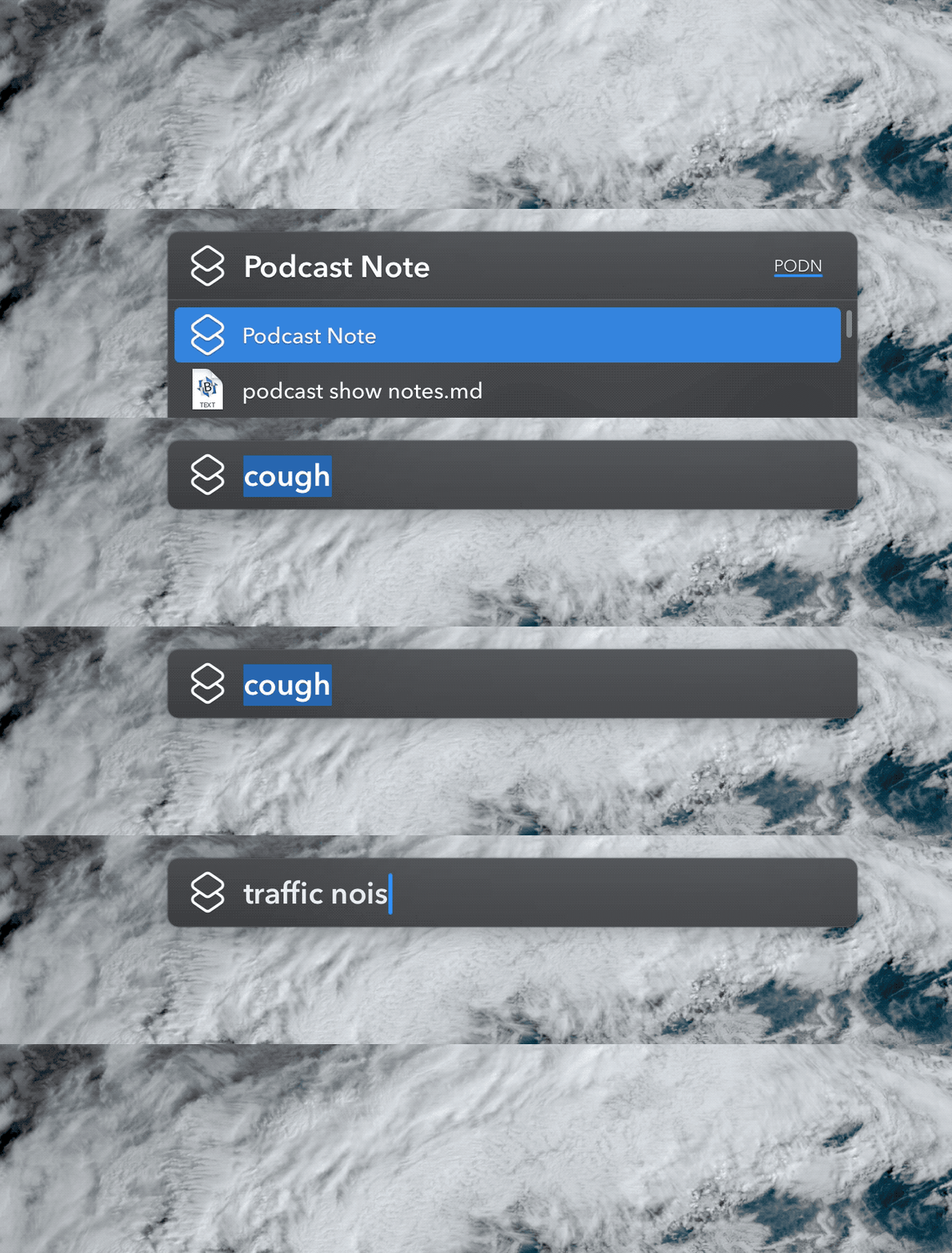
I use LaunchBar, but this will work in Alfred as well. In LaunchBar, I type the name of the shortcut, press the space bar, and then type the text I want inserted in my notes file. LaunchBar passes this text on to the shortcut as input, completely bypassing the step in which it asks for text.
My lesson learned in all this? I need to stop reflexively reaching for AppleScript to solve something when it might be handled entirely in Shortcuts. The Shortcuts version of my script is simpler and more accessible. I have it in my head that if I want to mess around with files on my Mac, I need to script Finder with AppleScript. It’s just not true anymore.
Finding the right interface
When I wrote my story about the original note script, I had only used it a couple of times. Shortly afterward, I hosted a few more podcasts and my approach to using the script—namely, placing two different buttons on my Stream Deck—did not survive contact with the enemy1.
This script needs to be executed with a minimum of mental overhead, because I’m trying to host a podcast at the same time. As I wrote originally, I find that writing on pen in a paper notebook to be too much overhead—which drove me to write this script. Pushing a Stream Deck button should be a lot easier.
And it is, sure. The problem is, an empty time code is not really enough most of the time—there needs to be more information. But having to type a phrase in a box every time there’s an issue was more overhead than I really wanted to expend.
I wired a second Stream Deck button to a Keyboard Maestro macro that displayed an interface on my Mac screen to let me choose from a bunch of different preset options. It seemed like it might be a better option, but in truth, moving my attention from the Stream Deck to my screen, and reaching for the arrow keys, was more distracting than I had expected.
So I’m off to a new approach, which I’ll be putting into use this week to see if it does a better job. Now my podcast layout on the Stream Deck has two buttons intended for notes: A plain Notes button, and a button that still launches a text-entry field for me to enter in a custom note, for the times when I need to be very specific about what just happened.
But that first button doesn’t run a script at all. Instead, it switches to a different Profile, which is what Stream Deck calls a different set of buttons—a new page, if you will. And on that page (at the moment) are six buttons.
A new page.
The button in the bottom left corner, which is the same button that I just pressed, simply adds the time code to the notes file. So if I really have nothing to add, I can press that button twice—almost zero cognitive overhead. But if I want to, I can choose from five other buttons with common issues—swearing, a technical problem, something that needs to be cut, a section or chapter break, or crosstalk (represented by an “x”). The idea here is that by keeping my eyes and fingers on the Stream Deck, this entire process will require less of a shift of concentration. (We’ll see.)
Once any of the buttons on this screen is pressed, Stream Deck returns to the previous set of buttons. This is accomplished by making these buttons a special Stream Deck type called Multi Action, which allows a single button press to perform multiple Stream Deck tasks. In this case, it runs a Run OSA Script action (more on that in a moment) and then the Stream Deck command Switch Profile to flip back to the original set of buttons.
Now, about that Run OSA Script action. Rather than make a bunch of different macros or scripts for every single different input, I wanted to use the ability of the script to accept input to pass different input to a single script. There are a few different ways to accomplish this, but I decided to use Gabriel Perales’s Stream Deck Plugin.
The script it runs is a recursive cheat—I’m actually just using AppleScript’s do shell script command2 to run the osascript command line command, which runs an AppleScript script and lets you pass input along the way. (I’m sure that, like Dan’s script, there are probably 15 different ways to accomplish passing input to a script or Shortcut from out of a Stream Deck button press. Let me know!)
The script attached to each button press looks like this:
do shell script "osascript '/Users/jsnell/podcast-noter.scpt' 'crosstalk'"
The only thing that changes is that final single-quoted item. So for the Swear button, it looks like this:
do shell script "osascript '/Users/jsnell/podcast-noter.scpt' 'swear'"
This approach means I don’t need to make a bunch of copies of my script3, or a bunch of Keyboard Maestro macros. And it means that if I adjust the script later, I only need to do it in one place—and all these buttons should will still work.
Like I said at the start, automation projects are never really finished. I’m sure this one will evolve over time. But I’m glad that so many of my friends who do podcasts have responded positively to this project. I hope it saves everyone—including myself!—a lot of mental overhead and time spent searching for a very specific bad thing while editing a podcast.
The enemy is the coughing, swearing panelists, obviously. ↩
If there’s a Stream Deck plugin to run a shell command, can someone point me to it? And if not, can someone write one? ↩
I would use Dan’s shortcut, but I tried to pass input to it via the shortcuts command-line tool and it seemed way too complicated. ↩
Using a Stream Deck doesn’t just increase your productivity—it also increases your appetite for custom icons to label all those buttons.
Via John Voorhees of MacStories, I found out last week about Christian Lobach’s $4 utility Button Creator, which lets you quickly create drag-and-droppable Stream Deck icons based on Apple’s SFSymbols icons, emojis, or images you drag in.
The app is very simple and I hope Lobach continues to update it. Adding text would be great (Update: A new version with text support is now live on the App Store), since Stream Deck’s text overlay is limited in fonts, sizes, and styling. I’d also like to see Lobach add the ability to drag objects around on the canvas, so I could more precisely position things. (Right now, the images only appear dead center, though you can scale them via a slider.)
This sort of functionality should probably be part of Stream Deck’s own software, but it’s not. And within 10 minutes of downloading Button Creator I had given several different portions of my Stream Deck interface a makeover. Worth the $4 for me, for sure.
Apple’s rumored VR headset might not ship until 2023, but will it be the best VR headset ever made? And if so, at what cost? Also, Apple seems to have a settled on a strategy for handling demands to open up payment processing and external web links, and we’re frustrated by the decision. Following a silly Wall Street Journal article, Android’s SVP got a little too angry about iMessage. Also, we take an unexpected dive into the Users & Groups preference pane.
My thanks to BZG Apps for sponsoring Six Colors this week. BZG makes Unite 4, which allows you to turn any Website into a Mac app. Using a lightweight, WebKit powered browser as a backend, you can easily create isolated, customizable apps from any site.
Unite 4 includes dozens of new features, including support for native notifications, new customization options, and M1 support. Unite apps also serve as a great alternative for resource-hogging Electron apps or half-baked Catalyst apps.
Six Colors readers get 20% off this week when you purchase Unite 4 at bzgapps.com/sixcolors or when using the promo code SixColors at checkout. There’s also a 14 day free trial, and the app is included in Setapp for subscribers.
Some questions are perennials. This week on Upgrade we answered a question from a listener:
Assuming that the display quality of an Apple external display is the same as the upcoming iMac why would Jason pick the iMac over an external display + Mac Mini? It seems like having a more modular set up would be very beneficial in the early days of Apple Silicon #askupgrade
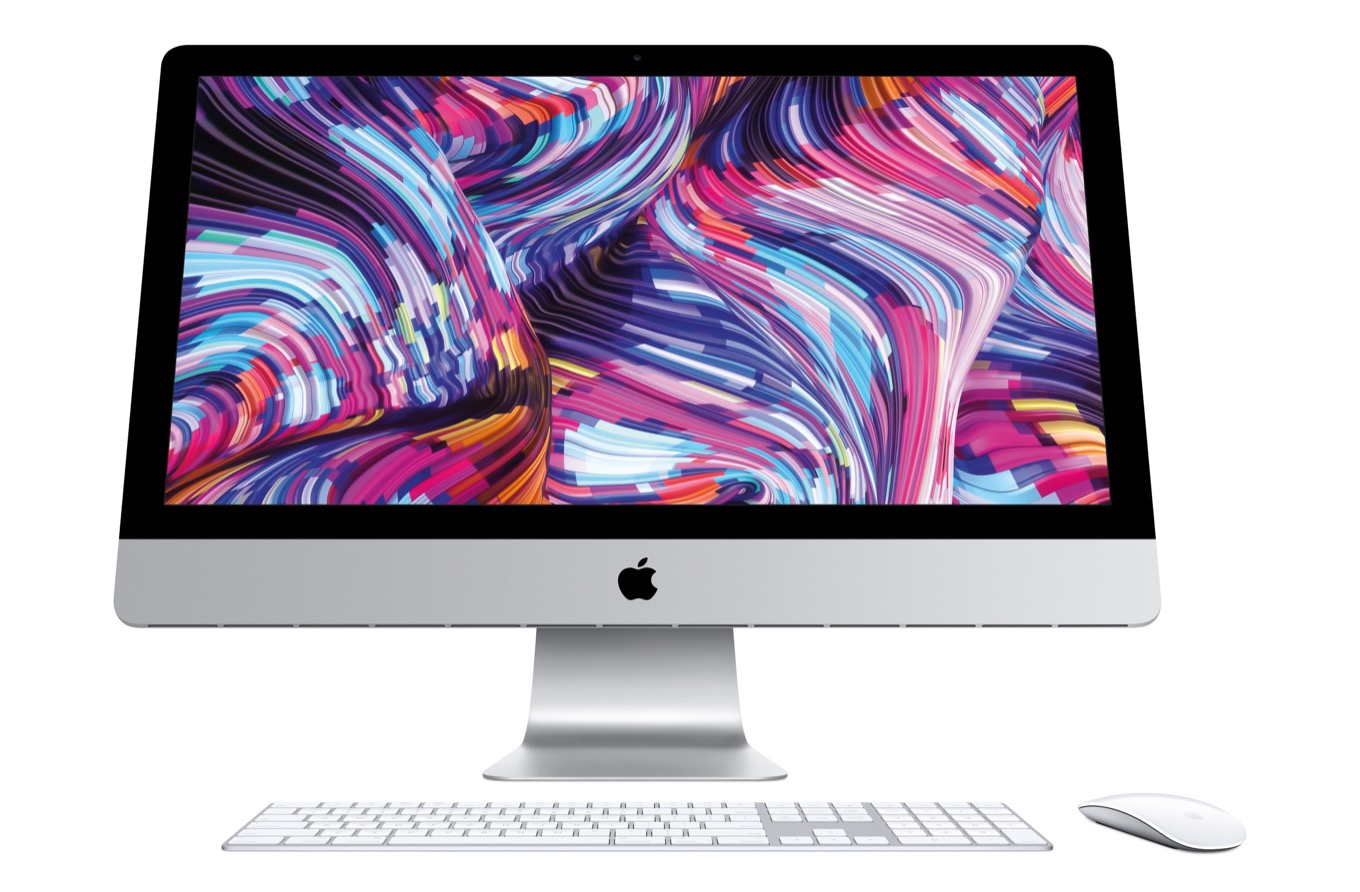
With the increasing suspicion that Apple is readying a new, more affordable external display for Mac users comes the revival of a classic conundrum. Which would you rather have—an iMac, or an external display attached to a separate Mac?
I’ve been on both sides of this question. I’ve had an iMac has my primary computer a few times, including for the last seven-plus years. But before that, I spent an awful long time with a MacBook Air as my primary Mac, attaching it to an external display at one or both ends of my commute.
It’s a tricky one. For some people, the answer will be clear. For others, it will be fraught with indecision. One reason some questions are perennials is because there’s no one right answer for everyone.
Price tags
A new Apple external display isn’t going to be cheap. Bloomberg’s Mark Gurman says the price will be about half that of Apple’s Pro Display XDR, so let’s call it $2500. (Yeah, I know it hurts.)
What will a new 27-inch iMac cost? Undoubtedly Apple will offer a base model at a low price to start the conversation, but most people will want to upgrade the storage, memory, and core count. For the sake of argument, let’s set this better-than-average iMac at $3000.
If you already own a laptop, you’re set. Buy the new display, attach the laptop, you’re done.
But if you don’t? Or if your laptop is old or underpowered? You’ll need to spend $2500 on the screen and then spend $1000 (for a “pro” Mac mini or a MacBook Air) or $2000+ (for a MacBook Pro) or… a lot more for a Mac Pro.
At which point you may say to yourself, “Maybe an iMac isn’t such a bad idea.” $3000 out the door for an iMac Pro? Plus you’ve still got your current laptop? Not a bad deal, at least to start.
A display for the ages
The thing about the iMac is, it’s a computer and display in one. Setting aside hacks that let you sort of use an old iMac as a display—and they’re really not good enough!—once your iMac is done as a computer, the display is done too. It feels wasteful, and there’s no getting around that.
So the real savings you get by going the external display route is deferred—because the next time you want to buy a faster, newer computer, you can keep your display. This would be a more powerful argument if it weren’t for the fact that the cost of a standalone Apple display and the cost of a full-fledged, powerful Mac attached to the same display panel are generally… not that different? If the Apple display is $1000 and the iMac is $2500, it’s a different story than if they’re priced at $2500 and $3000, respectively.
Still, there’s overall long-term savings and reduction in waste—so long as you keep your display for a long time. And while display technology definitely advances, I don’t think it advances as quickly or as dramatically as computer technology advances. Oh, sure, there are probably brighter screens coming with extended dynamic range and mind-blowing color gamuts and who knows what else, but now that we’ve crossed the Retina divide I feel that it’s unlikely you’ll buy a standalone external display and want to dump it three years later. Even if it’s not cutting edge, it’s likely to be good enough for the long haul.
In the end, these are the same issues I was grappling with 15 years ago. It feels better to invest in an external display and cycle two or three (or more!) computers through it. And there will be some savings over time. But is it enough to make the initial outlay worth it?
It’s a lifestyle choice
Like I said at the start, there’s no one right answer. I think it all comes down to what kind of a user you are.
In the fall of 2020, I bought an M1 MacBook Air. My previous MacBook Air was the one I walked out of IDG with1 in 2014. It was showing its age, and I had stopped traveling with it unless I absolutely needed to have a Mac around. But with the new MacBook Air in the mix, I started traveling with it, and using it occasionally around the house. What that experience brought back to me is something I’d forgotten during all the years of using an iMac and an iPad:
Using two Macs sucks.
Okay, maybe that’s a bit exaggerated. And today, thanks to iCloud and Dropbox and all sorts of other in-the-cloud services, it’s much easier to use two Macs than it was the last time I did it.
But still… it’s not great. Keeping track of files. Updating apps. Keeping macros in sync. Signing back into apps and websites that have timed out. Moving around licenses for apps that can only be used in one place. None of it is impossible to overcome—but there are often a bunch of little nagging things that you have to work on in order to get Computer B to behave in the same way you’ve trained Computer A.
You know what solves this problem? Using one Mac. And if your two Macs are a desktop and a laptop, that is the single best reason to buy an external display. For years, my laptop was my only Mac, and when I was at work, it was attached to a nice, big, bright Apple Thunderbolt Display, external keyboard, and external trackpad. And when I unhooked that tiny laptop and brought it home… it was still my only Mac and did everything exactly as I expected it to.
Using a laptop as your primary computer isn’t for everyone. Though I have to say, when I consider the power of the new Apple silicon-based MacBook Pro, I wonder how many people don’t fall into this category? Even my little M1 MacBook Air is faster than my iMac Pro in numerous (but not all) ways. And Apple silicon Macs seem to be a lot better at running in docked, lid-closed mode than the old Intel models did.
(Speaking of needing power, of course there’s one other clear user base who undeniably should buy an Apple external display: Mac Pro users.)
Fear the future, or embrace the iMac
As for me? I do most of my work at my desk, and certainly most of my intensive Logic Pro and Final Cut Pro work happens there. The M1 MacBook Air is a nice travel machine, but I’d prefer something more powerful on my desk. Maybe I could hand down my MacBook Air to a family member and pick up a MacBook Pro… or maybe I could just invest in another souped-up iMac with a gorgeous display and use it for the next four or five years.
But even as I feel like I’ve reached a solid answer, I feel doubt creep in. To original Ask Upgrade questioner Kiran’s point: We’re still in the earliest days of Apple silicon. Will the next few years offer so many new innovations on the Mac that hanging on to an M1-based Mac for a few years would be a terrible idea? If I’m anticipating buying a new Mac every couple of years for a little while, maybe an external display is a better option.
It goes on and on and on. I fully expect to buy an iMac Pro when Apple makes it available, and give the Apple external display a pass. And yet, if you told me that by the end of the year I’d be using an external display with a docked MacBook Pro, or a Mac Pro, or even a Mac mini, I wouldn’t be too surprised.
I’m kind of a sucker for menu bar apps. I’m not sure why, but there’s tons of software that I would never just leave running in my Dock, but I’m more than happy to reduce to an icon up at the top of my screen.
Over the years, I’ve accumulated a wide variety of these programs, and though in I’ve occasionally tried to cut back and slim down, in the last year or so, I may have gone a bit overboard—even for my 27-inch iMac and its expansive display. I chalk that up to finally becoming a Bartender convert1; it’s made me far less picky about what I’m willing to have in my menu bar, since it doesn’t really clutter up my screen.
So, starting from the rightmost and moving to the left, let’s take a quick survey through these menu bar widgets, some of which may even surprise you,
An analog clock? I can see why that seems like a weird choice, and I’ll admit: the only time I ever interact with this is when I rarely—and usually accidentally—open macOS’s less-than-useful Notification Center. Unfortunately, you can’t totally get rid of the system clock anymore, thanks to it pulling double duty, but I’ve reduced it down to its smallest footprint, for reasons I’ll get into a moment.
I do use Control Center, but not nearly as much as I do on my iOS devices. Mainly because a lot of those features are available via keyboard shortcuts or other, dedicated menu bar items. On my MacBook Air, it’s handy for AirPlaying my screen to my Apple TV, but on my iMac, I almost never open it.
Wait, is that another clock? Well, yes, but this time it’s The Clock, my go-to clock replacement. I’ve got it set up to mimic the way I would normally have macOS display the time (day abbreviation, month abbreviation, date, and digital 12-hour time), but it also adds a bunch of other useful features, including a drop-down calendar, my next event (including the ability to quickly join an associated Zoom meeting), and customizable world clocks. Compared to those supercharged options, macOS’s built-in clock is really pretty underwhelming.
A sound widget is pretty standard. Except that’s not just any sound widget, it’s Rogue Amoeba’s SoundSource utility. Like The Clock, SoundSource one ups the built-in option with a ton of extra features, like the ability to quickly choose your sound input (something you have to hold down the Option key to do with macOS’s own widget), access to volume levels and output sources for individual apps, and additional sound tweaks like balance, overdrive, a 10-band equalizer, and more.
That mic widget next to it is also part of SoundSource, letting me see my input volume levels at a glance, as well as quickly mute my mic by clicking on it.
Next up, Shortcuts. A relatively new addition to the menu bar, given its introduction in macOS Monterey, I’ve mainly been leaving it there for testing over the last few months, so I can quickly access Shortcuts that I might be working on, without having to set up and remember a keyboard shortcut. I’m not sure if it’ll stick around in that valued real estate, but for the moment, it’s earning its keep.
A handful of SwiftBar widgets are up next, starting with my previously detailed weather widget, which pulls from my Netatmo weather station. Next to it is a script I made to display the current UV level, though it’s less critical in winter than in the height of summer. (There’s also a currently hidden widget to display how many people are listening to the livestream when Relay FM, The Incomparable, or The Rebound are broadcasting.)
And now, we jump behind the curtain. These apps are in Bartender’s “hidden” section, so they aren’t display by default, but pop up when I mouseover the menu bar.
Wi-Fi status isn’t actually that important to my iMac, since it’s connected to Ethernet. But other features like Handoff and AirDrop rely on Wi-Fi being active, so I leave the widget there, just in case I need to troubleshoot something.
I’m relying more and more on iCloud Keychain these days, especially since it added two-factor verification codes last year, but I keep an older version of Agile Bits’s 1Password around to store secure notes and other logins that don’t work well in iCloud Keychain. (Server credentials, for example, since iCloud Keychain doesn’t work in Terminal.)
With two Macs in the house, Edovia’s Screens 4 is a handy way to quickly reference something on my other machine, especially since they’re now often on different floors. It used to be more critical when I had a headless Mac mini server, but those days are long gone.
I’m not even sure why Spotlight is still there, to be honest. If I need it, I summon it from the keyboard.
Even I can’t escape Bluetooth! Every once in a while, I need to check the status or connect or disconnect a peripheral, and it’s faster than going into the System Preferences pane.
I back up with Time Machine, naturally. Unfortunately, it’s not the smoothest experience, so it can be useful to see what it’s up to.
ManyTricks’s Moom is a window manager par excellence that I use for basically one purpose: rearranging all the apps that I need when I’m streaming our D&D podcast, Total Party Kill, on YouTube so that the apps both fit onscreen and are correctly laid out for the broadcast.
While I’ve moved to iCloud for most of my online storage needs, I still use Dropbox in cases where I need to share files with others or request files from people. iCloud Drive just doesn’t have a good substitute for that yet.
Everybody needs a good clipboard management app, and I’ve long used Tapbot’s Pastebot for its powerful text manipulation features.
Screens Connect makes it easy for me to connect to my home computer even when I’m out of the house—or even out of the state or country—by taking care of annoying necessities like port forwarding.
I love a good emoji, and Rocket lets me use the Slack-style double colons to insert them in my typing, rather than having to deal with the Mac’s floating emoji palette.
I’ve been playing around with using my Stream Deck more and more, but not to the point where I need to have the menu bar item visible all the time.
I recently bought a ScanSnap to help me digitize old paper documents and get them out of the way. Fortunately, interactions with it can mainly be managed from the device itself.
Inspired by Jason’s post, I’ve started using Hazel to automate archiving files, especially space-consuming podcast files, to my NAS for long-term storage.
So that’s a quick survey of my many many menu bar icons. Do I have a problem? Perhaps! But I’m also not willing to rule out future additions to my menu bar if I need them. Perhaps some day I can make it all the way across to the Help menu.
Update: A previous version of this piece erroneously listed SoundSource as free.
Honestly, I’m not sure what took me so long, but I think it was Bartender 4’s “quick hover” feature that really sold me. All those apps are still at my fingertips, but I don’t have to look at them constantly, and they remain at my fingertips. ↩
[Dan Moren is the East Coast Bureau Chief of Six Colors, as well as an author, podcaster, and two-time Jeopardy! champion. You can find him on Mastodon at @dmoren@zeppelin.flights or reach him by email at dan@sixcolors.com. His next novel, the sci-fi adventure Eternity's Tomb, will be released in November 2026.]