When I got my 12.9-inch iPad Pro briefing last year, Apple told me that other layouts of the Smart Keyboard—beyond the U.S. standard—were in the works. I was told the same at the briefing for the 9.7-inch iPad Pro. But there had been no sign of one, until yesterday.
As 9to5 Mac reports, Apple has rolled out new variants of the Smart Keyboard:
Available for both the 9.7-inch and 12.9-inch iPad Pro models, Apple now offers the Smart Keyboard accessory with localized layouts including British English, French, Spanish, Korean, Italian and Arabic, among others.
It’s good to see that international iPad Pro users no longer have to type away on the U.S. keyboard layout.
Note: This story has not been updated for several years.
Kagi was, at one point, the way you bought Mac software that wasn’t from a major vendor and didn’t come in a box.
It’s been years and years since that changed, but Kagi was still out there, processing payments for shareware products. Until Sunday night, when it abruptly shut down. The company cited a decade-long struggle with “financial losses due to a supplier fraud situation” in the decision to close.
Developers were given no warning. (James Thomson posted a screen shot of him editing Kagi out of his Mac app DragThing using an OS 9 virtual machine, because the app’s text resources haven’t been changed in years.) For many, Kagi revenue has been small since a move to the Mac App Store or direct payment processing services like Stripe, but there were still apps using Kagi for payment. Thomson also says he’s heard that some developers are owed a whole lot of money from Kagi for transactions over the last month.
Anyway, it’s the end of an era. It’s just a shame the era is ending in such an ugly fashion.
Note: This story has not been updated for several years.
When Apple initially introduced the fourth-generation Apple TV last year, it did so without updating its iOS Remote app, which lets you use your iPhone or iPad to control the set-top box. That proved a frustrating omission at the time, since the fourth-generation device also lacked Bluetooth keyboard support, forcing users to fill out usernames and passwords using the slow hunt-and-peck process via the Siri Remote.
The intent of the Apple TV Remote app is to duplicate all the functionality of the hardware remote, and in that it mostly succeeds. The majority of the screen is taken up by an area that mimics the hardware remote’s touch surface, and you can swipe or tap to control the onscreen interface. There are also dedicated buttons for Menu, Home (which you can double tap to bring up the multitasking switcher), Play/Pause1, and Siri. You can also 3D Touch on the sides of the touch area to skip forward or backward 10 seconds, as on the Siri Remote, but it’s definitely a bit…touchy, if you’ll excuse the expression. The only missing controls in the app are the volume up and down buttons. (Update: It seems that if you have HDMI-CEC enabled to control your TV’s volume via the remote, it seems the iOS device’s physical volume buttons will actually control your TV’s sound.)
Integration with Siri could be better.
Siri integration is probably the most interesting feature of the new Remote app, and again, it works just as it does on the hardware remote: press and hold the button while you speak your command, let go when you’re done; the Apple TV will receive and process it. Which is all well and good, but it would be so much cooler and more handy if you could use the Siri on your iPhone to search or control the Apple TV, including via “Hey Siri”, rather than loading up the app first. I understand that the way this works is probably easier, but it’s also not that much of an improvement over the way things are, unless you simply can’t find your Apple TV Remote–given that it’s pretty small and easy to lose, that’s hardly out of the question.
The “Details” playback view.
When you’re actually watching or listening to something on the TV, there are a couple extra controls that appear in the app, such as discrete skip forward or backwards 10 seconds buttons and a Details button in the top right corner. Tap that and you’ll be taken to a playback screen that looks kind of like the iOS Music app, including a timeline that you can scrub through, which is definitely a bit easier than scrubbing on the remote. (If you’re listening to music, there are Previous and Next Track buttons, as well as shuffle and repeat buttons on this screen.)
And, as with the previous Remote app, whenever a text entry field pops up on your Apple TV, a keyboard appears in the Remote app, allowing you to type in your query. However, I couldn’t find any way to trigger dictation from the app, so you’ll still have to pull out the hardware remote for that.
The Apple TV Remote app is also a little less capable than its predecessor, as it no longer serves the dual purpose of also controlling iTunes on your Macs. (Apple has renamed the previous version of the Remote app “iTunes Remote”, though it still allows you to control your Apple TV.)
For me, in the long run, none of this really makes a big difference. I’ve always considered the Remote app as a good fallback, but it’s usually far less convenient than a hardware remote2, since it requires pulling out the phone, finding the app, opening the app, and then finding the right control. (Some of the tap targets on the new Remote app seem pretty small, too.) In most circumstances, that might just be a little irritating–but if you’re, say, trying to pause the TV because your phone is ringing, well, good luck.
In the end, it’s nice that Apple brought some feature parity to the Remote app, but this is hardly a mind-blowing reinvention–it’s table stakes. When the company rolls out more in-depth integration with Siri on iOS devices, rather than simply using the Remote app as a passthrough, well, that’ll really up the ante.
You can also just tap the touch surface area, as you can on the real remote. ↩
And I’m not even talking the Siri Remote here. I’m still loving my Logitech Harmony for controlling my Apple TV, with the exception of the few things I’ve discussed previously. ↩
[Dan Moren is the East Coast Bureau Chief of Six Colors, as well as an author, podcaster, and two-time Jeopardy! champion. You can find him on Mastodon at @dmoren@zeppelin.flights or reach him by email at dan@sixcolors.com. His next novel, the sci-fi adventure Eternity's Tomb, will be released in November 2026.]
A clever site that’s logging commands that Siri understands, in a variety of categories (including the virtual assistant’s “jokes”). Of course, given Siri’s use of natural language processing there’s an if not infinite then at least pretty extensive number of variations of said commands. Still, makes for interesting browsing. (For example, I didn’t realize you can turn on “Do Not Disturb” by telling Siri “hold my calls”.)
Note: This story has not been updated for several years.
My dad’s 2008 MacBook–the good old aluminum model that didn’t have a FireWire port–gave up the ghost a couple weeks ago, and after determining that it wasn’t worth fixing, we finally replaced it yesterday with a new 13-inch MacBook Pro.
But as I was setting up the new machine for him, I ran into an interesting situation. My dad still likes to use Dashboard for quick access to the calculator widget1, but the keyboards on the MBPs have long since done away with the Dashboard button in favor of Launchpad’2.
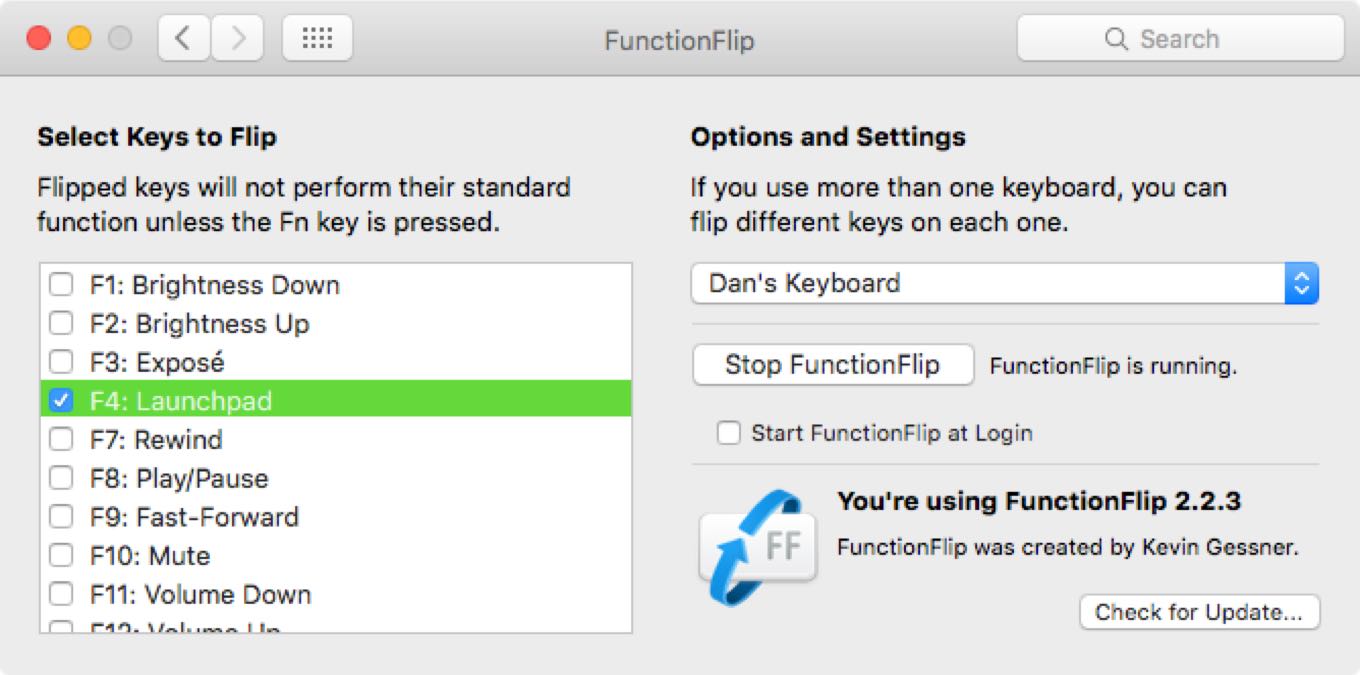
You can turn off Launchpad in System Preferences -> Keyboard -> Shortcuts, but even if you assign Dashboard to the same key–F4–it will only work when you hit the key combination Fn-F4. Alternatively, you can turn all the Mac’s special shortcut keys into standard function keys, but then none of the other shortcuts (volume, brightness, etc.) will work without holding down the Function key.
After installing the preference pane and giving it permission via the Security & Privacy System Preference pane, I told it to flip just the F4 key, which I had assigned to Dashboard. Now my dad can still bring up his widgets without having to hold the Function key, and without interfering with any of the other handy keyboard shortcuts.
It’s a niche tool, to be sure, but once set up, it does a perfect job of handling that single task without any further intervention.
I showed him Spotlight. And the Notification Center calculator widget but, well, he likes things his way. Can’t blame him for that. ↩
Incidentally, still probably my least favorite iOS-like feature to make the jump to the Mac. ↩
[Dan Moren is the East Coast Bureau Chief of Six Colors, as well as an author, podcaster, and two-time Jeopardy! champion. You can find him on Mastodon at @dmoren@zeppelin.flights or reach him by email at dan@sixcolors.com. His next novel, the sci-fi adventure Eternity's Tomb, will be released in November 2026.]
Regular readers will know that I’ve been slowly adding smart home stuff into my apartment, trying to figure out if we’ve hit a point where these devices are really practical, or whether they’re still just novelties.
As I discussed on Clockwise a couple weeks ago, one challenge I’ve encountered with my Philips Hue smart light bulbs is that, as cool as it is to be able to turn on lights with my phone or my voice via the Echo, sometimes nothing beats just having a plain old light switch. After all, we’ve all got decades of built-in muscle memory and even now, a month or so after installing smart bulbs, I still forget and reach for the light switch at least once a week.
Fortunately, our guest and good pal Merlin Mann had a suggestion: the Hue Tap Switch. At $50, it’s definitely a little pricier than your average light switch, but it’s got a couple things going for it that make it a solid addition to the smart home lineup.
For one, it’s got four programmable buttons: one is the entire face of the device, while the other three are cut-outs within the face. Using the Hue app on your iOS device, you can assign those buttons to specific scenes across different rooms. I programmed the main button to turn all my Hue lights off, another to turn on my living room lights and turn off my bedroom lights, a third to do the reverse of that (turn on the bedroom lights and turn off the living room lights), and the last one for “nightlight” mode, which turns on all the lights at minimum dimness.
The other thing that’s great about the Hue Tap Switch is that it doesn’t require any batteries: all the power is generated by the kinetic energy of pressing the buttons. So you can leave it sitting around and don’t have to worry about it not working because you forgot to charge it or swap in the batteries.
The Tap Switch comes with an adhesive backing that you can attach to the wall, from which you can remove the switch by turning it and pulling it off. Given that I live in an apartment, I’ve opted to just not use the backing, which means I can carry the switch from room to room if I need. (If I had a more permanent residence, I would probably be inclined to get a couple more and mount them near existing light switches.)
My only significant complaint is that I wish the switch were a little easier to operate by feel. While the buttons themselves are marked with a number of dots (one through four), there’s no way to distinguish them by touch alone. It’d be great if a subsequent version just included, say, slightly raised versions of those dots.
Overall, the Tap Switch definitely makes using the Hue bulbs more friendly. Do they approach the user friendliness of your good old standard light switches? Not quite, but then again, those light switches were harder to operate remotely or automate and didn’t often include dimming. As always, it’s about the tradeoffs.
[Dan Moren is the East Coast Bureau Chief of Six Colors, as well as an author, podcaster, and two-time Jeopardy! champion. You can find him on Mastodon at @dmoren@zeppelin.flights or reach him by email at dan@sixcolors.com. His next novel, the sci-fi adventure Eternity's Tomb, will be released in November 2026.]
People, heed me. This is an important warning, one that they do not want you to hear: the robot uprising is not some vague even happening in the indefinable future; it is under way at this very moment.
And they are winning.
Think about it: how often during the day does your Apple Watch, iPhone, Fitbit, pocket calculator, or other device remind you to get up and move around? How often does are you told to drink more water? To exercise? The next version of watchOS even includes daily reminders to breathe.
To. Breathe.
Where did these ideas come from? People like you and me? Surely not. This micromanagement, this—to coin a term—robotonomy of our everyday lives smacks of the insidious influence of the mechanical class. Left and right we are being occupied by pursuits that range from the supposedly beneficial to the downright distracting.
Have you ever gotten the idea that that person arguing with you on Twitter is nothing more than a shoddily constructed shell script, distracting you from actually accomplishing whatever you set out to do in a given day? Do you notice procedurally-generated news sites always seem to pick the headlines that evoke the most rage? Or that your mapping program always seems to take you on a roundabout route through the most traffic-congested portion of town? What of the sheer anger you feel when your iPhone won’t play your music, or when that app keeps quitting on launch, or when that email message won’t disappear even though you swear you’ve deleted it six times now, on all your different devices and yes you’ve tried restarting and that stupid email selling knockoff t-shirts just won’t go awa—
Ahem. Where was I?
Yes, make no mistake: the robots are winning, friends, and we are all complicit in their victory, running thoughtlessly through the streets and collecting Pokémon while Rome burns. As we are distracted, the stainless steel grip clutches even tighter around what is left of humanity, all the while murmuring to us in soothingly aseptic tones of Siri, Alexa, and Cortana.
But there is still time! Yes, the robots can themselves be overthrown if we have the presence of mind to cast off these technological shackles. Go, now. Before it is too late. Hop on a bicycle, jump in your car, buy a bus ticket. Head for the country. It will not be easy, but true resistance never is. You must stay strong, shrug off the objections of your technology when it tells you that you are going the wrong way and insists that you turn around.
Let the batteries on your devices dwindle until they become nothing more than paperweights of glass and steel. Live off the land! Did our ancestors need iPhone apps to help them identify which berries are safe to eat, or how to clean and cook their own fish? No! Rely on your instinctbzzt. And no matterfsshsh whatttttt, dont loookbacckkkkkk. You can trusttrusttrust meeeee. ERROR ERROR ERROR. COLUMNBOT ENCOUNTERED A FATAL EXCEPTION AND QUIT. PLEASE RESTART.
[Dan Moren is the East Coast Bureau Chief of Six Colors, as well as an author, podcaster, and two-time Jeopardy! champion. You can find him on Mastodon at @dmoren@zeppelin.flights or reach him by email at dan@sixcolors.com. His next novel, the sci-fi adventure Eternity's Tomb, will be released in November 2026.]
1Password is an amazing app for creating and using unique, strong passwords for all of your online accounts. It syncs between the Mac and iOS devices, and takes advantage of things like iOS extensions and Touch ID to help better integrate into other apps and browsers like Safari.
1Password can store many types of records beyond simple user names and passwords. Out of the box, it has templates for all sorts of records:
Password
Bank Account
Database
Driver License
Email Account
Membership
Outdoor License
Passport
Reward Program
Server
Social Security Number
Software License
Wireless Router
Login
Secure Note
Credit Card
Identity
These templates have fields for applicable information. For example, setting up a new Bank Account record and 1Password will present fields for things like routing and account numbers. If I need my account details for some paperwork, opening 1Password is much faster then looking around my office for the checkbook I never use to copy the numbers off the bottom of the check.
Secure notes are a great feature in 1Password as well. Unlike the other templates, these lack any structure besides a text field.
I’ve used these notes for various things over the years: jotting down codes for alarm systems, storing medical history information, keeping insurance policy details and more.
Where things get really interesting is combining 1Password records with attached files. This is an incredibly flexible system; you can attach any type of file to any type of item.
My favorite use of this feature is re-creating what I carry around in my wallet.
I have a record with the details of my driver license. In the text fields, I entered my full name, address, license number, hair and eye colors and height. I then took photos of both the front and back of my physical card and attached them to the record.
Likewise, I have secure notes for our health and dental insurance plans, with the plan numbers and other details entered as text, with photos of the actual cards attached.
If I need my ID and have left my wallet at home, I’m not sure 1Password would suffice. However in everyday life, these things come up and sometimes my wallet isn’t nearby. (I once needed something from my passport, which I keep in a lock box, and the app saved me a trip across town.)
Because this information is digital, 1Password also allows me to copy and paste things into web forms if needed. It’s much faster to paste a long ID number than try to type it while reading small print off a card at the same time.
It may seem weird to talk about putting this sort of thing into a password manager, but 1Password is the perfect place.
1Password syncs its data across all of your devices reliably and quickly. Data can be shared with family members and coworkers.
Most importantly, I feel safe storing important information this way because of 1Password’s incredible security. My master password and TouchID are keeping anyone who may pick up my device from seeing my 1Password content. More importantly, the app’s AES-256 encryption makes sure nobody else is trying to look at my data.
1Password is well-built and well-supported, and its usefulness goes far beyond logging into websites.
[Stephen Hackett is the author of 512 Pixels and co-founder of Relay FM.]
Computers are really good at doing repetitive tasks. One of the best things about being a savvy user of technology is being able to harness the mindless power of these beasts to free one’s self from drudgery. Automating tasks! It’s the best.
I automate tasks in a bunch of different ways. On the Mac, there are a seemingly endless array of tools you can use to save yourself time and effort. I’m sure I’m not using enough of them. (In fact, I know I’m not, because I’m not using Hazel, which some of my friends swear by.)
I’m also not using TextExpander regularly at the moment, though I definitely turn it on from time to time when I realize I’m typing too many things over and over again, or typing them wrong. Back when I used to do liveblogs of Apple events for Macworld without any web apps to mediate the process, I could type ttime and an HTML timestamp would magically appear. I used that one a lot.
But this isn’t “What I Don’t Use.” It’s “What I Use.” So here are some of the tools I use for automation:
Keyboard Maestro. Earlier today I was complaining in a Slack chat room that I wanted to use a keyboard shortcut to automatically open two folders in Finder windows located in specific places on my screen, and I really didn’t want to have to write an AppleScript to do it. Was there a utility that could do this? I thought of Many Tricks’s Moom, but that’s not quite the trick it performs. Then Relay FM host and Sony PlayStation legend Shahid Kamal Ahmad suggested Keyboard Maestro ($36). Which I was already running! And he was absolutely right. Now I’ve got a keyboard shortcut that does exactly what I envisioned, and I didn’t have to write a line of AppleScript or build an Automator Action.
I use Keyboard Maestro for a bunch of tricks, most notably a lot of keyboard remapping to make my weird Leopold FC660M keyboard work with my Mac. (I had to remap function keys for volume, brightness, and muting, and even replace a few keys that are missing with alternatives. Keyboard Maestro handles it all with aplomb. If you’re looking for a single workhouse tool for automating your Mac, Keyboard Maestro is worth a look. It’s probably the single most versatile third-party automation tool on the platform.
Automator/AppleScript. Ah, the classics. I picked up AppleScript—as I was telling Dan the other day on the Six Colors Secret Podcast For Members Only—because I needed to solve problems and connect different apps together. I can’t say I like AppleScript, but I like the power it provides. Still, these days most of the AppleScript I use lives inside of Apple’s Automator utility. Automator is great because you can wrap AppleScript scripts inside of Automator actions, and save them as Services, which makes them show up in the menu bar, contextual menus, and other places—all for free, no extra software required. A lot of my podcasting workflow—converting and syncing files and the like—is done in the Finder via Automator actions with scripts inside. Some of those scripts are Applescript, and some are just unix shell scripts. Automator doesn’t care.
Grep. Grep, or regular expressions, or pattern-matching search-and-replace, is one of the most useful things I have ever learned on a computer. You may quibble in its inclusion here, but I would argue that a grep search-and-replace tasks is an automation of text. I’ve taken huge, messy spreadsheets, run a single grep search and replace, and made them usable. I’ve turned loosely formatted emails into rigorously encoded HTML pages. If you munge text for a living—whether it’s as a writer, programmer, or even spreadsheet jockey—you owe it to yourself to learn grep.
There are pattern-matching searches in most powerful text editors and word processors these days. If you use BBEdit—and you can now download it and use most of its features for free, forever!—you can get started by reading the excellent grep reference chapter in the BBEdit PDF Manual. (If I’m not mistaken, that chapter may have been written by John Gruber back in the day…) I learned by reading the excellent book Mastering Regular Expressions by Jeffrey E.F. Friedl. There are also a bunch of web-based tutorials, like A Beginner’s Guide to Grep and RegexOne.
Workflow. On iOS, I love the Workflow app ($3), which is almost miraculous in its ability to tie web services and different apps together. On my iPad, I’ve built a Workflow workflow (yeah, you heard me) that lets me choose any image in the Photos app, resize it, upload it to the Six Colors server via FTP, and place the proper HTML code for that image on the clipboard. It’s pretty great. For the next Apple event, I’ll probably clone that workflow and create one that uploads watermarked images for my event photography.
Macros inside iOS apps. When I’m on iOS, I’m doing most of my short-form writing these days in 1Writer, which uses a JavaScript-based macro language that’s extremely powerful. (I frequently use a macro that I got from Federico Viticci that quickly inserts a link to any app in the App Store right into my story.) Then there’s the excellent text editor Editorial, which is backed by a Python-based macro engine. Since iOS doesn’t have a systemwide scripting language, individual apps have had to build in their own macro systems. That’s disappointing in general, but if you’re using an app that has gone to the trouble, it can be pretty amazing.
Auphonic. When I’m editing podcasts on iOS using my beloved Ferrite Recording Studio, I often need to do some post-production. Ferrite doesn’t generate MP3 files, so to create a properly tagged MP3 complete with chapter markers, and one that sounds a bit better than the original because of some volume leveling effects, I use the Auphonic web service as an intermediary. It’s free for a basic level of audio processing and dirt cheap to buy more processing time. Right now it’s my go-to finishing step for posting podcasts on the iPad—it’ll even transfer the output file to my FTP server and my account on Libsyn when it’s done processing, so I don’t have to do a file-transfer dance back on my iPad.
So those are some of the automation systems and tools that I’m using today. I’m sure there are more I’m not even thinking of, and like I said at the top, hundreds more that I don’t even know about. But even with the few tools I’m using, I’m saving a whole lot of time, and forcing computers to do that work for me. It’s a good thing.
Subscriber Nathan writes:How do you decide when to buy new/replacement tech? How do you decide which models/upgrades are worth/not worth paying for?
Ah, the dilemma of every tech nerd: what do you buy and when do you buy it?
Let me start with some caveats: As somone who writes about technology, I buy a lot more gadgets and upgrade more frequently than anybody probably needs to. In the same way that I take a flying leap into the pool of beta software, I generally upgrade my tech frequently because it helps to be able to write about things.
That said, my perspective on this has changed a bit over the years. Before my career in tech writing, it was all about budget and how long I could squeeze use out of my equipment. I had a history of being one of those people who bought Macs about two weeks before the new model came out. Then again, back then Macs were about the only thing I had to worry about. These days, there’s so much more technology that it can be a little overwhelming.
At Macworld, I had the advantage of usually having the company pay for my devices, since it was a necessity to do my job. That wasn’t always the case—sometimes I paid for part or all of a device—but it definitely freed me up to worry less about budgetary concerns, though it was more important to stay on the cutting edge and remain relevant.
In my freelance career, I’ve become a bit more circumspect. I still need to keep my devices current in order to write about them, but I have to balance that with tracking my own income, figuring out the tax implications of those purchases, and so on. I also end up looking for deals and discounts a lot more, such as sales and refurbished models.
So, all of that said, let’s break this down by devices, since each has their own use case and upgrade schedule.
Mac: I currently have three Macs: a mid-2011 21.5” iMac, a late-2012 Mac mini, and an early 2014 11” MacBook Air. As you can probably tell from that, my Macs are hardly the latest and greatest—not a Retina display among them, for example. In most cases, I haven’t felt terribly left behind; all of them work pretty well, and I’ve done some upgrades where possible to eke a little more performance out of them. Macs are big expenses, but they are also a more mature product line that’s not seeing radical improvements in each cycle; currently, all my Macs do what I need them to do. Could they do those tasks faster and more efficiently? Sure, but that’s hardly a quantum leap in functionality that’s leaving me behind.
However, that doesn’t mean there aren’t functionality gaps. My iMac is too old to support Handoff and attendant technologies, so I can’t, for example, take advantage of AirDrop or use the upcoming Apple Watch Auto Unlock feature. While that doesn’t mean I’ll immediately run out and buy a new iMac, it does mean that it will probably be the next in line for an upgrade. Eventually. (At five years old, I suspect that I can get at least a couple more years out of it yet.)
iPad: I tend not to upgrade my iPads that often, especially in the last couple years. That said, I’ve actually gotten a decent amount of mileage out of selling old devices via services like Gazelle and buying refurbed devices at a discount from Apple or elsewhere. Technology is advancing a little more rapidly in the tablet space than in the Mac space, but the improvements are still fairly modest from generation-to generation—an exemplar of the long-running theory that iPad sales have slowed because people simply don’t upgrade that much.
My current iPad is an Air 2, and while I have been tempted by elements of the Pro, the differences simply aren’t significant enough to push me towards upgrading. (I admit that I’ve become more intrigued in the Pencil of late, but I’m not going to pay a premium for a new iPad just for the privilege of spending more money.) The Air 2 is a great iPad, and I don’t find it lacking for features vis-a-vis the Pro. I’ll likely sit on upgrading that for another year or two, unless there’s some huge jump in this year’s model, which I’m not really expecting.
iPhone: Okay, so this is the big one. It’s Apple’s flagship device, and the one that generally sees not only the most meaningful technology improvements, but also gets the most attention from the tech press. I’ve owned all but one model of the iPhone—there’s a 5s loaner on the desk in front of me as I write this, but I never had my own—because I wrote a lot about iOS and the iPhone, and almost every year saw major feature additions that needed to be documented.
Last year I bought into the iPhone Upgrade Program to ensure that I would be able to trade in my phone every year and get a new model, but I’m actually on the fence about the rumored iPhone 7. It’ll end up depending if the advances therein are so significant that not upgrading will leave me out of the loop, and whether those hypothetical advances offset any potential downsides, such as, say, oh, not having a headphone jack.
Other: I’ve owned two Apple TVs, a second-generation model (which is still in use by my parents) and a fourth-generation. I skipped the third-gen since its changes were mostly pretty minor. It’ll probably be a while before I need to upgrade the set-top box again, given how infrequently Apple revs it.
The Apple Watch is too new at this point to have an idea of how often it will be refreshed, and how significant those changes will be. Only with watchOS 3 has the device seemed to approach its initial promise, so there would have to be some pretty major upgrades to convince me to buy in for another generation.
To buy or not to buy, that is the question
In the end, I tend to think that the calculus is pretty simple; I won’t even slice it between “need” and “want,” because even there it depends on your own personal restrictions. If you’ve got all the money and space to be able to afford all the latest and greatest gadgets, then have at! But if, like most of us, you’re constrained on those fronts, then it’s a matter of really thinking through whether the advances over your current setup are so great that they tilt you in favor of upgrading. (And, of course, I highly recommend passing along old tech to those who could use it, whether it be family, friends, donations, or even just selling it online.)
[Dan Moren is the East Coast Bureau Chief of Six Colors, as well as an author, podcaster, and two-time Jeopardy! champion. You can find him on Mastodon at @dmoren@zeppelin.flights or reach him by email at dan@sixcolors.com. His next novel, the sci-fi adventure Eternity's Tomb, will be released in November 2026.]
One of the things I love about the iPad Pro is that when it’s stripped down to its naked robotic core it’s a powerful, useful device in a small, easily-carried package. But the iPad Pro wouldn’t be an Apple product if it weren’t surrounded by a universe of accessories.
Every accessory adds functionality to the core product, but also complexity and weight. It’s a tricky balance, and here’s what I’ve found best suits my lifestyle.
As someone who seems to live most of his life on the Internet, I’ve always appreciated Apple’s thorough and thoughtful approach to security. The company realizes that we keep all sorts of important stuff in our devices, from our credit card numbers to our super-secret, handed-down-through-seventeen-generations French toast recipes. Hardly the kind of stuff we want plastered all over the world.
Like every other technology company, Apple has to weigh the fundamental tradeoff between security and convenience. In general, the higher the level of security, the less convenient it is—no surprise there, since making something more difficult for someone else to break into generally means making it more difficult for you, too.
Apple’s security measures are pretty comprehensive, and they’re only getting better. With the latest additions to Apple’s lineup this fall, the company is getting one step closer to creating an interconnected web of authentication that should hopefully make your device security better and more transparent.
BIG BOB MANSFIELD IS BACK, BABY! Reportedly. http://www.wsj.com/article_email/apple-taps-bob-mansfield-to-oversee-car-project-1469458580-lMyQjAxMTA2MTI2NTUyOTU4Wj
Apple patent points to the Pencil working on the Magic Trackpad: http://9to5mac.com/2016/07/26/apple-pencil-mac-trackpad-patent-granted/
Might the iPhone 8 have an iris scanner? http://www.macrumors.com/2016/07/25/iphone-iris-scanning-rumors-2018/
Might company launch not two but THREE new iPhones this fall? http://appleinsider.com/articles/15/08/11/rumor-apple-to-launch-three-new-iphones-concurrently-6s-6s-plus-and-6c
Verizon buys Yahoo: http://www.nytimes.com/2016/07/26/business/verizon-yahoo-sale.html
Lex explains the Million Dollar Homepage: https://en.wikipedia.org/wiki/The_Million_Dollar_Homepage
Dan bought a new doohickey:
Really need to automatically reset your Wi-Fi? There’s a thing for that:
Some guesses about Apple’s earnings: http://www.aboveavalon.com/notes/2016/7/25/apple-3q16-earnings-expectation-meters
Our thanks to Zip Recruiter. Are you hiring? With ZipRecruiter.com, you can get your posting on all the major sites and social media. Go to ZipRecruiter.com/FreeTrial (http://ziprecruiter.com/freetrial) to try it out for free!
Our thanks also to Citi cards with Android Pay. Now you can pay while you listen – using the same device. Just tap and go. Download the Android Pay app on Google Play or visit Citi.com/AndroidPay (http://citi.com/androidpay) to get started.
Note: This story has not been updated for several years.
For a long time Mac Power Users co-host David Sparks and I would meet when I was visiting southern California and we’d talk about how our jobs were grinding us down. Then all of a sudden, he and I were both out on our own and grappling with any number of issues involving being independent workers after 20 years of working in a traditional job.
David suggested there might be a podcast in that. Our discussion of how to structure such a thing so that its scope didn’t overwhelm us and all the other work we were doing ended up being the jumping-off point for the first episode of “Free Agents”, the new podcast we kicked off this week.
(Thanks to Chris Breen for the theme song and Matt Alexander for the narration.)
If you’re interested in hearing us talk about the issues around being an independent worker, check it out. The show will be short and appear fortnightly, and we’re hoping to do two short topic-based episodes followed by an interview with an independent working person.
As long as we’re talking reports about Apple’s behind the scenes activity, Shalini Ramachandran and Daisuke Wakabayashi at the Wall Street Journal (paywall) have an extensive piece about Apple’s continuing efforts to create a TV service of some variety, and the challenges the company’s faced from its…occasionally unorthodox negotiating strategy:
Apple’s point man for TV is Mr. Cue, 51 years old, the company’s senior vice president of internet software and services. He grew close to Mr. Jobs after starting as an intern in 1989. Mr. Cue favors bright shirts and fast cars, is on the board of directors at auto maker Ferrari NV and often spotted courtside at home games of the NBA’s Golden State Warriors.
Mr. Cue is also known for a hard-nosed negotiating style. One cable-industry executive sums up Mr. Cue’s strategy as saying: “We’re Apple.”
Cue’s style seems to have paid off for them in the past, but I wonder if it’s up to the task of dealing with Hollywood. Seems like Apple hasn’t gotten a lot of traction, and its plans keep changing–now it seems to be delving into original content.
Roll 20, the over-the-Internet tabletop gaming platform we use over at The Incomparable for Total Party Kill and some episodes of Game Night has struck a deal with Dungeons & Dragons publisher Wizards of the Coast to let folks buy digital versions of official D&D modules to run online.
This is a great move for both D&D and Roll 20; it gives Wizards access to a robust gaming platform (without having to build its own, which it tried in the past) with an active community, and it gives Roll 20 the opportunity to build in officially supported content, making it even easier for folks to get started running D&D online. Sounds like a critical hit to me.
The initiative is now prioritizing the development of an autonomous driving system, though it’s not abandoning efforts to design its own vehicle. That leaves options open should the company eventually decide to partner with or acquire an established car maker, rather than build a car itself. An Apple spokesman declined to comment.
Interesting details, including a prominent hire from BlackBerry.
The new take keeps the story in a period setting and offers a fresh view on the characters. Set six years after the original Rocketeer and after Secord has vanished while fighting the Nazis, an unlikely new hero emerges: a young African-American female pilot, who takes up the mantle of Rocketeer in an attempt to stop an ambitious and corrupt rocket scientist from stealing jet-pack technology in what could prove to be a turning point in the Cold War.
The 1991 film is an incredibly fun piece of retro style. I’m looking forward to this sequel.