The suit seeks to compensate independent booksellers for Amazon’s and publishers’ practices and put an injunction on the alleged anticompetitive practices. The named plaintiff is Bookends and Beginnings, a physical and online bookstore located in Evanston, Illinois, just north of Chicago. Amazon, which got its start selling books during the dot-com boom, has dominated the retail book market in recent years, selling an estimated 90 percent of all e-books and over 40 percent of physical books.
So far, this suit mainly seems to be representing one independent bookseller in Evanston, IL, though given the class action status, it will be interesting to see how many more indie booksellers may sign on.
Amazon’s most-favored nation clauses, which prevent other sellers from getting lower wholesale prices, exclusive content, or early release windows, are a big reason that the tech giant has managed to end up the biggest player in the bookselling business by far: it’s basically impossible for independent booksellers to compete.
Given that tech companies are under increased scrutiny from Congress and government regulators, it also wouldn’t be surprising to see similar action from authorities follow suit.
There is no shortage of iPad stands. Search for one on Amazon, for instance, and you’ll be met with page after page of results. Most stands are unremarkable, with little that distinguishes one from another.
Twelve South’s HoverBar Duo is different, though. The black aluminum and plastic stand has two articulating hinges with a clamp for your iPad that connects to the stand’s arm with a ball joint. The stand also rotates side-to-side at its base. The design, which is reminiscent of an attractive, modern desk lamp, provides a broader range of motion than most stands, making it useful in more scenarios. As a result, I’ve found myself using the HoverBar Duo far more than any stand I’ve tried before.
I bought one of these and feel I need to use it a while longer before reviewing it, but my initial reactions match John’s. This is a heavy, solid stand that is made better by being so adjustable. I like it so far. I am looking forward to using it more, including its clamp-mount option, assuming I can find somewhere to use it in that configuration.
Apple TV remote changes we’d like to see (and what should stay the same), our tech spring cleaning habits, whether in-person WWDC should return, and what other tech products should be ruggedized.
I’m a big believer in user automation. Not everyone is a programmer, but most of us perform repetitive tasks on our devices that can be eliminated by a judicious application of automation. Whether it’s a task that’s so specific that it only applies to one person, or a task that bridges a bunch of different apps and services that just aren’t focused on working together, automation can make our devices do the work so that we don’t have to.
For years, Apple has been a leader in user automation. AppleScript was an early attempt to demystify scripting for a lay audience; Automator was sold as an easy building-block interface for performing tasks; and Shortcuts on iOS brought a modern sensibility to Automator’s premise.
The problem is that today, everything about user automation on Apple’s platforms is fractured. On the Mac, the technologies feel old-fashioned, adrift, and increasingly unsupported. On iOS, Shortcuts has some weaknesses and an every-app-for-itself mindset prevails. And between the two platforms there’s no connectivity at all.
This has to change.
On the Mac, power and complexity
Perhaps I reveal too much about myself as an old-school Mac user when I admit that I run AppleScript scripts and Automator actions almost every day. I use them to sync files for podcast editing, upload files to my web and podcast servers, and even build the weekly Six Colors newsletter.
But the truth is, AppleScript never really caught on, and what cachet it did have has long since evaporated. Its syntax is impenetrable, and as a veteran user, I still have to google for examples if I’m going to attempt to script an app I’ve never controlled before. Beyond simple control-flow steps, most of what I do in AppleScript (and Automator) these days is issue unix commands. It’s incredibly powerful, but it’s probably telling that in the last year I’ve built widgets for both iOS and macOS in PHP, JavaScript, and Python. I’m branching out.
As much as I like the impetus behind Automator—automation for the masses!—it died on the vine. Apps didn’t support it well, and Apple failed to provide a robust enough library of actions to make it work well on its own. If I ever thought Automator was okay, one glance at Shortcuts (or its predecessor, Workflow) would disabuse me of the notion. Still, I end up using Automator regularly because it allows me to integrate AppleScript and unix/shell scripting directly into the Finder.
These days most of the automation delight I get on the Mac comes from two sources: those aforementioned unix commands and shell scripts, and Stairways Software’s $36 Keyboard Maestro. Keyboard Maestro has been the solution to almost every this-seems-impossible problem I’ve encountered on my Mac. It owes its power to some mind-boggling methods, like emulating keyboard shortcuts, invoking menu items, and monitoring what’s displayed on the screen itself.
Keyboard Maestro’s existence is a credit to the Mac. But the fact that I need to use its brute-force techniques is actually a symptom of the larger disease: Great modern Mac-only apps like Rogue Amoeba’s $59 Audio Hijack are frequently released without any scripting support whatsoever. It’s great that I can use Keyboard Maestro to make Audio Hijack do what I want, but it shouldn’t be necessary.
And here’s the real tragedy of it: I have been tempted to email Rogue Amoeba to beg them for AppleScript support in Audio Hijack, but every time I consider what to say, I decide not to bother. It’s clear to me that AppleScript and Automator are outmoded technology that’s been parked. Why should I ask a developer to add support for old tech that’s probably going to be replaced in the near-ish future? It seems like a waste of their efforts.
This is yet another reason why Apple should start the Mac on its transition to the user automation of the future. And the good news is, there is a clear path for Apple to take. The future of user automation on all of Apple’s platforms should be Shortcuts.
On iOS, power with limits
Shortcuts has the same premise as Automator, but benefits from being designed more than a decade later—and of being aggressively improved, year after year. It’s a codeless system of building blocks. I wouldn’t call it easy to use—there’s a lot of work that Apple could do to make Shortcuts more readable, learnable, and shareable—but it provides a lot of power to people who are probably never going to write a line of code. It fulfills the promise of AppleScript and Automator.
The more I use Shortcuts, the more I realize that in many ways, user automation on iOS has outpaced automation on the Mac. Let me give you an example: On iOS I built a shortcut to grab the contents of selected text in Safari and open the results in a text editor—converted to Markdown, with the title of the page set as the title and its URL set as a link. It’s not remotely the most complicated shortcut I’ve built, but it’s great—and has saved me a lot of time while improving the quality of my link posts. (Copying and pasting text from Safari straight into a text editor strips out hyperlinks and formatting; converting the rich HTML to Markdown brings them along.)
I love it so much, I decided to build the same automation on the Mac. The results were ugly. My Keyboard Maestro macro forces Safari to copy the selected text to the clipboard, moves to BBEdit, opens a new window, pastes in the HTML, runs an HTML to Markdown Service on the selection, then runs an AppleScript script that cleans up the results. It’s ridiculous.
More broadly, iOS still suffers from a scattershot environment where every app seems to be inventing its own method of automating. Some apps use JavaScript or Python, others have built their own building-block interfaces, and still others mix both. I love the idea of letting different apps approach automation differently, and having third-party apps like Pythonista and Scriptable allows users who are comfortable with those languages to use them on iOS, since Apple steadfastly refuses to provide that kind of support itself. (What does it say that “do shell script” is my most used command in AppleScript, and yet it’s impossible to do it on iOS?)
As vibrant as it is, this burgeoning collection of automation options on iOS is a symptom of a larger problem: A lack of leadership from Apple. Would an app like Taio have felt the need to build its own Shortcuts-lite macro interface if there were a solid, systemwide approach to scripting that was adopted by most iOS productivity apps? Maybe. It just feels to me like all these apps are busy reinventing the wheel because Apple’s been reluctant to place itself in the center of things. That leads to a great flowering of options—but it also leads to chaos. I’d love Apple to apply at least a little more order by extending Shortcuts and offering App developers even more tools for automation, cross-app communication, better in-app Shortcuts support, and more.
So what’s next?
It’s clear to me now: Apple needs to make Shortcuts available everywhere. It’s the logical successor to Automator, and already does more than Automator—and better, too. Apple should hide Automator away somewhere for a while for compatibility reasons, but otherwise embrace Shortcuts on the Mac.
This will require a lot of work, of course. Apple will need to build a more robust library of actions that can exist on the Mac (shell scripting, anyone?), but also parallel all the actions that are available on iOS. And of course, Apple will need to allow Mac apps to connect with Shortcuts in the same ways that iOS apps do, allowing scriptable apps to support Shortcuts. Some features—like Automator’s Finder-based Quick Actions—might be replaced by items that work via the Share icon, since that’s how it works on iOS already.
That’s a lot to ask, but since I’m on a roll, I’ll once again suggest that Apple needs to more explicitly support scripting languages on both platforms. If we agree that AppleScript probably needs to fade away, and that there are numerous modern scripting languages that could be used to control applications for those who want to push things further than Shortcuts can, wouldn’t it be nice if Apple were to bless one or more of those languages? (Yes, there’s some JavaScript support in macOS already, and Apple could use that, but it seems more likely that it would just start again from scratch. Consider what the Omni Group has done with cross-platform JavaScript automation as a good example of what could be done.)
Apple has done excellent work in the last few years with Shortcuts on iOS. It’s time for the next step. Shortcuts is the future of user automation on all of Apple’s platforms. It’s time for the Mac to return to its rightful place on the cutting edge of user automation.
It is my deepest pleasure to report the satisfactory conclusion of Phase One of Operation PETARD.
When you came to me last summer and gave me the goal of publicly humiliating a purveyor of Apple rumors within a year, there were those both within and outside of our department who said such a feat couldn’t be accomplished—and, moreover, shouldn’t. That Apple should not lower itself to combatting those mongers of mistruths, those spoilers of surprise and delight.
But I could tell from the glint in your bespectacled eyes that you were serious about this endeavor, and so it has been my singular mission for the past nine months, seven days, one hour, and fifty-seven minutes to carry out your desires to the fullest extent possible.
I know there are those who believe that you, especially, are a kind-hearted soul who remains above the fray of the petty Apple rumors and product leaks. But we both know the truth: You are a one-man vengeance machine, bent upon nothing but crushing your enemies at any cost. If you’ll permit me to be so bold, I’d like to think that this makes us kindred spirits.
I am aware that it has been no picnic for you to see these so-called “leakers” and source-code divers poking their noses where they don’t belong. And while the board and your closest colleagues may worry you have lost your perspective, given the generous funding you’ve allocated to us—we were sorry to hear, by the way, that you had to shut down both AirTags and the HomePod just to make sure we had enough money to carry out our operations—we remain extremely grateful for your generosity.
As to our methods, we have employed a strategy of carefully calculated leaks too tempting for any pundit to ignore. By specifically targeting those who have shown themselves to be enamored of the adulation and infamy that come with this kind of transgression, we were assured that our target could not help but act precisely as we predicted, taking the all-too-tempting bait of something as simple as an Apple event date. (As you know, this is something over which we have complete control. It’s no harder than throwing a dart at a calendar.) Our so-called source’s casual suggestion that the “leaker” might put their own… skin on the line was just icing on the cake. You might call it a close shave, if you’ll permit the joke. Ha ha.
While Operation PETARD can, of course, not conclusively establish that no future interloper will ever again embark upon a campaign of publishing leaks, I can assure you that my team and I stand ready to intervene should we be called on. The future of Apple is not merely in products, after all, but in services—such as the service we provide, of spreading disinformation to those who would delve into our most tightly held secrets. We think of nothing else, day and night, in every waking moment.
I can only say in closing that I am glad we were able to continue this, Apple’s core mission, of keeping what we want to ourselves and only sharing when we absolutely need to. Like you, we envision a more perfect future where Apple never has to divulge any information at all to the masses, unwashed or otherwise. After all, the only perfect product remains the one with no users. That’s why my most prized possession remains my AirPower charging mat.
Sincerely Yours, REDACTED
Director
Department of REDACTING
[Dan Moren is the East Coast Bureau Chief of Six Colors, as well as an author, podcaster, and two-time Jeopardy! champion. You can find him on Mastodon at @dmoren@zeppelin.flights or reach him by email at dan@sixcolors.com. His next novel, the sci-fi adventure Eternity's Tomb, will be released in November 2026.]
Apple is adding two new voices to Siri’s English offerings, and eliminating the default ‘female voice’ selection in the latest beta version of iOS. This means that every person setting up Siri will choose a voice for themselves and it will no longer default to the voice assistant being female, a topic that has come up quite a bit with regards to bias in voice interfaces over the past few years.
This is an excellent move on Apple’s part. While it’s long allowed users to choose whether a voice sounds male or female, as well as accents and languages, not specifying a default goes a long way towards avoiding identifying virtual assistants as female, which can reinforce unconscious biases.1 Most of the virtual assistants that tech companies have rolled out over the past several years have defaulted towards a female option, including Alexa and Cortana; here’s hoping Apple’s change will spur those companies to follow suit.
Likewise, the two new voices seem as though they will offer different speech sounds and patterns, providing a more diverse slate of options, rather than singling out one specific voice as “standard.”
As long as I’ve had the option, my Siri has been a pleasant British man, because who hasn’t wanted their own Alfred or Jarvis? ↩
Apple today announced it will host its annual Worldwide Developers Conference (WWDC) June 7 through 11, in an all-online format. Free for all developers, WWDC21 will offer unique insight into the future of iOS, iPadOS, macOS, watchOS, and tvOS.
No surprise to anybody who’s been conscious: of course Apple is continuing to host the all-virtual developer conference this year. Of note, however, is its return to its usual time slot in early June, rather than later in the month, as per last year. (A full year of dealing with the pandemic ensures they had more time to plan for this.)
Few additional details are shared in this release, other than that we can expect the usual keynote, State of the Union, sessions, and labs, though Apple is also promising “new ways for developers to interact with Apple engineers and designers.” The company also said that it’s now accepting submissions for this year’s Swift Student Challenge; the eligibility window runs until April 18.
Also of note: Apple says it’s committing $1 million to SJ Aspires, a City of San José initiative that aims to help youth in underserved neighborhoods get on a path towards higher education with a scholarship program, education, and mentorship. (Which may suggest that the company does intend to continue its lasting partnership with the city, perhaps heralding future in-person events.)
More information about WWDC’s programming is promised in the weeks ahead; if last week’s pattern holds true, expect to see that in late April or early May.
Myke and Jason celebrate 20 years of OS X by discussing how we use our Macs today and whether the arrival of Apple silicon is changing how we work, not just today but over the rest of this year. We also discuss whether Apple should do “events” anymore, big news in the conflict between streaming and theatrical movies, and the possibility of a more rugged Apple Watch.
At last, the Soviets. We loved this whole episode, from the pointed conversation about Laika to the docking system designed out of coasters. Who makes Houston’s best borscht? Who cares! Let’s have burgers and Jack Daniels! Just don’t tell the KGB.
I’ve been a Mac user for about 30 years. And hard as it is for me to believe, the vast majority of that time has been spent with the modern macOS (or OS X, or Mac OS X, if we’re getting historical). In an industry that tends to move as fast as technology, a consumer product remaining relevant over two decades—never mind the seventeen years the Classic Mac OS existed before it—is pretty rare.
Despite much consternation in the years since the introduction of the iPhone and the iPad, the Mac has still not been put out to pasture, forsaken in favor of its shinier new siblings. If anything, Apple’s longest running product line has gotten a new lease on life with the advent of Macs built on custom Apple silicon—at long last, truly turning the product into what it was always meant to be: a personal computer built, stem to stern, by Apple itself.
But even if Apple has assuaged most of its concerns about the future of Mac hardware, the platform’s most dedicated users have often found themselves wondering what exactly the future holds for their favorite operating system as it embarks upon its third decade.
My thanks to BZG Apps for sponsoring Six Colors this week. BZG makes Unite 4, which allows you to turn any Website into a Mac app. Using a lightweight, WebKit powered browser as a backend, you can easily create isolated, customizable apps from any site.
Unite 4 includes dozens of new features, including support for native notifications, new customization options, and M1 support. Unite apps also serve as a great alternative for resource-hogging Electron apps or half-baked Catalyst apps.
Six Colors readers get 20% off this week when you purchase Unite 4 at http://bzgapps.com/sixcolors or when using the promo code SixColors at checkout. There’s also a 14 day free trial, and the app is included in Setapp for subscribers.
Like this story, this image was uploaded to Six Colors using a shortcut.
This week Apple (hopefully temporarily?) broke the sharing of Shortcuts. I rely on Shortcuts when I’m working on my iPad, and I’ve written about some of them over the years.
Since I’ve got Shortcuts on the brain thanks to Apple’s issues, I thought I’d quickly list (and share) some of the Shortcuts I use the most, in case readers are interested in seeing how they work and could possibly apply them to their own workflows. (I realize some of these will be extremely specific, since only two people write regularly for Six Colors and I’ve already shared them all with Dan.)
Make a Linked List Item. I frequently find articles I want to link to on Six Colors when I’m on my iPad. In fact, it frequently happens in the morning while I’m still in bed, drinking my tea. I select the text I’d like to quote in my link post on Six Colors, then run this Shortcut from the share menu. The result is sent to 1Writer (you could easily change this step to any text editor of your choice). Of particular note is that I’m using the title of the page as the level-one heading, and I’ve added the URL of the page as a Markdown link named 1. From there, I can edit the quote and add my own thoughts before sending on to WordPress.
Make Cross-Promo Post. This is a similar shortcut, but for my own posts on other sites—usually my weekly Macworld column. Since I tend just to quote the introduction of my post, the shortcut bypasses the text editor entirely and jumps straight to WordPress. The selected text in the browser is set as the text, the URL of the browser page is entered in a custom field in WordPress, and the name of the site I’m linking to is entered as a different custom field.
All that content is uploaded to WordPress via XML-RPC. If my user name and password were embedded in this shortcut, it would be a serious security problem—which is why the shortcut (like most of my shortcuts that require authentication) loads the user name and password from a file stored in iCloud Drive. (Still insecure, sort of, I’ll admit, but it gets the job done.) Once the data is sent, the shortcut receives back the WordPress post ID, which it uses to open an editing page in WordPress so that I can verify everything is correct before pressing “Publish.”
Post to Six Colors. I originally wrote this shortcut because I used Movable Type, but even though I’m now on WordPress, I’m still using it! That’s because WordPress also supports XML/RPC, and so I only had to make minor changes to bring my whole iPad workflow compatible.
This shortcut takes text sent from a text editor and sends it to WordPress. Seems simple, but there are some extra tricks here. It looks for a Markdown link named 1 and if it finds it, it sets the post to be a linked-list item rather than a regular post, and inserts the linked URL in the right custom field in WordPress. (This is why the Make a Linked List Item shortcut does what it does.) It also takes level-one Markdown heading, if it exists, and makes it the title of the post.
Upload 6C images. I used to upload images to Six Colors by connecting to a Linode server via SSH and placing them on the server directly. Now that I’m on WordPress, I just connect via the same XML-RPC API and (after resizing the image and saving it as a PNG or JPEG), convert the image to base64 text and insert it in a New Media Object command. In case I’m uploading more than one image, the shortcut displays each image and then asks for a filename. When the job is done, the shortcut takes the resulting URL, wraps it in the HTML I use to insert an image in a Six Colors story, and places the result on the clipboard.
Wrap Paragraphs. I have an AppleScript script that I use all the time in BBEdit to take text with hard line breaks and wrap it all together in one line, with paragraph breaks only coming when there’s a double line break. This shortcut lets me select text in just about any iOS text editor and receive back a wrapped version of that text on the clipboard, ready for pasting.
Resize Image to Clipboard. Sometimes I want to share an image in Slack or iMessage or Discord, but don’t want to wait as an enormous image uploads and is processed at the destination. This shortcut accepts images, resizing them, and puts the scaled-down image back on the clipboard.
Current Temp. I just use this one to boast about California weather to my friends, in Fahrenheit and Celsius. It puts the current outside temperature at my house (via a custom page on my web server, so this one’s not remotely portable) on the clipboard for pasting wherever I want.
(All the shortcut names in this article link to the shortcuts themselves. You’ll need to “allow untrusted shortcuts” in the Shortcuts area of the Settings app in order to download them.)
If I close my eyes, I can picture the classic Mac OS laid out before me. I can imagine every menu, every mouse gesture, the sound of the Mac SE chime, even depressing the reset switch after a hard crash.
The thing is, I didn’t become a Mac user until early 1990. I had used two other computers before I found the Mac. I can’t remember anything about the Commodore PET other than the READY. prompt. The Apple IIe made a bigger impression, but in retrieving all my old disks from that period, I discovered that I remember almost nothing beyond how to control a few of my favorite games.
I’m not sure quite why the classic Mac is so indelible, though some of it has to be its consistency. In the early days of the personal computer, you either had no user interface, or every user interface was different. My Commodore PET was an all-text experience. The Apple IIe was much more interesting, but commands and controls varied from program to program. The Mac’s personality was present and consistent, even as I swapped disks or switched between apps.
Given the arrival of Mac OS X 20 years ago, I really only spent about 11 years with the classic Mac OS. Yet it still sticks with me, not only because that period coincides with college, grad school, first jobs, getting married, and starting a family. (My daughter also turns 20 later this year.) But also because the classic Mac OS inspired Mac OS X, providing a continuity that means a Mac user from the mid-1980s dropped in front of a Mac today would be able to at least recognize a few things.
This was not a foregone conclusion. Having utterly failed in its own attempts to create a new, modern version of Mac OS, Apple bought NeXT and imported the NeXT software team to build a new operating system on top of the NextStep foundation. Apple was much bigger than NeXT, but the people from NeXT had the home-field advantage with their software. And there was the even bigger advantage that, after a few months, their old boss Steve Jobs was in charge. Given how deeply unimpressed Jobs had been with the state of Apple when he returned, it’s not unreasonable to imagine that Jobs would favor NeXT tendencies over Apple ones when it came to building the new Mac OS.
And the thing is, they sort of tried. Early attempts at Mac OS X—Rhapsody, Mac OS X Server, and even some of the developer betas—were far more NeXT-flavored than the final version. But perhaps biggest moment came when Apple and Jobs tried to import NeXT’s software development approach to the Mac.
Put simply, NeXT had its own way of writing apps. And originally, that was going to be the favored way of getting apps on the new version of Mac OS. This approach ultimately did pay off—not only did it import a bunch of NextStep developers like The Omni Group to the Mac, but it was the basis of Cocoa, the basis of all modern Mac apps and the foundation of iOS apps as well.
But at the time, Mac developers weren’t having it. Microsoft and Adobe, especially, were not interesting in writing new versions of Office and Photoshop for the new Mac platform. Even though they were inclined to stick with the Mac (which was only beginning to bounce back thanks to the iMac and a bunch of other interesting new Mac hardware), rewriting was out of the question. And running their apps in a weird Mac compatibility window—another initial proposal—wasn’t going to cut it.
Apple went back to the drawing board. And the version of Mac OS X that shipped as version 10.0 twenty years ago supported both NextStep-style apps, unmodified Mac apps (via a weird virtual-machine layer called Classic), and apps written using something called Carbon. Carbon, which was a modernized and simplified version of classic Mac OS technologies, was vital to the success of Mac OS X. Microsoft, Adobe, and countless other developers were able to bring their classic Mac apps over to OS X via Carbon—not without effort, but with a reasonable effort.
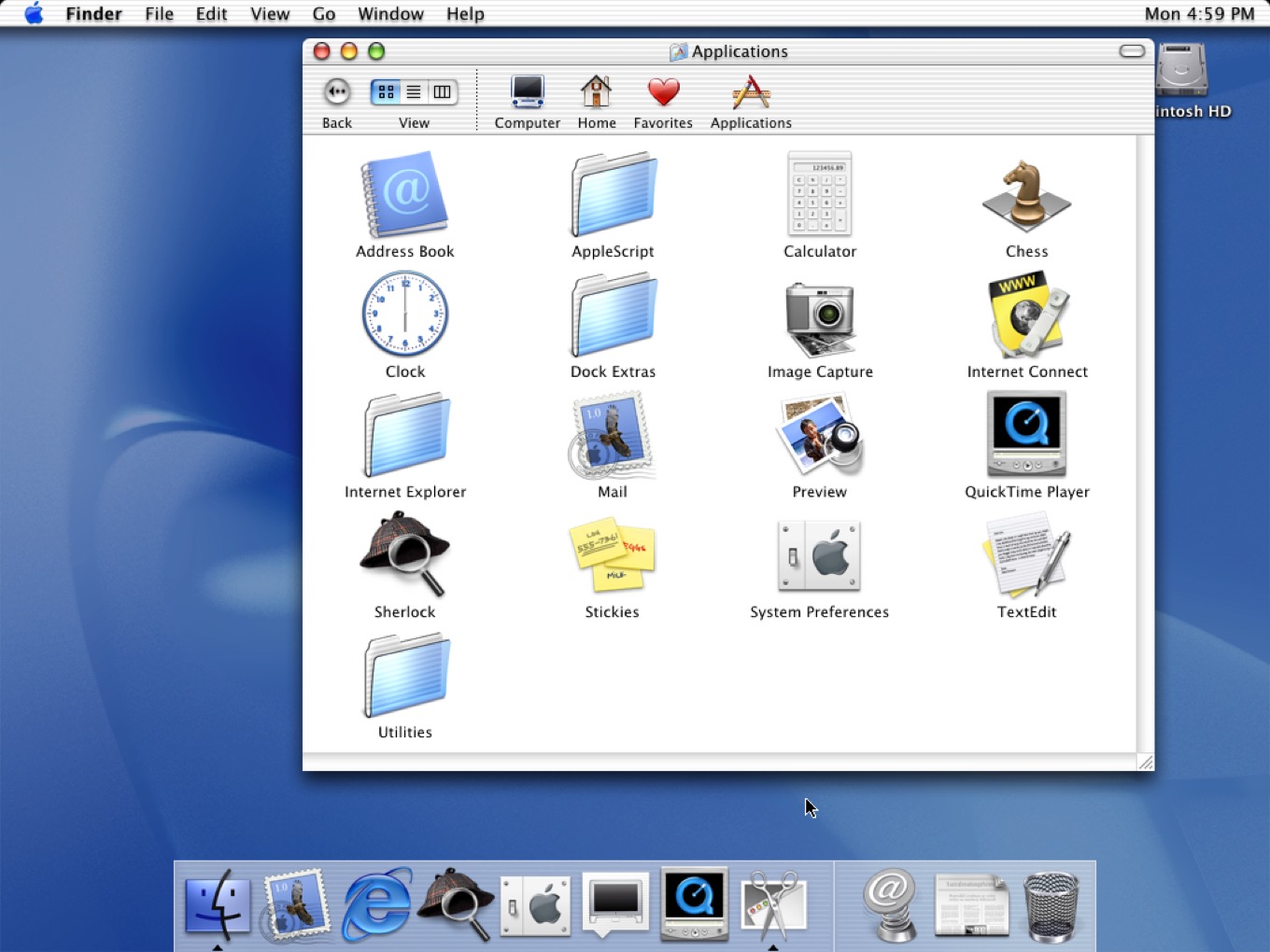
And so as 2001 became 2002, as 10.0 became 10.1 and was on its way to 10.2, Mac OS X ended up playing a lot of familiar notes for Mac users. It looked a lot like Mac OS, glammed up with the Aqua interface and with this weird new thing called the Dock (a NextStep touch that made it across), and it ran Mac software. Not just in Classic, either, but natively as an increasingly large number of popular Mac apps were upgraded.
Over the years, Apple deprecated Carbon, and the last vestiges of it really died when macOS Catalina killed off 32-bit apps in 2019. But it did its job. Not only was Mac OS X modern and ready for the future in a way the classic Mac OS wasn’t, but it felt familiar enough, both in terms of its design and in the software that it ran, for Mac users to embrace it.
I can’t say enough about how important Mac OS X was to Apple. By buying NeXT, Apple not only brought Steve Jobs into the fold, it brought the technology that would serve as the basis for OS X, iOS, iPadOS, tvOS, and watchOS. NeXT’s approach is at the heart of every iPhone and iPad app.
We’ve come a long way in 20 years, to be sure. And it feels like this decade will change the Mac in ways that it hasn’t changed since those early days of OS X. But my Mac still feels like the Mac. And when I close my eyes and imagine my Mac SE in 1990, I feel the familiarity and continuity that extend through Apple’s products to this day.
It’s really a weird experience rewatching Steve introducing the Dock for the first time, as it was my code that was running here. To say I was terrified for the whole length of this segment is underselling it. I don’t think I’ve seen this since.
This demo—the YouTube video is here—is from a developer preview version of OS X. Notice that when Jobs drags files into the Dock, they disappear from the Desktop! As James reminded me, they were moved into a Dock folder inside your user folder.
The Dock, though it was rewritten multiple times before OS X shipped, is one of the only NextStep interface design influences to make an impact on OS X.
It’s officially spring now, which is when the internet’s fancy turns to rumors of 2021’s first Apple announcements. Over the last few years, Apple has generally released at least some new products in early spring, and there’s no reason to think that this year will diverge substantially from this point.
Most of the attention in recent weeks has focused on updates to the iPad. That’s not terribly surprising: though Apple updated both the iPad Air and base-level iPad last fall, the iPad Pro received only a minor speed bump last spring, with the addition of the A12Z processor—far overshadowed by the addition of cursor support and the release of the Magic Keyboard.
But that modest update has created a strange state of affairs where the current top-of-the-line Pro is mostly outclassed by the new iPad Air—the Air even works with the Magic Keyboard as well. It seems clear that the iPad Pro is ripe for an update, possibly a substantial one.
So, as we await the announcement of an event, let’s take a moment to run down some of the technology that we might expect to find in a brand new iPad Pro that will bring it to the next level—and ever closer to the Mac.