Six Colors
Six Colors

Apple, technology, and other stuff

Support this Site

Become a Six Colors member to read exclusive posts, get our weekly podcast, join our community, and more!

By Jason Snell

From Classic to Cocoa, via Carbon

If I close my eyes, I can picture the classic Mac OS laid out before me. I can imagine every menu, every mouse gesture, the sound of the Mac SE chime, even depressing the reset switch after a hard crash.

The thing is, I didn’t become a Mac user until early 1990. I had used two other computers before I found the Mac. I can’t remember anything about the Commodore PET other than the READY. prompt. The Apple IIe made a bigger impression, but in retrieving all my old disks from that period, I discovered that I remember almost nothing beyond how to control a few of my favorite games.

I’m not sure quite why the classic Mac is so indelible, though some of it has to be its consistency. In the early days of the personal computer, you either had no user interface, or every user interface was different. My Commodore PET was an all-text experience. The Apple IIe was much more interesting, but commands and controls varied from program to program. The Mac’s personality was present and consistent, even as I swapped disks or switched between apps.

Classic booting

Given the arrival of Mac OS X 20 years ago, I really only spent about 11 years with the classic Mac OS. Yet it still sticks with me, not only because that period coincides with college, grad school, first jobs, getting married, and starting a family. (My daughter also turns 20 later this year.) But also because the classic Mac OS inspired Mac OS X, providing a continuity that means a Mac user from the mid-1980s dropped in front of a Mac today would be able to at least recognize a few things.

This was not a foregone conclusion. Having utterly failed in its own attempts to create a new, modern version of Mac OS, Apple bought NeXT and imported the NeXT software team to build a new operating system on top of the NextStep foundation. Apple was much bigger than NeXT, but the people from NeXT had the home-field advantage with their software. And there was the even bigger advantage that, after a few months, their old boss Steve Jobs was in charge. Given how deeply unimpressed Jobs had been with the state of Apple when he returned, it’s not unreasonable to imagine that Jobs would favor NeXT tendencies over Apple ones when it came to building the new Mac OS.

And the thing is, they sort of tried. Early attempts at Mac OS X—Rhapsody, Mac OS X Server, and even some of the developer betas—were far more NeXT-flavored than the final version. But perhaps biggest moment came when Apple and Jobs tried to import NeXT’s software development approach to the Mac.

Put simply, NeXT had its own way of writing apps. And originally, that was going to be the favored way of getting apps on the new version of Mac OS. This approach ultimately did pay off—not only did it import a bunch of NextStep developers like The Omni Group to the Mac, but it was the basis of Cocoa, the basis of all modern Mac apps and the foundation of iOS apps as well.

But at the time, Mac developers weren’t having it. Microsoft and Adobe, especially, were not interesting in writing new versions of Office and Photoshop for the new Mac platform. Even though they were inclined to stick with the Mac (which was only beginning to bounce back thanks to the iMac and a bunch of other interesting new Mac hardware), rewriting was out of the question. And running their apps in a weird Mac compatibility window—another initial proposal—wasn’t going to cut it.
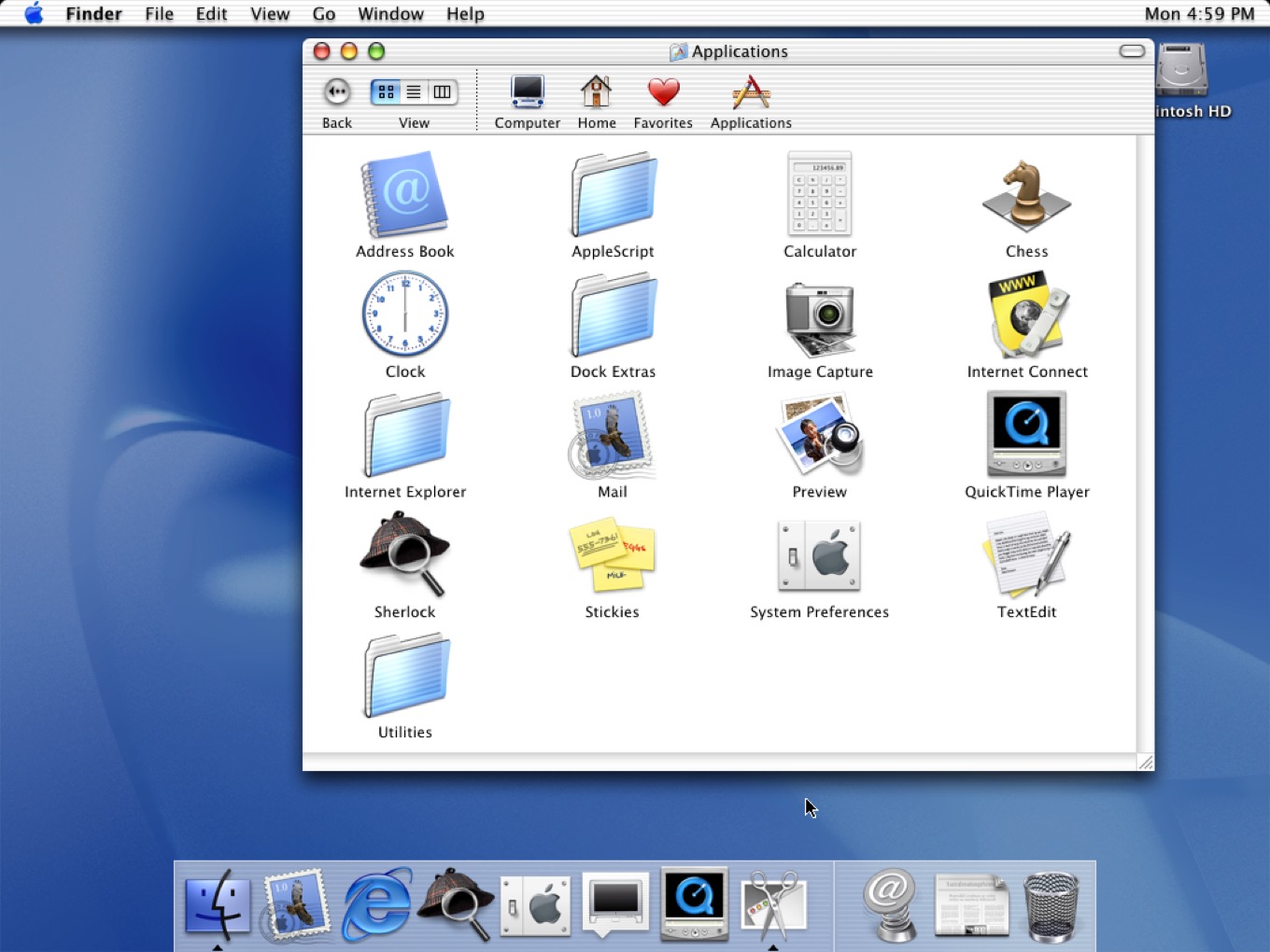
OS X 10.0 apps

Apple went back to the drawing board. And the version of Mac OS X that shipped as version 10.0 twenty years ago supported both NextStep-style apps, unmodified Mac apps (via a weird virtual-machine layer called Classic), and apps written using something called Carbon. Carbon, which was a modernized and simplified version of classic Mac OS technologies, was vital to the success of Mac OS X. Microsoft, Adobe, and countless other developers were able to bring their classic Mac apps over to OS X via Carbon—not without effort, but with a reasonable effort.

And so as 2001 became 2002, as 10.0 became 10.1 and was on its way to 10.2, Mac OS X ended up playing a lot of familiar notes for Mac users. It looked a lot like Mac OS, glammed up with the Aqua interface and with this weird new thing called the Dock (a NextStep touch that made it across), and it ran Mac software. Not just in Classic, either, but natively as an increasingly large number of popular Mac apps were upgraded.

Over the years, Apple deprecated Carbon, and the last vestiges of it really died when macOS Catalina killed off 32-bit apps in 2019. But it did its job. Not only was Mac OS X modern and ready for the future in a way the classic Mac OS wasn’t, but it felt familiar enough, both in terms of its design and in the software that it ran, for Mac users to embrace it.

I can’t say enough about how important Mac OS X was to Apple. By buying NeXT, Apple not only brought Steve Jobs into the fold, it brought the technology that would serve as the basis for OS X, iOS, iPadOS, tvOS, and watchOS. NeXT’s approach is at the heart of every iPhone and iPad app.

We’ve come a long way in 20 years, to be sure. And it feels like this decade will change the Mac in ways that it hasn’t changed since those early days of OS X. But my Mac still feels like the Mac. And when I close my eyes and imagine my Mac SE in 1990, I feel the familiarity and continuity that extend through Apple’s products to this day.

[OS X 10.0 images courtesy of Stephen Hackett.]


by Jason Snell

Steve Jobs introduces the Dock

Speaking of OS X history, here’s James Thomson on Twitter:

It’s really a weird experience rewatching Steve introducing the Dock for the first time, as it was my code that was running here. To say I was terrified for the whole length of this segment is underselling it. I don’t think I’ve seen this since.

This demo—the YouTube video is here—is from a developer preview version of OS X. Notice that when Jobs drags files into the Dock, they disappear from the Desktop! As James reminded me, they were moved into a Dock folder inside your user folder.

The Dock, though it was rewritten multiple times before OS X shipped, is one of the only NextStep interface design influences to make an impact on OS X.


By Dan Moren for Macworld

Why the next iPad Pro will be closer than ever to a Mac

It’s officially spring now, which is when the internet’s fancy turns to rumors of 2021’s first Apple announcements. Over the last few years, Apple has generally released at least some new products in early spring, and there’s no reason to think that this year will diverge substantially from this point.

Most of the attention in recent weeks has focused on updates to the iPad. That’s not terribly surprising: though Apple updated both the iPad Air and base-level iPad last fall, the iPad Pro received only a minor speed bump last spring, with the addition of the A12Z processor—far overshadowed by the addition of cursor support and the release of the Magic Keyboard.

But that modest update has created a strange state of affairs where the current top-of-the-line Pro is mostly outclassed by the new iPad Air—the Air even works with the Magic Keyboard as well. It seems clear that the iPad Pro is ripe for an update, possibly a substantial one.

So, as we await the announcement of an event, let’s take a moment to run down some of the technology that we might expect to find in a brand new iPad Pro that will bring it to the next level—and ever closer to the Mac.

Continue reading on Macworld ↦


Smart speakers with displays, how (and if) we use Apple’s productivity software, whether we have temperature and humidity sensors in our homes, and does anyone even care about AirTags anymore?


By Jason Snell

Mac OS X turns 20

Note: This story has not been updated since 2021.

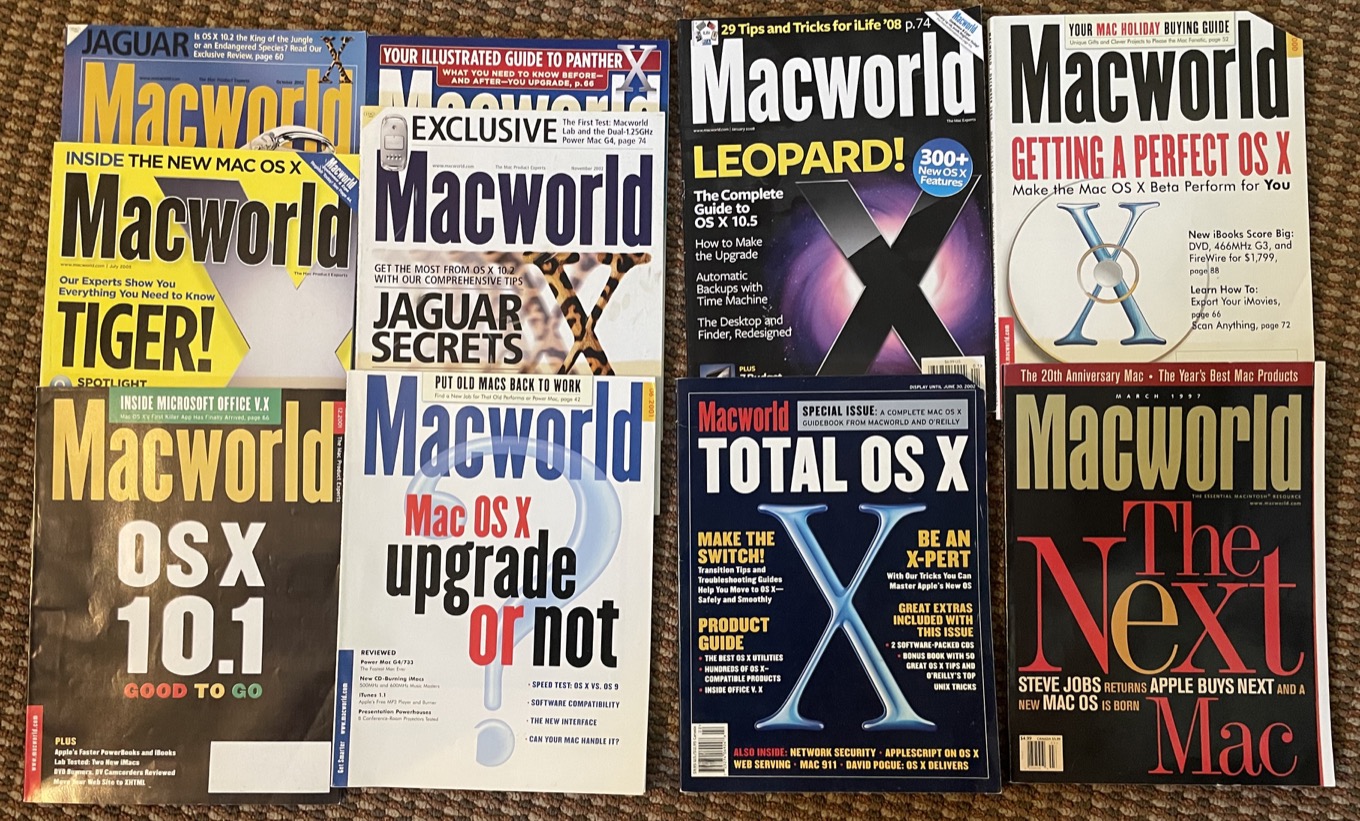
a bunch of OS X magazine covers
So many pages on this operating system over the years.

Today is the 20th anniversary of the release of Mac OS X. I wrote a bit about it in my Macworld column this week, and also put together a little Mac OS X timeline.

I’ve written a lot about Mac OS X over the years. Compiling that timeline reminded me of that. I was a features editor at Macworld when Apple began shipping OS X precursors, and so I edited most of our early coverage. Beginning with Mac OS X 10.1, I wrote most of Macworld’s big feature stories covering each release.

I’ve lived in the same house since 1999, so I have spent many springs and summers sitting out in my yard under our redwood tree writing and editing articles about Mac OS X, OS X, and now macOS.

How many? This many:

Wow, that’s a lot of operating-system releases. Here’s to the next uncountable number of them.

(While I wrote shorter reviews for Macworld, John Siracusa was always reviewing OS X at length for Ars Technica. Here’s a list of all his reviews.)


By Jason Snell for Macworld

An act of desperation 20 years ago was the building block for the modern Mac

To understand the desperation Apple felt in the mid-to-late 1990s, look no further than to one particular t-shirt. On the front was a 3-D rendered numeral eight. On the back, the words “Hands-On Experience” and Mac OS 8 logo.

At Apple’s Worldwide Developer Conference in June 1996, many of us got to experience the future of the Mac for the first time. We got the t-shirt for test driving Apple’s transformational new operating system, one that replaced the woefully out-of-date classic Mac OS with something that could compete with Microsoft. The operating system was nicknamed Copland and it never shipped. The “Hands-On Experience” shirts and an accompanying book, “Mac OS 8 Revealed,” were as good it was ever going to get.

With its back against the wall and its internal software development failing, Apple was left with only desperation moves. Fortunately, it made a good one, resulting in Mac OS X 10.0, which shipped 20 years ago this week.

Continue reading on Macworld ↦


By Jason Snell for Macworld

From Aqua to Catalina: The evolution of Mac OS X

Mac OS X has been through a lot in 20-plus years. As someone who was sitting in the front row at Macworld Expo when then-CEO Gil Amelio brought Steve Jobs on stage to celebrate Apple’s purchase of NeXT, it feels like I’ve been a witness to the whole story.

The macOS we use today is the result of iteration—sometimes rapid, sometimes painfully slow—over 16 major OS releases during those 20 years. Here are the highlights.

Continue reading on Macworld ↦


Special guest Jason Snell joins the show to reminisce over 20 years of Mac OS X. I mean OS X. Sorry, MacOS. Also: HomePod, AppleTV, and Intel’s awkward new ad campaign.


Wake up Elvis and get The Band back together—we’re here to take a load for free and talk about the latest episode of “For All Mankind.” We cover Tracy’s rough introduction to Jamestown, Gordo’s pool adventures, Molly’s new job, the death of Spock, and a very momentous book reading. Put the load right on us!


By Dan Moren

Return of the Safari Keyword Search extension

Note: This story has not been updated since 2021.

A few years back, Apple implemented a new browser extension framework, with the goal of making the system more secure. However, when the company eventually discontinued its old system, some popular extensions were lost in the transition—including one of my favorites, Safari Keyword Search, which let you do quick searches of user-defined websites from the address bar.

Good news today, then, as my pal and fellow address-bar-search enthusiast John Siracusa pointed out that original developer Arne Martin Aurlien has resurrected Safari Keyword Search via the new extension framework, and brought it to the Mac App Store.1

Safari Keyword Search

As with previous versions, Keyword Search allows you to define certain keyword shortcuts to search a particular website. For example, you can define w to search Wikipedia, and thus type, say w Tim Cook to be instantly taken to the relevant page. You can also define specific types of queries, so, for example, searching a particular site via Google.2

Safari does provide a similar feature built-in—the so-called Quick Website Search—but it’s somewhat more cumbersome to use since you have to select the result from a drop-down menu, and the per-website shortcuts are not user-definable.

Really, the only downside of Safari Keyword Search’s return is that I’ve trained myself out of using it (though I was never very happy about it), so it may take some time to get my muscle memory back up to speed!

Safari Keyword Search is free to download and its source code is available on GitHub for the interested, even if the developer warns it’s “a lot like a garbage fire at a spaghetti factory.”


  1. In the Mac App Store, it’s just called “Keyword Search” as I assume Apple frowns upon third-party developers using its products in their app names. 😬 
  2. I often want to search our archives here, for example, so I define sc to do a Google search with “site:sixcolors.com”. 

[Dan Moren is the East Coast Bureau Chief of Six Colors, as well as an author, podcaster, and two-time Jeopardy! champion. You can find him on Mastodon at @dmoren@zeppelin.flights or reach him by email at dan@sixcolors.com. His next novel, the sci-fi adventure Eternity's Tomb, will be released in November 2026.]


This week we consider the future of the iPad Pro, watch as the 21.5-inch iMac begins to fade away, and ponder what the HomePod mini means for Apple’s overall home strategy. Myke gets recommendations for soundbars, and Jason explains the NFL’s new TV deals.


HomePod mini contains unused temperature/humidity sensor

Bloomberg’s Mark Gurman reports that the HomePod mini contains a dormant temperature/humidity sensor:

The sensor, measuring 1.5 by 1.5 millimeters, is buried in the bottom edge of the HomePod mini’s plastic, fabric-wrapped case near its power cable. The component’s location was confirmed by iFixit, which took apart one of the speakers after an inquiry from Bloomberg News. The sensor is made by Texas Instruments Inc. and is called the HDC2010 Humidity and Temperature Digital Sensor, according to TechInsights, a firm that analyses components inside of electronics.

As Gurman points out, this isn’t the first time that Apple’s slipped in a piece of tech only to activate it later. But it does provide another potential mark in favor of the HomePod mini’s survival in the wake of the larger HomePod’s demise.

My big question is what held the company back from enabling this chip. Presumably something on the software side wasn’t ready yet—though that’s a bit of a surprise since the Automations feature of Shortcuts seems like an ideal place to let users trigger actions based on certain environmental threshold.1

Perhaps there’s another shoe to drop down the road with Apple (and the rest of the industry’s) still-very-quiet smart home alliance?


  1. I have a couple of the Eve Degree sensors which, sadly, the Home app doesn’t let you use for automation triggers, though Eve’s own app has more capabilities there.) 

by Jason Snell

Creating a “new” SE/30 logic board

This is staggering. “Bolle,” from Germany, drew and built a functional Mac SE/30 logic board. And with this work done, people in this message-board thread are beginning to speculate about adding modern tech like Ethernet or Wi-Fi to the mix.

Retro computing is such a vibrant and creative world. It constantly surprises and delights me.


March 19, 2021

Mac apps rule, leakers drool.


From November 20, 2020: Titanium PowerBook G4, MacBook Air, the original Macintosh, PowerBook 140/170, and iMac G3.


By Dan Moren

Acorn 7 brings M1 compatibility, tons of refinements

Note: This story has not been updated since 2021.

I don’t envy software developers who work on image editors—it must be tough when your biggest competitor has basically become a generic term for the whole category.

But I’ve never been a user of that big fancy image editing app, which has frankly always seemed a bit daunting. (Not to mention it used to be prohibitively expensive for a dabbler like me.) So, for more years than I can remember, when I’ve needed to edit some images—for everything from a simple task like resizing or cropping to creating book covers—I’ve turned to Flying Meat’s Acorn. It lets me do everything I need to do at a fraction of the price of many of its competitors.1

Acorn 7

With Version 7 of the image editor, released this week, the image editor features major changes both under the hood and in the user interface. In the case of the former, Acorn is now universal, running on—and fully optimized for—M1 Macs. The same is true for its myriad built-in filters, and in case that’s not enough there are also speed improvements to some common tools, including Flood Fill and the Magic Wand, making them up to three times faster than they used to be.

Acorn’s interface has also been given a significant makeover in this release: bringing it firmly into the Big Sur era, floating palettes are out, replaced with a unified window that incorporates the tools, inspectors, filter settings, and so on, in different panes. As someone who always felt like Acorn’s many palettes seemed to be constantly underfoot, this is a welcome change, but if you miss those days, don’t worry—there’s an option to go back to the old style.

Color Picker
Acorn’s new color picker is rebuilt from scratch.

The color picker has been rebuilt from the ground up, and there’s also a revamped export dialog box that gives better estimates of file size, as well as live previews of PDFs and support for new formats, like Google’s WebP and animated GIFs—no matter how you pronounce them.

Perhaps my favorite new feature in Acorn 7, however, is the command bar, which you can access by hitting command-shift-O. Up comes a little floating box that looks a bit like the Finder’s Spotlight Search: type in a term and Acorn will either point you towards the appropriate menu command or bring up relevant documentation. In more than a few apps, I’ve relied on the search box in the Help menu when I can’t remember where a command is buried in the menu, but adding deep links to help files is, frankly, even better. (Especially given my aforementioned meager skills at image editing.)

That’s just scratching the surface of what’s new in Acorn 7, which also has a very cool Perspective Fix tool for occasions when your picture is slightly skewed, a number of refinements to Shape Layers, and even a delightful “fussy preference” for using three letter file extensions like “jpg” and “tif.”2

Acorn 7 is compatible with macOS 10.14 Mojave or later, and is currently available for $19.99—50 percent off its usual price. You can purchase it either from Flying Meat’s website, which also offers a 14-day free trial, or from the Mac App Store.


  1. Not to mention having a ton of capabilities that I’ve barely touched. 
  2. I feel like this is the kind of delightful character and idiosyncrasy that you don’t get from giant software companies. 

[Dan Moren is the East Coast Bureau Chief of Six Colors, as well as an author, podcaster, and two-time Jeopardy! champion. You can find him on Mastodon at @dmoren@zeppelin.flights or reach him by email at dan@sixcolors.com. His next novel, the sci-fi adventure Eternity's Tomb, will be released in November 2026.]


Mac apps yes, text preferences no

I really enjoyed this review of Panic’s code editor Nova by Alex Guyot of MacStories. Nova is a remarkable Mac-only app that I’m looking forward to using with all updates to the Six Colors WordPress template going forward.

But Alex also makes a fantastic point about one of his (and my, as it turns out) pet peeves:

One of my main frustrations with pretty much all of the popular code editors out there (and I’ve tried most of them, including Visual Studio Code, Sublime TextAtomIntelliJ, and Eclipse) is that none of them are Mac-assed Mac apps. They’re all clearly cross-platform apps with design senses that differ significantly from those of Mac-first developers.

You can see a microcosm of this fact just by looking at the preferences of these apps. For many of them, the ‘Preferences’ menu bar item is actually a submenu from which you can navigate to ‘Settings,’ as well as other more nebulous options. If that doesn’t already offend Mac users, a common theme in those settings screens is for them to be literal JSON text files that open in the editor. You then manually edit the text to adjust options.

As Alex writes, design matters, Mac-like design doubly so. And if an app decides to display its preferences as an editable text file, I’m never going to use that app. Hard No.


Search Six Colors