Six Colors
Six Colors

Apple, technology, and other stuff

This Week's Sponsor

ZenStand: Walnut MagSafe Charger with Award-Winning Design

By Jason Snell for Macworld

4 ways iOS 11 will improve how you listen to podcasts

Owing to its embrace of the format back in 2005, Apple owns the most prominent position in the podcast market. Between iTunes on macOS and Windows and the Podcasts app on iOS, Apple owns the most popular podcast players in existence. And Apple Podcasts is by far the largest and most comprehensive—some would say definitive—directory for podcasts in the world.

That position gives Apple power and influence in the podcast world, even if you don’t use Apple’s apps to listen to your favorite podcasts. And with iOS 11, Apple’s making changes to the way podcasts organize and describe themselves that should make it easier to choose which podcast episodes to listen to, while giving podcasters more insight into just how people listen to podcasts.

Continue reading on Macworld ↦


By Dan Moren

Meet the new iMac, definitely not the same as the old iMac

Note: This story has not been updated for several years.

iMac 5K (2017)

After six years I decided it was time to upgrade the ol’ iMac. My previous workhorse was a mid-2011 21.5-inch model, albeit with some special modifications: a 256GB SSD (as well as a 1TB hard drive), a built-to-order 2.8 GHz Core i7 processor, and 24GB of RAM. All of those improvements meant that it was still a plenty capable machine in 2017, but it had started to become a bit sluggish when doing heavy-lifting tasks, and there was the matter of an annoying persistent line of dead pixels on the display.

So, with the announcement last month of the latest iMac revisions, my upgrade plans fell into place. I have no doubt I could have eked out another year or two from the old iMac, but the new models were enough of a revision to merit upgrading (Retina displays, Thunderbolt 3, much better discrete graphics, and so on) and happened to fall right into a perfect timing window for me.

I opted for a built-to-order 27-inch 5K Retina iMac, with a 4.2GHz Core i7, 512GB solid-state drive, and Magic Trackpad 2. If you’re keeping track at home, that’s the top of the line-model with the best processor currently available in a desktop Mac. (At least until the iMac Pro shows up later this year.) I chose to stick with the standard 8GB of RAM…but only so I could save some money by getting 16GB of additional RAM from OWC, bringing me to the same quantity I had in my previous machine—albeit with much better quality memory.1

Now that I’ve spent several days with the new iMac, I’ve begun collecting my thoughts. Most importantly that I’m super glad I made this leap, since it’s already starting to pay dividends. But there are definitely a few things that have stood out to me in the past several days.

Retina display

This is, hard as it might be to believe, my first Retina Mac. I’m a MacBook Air user and have been since 2011, so the new MacBook and the Retina MacBook Pro have never really been on my radar. I also have a Mac mini, but it’s hooked up to my HDTV, so it’s hardly a true Retina experience.

Between the high-resolution and the improved colors, the 27-inch’s 5K screen is absolutely gorgeous. This is, of course, old news for everybody who’s been using a Retina Mac for the last five years, but it is difficult to overstate just how sharp and crisp text looks on this screen. I’m sure not getting any younger, and I’d started to feel on my old iMac that my eyes were perhaps going a bit—so far, the 5K iMac has made the reading experience vastly more pleasant—and as someone who deals with text a lot, it’s a welcome improvement. (It’s still a bit of an adjustment, especially when I open up what I’m used to being a huge image, like an iPhone screenshot, that actually looks…just kind of reasonably sized on this display.)

As far as the size goes, I was a little worried that jumping from the 21.5-inch to the 27-inch might simply feel too large. Less than a week in and I haven’t felt that once. Part of it is because that curved backing on more recent iMacs actually does make it feel surprisingly small. I’ve also long had a 27-inch Cinema Display that I’ve hooked my MacBook Air up to, so this isn’t my first time on a larger screen. Mostly it just feels “not cramped” to me, and I have a pretty hard time imagining going back.

Performance

Writing certainly isn’t the most performance-intensive task, but these days my job also involves producing a lot of podcasts, and shuttling around big audio files definitely requires a bit more horsepower. So far I’ve only edited one podcast on the new iMac, but the result was still striking: I had this week’s episode of Clockwise published less than 40 minutes after it wrapped up.2 Tasks that often took a lot of time: transcoding, syncing audio files, even just copying files into GarageBand, took noticeably less time. I may have audibly gasped when I saved a large AIFF in Fission, an action that I often avoided on my old iMac because it involved sitting around and watching a progress bar. The dialog with the progress bar didn’t even appear.

At the end of the day, performance improvements for me aren’t so much about making what I’m actively doing faster as making me spend less time waiting for the computer to finish what it’s doing. This new iMac has already made me more productive by speeding up tasks where I used to end up walking away from my desk to go get a drink while it did its thing.

Sundries

There are a few other small things here and there that I’m liking or getting used to on this new machine. As I mentioned ahead of getting the new iMac, one of the features I was most looking forward to was having AirDrop. I take a lot of screenshots and often send them to my Macs for uploading or sending along with pieces I wrote. On my old iMac, which didn’t have the right hardware for AirDrop, I ended up using the excellent Printopia to “print” those images into Acorn for editing, but the workflow had begun to feel a bit more cumbersome since I’d gotten spoiled by using AirDrop on my MacBook Air.3

Perhaps the most difficult thing to get used to so far has been the Magic Keyboard. I liked the old Apple Wireless Keyboard; it had a nice key feel, could be surprisingly quiet, and was easy to navigate without looking. All of those things have changed on the Magic Keyboard. The keys have less travel, which has changed the feel of typing.4 It’s also louder and clickier than the old keyboard, which makes it a little harder to type discreetly when one is, say, recording a podcast. Finally, the rearranged key layouts—full-size keys on the F-keys and left/right cursors—has taken some acclimation for my touch-typing. I used to orient my right hand by finding those half-height cursors and I used to be able to more routinely hit the top two rows on the keyboard because I could locate the smaller F-keys. No doubt I will adjust eventually, but for now, I feel just a bit slower. I do appreciate that both it and the Magic Trackpad 2 are rechargeable via a Lightning cable, though their initial charges are still holding out.

As for the Magic Trackpad 2, I appreciate the increase in real estate and it’s a very attractive device, but I’m still getting used to the faux-clicking. I’ve turned off Force Click for the moment, because I still haven’t heard any really great reasons for leaving it on, and because I found the second-level of clicking kind of distracting. I may eventually switch to Silent Clicking[^silentrunning], since the haptics still provide the illusion of a click sound. Also, I use tap-to-click a lot, so I’m used to the whole not-clicking thing. [^eaitsuckers]

Conclusion

Granted, I’ve used this computer for less than a week, and much of that time was a long weekend, so I really haven’t had a chance to put it through its paces yet. I’m looking forward to seeing how it handles longer podcasts and somewhat more challenging tasks like an upcoming session for Total Party Kill. Heck, maybe I’ll finally try out some Mac games that I’ve been putting off. All in all, though, I expect this iMac to take me through the next six years—or more—no problem.5


  1. The 27-inch, unlike the 21.5-inch, actually still lets you easily upgrade the RAM without voiding your warranty, which is one of the reasons I chose it. Otherwise it meant paying Apple through the nose to max out my RAM at the time of purchase. 
  2. To be fair, it was an episode that didn’t require a lot of editing. 
  3. More than a few folks scoffed when I mentioned this feature, pointing out that AirDrop has never worked for them reliably. I don’t know what sacrifice I made correctly, but I’ve had very solid luck with AirDrop between iOS devices and Macs for years. So far it works great on the iMac. 
  4. I swear it’s also resulted in me hitting subsequent keys too quickly, thus generating more typos. But maybe that’s in my head. 
  5. Well, that is, unless I get tempted by the Space Gray iMac Pro. 

[Dan Moren is the East Coast Bureau Chief of Six Colors, as well as an author, podcaster, and two-time Jeopardy! champion. You can find him on Mastodon at @dmoren@zeppelin.flights or reach him by email at dan@sixcolors.com. His next novel, the sci-fi adventure Eternity's Tomb, will be released in November 2026.]


By Jason Snell

Spam in my kitchen: The Amazon Echo Show arrives

Note: This story has not been updated for several years.

Firemen Rescue Baby Deer
“Alexa, tell me about the baby deer.”

So I got an Amazon Echo Show last week—this is the Amazon Echo model with the screen on the front. If you’ve seen the pictures, it looks like a weird ’80s TV set, but a lot of that has to do with a lack of scale in many photos—it’s quite small, though definitely boxy and strange.

I am going to need to live with the Echo Show for a while to really get a sense of how having a screen affects the Echo experience. It’s clear that what’s in the product today is simply not good enough, but Amazon has shown with the previous Echo that it could constantly add new features and improve the service and software, so I’m at least somewhat optimistic.

I can see the promise of having that screen in my kitchen, because like kitchen TV sets of yore, it can provide video right where you’re working. The Echo Show can stream some live video and play back YouTube clips. I’m not really interested in playing an episode of “The Americans” from Amazon Prime Video while I’m cooking, but given all the apps Amazon has available for its Fire TV platform, I have to wonder if there will be a way for me to get access to other features (like Netflix, or MLB.TV) over time.

For years now I’ve had some repurposed music players that I’ve used as dumb screens around my house to display the current time and the temperature in my backyard, courtesy of my home weather station. They’re getting old and outmoded and I like the idea of using the Echo Show as a place to display similar information so it’s available at a glance.

Unfortunately, right now the Echo Show’s main screen isn’t particularly customizable beyond the background wallpaper image. At its best, it shows me the current time and weather for my town. At its worst, it’s a billboard for garbage news headlines and videos I don’t care about.

Update: In a previous version of this story, I said there was “nothing I could do to stop the flow of stuff I don’t want onto that screen.” This isn’t entirely true, but the state of affairs is maddening. Despite Amazon requiring you to set almost every setting for any Echo device from the Alexa mobile app, the Echo Show does contain a hidden Settings screen that you can bring up either by swiping down from the top of the screen (turns out there’s a menu hidden up there—don’t swipe over the camera lens, though, or you’ll smudge it) or by asking Alexa to show you the settings. On this screen, some of the settings from the Alexa app are available, while others aren’t, and other settings are available only on the device. What a mess.

Among the settings options is a Home Card Preferences sub-menu, that lets you change whether the data cards on the home screen rotate a single time or continuously, and let you turn off Notifications (alerts from skills and other Alexa services), Upcoming Events (from your calendar), Drop In (displaying who’s available for a slightly creepy video peek right now among your Drop In contacts), and Trending Topics (wacky stories and videos!).

Unfortunately, that’s it – and if you turn everything off, you’ll still see a rotating collection of hints about ways you can use the Echo by uttering various phrases. So you can turn off the viral news and video spam, and your own calendar, but the level of control is extremely limited—if you can find it at all.

Otherwise, your best option is to put the device in Do Not Disturb mode, where only a clock shows. But I don’t really want that—there’s information I do want to display on this device, it’s just not what Amazon wants to offer me. If I could configure the Echo Show to just show the time and my current temperature and weather forecast, I’d be much happier. It would be even better if I could choose widgets to put into the rotation and provide actual information of value. Maybe that will come in time?

What I don’t want in my kitchen is spam. And right now, that’s what the Echo Show is doing—it’s spamming my eyes when I’m in the kitchen. I’m willing to give it a little bit of time for Amazon to get its act together, but it’s embarrassing that this product shipped with this feature as the default. It’s like buying a TV set or car stereo that can’t be taken out of showroom demo mode.

If you’re an Echo fan who is considering an Echo Show, steer clear for now. The fact that there is a setting (albeit hidden on the device) is reason for hope that things will get better. But the customizability of the home screen needs a lot of work.


by Jason Snell

‘The tragedy of FireWire’

Before there was Thunderbolt there was FireWire, the high-speed alternative to onboard USB on Macs. Over at Ars Technica, Richard C. Moss tells the tale of its rise and fall.

My favorite bit, though, is about why Sony (which deserves the credit for popularizing the standard, before Apple jumped on board) refused to name it FireWire and called it “i.LINK” instead:

“The official reason was that the Japanese are afraid of fire,” Teener said. “They’ve had lots of flames, lots of burned down houses.”

That seemed too lame. One day he took some friends at Sony out after work to get drunk and learn the real reason, which turned out to be rooted in the value of the name…. “They compared FireWire to Sony and it was, ‘Oh, yeah, FireWire is cool!’ Sony: boring.”

What killed FireWire? Moss suggests that it was Steve Jobs agreeing to increase the licensing fee for FireWire, driving Intel away from putting it on chipsets and into the arms of USB 2.0. The rest is history—and so is FireWire.


by Jason Snell

‘Can the MacBook Pro replace your iPad?’

Worth a revisit, given recent discussions and Twitter rants based on the latest generation of iPad Pro models, is this piece by Fraser Speirs from 2015:

If you have certain very specifically-defined workflows, and a work environment where you can guarantee yourself a chair and desk, you can probably get your work done on a MacBook Pro. For the rest of the world, there’s iPad.

As Fraser notes at the end of the piece, its original title was “If journalists reviewed Macs like iPads.”


By Dan Moren

The Back Page: Leaked Transcript of Apple’s Plan to Stop Leaks

Good morning, and welcome to this important presentation. My name is Karen Redaakted–before you ask, it’s Dutch–and I’m the head of Product Security here at Apple. I’m here today to talk to you about a subject that’s near and dear to the hearts of all of us. Do you know what that is?

No. No you don’t. Because nobody has told you. And nobody has told you because the topic itself is a secret. After all, we wouldn’t want news of our secret briefings to get out into public–that would be terribly embarrassing.

But now that the hermetically sealed doors have been closed and we’ve activated the jamming field that we used to exclusively reserve for press liveblogging our events–not that I am confirming or denying that we ever used it–we can tell you exactly what we’re here to discuss today.

Secrecy.

We’ve all got secrets. For example, most of you probably don’t know that Karl will eat any leftover cake in the breakroom refrigerator. Or that Janet plays Overwatch on her work iMac when nobody’s around. You probably wouldn’t want those secrets out in the press, right? Right, Karl? Of course not. Well, how much worse would you feel if it turned out that Karl was the iMac Pro. Or that Janet was that iOS 11 feature that turns your selfies into cartoon characters? You’d feel pretty bad, wouldn’t you?

So, we’re launching some new security initiatives to triple down on secrecy. Yes, triple–we’re not playing blackjack here, people.

Firstly, from now on, all unreleased products, both hardware and software, will be referred to exclusively by codename. And yes I know that we already have codenames for products, but here’s what we’re doing differently: each employee will be issued unique codenames for each individual product. That way, should a codename be leaked to the press, we will know exactly who did it.

You might be wondering how this will affect meetings. Good question. We will be issuing a specialized Siri-enabled iOS app to all employees. Simply put in your AirPods and launch the app at the beginning of any meeting, and it will automatically look up mentions of other employees’ codenames and instantaneously translate them; Siri will then speak the appropriate codename directly into your ears.

So if your code name for the Mac Pro is “Cardamom Clock” and you’re in a meeting with Karl Cakeeater–he’s of German descent, I believe–and he uses his Mac Pro codename “German Forest”, which is totally randomly generated, then you will hear Siri say “Cardamom Clock.”

That’s one precaution. The second precaution we are taking today is to replace all of your social networks with our new Apple-designed social network service, Friends. No longer will you need to go to sites like Facebook and Twitter to keep up with what “other people” are doing. Instead, you can view these specially curated feeds of what your co-workers think about the latest meme, political news, or cute puppy. That way, if you accidentally post something that violates our secrecy protocol, the only people who see it will be other Apple employees.

But even more importantly, the other posts in your timeline don’t come from actual Apple employees–we’ve used machine learning to mimic real social media posts. Each timeline is custom-generated for you. We are confident you’ll never even notice the difference.

Finally, the third leg of our privacy stool–which will soon be replacing all chairs throughout Apple Park–is perhaps the most drastic, but also the most effective. We will be raising an immense dome around the campus which will be both transparent and impermeable. You’ll barely even notice it’s there, at least as long as you don’t try to leave. But we’re not monsters: we will of course be issuing temporary permits for you to visit your families at least twice a week via our new telepresence robots. Those robots will be equipped with the same special iOS app to make sure there are no unauthorized leaks–anytime it detects you are saying a codename or any other confidential information, it will bleep out those words. We’re confident that, over time, this will simply become ingrained behavior.

So there you have it: our plan to improve secrecy at Apple so that we are second to none in this department. I appreciate all of your attention to this important matter, and need to, naturally, impress upon you the complete confidentiality of this very meeting. To ensure which, I will just need you all to look into this device and–bright white flash

[Dan Moren is the East Coast Bureau Chief of Six Colors, as well as an author, podcaster, and two-time Jeopardy! champion. You can find him on Mastodon at @dmoren@zeppelin.flights or reach him by email at dan@sixcolors.com. His next novel, the sci-fi adventure Eternity's Tomb, will be released in November 2026.]


By Dan Moren

What I Use: What’s in My Dock

Dan's Dock
Dan’s Dock

The Dock has been a staple of Apple products since before Mac OS X first debuted back in 2001. (It appeared in the Public Beta that was released in 2000 and, of course, was derived from the NextSTEP and OpenStep OSes that it drew from.) It’s evolved over the years, but in the end has remained more or less true to that initial concept: a place to keep your frequently used applications, folders, and files. Since then, it’s migrated to iOS to become a fixture on the iPhone and iPad as well—there’s even a Dock on the Apple Watch. (Sorry, Apple TV!)

So, with that in mind, here’s how I use the Dock on my Macs.

Orientation: Yep, I’m a bottom-of-the-screen Dock guy. Back in the day, one of the first things I used to do when setting up a new Mac was install TinkerTool and use a secret preference to pin the Dock to the bottom right, mainly because I liked having the Trash always in the bottom right corner of the screen. But alas, as of Yosemite, Apple killed off this hidden feature, which means I’ve ended up in the bottom middle. You and your vertical-Dock-loving compatriots can leave me alone.

Auto-hide: Nope. With the exception of when I need to temporarily view something in a larger window on my MacBook Air, my Dock is always displayed.

Magnification: Are you kidding? No. God no.

Minimize Effect: Scale. Naturally. Though the number of times I need to put a window in the dock is…well, almost never.

Apps: Okay, here we go, the meat of this. From left to right.

Finder. Duh.

Mail. Email is far from dead; it’s still the first thing I need to check every day. So Mail earns that first spot and, frankly, is pretty much always running on my Mac.

Safari. Let’s be honest: a browser is the one app you pretty much can’t avoid using. I’m writing this in Safari right now. So of course it takes the number two spot.

Messages. If I’m not sending emails, Messages is probably the next most frequent app I use to talk to friends, family, and colleagues. I have ongoing threads with several of my podcast co-hosts, a few of my cousins, my girlfriend—and, heck, even my mom uses iMessage now.

iTunes. Look, I don’t like it anymore than you do, but it’s still the way I listen to music on my Mac, look things up in the iTunes and App Stores, and even occasionally interface with iOS devices. (Though to be honest, all of those things are less frequent occurrences than they used to be.)

Calendar. Scheduling has become a necessity for me. Somewhere younger-me rolls his eyes about “being bound to other people’s conception of time, man” but younger-me also only had to show up before the dining hall stopped serving breakfast. So, yeah. Calendar’s earned its place.

Tweetbot. I’m not going to lie: Twitter’s become a challenge over the last year or so. But it’s still a major way that I talk to friends and colleagues, keep up with the news, and—more recently—try to get word out about my book. Tweetbot has been my client of choice for a long time, though I have to admit being tempted by the resurrected Twitterrific for Mac.

BBEdit. It remains the tool I use for doing the vast majority of my non-fiction writing on the Mac, as well as a veritable Swiss Army Knife of dealing with text. Terminal. I still like getting my hands dirty in the command line, and I use it just enough that it merits a place on my Dock. Sometimes there’s just no better way to get something done.

Slack. While Twitter’s been on the ebb, I’ve found Slack on the rise. It’s kind of like Twitter, except I only get to talk to a small group of people who I know I like. It’s become an app that I have open pretty much all the time, so of course it’s earned a place in the Dock

App Store. The Mac App Store has hardly been lavished with a lot of love and attention over the past few years, but it’s still important enough that I want to have quick access to it—especially for app and system updates.

Folders: I only have two folders in my Dock, but they’re both ones that I use pretty frequently—however, I have specific settings that I like for each of them.

Applications. Generally I launch apps that aren’t on the Dock via Spotlight, but it’s still occasionally handy to have a quick list of all my applications, especially when Spotlight misbehaves, as it does from time to time. It also makes it easy to drag stuff into my Applications folder without having to dig through a Finder window. Displayed as a Folder, sorted by Name, content viewed as a List.

Downloads. It’s a catch-all folder that I probably let amass way too much crud, but as such, I often want to take stuff in or out of it, so having it always at my fingertips is crucial. Displayed as a Folder, sorted by Date Added, content viewed as a Grid.

Trash. Naturally. Where else are you going to put it?

That’s it for my Macs’ Dock—and yes, before you ask, both my iMac and MacBook Pro have pretty much the same line-up on them. What can I say, I like consistency. My Mac mini server has a slightly different assortment of things since I usually need to do different tasks there. And, of course, there are the Docks on my iOS devices—but that’s a story for another issue.

[Dan Moren is the East Coast Bureau Chief of Six Colors, as well as an author, podcaster, and two-time Jeopardy! champion. You can find him on Mastodon at @dmoren@zeppelin.flights or reach him by email at dan@sixcolors.com. His next novel, the sci-fi adventure Eternity's Tomb, will be released in November 2026.]


By Jason Snell

By Request: Sports, entertainment, and tech

Subscriber Rob writes, “What do we have to look forward to in the next few years as tech savvy baseball fans?”

There’s no doubt that the entertainment business in general, and sports in particular, will be dramatically altered by technological progress. I’m not a sports analyst by any means, but I’m a lifelong sports fan who also spends a lot of time thinking about tech stuff. So let me take a stab at it. Keep in mind, these are just a few broad ideas. I reserve the right to change my mind later.

The problem with the in-stadium experience is that sports are almost always going to be better experienced on television, where you get the very best angles, close up, with instant super-slow-motion replay. I attend a half-dozen baseball and college football games every year, and it’s clear that attending a game in person is still an entertainment experience—but it’s not the same experience as watching on TV, and so stadium experiences will need to continue to grow and change and innovate in order to provide something that’s worth your time. Ordering food and drinks from your seats via app is a start, as is providing free access to video replays on your mobile device when in the stadium. I wonder if augmented-reality tech could make watching a game live a bit more like watching it on TV, if you could call up stats and see replays in your field of vision while also watching the sport live. But at some point, doesn’t that just become watching TV? Why pay for a luxury box so you can watch the game on the TV set in the box, when you can just do that at home?

Sometimes, though, I wonder if the future of live sport is going to be a dramatic split between the people willing to pay huge amounts of money for an ultimate luxury experience, and the people who pay relatively little in exchange for providing a studio audience for the televised experience. My college football team, the California Golden Bears, make more money from their conference’s television deal than they can possibly make from selling tickets to people like me who want to see the game live. As a result, the games are increasingly scheduled in TV-friendly—and spectator-unfriendly—time slots. If that trend continues, they’re going to need to scramble to ensure that their lucrative television product isn’t being contested in front of an empty stadium. It’s a tough one.

Recently Major League Baseball has experimented with an all-you-can-eat monthly or season pass at various venues; for a flat price you and a guest can come to as many games as you want during the season. I think innovation like this, built on the back of the premise that everyone has a smartphone, will continue. Buy a subscription to the home team, come to a certain number of games a year, and maybe even watch as you’re dynamically assigned a seat in the stadium based on what’s available. Maybe you get a better seat if you pre-order dinner?

But of course, the in-home experience is where things could really change. High frame rates, higher definition pictures, and virtual-reality broadcasts can all make the sport more immersive. I’m hoping that viewers might one day be able to select what sort of stats and annotations they want to see on screen, or even pick their audio source of choice. I’ll crank up the sabermetrics, thank you very much.

But the truth is, the biggest way technology may impact sports is in how it’s played. We are just now discovering facts about sports we have been playing for more than a century, all due to computer tech that allows every movement of player and ball on a field to be recognized, logged, and analyzed. From baseball to soccer to basketball, our conception of what makes a good player is changing. And the players themselves are using video and statistical analysis to improve themselves, advanced medical techniques and appliances to train more intelligently or heal faster… we’re truly in the middle of a revolution in how sports are played and how athletes train.

Despite all this, though, the fact remains: sport remains an entertainment business only so long as it remains entertaining. The moment it isn’t fun anymore, the jig is up. It’s up to the sports leagues to figure out how to navigate our changing entertainment landscape and remain part of our entertainment budgets. The more that technology can connect me to my teams and make me care, the more likely they are to succeed.


By Stephen Hackett

The Hackett File: Revising my iPad Productivity

Outside of recording and editing podcasts, my next-biggest chunk of time at work is spent on administration. Generally, this involves a lot of email, PDFs and spreadsheets. These tasks can be done on an iPad, but I’ve always found myself more comfortable completing them on a Mac.

Perhaps I’ve never taken the time to adjust my workflows to better fit the limitations present on iOS, but I find myself feeling constrained in ways that I don’t on macOS.

Take the task of creating a PDF from an email and uploading it to Freshbooks, the web-based accounting tool we use at Relay FM. On the Mac, I can select Export as PDF… from the file menu, save the PDF to my Desktop, tab over to Safari and upload it.

(As macOS supports creating your own custom keyboard shortcuts, I don’t even have to manually pull down the File menu to start the task, which is an added bonus.)

On iOS, this task is more clumsy. While some clients like Airmail make it easier to create PDFs from emails, the built-in app takes several steps:

  1. Tap the Reply button, because Mail.app hates the Share Sheet.
  2. Select Print.
  3. On the Printer Options screen pinch and expand the Preview or press on it with 3D touch. A PDF preview window is then spawned.
  4. Tap the Share button at the bottom of that window. to save the PDF someplace like Dropbox or iCloud.

After all of that, I can switch to Safari and upload the file from the Document Picker to the web. Most document providers require Internet access, which is another thing to consider.

This example is simple, but it’s something I do numerous times a week. I’d love to be able to use Mail.app and have an easier way to create PDFs from messages, but so far, iOS 11 doesn’t make turning an email message into a PDF any easier.

However, once a PDF has been made, iOS 11 promises to make this sort of task faster and easier with Files.app. It allows for local file storage, so my files don’t have to make a round trip to a Dropbox server and back.

This particular workflow should be a little better in iOS 11, but not remarkably different. However, the new multitasking, drag and drop and the aforementioned Files app should make this sort of cross-app work faster and easier.

Currently, so much work is reliant on Document Providers, a corner of iOS 10 that demotes non-iCloud services in what is already a pretty painful bit of UI. With Files, dragging documents to an email draft or a Note will be complete in mere seconds. Uploading a bunch of photos to a CMS will be much faster, as will importing resources into something like iWork. The new iPad Pros will allow three apps at once, allowing me to have a spreadsheet, Safari and a checklist all just within reach.

The days of hunting through Split View for the app I need are coming to a close, but I’m not sure that will be enough.

I don’t know if iOS 11 will change enough about the iPad to let me move a lot of my non-audio work to it, but I’m excited about trying it again. I’m ready to be impressed.

[Stephen Hackett is the author of 512 Pixels and co-founder of Relay FM.]


By Jason Snell

San Jose’d

Since you last heard from us, we went to San Jose for Apple’s Worldwide Developer Conference. It was a good time. Almost everyone I know professionally was there, making it feel a bit like a high-school reunion. The weather was warm (in contrast to San Francisco), and while I had to get a hotel room for a couple of nights because San Jose is so much farther away from my home than San Francisco is, that meant I spent even more time in town, which meant it was a better event. I hope Apple keeps WWDC in San Jose for years to come.

It really is a strange feeling to wander around several square blocks and constantly hear voices you usually only hear on podcasts, or see faces you’ve come to know from Twitter avatars. And as a writer and podcaster, I’m high profile enough that people recognize me, which is just bananas. A guy got out of a car while I was walking down a street and shouted my name and got a selfie with me, which has never happened before in my life and will never happen again. Dan Moren and David Sparks were with me, which made me mortified but also gave me witnesses. Later on the same walk, someone approached David to talk about how much he loved Mac Power Users, and at least one other time I saw Dan get approached, too. It’s that kind of place. Turn around and you will bump into someone you worked with, know, or hear on a podcast.

What I’m saying is, if you haven’t ever gone to a WWDC—and why would you, if you’re not a developer?—you might actually want to put it on your “I’d like to do this sometime” list. WWDC week has transformed into what Macworld Expo was many years ago—the single event where everyone who is involved with Apple stuff—Apple employees, media, you name it—is in one place for an extended period of time. It’s the Apple equivalent of San Diego Comic-Con… but you don’t need a ticket to the big show to experience it. Other conferences—AltConf and Layers—run alongside WWDC, and I would be shocked if others don’t spring up in the years to come. As a social occasion for our community, it really can’t be beat.

If you can’t go, at least there’s good news on that front: Increasingly, the must-see events of WWDC week are available, sometimes live, sometimes on demand within hours of them happening. Some WWDC sessions are livestreamed and they’re almost all available for playback after the fact. John Gruber’s The Talk Show interview with Phil Schiller and Craig Federighi is up in both audio and video form, and the audio of the event streamed live. Accidental Tech Podcast streamed live. My podcast with Myke Hurley, Upgrade, streamed live. And of course, a zillion podcasts were posted in the ensuing hours and days of the event. Apple even set up a podcast booth for developers to record podcasts on site.

Coming out of the week, there were really two big stories. First, the new hardware—most immediately, the new iPad Pros, which were released the following week. I’m writing this story in my backyard on the new 12.9-inch iPad Pro. This thing is great… and it will be even greater once iOS 11 arrives, since it offers dramatically improved multitasking features for iPads. The iOS 11 story, as well as the macOS High Sierra story, are the other big thing. New operating systems take all summer to coalesce, as we learn new tidbits about how they work and work on extended projects to cover all the new features. That work started last week, and continues through September.

It’s how I spend my kids’ summer vacation every year, more or less. I’ve been writing about Apple operating systems from under the same redwood tree I’m sitting under right now since my review of OS X 10.1 for Macworld. The big difference is, this year I’m writing on an iPad Pro, not a Mac.


By Dan Moren for Macworld

After 10 years, where does the iPhone go next?

Ten years ago this week, the public first got its hands on the iPhone and began a revolution that has forever changed the way we use technology. We’ve gone from a society where a computer was something you had to sit down at a desk to use to one where it’s in your pocket all the time. We’ve ushered in an era of apps, selfies, emoji, and the answer to every question at our fingertips.

So, with all that under its belt, where the heck does the iPhone go next?

Continue reading on Macworld ↦


The iOS 11 public beta has started: https://beta.apple.com/sp/betaprogram/
MacRumors says Apple has acquired German firm SensoMotoric Instruments: https://www.macrumors.com/2017/06/26/apple-acquires-sensomotoric-instruments/
On the 10th anniversary of the iPhone, John Markoff interviews those who worked on it: https://www.youtube.com/watch?v=5xDRdWFdsoQ
Echo Show might be a little creepy: https://www.buzzfeed.com/mathonan/meet-amazons-new-echo-show-alexa-is-watching
The Super Nintendo Classic arrives in September: https://sixcolors.com/post/2017/06/super-nintendo-classic-arrives-in-september/
Our thanks to Shutterstock (http://shutterstock.com/rebound) for sponsoring this episode. Whether you’re making ads or brochures, you need high quality images to attract and keep customers. Go to Shutterstock.com/Rebound and get started today with a 20% discount.
Our thanks as well to Indochino (https://www.Indochino.com) where you’ll find the best made to measure shirts and suits at a great price. Use the promo code “REBOUND” and get any premium suit for just $379.
And our thanks to Couchbase (https://www.couchbase.com/therebound). Get exceptional customer experience at any scale on the Couchbase engagement database. Always on, always fast. To find out more, go to Couchbase.com/TheRebound.


By Dan Moren

A couple weeks with the iOS 11 beta

Note: This story has not been updated for several years.

iOS 11

Every year we do the dance: Apple releases betas of the new versions of its operating systems and we go ahead and install them. Why, when we tell all the rest of you to be careful? Well, in part because we’re the kind of people who live to be on the bleeding edge, but also so we can write about the new versions of macOS and iOS and tell you what to expect. We do it for you, readers.

So I’ve been using the beta of iOS 11 for a couple weeks now on my 10.5-inch iPad. (I was going to wait until the public beta, I really was, but this machine simply cries out for iOS 11’s powerful features.) In that time, I’ve tried to spend a lot more time using my iPad than I used to, even if it’s still not my main computing device.

For me, iOS 11 makes that a lot more plausible than it used to be. Continuing in the tradition of iOS 9, which finally opened up the ability to have more than one app onscreen at the same time, iOS 11 has refined that into a system that is far more powerful, even if it’s not without its idiosyncrasies.

So, with the understanding that this is still a beta, and, of course, betas are subject not only to bugginess, but also to change and refinement, here are a few observations from my time using iOS 11.

Continue reading “A couple weeks with the iOS 11 beta”…


by Jason Snell

iPhone at 10 video roundtable

I went into my old offices at Macworld yesterday to reminisce with Roman Loyola and Oscar Raymundo about the 10th anniversary of the iPhone. It was a fun conversation, so check out the video!


68: June 29, 2017

Public betas, iPhone anniversaries, and Echo Shows.


By Jason Snell

What’s new in Photos for macOS High Sierra

Note: This story has not been updated for several years.

One of the major areas of improvement in macOS High Sierra is to the Photos app, which is only a couple of years old and has plenty of room to grow. I literally wrote the book on Photos, so it’s been interesting to watch Apple’s replacement for iPhoto as it has grown and changed. Here’s a look at the changes and new features in Photos for Mac on macOS High Sierra.

New image formats. Beginning with iOS 11, the iPhone 7 and later and the latest generation of iPad Pro models no longer capture photos and video in the JPEG and H.264 formats they’ve previously used—at least by default. Instead, they use the new High Efficiency Video Codec (HEVC) for video and HEIF (pronounced “heef”) for photos. Photos for High Sierra supports these formats natively, as you’d expect. If you share your photos (or drag them into the Finder), Photos will transcode them to JPEG and H.264, because Apple realizes that many devices can’t yet understand the formats.

(Because these formats are not supported on Sierra, Macs that are still back on Sierra will be able to view low-resolution derivative files synced via iCloud Photo Library, but not edit them.)

Portrait mode support. Photos for High Sierra supports the same portrait effects supported in iOS 11. This means that if you edit a photo taken in portrait mode on an iPhone 7 Plus, 8 Plus, or X running iOS 11, you can edit the portrait effects. (This is all aided by the fact that unlike JPEG, the HEIF format allows Apple to embed multiple images and depth-sensing data inside the HEIF file, so all that data carries along with the file up to iCloud Photo Library and back down to the Mac.)

Photo editing upgrade. Perhaps the biggest changes in Photos are in the editing pane. Previously, when you decided to edit a photo, you’d be presented with a sidebar containing seven icons: Enhance, Rotate, Crop, Filters, Adjust, Retouch, and Extensions. You could click through to any of them to reveal a subset of editing tools—or in the case of Enhance, do a one-click global enhancement to your photo.

There are nine new filter presets, replacing the older ones.

With Photos on High Sierra, when you edit a photo you’re taken to an interface with a sidebar as well as a toolbar. Tabs at the top let you toggle between three different editing views: Adjust, Filters, and Crop. (One-click Enhance is now an icon at the top right of the screen, next to the Done button.) Clicking the Crop tab will bring up the Crop functions of Photos, largely unchanged; clicking Filters will bring up a revamped set of nine pre-built image filter presets, three variations each on three different styles (Vivid, Dramatic, and black and white).

<

figcaption>Every advanced editing tool now lives under the Adjust tab, including the new Curves and Selective Color tools.

Everything else—all the more advanced editing tools—now live under the Adjust tab. Instead of having to hunt for them, they’re all there in the sidebar together. You can click disclosure triangles to show additional editing options, or hide them away entirely. It’s certainly more cluttered than the old approach, but you no longer have to remember if a particular effect is in the Filters, Adjust, or Retouch section.

There are also two new editing tools, though they’ll be familiar to users of other editing tools, including Apple’s discontinued Aperture: Curves and Selective Color.

Support for third-party edits. In the transition from iPhoto to Photos, the ability to edit a photo in an outside app and then save it back into your photo library was lost.1 It’s back now, and it’s better than it ever was in iPhoto.

In Photos on High Sierra, you can open any photo in an external image editor via the Edit With command under the Image menu. Under the Edit With menu will be a list of all the apps on your Mac that have been updated to take advantage of this feature of Photos, meaning you don’t need to pick a single external editor—you can choose different apps as you see fit.

Once an image has been opened in an external editor, you can do pretty much anything you want to it. Once you save in the app, the adjustments you’ve made come back to Photos right where you left it. You can make further edits on that photo if you want, and as with any photo in Photos, the original image is stored so you can revert back at any time.

One caveat: If an image is shot in the Raw file format, the Raw file is not sent to the external editor; instead, a JPEG version is transferred. (The Raw original is always saved and can be reverted to later, of course.)

Browsing adjustments. In previous versions of photos, the interface focused on tabs at the top of the screen—which you could optionally swap for a more iPhoto-like sidebar pane. On High Sierra, Photos has fully embraced that sidebar—it’s always visible when you’re browsing photos. (As someone who always ran Photos with the sidebar on, I applaud this move.)

<

figcaption>The selection counter (top) and a quick-filter pop-up (bottom) are additions to the Photos interface.

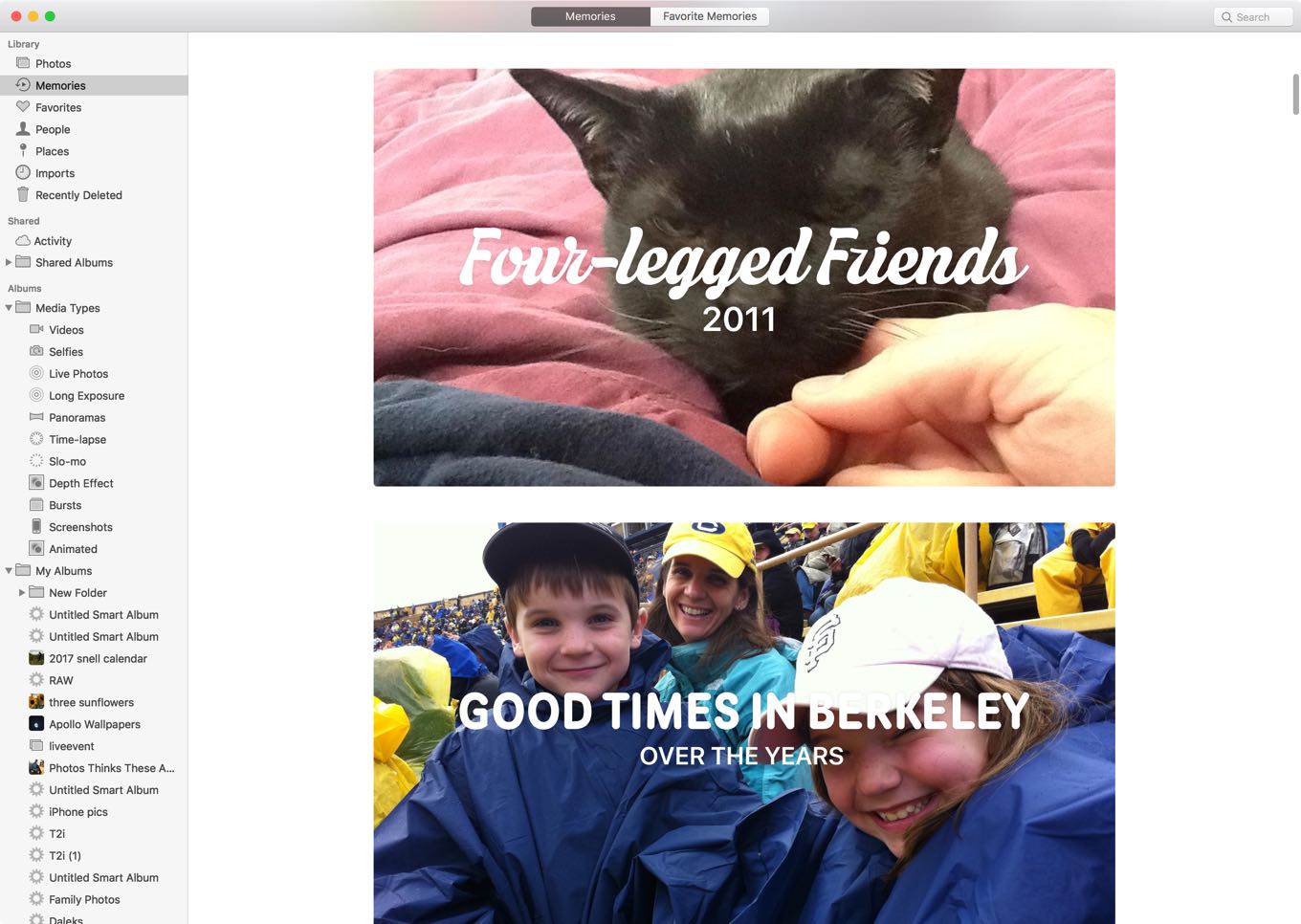
The contents of the sidebar have been reorganized into sections. The Library section contains different views of your library—auto-generated Memories, all of your Favorites, the People who appear in your images, the Places you took your pictures. And, in a new feature, all the photos you imported—organized by when you imported them. (This is the new import-history feature, so if you remember you imported a bunch of photos a few weeks ago, you can scroll back and see everything that came into your library from that batch.)

The Albums section of the sidebar now contains two two-level items, Media Types and My Albums. Media Types contains automatically-generated views of your library filtered by media type—Selfies, Live Photos, Panoramas, and so on. My Albums contains every album and Smart Album you create manually.

Another new feature in the image-browsing interface is the selection counter in the upper right. As you select images, the selection counter keeps count. Select 18 images and it will helpfully tell you, “18 photos selected.” The image counter is also a draggable proxy for your images—drag the image counter to your desktop or into an album, and the selected images will go there, too.

Just below the selection counter is a new quick filtering option that lets you quickly narrow the view to show only favorites, edited items, photos, or videos.

Speaking of albums, in macOS Sierra you can now import photos directly into an album—either an existing one or a new one. If you’re someone who always organizes photos by album, this will save you a step or two, since you will no longer need to import photos, make a new album, and then drag the imported items into the album.

Improvements to Memories and People. Memories, introduce to Photos last year, is a feature that looks for commonalities in the photos in your library and gathers them together into collections. Think of them as computer-generated albums that are meant to surprise and delight you with images from the past.

In High Sierra and iOS 11, Photos has increased the number of ways it parses your library looking for commonalities. According to Apple, among the new types of Memories are ones for pets, kids, hiking, diving, winter sports, nights out, and meals with friends.

In High Sierra and iOS 11, Memories is also better at picking photos from particular events, using image analysis to try to pick the best image out of many—the best smile or one where nobody’s blinking.

The People interface, which uses facial recognition software to lets you view all the images of a particular person, has been updated in High Sierra. It’s a more attractive design, and the face-recognition engine has been upgraded (Apple says it’s as much as twice as accurate) with the ability to make educated guesses about who is in a photo based on a face’s relationship to the other faces in a photo. For example, if a child is frequently in pictures with another child, the algorithm can use that to improve its confidence in its ability to assign a face to a particular person. And when you identify a photo as containing a particular person, that data is synced along with the photo, which aids your other devices in identifying that person themselves.

Transform Live Photos with the Long Exposure effect.

Live Photos improvements. Apple’s Live Photos format was introduced two years ago, and in this version of Photos, there are finally much better controls for editing Live Photos. You can manually change the Live Photo’s representative image to a different segment of the video, trim Live Photos video, and set one of three effects: a traditional live photo, a back-and-forth bouncing effect, or a Long Exposure image that processes the stack of images to create the equivalent of a photo with the shutter left open for a long time. Think about streams and waterfalls going from freeze-framed reality to a luminous, fuzzy fantasy.

Third-party projects. For years, Apple’s photography apps have made it easy to design and order printed versions of your photos—books, calendars, prints, and more. Those still exist, but in High Sierra, Photos allows third-party developers to integrate directly with Photos to create new projects. There’s a new third-party app interface that lets companies build Mac apps—there’s a special category in the Mac App Store for them, linked to from within the Photos app—that connect to Photos and allow you to order products or integrate with outside services from directly within Photos.

Apple’s announced several partners who will support this feature, including photo printers Shutterfly, Whitewall, Mimeo, iFolor, Mpix, slideshow builder Animoto, and web-hosting service Wix.

What’s not here. With every new version of any app, there are inevitably the wish-list items that didn’t get crossed off. I’m disappointed that Apple hasn’t made machine-learning-generated metadata syncing available across devices, so that every device you own doesn’t have to re-scan every photo in your library. Photos on iOS has the ability to auto-generate a movie for every Memory, but the Mac still lacks this feature. Smart Albums don’t have access to the categories generated by machine-learning scans, making it impossible to automatically combine two categories together.

And, of course, the big one: There’s still no way for members of a family to opt in to automatically sharing some or all of their photo libraries with one another, something my wife and I have been wanting for quite a while now—and a feature that Google is adding to Google Photos. Still, there’s no denying that this update to Photos is a big stride forward on several fronts.

Updated September 2017 for the final version of macOS High Sierra.


  1. Apps could previously provide Extensions that ran inside a Photos window, which some apps used as a gateway to then open the image themselves. This new approach is direct, requiring no intermediate extension window. 

By Jason Snell

The iPhone at 10: Into the woods

Note: This story has not been updated for several years.

Happy second 10th birthday to the iPhone, which was released a decade ago today. (No, you’re not forgetting things—everyone celebrated the 10th anniversary of the iPhone back in January, but that was the anniversary of the announcement, not the release of the product. The media loves an anniversary story, so why not do it twice in the same year?)

The iPhone was released on a Friday. Phones went on sale at 6 p.m. local time, and there were enormous lines around Apple and AT&T/Cingular stores leading up to the event. (This means Dan got his phone three hours before I did!) I got the iPhone late in the evening, and if my Twitter feed at the time is any indication, recorded a Macworld podcast about it?

The next morning my family and I had to be up bright and early to go to a previously scheduled weeklong family camp in the high sierras (no, not that High Sierra). That’s right, I would be writing my review of the original iPhone from a tent cabin in the mountains. This one, in fact:


That camp is remote enough that there was no AT&T service there. Kind of hard to review a phone when it can’t actually connect to the network! The drive up to camp was basically my best chance to test out the iPhone’s connectivity, so I sat in the passenger seat as my wife drove and checked and sent email and texts, browsed the web, and used a Twitter web interface to tweet my journey.

The first photos I took on the iPhone are from that passenger seat in the car, of my family during the drive. Once we arrived at camp, I managed to snap a few pictures of my kids playing in a flowery meadow, showing off the original iPhone’s mighty 1.9 megapixel camera.

I remember sitting in a camp chair inside that canvas-topped tent, writing diligently. It felt strange to be using and evaluating a piece of advanced technology while out in the middle of a forest, but in hindsight, it doesn’t seem as weird. The thing about the iPhone is that it’s a device that integrates itself into our lives, wherever we roam. I could hardly have lugged a new iMac with me to review at camp, but the iPhone came along easily. That’s what it does, and one of the reasons it’s great.

And it is a truly great piece of hardware. I wrote about it in a lot more detail at Macworld today, but I could make an argument that the original iPhone has the best design of all of them. Yeah, its screen is laughably small by today’s standards and it’s way too thick, but there is beauty in the glass front and the brushed aluminum back. Future iPhone designs (with the exception of the 3G/3GS, which feels like a regression for the sake of mass production) seem to be following the same track as the original iPhone design, refining it as technology and manufacturing methods improve.

Here’s what I wrote in that tent cabin ten years ago to conclude my review of the iPhone:

…The iPhone’s positives vastly outweigh its negatives. It’s a beautiful piece of hardware with a gorgeous high-resolution screen and a carefully designed, beautiful interface inside. The iPhone’s touchscreen keyboard will end up pleasing all but the most resistant Blackberry thumb-typers, making it an excellent device for email. Its Safari browser cleverly condenses full-blown Web pages into a format that’s readable on a small screen. Its iPod features make it a versatile audio player and a drop-dead gorgeous video player. And, yes, it does pretty well at making phone calls, too.

To put it more simply: The iPhone is the real deal. It’s a product that has already changed the way people look at the devices they carry in their pockets and purses. After only a few days with mine, the prospect of carrying a cellphone with me wherever I go no longer fills me with begrudging acceptance, but actual excitement.

It’s true—before the iPhone, I only carried a cell phone with me when I felt it was necessary. Being connected was optional, and not being connected was the default. When the iPhone arrived, I put it in my pocket and never looked back. On June 29, 2007, the world changed for me—I now had an Internet-connected computer with me wherever I went, even if it was up into the mountains—and in the ensuing years it would change for billions of other people around the world.

The iPhone’s influence will continue to reverberate for years to come. One decade in, that much is certain.


By Jason Snell for Macworld

iPhone at 10: The greatness of the original iPhone

Ten years ago, after six months of hype and after waiting in very long lines around Apple and AT&T retail stores, people first got their hands on the iPhone. Time has a way of flattening our memories of events: Steve Jobs unveiled the iPhone and the world changed.

But that simple sentence misses the initial fierce debate about whether the iPhone was going to be a usable product, the fact that the iPhone software wasn’t close to being done when it was announced in January, and the building of increasing excitement for a product that in some quarters was already being hailed as a game-changer. It was also the first time that I can remember where being in line at an Apple Store was an event.

Continue reading on Macworld ↦


Search Six Colors