Six Colors
Six Colors

Apple, technology, and other stuff

This Week's Sponsor

Magic Lasso Adblock: Effortlessly blocks ads, trackers and annoyances on your iPhone, iPad, Mac and Apple TV

By Dan Moren

Wi-Fi calling now available on AT&T iPhones

Note: This story has not been updated for several years.

AT&T Wi-Fi Calling

Update: It seems that AT&T is not supporting this feature on the iPhone 5s, only the iPhone 6 or later.

The good news is that AT&T and the FCC seem to have finally finished whatever spat discussions they’ve been having, and iPhone users on the carrier can now enable the Wi-Fi Calling feature added for all in iOS 9. (Previously, it was offered by other carriers, including T-Mobile, but not for AT&T.)

To enable the feature, open up Settings > Phone and flip the Wi-Fi Calling on This iPhone switch to On. You’ll then have to accept some agreements and update your emergency address–the reason being that when a call is routed over Wi-Fi instead of the traditional cellphone network, 911 emergency services can’t necessarily figure out your current location. If that happens when you’re on Wi-Fi, first responders will be sent to whatever your default location is (probably your home).

Wi-Fi Calling

Once you’ve got Wi-Fi Calling enabled, it should work automatically as needed. As a test, I flipped my phone into Airplane Mode, activated Wi-Fi, and sure enough, AT&T Wi-Fi showed up right in the status bar. Making a call on it worked perfectly fine, and while I didn’t notice any particular sound improvement, that may be because I was calling someone on a landline.1

As someone who lives in an apartment with an often unreliable cell signal–and as I write this, I note that my iPhone has automatically switched over to AT&T Wi-Fi–I’m looking forward to this feature.

Also of note: while in the past, it seemed like you had to choose between Wi-Fi Calling and the ability to place calls from your Macs, iPads, and so on, it seems that the conflict has been resolved as of iOS 9: I had both Wi-Fi Calling and Calls on Other Devices enabled, and there doesn’t seem to be any interference.


  1. The other week I called my cousin who is also on an AT&T iPhone, and we ended up with a crystal clear connection that sounded more like FaceTime Audio, so I assume that was an HD connection. 

[Dan Moren is the East Coast Bureau Chief of Six Colors, as well as an author, podcaster, and two-time Jeopardy! champion. You can find him on Mastodon at @dmoren@zeppelin.flights or reach him by email at dan@sixcolors.com. His next novel, the sci-fi adventure Eternity's Tomb, will be released in November 2026.]

By Jason Snell for Tom's Guide

Best 3D Touch apps for the iPhone 6S and 6S Plus

Of all the features introduced with the new iPhone 6s and 6s Plus, 3D Touch is the biggest. Taking a cue from Force Touch on the Apple Watch and the latest Apple laptops, 3D Touch can detect different levels of pressure when you press on the iPhone’s screen, summoning up everything from preview glances to additional menu options.

Because it developed the feature, Apple has had time to build 3D Touch into many of its own apps, but most iOS app developers are just starting to add 3D Touch support to their own apps. Still, if you look, you can find apps that are putting 3D Touch to use in interesting ways. Here are the best 3D Touch apps so far.

Continue reading on Tom's Guide ↦


After one year, this is the state of Apple Pay

Great rundown on Apple Pay, one year in, by MacStories’s Graham Spencer. He concludes with five questions for Jennifer Bailey, Apple’s VP of Apple Pay:

2. Given the slow rollout of Apple Pay outside the US, one could argue that Apple is more obsessed with securing profits from interchange fees than opening up Apple Pay to as many customers as possible and increasing the value of the iPhone and Apple Watch. How would you respond to that sentiment?

“Obsessed” may be a strong word: obviously, Apple wants to recoup its investment in rolling out this system worldwide, and I’m sure that expanding and maintaining profitably is ahead of just accruing marketshare–that’s tried-and-true Apple philosophy.

One question not on Spencer’s list that I’d like answered is whether or not we’ll see Apple Pay eventually used for the sale of digital goods. Right now, it’s pretty much restricted to physical goods, with companies being pushed towards in-app purchase–for which Apple gets a a 30 percent slice of the pie, far more than the fractions of percents it gets for Apple Pay–for subscriptions and digital goods. I’d hope there’s a rationale for that decision that doesn’t also come down to “Apple wants more money.”


By Jason Snell for Macworld

Learning to love the iPad Air 2

I was an iPad mini lover from the first. I bought the original model just so I could try it out, figuring I’d hand it down to a family member or sell it, and ended up adopting it as my own personal iPad. When the iPad mini 2 came out, I rushed to get one and adopted it as my own personal Retina iPad.

But a funny thing happened: This summer I bought a refurbished iPad Air 2 in order to try out Split View multitasking, a special feature of iOS 9 that no other iPad supported at the time. (The new iPad mini 4 also supports it, as will the forthcoming iPad Pro.) I spent the summer mostly using the iPad Air 2. So when the iPad mini 4 was announced, I responded by… not buying it. Instead, I’m planning on handing my iPad mini 2 down to my son and sticking with the iPad Air 2.

Continue reading on Macworld ↦


By Dan Moren

Wish List: 3D Touch in Control Center

Note: This story has not been updated for several years.

3D Touch

It’s been a couple weeks since the release of Apple’s newest generation of iPhones, and I’m still training myself to use 3D Touch. Not that the feature isn’t useful, mind you, but eight years of muscle memory is a tough thing to overcome.

That said, I think that 3D Touch is an awesome enhancement to iOS; I just wish that Apple had seen fit to use it in more places. In particular, I–and many of our readers, if my emails and Twitter replies are any indication–would love to see 3D Touch in use in iOS’s Control Center.

I’ve already made my frustrations with Control Center well known, but the addition of 3D Touch provides the perfect framework with which to address several of those issues. Now that Apple has established the interface convention of the Quick Actions pop-up menu, it wouldn’t be out of place to offer such a menu when pressing the Wi-Fi icon in Control Center, where it could provide a list of the nearest and most powerful Wi-Fi networks (or the ability to connect to a VPN). Or pressing on the Bluetooth icon to provide a list of devices to connect to. Even the ability to jump directly to those specific sections of the Settings app would be a handy time-saver.1

The quick launch apps at the bottom could also benefit from 3D Touch, even if it just meant showing the same Quick Action options available for those apps from the Home screen–starting a timer, for example, or quickly jumping to selfie mode in Camera. (I’d still prefer to be able to swap in my own choice of apps in those slots, but my breath capacity isn’t that great.)

Many of these scenarios are for the more fiddly among us, but let’s be honest: 3D Touch seems designed for just those kinds of users. This is a power feature, not unlike keyboard shortcuts–something for users to discover.

The good news is that 3D Touch is young, and while Apple has given us solid examples about things that it can do, there’s plenty of room for it to evolve and spread throughout the rest of iOS.


  1. Honestly, I’m surprised that the Settings app itself doesn’t have any Quick Actions associated with it. I frequently want to jump to specific sections. 

[Dan Moren is the East Coast Bureau Chief of Six Colors, as well as an author, podcaster, and two-time Jeopardy! champion. You can find him on Mastodon at @dmoren@zeppelin.flights or reach him by email at dan@sixcolors.com. His next novel, the sci-fi adventure Eternity's Tomb, will be released in November 2026.]


Ebookum patronus! Enhanced versions of Harry Potter available only on iBooks

Apple® today announced that enhanced editions of all seven books in J.K. Rowling’s Harry Potter series are now available exclusively on the iBooks Store℠  for readers around the world to enjoy on their iPhone®, iPad®, iPod touch® and Mac®. Customers can download individual books featuring full original text, interactive animations and elaborate artwork bringing these beloved stories to life in a unique way. Harry Potter fans will also find annotations throughout their literary journey, written by the author herself.

“I’m thrilled to see the Harry Potter books so beautifully realised on iBooks for the digital world; the artwork and animations in these enhanced editions bring the stories alive in a delightful new way,” said J.K. Rowling.

Who had Rowling in the “next celebrity touted by Apple” pool? Anybody? Anybody?


By Jason Snell

Fantastical 2.5 arrives for iPhone, iPad, Apple Watch

Note: This story has not been updated for several years.

Speaking of products I like being updated, today Flexibits released Fantastical 2.5 for iPhone and iPad. Fantastical is my default calendar on Mac and iPhone, and with the new version I expect to be using it a lot more on iPad as well.

Using Fantastical in Slide Over mode.
Fantastical’s Quick Actions

As with so many apps this month, Fantastical is adding support for fancy new features like a Quick Actions menu for iPhone 6S and Split View and Slide Over for iPad. Flexibits also added keyboard shortcuts for those of us who sometimes use a Bluetooth keyboard with our iPads.

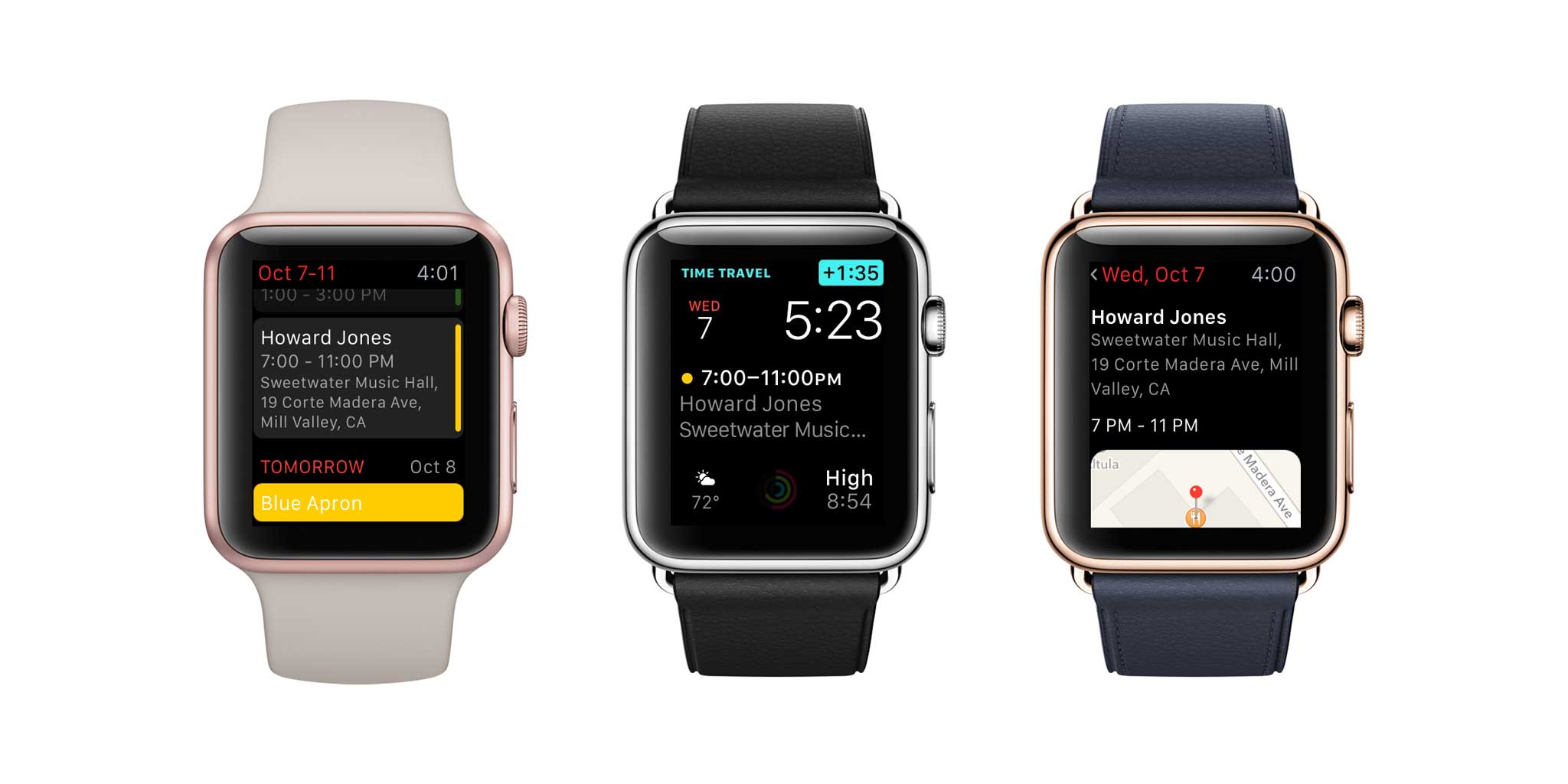
Fantastical’s Apple Watch app also got an update, including a Fantastical complication. The vocabulary of complications appears to still be forming—I’ve seen complaints today about Fantastical’s small complication, which simply displays how many more events you’ve got on a given day. (I’m not sure what else it would do in that space, frankly.) And apparently in the Utility face, if your calendar has no more items it clutters the “Enjoy your day” rather than gracefully fading away to nothing (or almost nothing) instead. (I’m a big fan of complications getting out of the way if they have nothing to say.)

But Flexibits has proven to be nothing if not, er, flexible. So I wouldn’t be surprised if Fantastical’s Apple Watch complications evolve over time, like the rest of the app has.


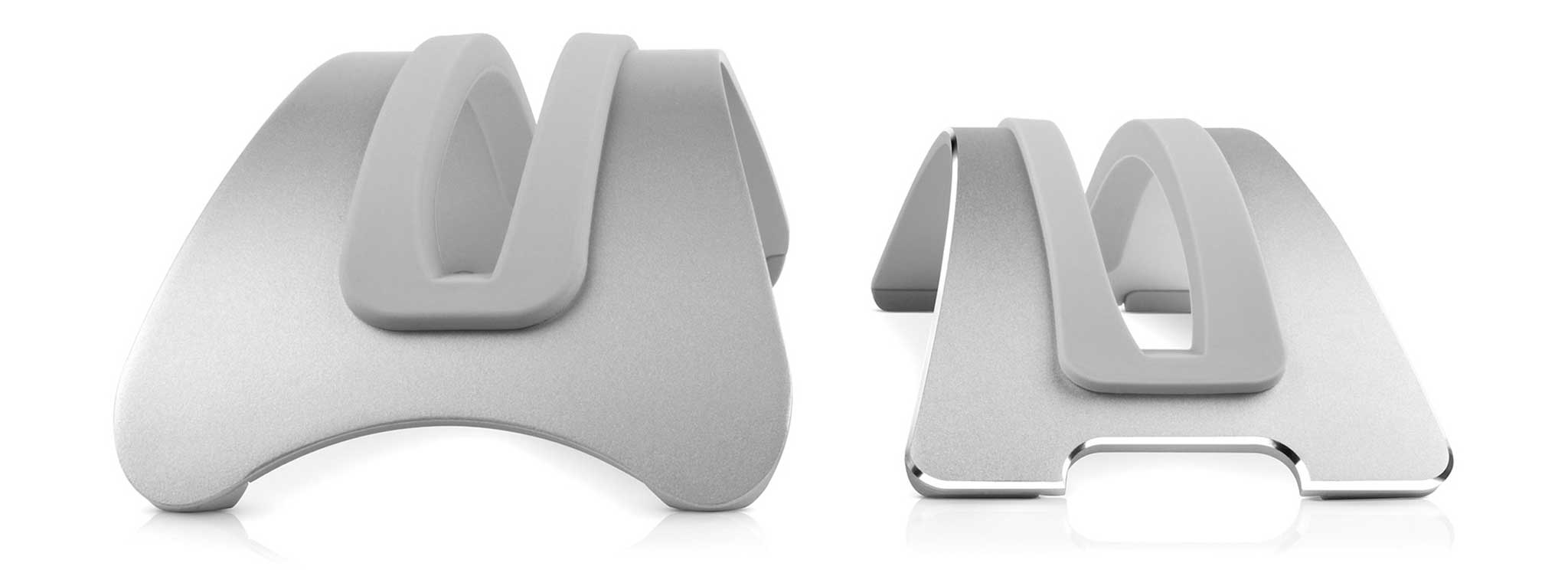
BookArcs old (left) and new.

By Jason Snell

Twelve South’s BookArc gets an update

Note: This story has not been updated for several years.

bookarc-action
New BookArc at Six Colors World Headquarters.

For ages now I’ve used a BookArc from Twelve South as my MacBook stand. When I used to commute, I would drop my 11-inch MacBook Air into the BookArc, plug in power and Thunderbolt, and go about my day with my laptop driving a Thunderbolt Display while vertical with its lid closed. These days I don’t use my MacBook Air in that configuration, but I still store and charge my Air upright in a BookArc. (And we bought a second one for my wife’s 13-inch MacBook Air.)

Today Twelve South announced the new BookArc, which replaces the old model that’s been around since 2009. (It was Twelve South’s first product, in fact.) It’s smaller and lighter, now made of aluminum and offering a touch of style with a shiny chamfered edge. It comes with silicone inserts sized for the Retina MacBook Pro, MacBook Air, and MacBook, so you can get just the right fit for your laptop—and know that your laptop’s aluminum skin is resting gently on a safe, non-scratching material.

Today I got a chance to use the new BookArc model, and from the silicone feet to the cut-outs for cable control, it’s got the same attention to detail that I’ve come to expect from Twelve South. If you run your MacBook in lid-closed mode, or are generally short on desk space, I highly recommend the BookArc.


By Jason Snell

ComiXology adds its last major publisher, Dark Horse

Note: This story has not been updated for several years.

Dark-Horse-Logo-Huge

There’s some big news for digital comics fans today. Dark Horse Comics, ComiXology, and Amazon have announced that all of Dark Horse’s single-issue digital comics will be available on the ComiXology and Amazon stores on the same day as print, starting now. This marks the last major comics publisher to hold out from selling issues on ComiXology, the leading digital comics app (that’s now owned by Amazon).

There were signs that this rapprochement might happen; back in June ComiXology began offering digital collections of Dark Horse Comics, including “Wasteland” and “Buffy the Vampire Slayer: Season Ten.” Now the single issues join the collection, meaning that if you’re a ComiXology user and a fan of an ongoing Dark Horse series, you don’t have to buy it and read it in a separate app.

According to ComiXology, more than 2,000 single issues from Dark Horse are launching today.

In other news related to New York Comic-Con, on Tuesday Comixology announced that they’ve re-upped their deal with independent publisher Oni Press, and extended that deal to Amazon’s comic store as well. Considering that ComiXology CEO David Steinberger is also the head of Amazon’s digital comic efforts, I’d expect to see a lot more crossover between the two stores in the near future.


By Dan Moren

The Chromecast Audio: Compact, but not compelling

Note: This story has not been updated for several years.

Chromecast Audio

Of the Google announcements from a week or so ago, the one I was most interested in was the Chromecast Audio, a small dongle that attaches to most any speaker and lets you stream audio over the network. At $35 it seemed like a pretty good way to liven up some speakers, so I placed an order for one.

Which I promptly forgot about, so I spent a while trying to puzzle out exactly what the envelope was when it showed up at my door the other day.

The Chromecast Audio is an interesting product, but after I spent about an hour or so playing around with it, I realized that I don’t really have much of a need for it. But that doesn’t mean it’s a bad product, necessarily, just that my setup doesn’t really lend itself to this device.

First, what I like about it.

Continue reading “The Chromecast Audio: Compact, but not compelling”…


By Dan Moren

Tip: Take your Mac or iOS device off of the Public Beta track

Note: This story has not been updated for several years.

Beta software is a never-ending stream. Just as El Capitan and iOS 9 reached their final releases, those enrolled in Apple’s Beta Software Program were already getting prompted to update to the public betas of OS X 10.11.1 and iOS 9.1.

If you’ve found yourself beginning to tire of your career as a guinea pig and long instead for the stable lifestyle of an ordinary user, don’t worry: it’s easy enough to flip yourself back over to the public release line on both the Mac and iOS sides.

OS X

Fire up System Preferences and click on App Store. If you’re on the beta track you’ll see a line that looks like this:

Beta updates

Click Change and you’ll be asked to confirm whether you want to see pre-release beta updates or not.

Do Not Show Pre-release Updates

Click on Do Not Show Pre-release Updates and they’ll vanish from the Mac App Store as if they never were.

Now, if you turn off pre-release updates and want them back, the procedure involves a few more steps. You’ll need to go back to the Apple Beta Software Program site and re-enroll your Mac in the program, which involves downloading a small installer. (Fortunately, the program is associated with your Apple ID, not the specific device.)

iOS

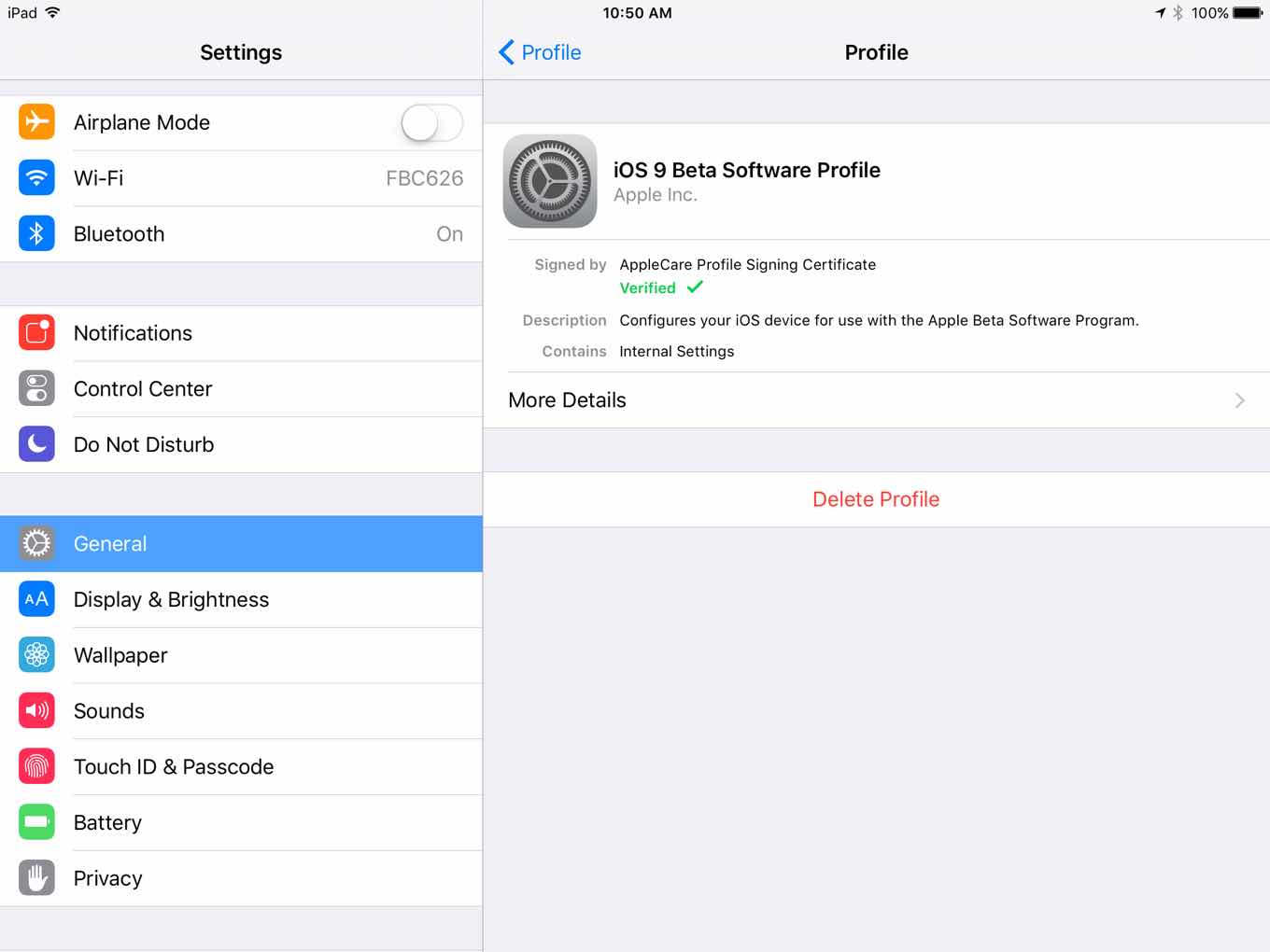
Removing yourself from the Public Beta thread on iOS is a little more complex than on the OS X side, but it’s still pretty easy. Open up Settings and navigate to General > Profile, then tap the iOS 9 Beta Software Profile entry.

iOS Public Beta

Now tap the Delete Profile button. You’ll be prompted to enter your passcode and confirm the deletion. (Caution: Doing so on my iPad did not immediately remove the option to update to iOS 9.1 Public Beta via Software Update. I’m not sure if I could have successfully installed it, but there exists a chance you could screw up your device by trying to do so without the profile installed, so don’t do it.)

Getting back on the beta train with iOS is pretty similar to the OS X side. Head over to the Apple Public Beta Program on your iOS device and select the option to enroll your device. You’ll have to reinstall the profile and restart, but after that, the public beta option should return to Software Update.

[Dan Moren is the East Coast Bureau Chief of Six Colors, as well as an author, podcaster, and two-time Jeopardy! champion. You can find him on Mastodon at @dmoren@zeppelin.flights or reach him by email at dan@sixcolors.com. His next novel, the sci-fi adventure Eternity's Tomb, will be released in November 2026.]


By Dan Moren

Destiny adds microtransactions for sweet dance moves

Note: This story has not been updated for several years.

After a little more than a year, microtransactions are coming to Bungie’s Destiny, a space adventure game in which players roam the universe, fight back the encroaching Darkness, and dance, dance, dance the night away.

To acquire these items, you’ll first need to pick up some “Silver,” a new in-game currency that will be available for purchase through the store associated with your console. Images and descriptions for each available emote, along with pricing information for Silver will be made available Tuesday, October 13th, alongside the launch of the in-game storefront right here on Bungie.net as soon as the content is live.

It really was only a matter of time before Bungie took the opportunity to dip its toe into the microtransaction game, charging real world cash for in-game content. But, given the seeming inevitability of that decision, it seems so far as though the game developer’s chosen a smart way to go about it. Rather than gating content to those willing to spend a ton of money, all of the upgrades are cosmetic–emotes that your character can perform.1

(At launch, emotes were limited to just four: wave, point, sit, and the ever popular dance. If you shelled out some extra money when the most recent expansion, The Taken King, debuted, you could pick up some new class-specific dance emotes as well.)

That’s a smart move, because it doesn’t simply pave the way for people to pay their way through the game, speeding their progress by exchanging money for in-game resources, like those kids who always bought entire boxes of Magic: The Gathering cards–you know the ones. It just provides a “luxury” good–something people want but that doesn’t skew the game–for those who have the money.

The outstanding question is just how much your real world money will get you, which we’ll find out in the next week, but if it’s a couple bucks for a new dance move, you can bet my Guardian is ready to get down.

Get down

  1. I suppose if the company was really conniving, they could create a hidden door in the game that only opens when you do a specific dance in front of it. 

[Dan Moren is the East Coast Bureau Chief of Six Colors, as well as an author, podcaster, and two-time Jeopardy! champion. You can find him on Mastodon at @dmoren@zeppelin.flights or reach him by email at dan@sixcolors.com. His next novel, the sci-fi adventure Eternity's Tomb, will be released in November 2026.]


By Jason Snell

Early days yet

Note: This story has not been updated for several years.

iOS 9 has been out for a little less than a month. The iPhone 6S and 6S Plus, a little more than a week. That means that two of the most exciting additions to iOS are now available to anyone who has compatible devices! For 3D Touch, you’ll need the iPhone 6S and 6S Plus; for Split View you’ll need an iPad Air 2 or iPad mini 4.

This is great. Both of these features have the potential to change how I use both my iPhone and my iPad. I’ve got an iPad Air 2 and an iPhone 6S. I’m ready for the revolution! Any time now…

It’s been months since WWDC, when Apple formally announced iOS 9 and rolled out the details of Slide Over and Split View. And on day one of iOS 9’s release, apps that support these new multitasking features began to appear. I’ve got a bunch on my iPad Air 2, and I use them—when I remember to.

But what I’ve found in the past few weeks is that I still haven’t internalized the existence of Slide Over and Split View. I’ve got a device that supports it—in fact, a device I bought specifically because it could support it. But I’ve yet to fall into a pattern of setting up apps left and right, or even setting one app as my go-to Slide Over buddy. It just hasn’t happened.

I expect it will, and I’m willing to say that this one’s on me. Obviously I am so set in my ways as an iPad user that I’m struggling to break out of the one-app-at-a-time paradigm. Life would probably be a lot better if Twitterrific or Slack were hanging out in Slide Over all the time. I just need to get with the program.

Then there’s the iPhone 6S, and 3D Touch. I like the feature a lot—it’s been well implemented by Apple, especially how it almost never triggers without me intending to trigger it. Unfortunately, by keeping this feature a secret, Apple has given developers very little time to integrate it into their products. As a result, I find myself endlessly pushing on app icons1 and interface elements in the vain hope that app updates will support 3D Touch. And I’m usually disappointed.

Slowly, apps I use are being updated to support 3D Touch. In the early going, it’s mostly additions to the Quick Actions menu on the launch screen. Some apps, such as Workflow or Launch Center Pro, are a great fit with this feature. Other apps (I’m not naming names) seem to struggle with Quick Actions, providing minimal or useless options. And a few apps that are crying out for Quick Actions—Slack, please let me jump to a specific Slack account from a Quick Action—just don’t have them yet.

Implementing deeper 3D Touch integration in apps seems like it’s going to take even more time. What I really want from Twitterrific is the ability to “peek” into a user’s account or included attached images. I’m sure that will happen in time, but even the most actively updated applications can’t add this stuff immediately—after all, app developers only learned about 3D Touch when we did, back on September 9.

So, iOS 9 scorecard. I’m not using Split View and Slide Over enough, and I need to figure out ways to use it to my advantage. And I keep using 3D Touch in third-party apps on the iPhone 6S to no avail. I’m sure from the vantage point of 2016, I will look back at these days as a strangely primitive time. It’s early days yet. In some ways the release of new Apple hardware and OS versions is the start of the story, not the end of it.


  1. Bloop! goes the Taptic Engine. No Quick Actions on this app icon. 

‘I once was in Maps, but now I’m found’

I’m on the record with my positive experience with Apple Maps in iOS 9 on a long road trip. But Apple Maps still has its issues, yes it does, as detailed here by Joe Rosensteel reporting from somewhere in the traffic-clogged streets of Los Angeles.


By Dan Moren for Macworld

Are Apple’s productivity apps nearing their expiration dates?

I miss Bento.

You remember Bento? It was that little database program made by Apple-subsidiary FileMaker aimed at the consumer market, to Microsoft Access what Pages is to Word. But FileMaker’s attention languished over time, and Bento was discontinued back in 2013, much to the dismay of its fans and anybody looking for a simple database program.

And now I’m a little worried that Pages, Numbers, and Keynote might follow suit.

Continue reading on Macworld ↦


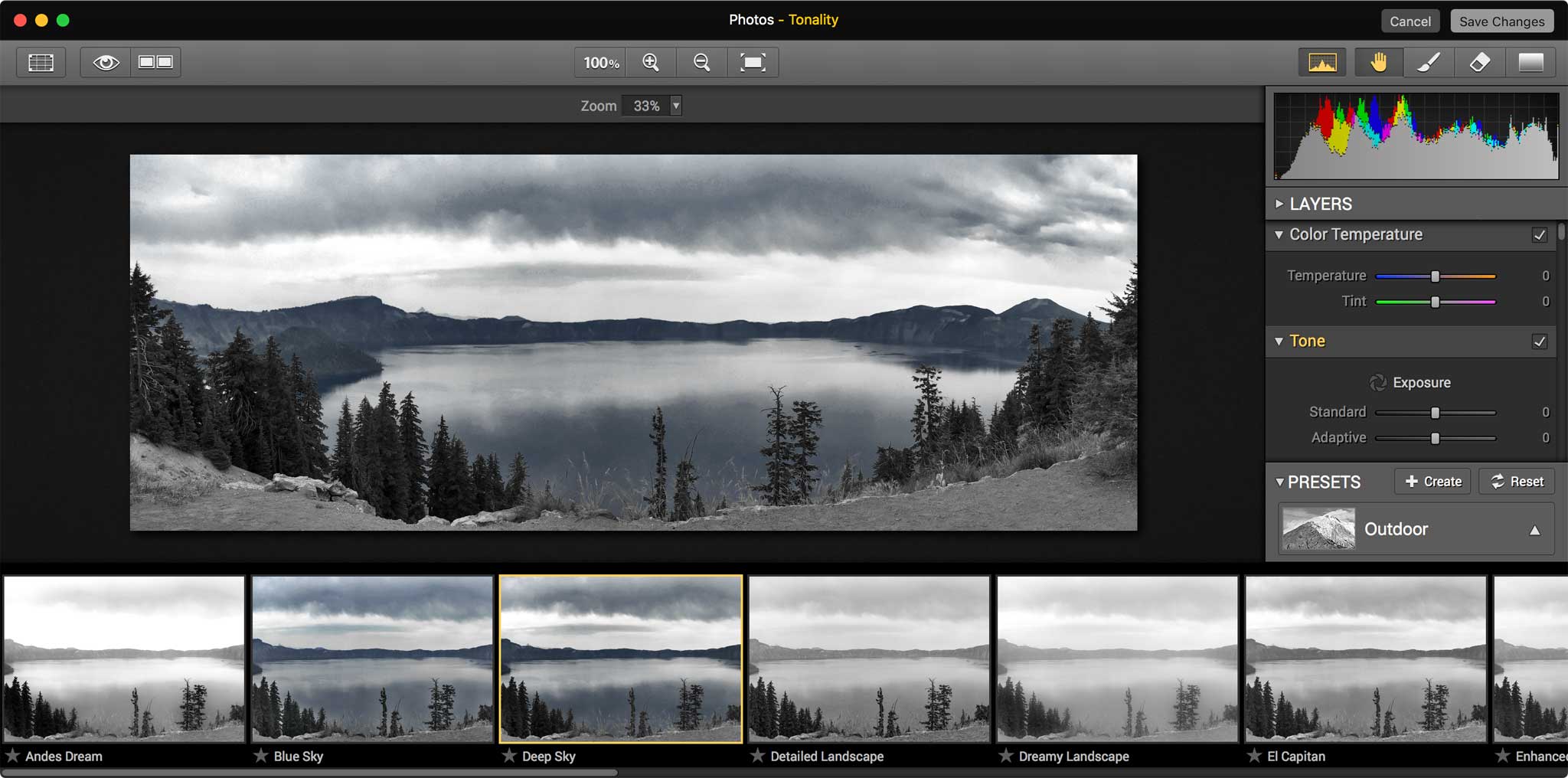
MacPhun's Tonality extension running within Photos 1.1.

By Jason Snell

Photo Extensions come to Photos 1.1

Note: This story has not been updated for several years.

One of the banner new features in Photos for Mac 1.1, part of the El Capitan update, is support for editing extensions. Now that El Capitan is in the wild, so are some editing extensions. I loaded up five: MacPhun’s $15 Noiseless, $15 Snapheal, and $18 Tonality; the free BeFunky Express; and a beta version of a forthcoming update to Pixelmator.

Photo extensions in System Preferences.

To activate an extension, you need to enter editing mode in Photos and click on the new Extensions item, which sits below the six existing menu items at the right side of the screen. The first time you click, you’ll see no Extensions—to add them, you need to choose More, which launches the System Preferences app and opens the Photos pane. Check the boxes next to the extensions you want to display in the Extensions menu in Photos, then quit. At this point, all of the checked items will be available in the Extensions drop-down menu in Photos’ editing mode. Once you select one, that extension’s interface appears inside of the Photos editing window until you click Cancel or Save Changes.

Choose from all extensions from within the Photos editing window.

Like the built-in editing tools, you can actually stack multiple extensions while editing a photo, so you can combine third-party editing extensions with Apple’s own tools to get exactly the image that you want to see. However, each extension edits a “burned-in” version of your photo, so you can’t edit a photo with three extensions and then go back and turn off the first of the extensions. Instead, you’d need to revert back to the original photo (which is always retained by Photos) and start again from the beginning. You can also use the editing tools built in to Photos on images that have already been edited by an Extension, so you can really mix and match. You just don’t get the always-undoable, always-editable flexibility you get when you stick entirely to the native editing tools in Photos.

The three MacPhun extensions come along with their existing standalone apps, which all strike me as one-trick ponies: You launch the app, open an image, edit it, and save the image back out. This strikes me as being the perfect use for a Photos extension, since these aren’t so much apps as filters stuck into app wrappers because they don’t have anywhere else to go. I was able to remove noise from a dark image with Noiseless and then convert it into a striking black-and-white image with Tonality, all without leaving Photos. That was quite convenient.

The BeFunky extension.

This isn’t a review of these apps, but it felt like BeFunky was a bit of a poorer fit. It’s got its own six-item menu on the side, very much like the editing mode inside Photos itself, including its own Auto Fix setting. It felt weirder entering a general-purpose editing tool (from inside Photos’ own general-purpose editing mode) than when I used one of the MacPhun extensions to make a specific sort of edit.

Pixelmator’s forthcoming Distort extension.

Pixelmator’s extension, Distort, is almost whimsical. It adds six different distortion brushes and lets you twirl, bubble, and otherwise mess up your images. It’s a good example of an extension that’s targeted at a specific set of features—in this case, distortions—and that feels like the right approach.

It will be interesting to see just how many Photos-compatible extensions will be released over the next few months. While the new functionality doesn’t transform Photos into a high-end professional tool, it does make it possible for third-party developers to extend the app with features that Apple is unlikely to add.


By Dan Moren

Wish List: Multiple credit cards in iTunes

Note: This story has not been updated for several years.

Okay, this one’s a bit niche, but hey, it’s my wish list, right?

As I’ve documented in the last year, I’ve been slowly adjusting to my life as a self-employed writer, and a large part of that is finances. I’ve already documented how I track my income, but the far trickier part is keeping track of expenses. Most recently, I finally got around to getting a second credit card to be used purely for business expenses, and so I’m in the process of switching many services to new cards.

So you could have knocked me over with a feather when I realized that Apple doesn’t support multiple credit cards in the iTunes Store–which is also what Apple uses to charge for iCloud storage and other digital goods. Now, I could certainly switch to my business card, but the problem is that I make both personal and business purchases from iTunes. So obviously, it would be useful to be able to switch back and forth as, say, Amazon and most other retailers allow you to. But perhaps Apple doesn’t see it that way.

Thus far, the best workaround I’ve come up with is to, say, leave my business card on file, then buy iTunes Gift cards with my personal card and use those when I want to buy things for myself. Another alternative is to use a totally different iTunes account for one set of purchases, but that leads down a terrifying path of managing multiple accounts.

My gut tells me that this is Apple’s “simplicity” ethos at work here: you never have to think about which credit card you’re using, which streamlines the checkout process of buying apps. But for those of us who do need to bounce back and forth between multiple cards, it would certainly be a boon.

[Dan Moren is the East Coast Bureau Chief of Six Colors, as well as an author, podcaster, and two-time Jeopardy! champion. You can find him on Mastodon at @dmoren@zeppelin.flights or reach him by email at dan@sixcolors.com. His next novel, the sci-fi adventure Eternity's Tomb, will be released in November 2026.]


Search Six Colors