I was happy to be a guest on this week’s The Talk Show with John Gruber, a marathon episode (is there any other kind?) where we go through the entire Apple event from last week, plus save a little time for the future of streaming entertainment and a remembrance of Garry Shandling.
There’s an Apple tech note on the process, but here’s the quick explanation.
Open up Mail > Preferences and select Accounts. Under Account Information you’ll see a dropdown menu labeled Alias. Select Edit Aliases from that and you’ll get a window that lets you add additional email addresses: just click the Plus (+) button at the bottom, and enter a full name and email address.
That address will now show up as an option in the From dropdown menu when you send a new message.
Here’s the one caveat: Though this seems to work for Gmail, Exchange, and generic IMAP accounts, iCloud email users are out of luck. Selecting Edit Aliases there will kick you to iCloud’s web interface, which only lets you define aliases at icloud.com, no matter if you use @mac.com or @me.com for your primary email address. More’s the pity.
[Dan Moren is the East Coast Bureau Chief of Six Colors, as well as an author, podcaster, and two-time Jeopardy! champion. You can find him on Mastodon at @dmoren@zeppelin.flights or reach him by email at dan@sixcolors.com. His next novel, the sci-fi adventure Eternity's Tomb, will be released in November 2026.]
Note: This story has not been updated for several years.
When Apple introduced the Live Photos capability of the 6s and 6s Plus last year, it was quick to distinguish those moving images from animated GIFs. (And they’re not quite, of course.) But as much as I enjoy Live Photos, it’s impossible to ignore that animated GIFs have become part of the Internet landscape–especially on social media–and iOS’s native support for them is…lacking.1
For example, I really like the official Star Wars app because it contains a number of super convenient, high-quality, pre-sliced GIFs from the best movies of all times, as well as from the attendant animated TV series, and some other weird trilogy of movies that looks terrible.
But the problem is that not all apps on iOS recognize GIFs as animated. So while I can save an image from the Star Wars app to my photos, if I then open Photos, that image doesn’t show up as animated. I can even then text that apparently static GIF to someone and it wouldn’t animate until it had been sent.2
Worse, some apps on iOS take it a step further by converting animated GIFs into static images. For example, if you paste an animated GIF into Notes–which also shows it as a static image–and then save that image to Photos, you’ll actually end up with a motionless PNG instead.
To help fix this mess, I’d like to see a few small improvements in a future version of iOS: First, better support for GIFs across the system. Display animated GIFs in Photos (if not automatically, then with a long-press or 3D Touch à la Live Photos–or at least with a Play button like videos). Second, make it easier to copy and paste animated GIFs between apps without inadvertently losing said animation. And finally, provide a Smart Album of GIFs within Photos–à la Selfies, Panoramas, Slo-Mo, etc.–to make it easy to find your collection of animated images.
I realize that there’s likely to be some collision and confusion between GIFs and Live Photos, but since the latter are proprietary to Apple’s platforms, it’s not as though people are going to stop using GIFs. Instead, iOS (and OS X) should be better citizens where this standard format is in use.
There are, of course, apps to convert Live Photos into GIFs. Unsurprisingly, that doesn’t seem to work in reverse…because why exactly would you want to? ↩
Until I recently realized that the images saved to Photos really were GIFs and not static images, I had a super confusing workaround that involved texting GIFs to myself via Messages. Stay in school, kids. ↩
[Dan Moren is the East Coast Bureau Chief of Six Colors, as well as an author, podcaster, and two-time Jeopardy! champion. You can find him on Mastodon at @dmoren@zeppelin.flights or reach him by email at dan@sixcolors.com. His next novel, the sci-fi adventure Eternity's Tomb, will be released in November 2026.]
This is a very cool tech demo from Microsoft showing off how you can use HoloLens (plus a somewhat complicated 3D camera setup) to create holograms of people–think of it like 3D Skype.
There are definitely some rough edges in the tech demo, and the equipment involved is clearly unwieldy, but it’s hard not to look at this and think that this could be a commonplace form of communication not too many years down the line.
My thanks again this week to Igloo Software for sponsoring Six Colors.
Imagine people could find all the information they needed to do their jobs in one, unified space. You could break down silos and share information more efficiently. For real. Sometimes, cultural shifts start with technological ones. Shift your intranet perceptions, with Igloo.
Igloo is an intranet you’ll actually like. And it works on all platforms, like the new 4” iPhone, And, because Igloo knows love doesn’t happen overnight, you can try it for free – forever. Try it now at igloosoftware.com.
Note: This story has not been updated for several years.
On Monday afternoon I recorded this week’s episode of Upgrade live from Interstate 280, driving home from the Apple event in Cupertino. It was an experiment—I thought it might be fun to do something different for our post-event podcast, and on a day absolutely packed with work, it also allowed me to do something productive with the long drive between Apple and my home north of the Golden Gate Bridge.
I’m pretty happy with the final result, though I wouldn’t recommend recording every episode of your podcast in a moving car. I’m impressed that we only seem to have received one complaint about the danger of podcasting while driving—if you’re opposed to all in-car phone calls, then we’ll just have to disagree—and happy to have heard from numerous people who were entertained by the sound of my turn signals, the beep of the Automatic connected to my car, and the sound of the sudden downpour that happened in the vicinity of San Francisco International Airport.
A few people were wondering what equipment we used to make the podcast, so here’s the scoop:
My microphone was a Sony ECM-77B, which is a small clip-on design that I usually use for recording videos. With it clipped to my shirt, I was able to record without taking my hands off the wheel of my 2005 Honda Civic Hybrid. I attached it to my Zoom H6 portable recorder, which I bought last year. It’s capable of recording six microphones at once, but in this case I was only recording the one.
Myke Hurley and I tried to chat via Skype, but that connection wasn’t stable, so we switched to the telephone. Myke loaded some credits into his Skype account and called my iPhone from Skype, and I kept one earbud in my ear (you can’t cover both ears while driving in California) and talked to Myke during my drive. Listeners to the live stream heard me sound like I was on the telephone, because I was.
Once the drive was over, I ran the file through the automatic dialogue denoiser plug-in in iZotope RX 5, and then sent it off to Myke so he could use it to replace the audio he had recorded of me talking via the telephone. He imported the file into Logic and manually ducked the audio when I wasn’t talking, so the sound would seem consistent—if we cut it off entirely when I wasn’t talking, the change in sound was really distracting. This was a lot of extra work on Myke’s part, but I think it made the end product sound that much better.
I left Apple in the early afternoon, and there was almost no traffic on my return home, so the podcast literally covers every moment I was driving from Cupertino to my house. We wrapped up the podcast with me sitting in my chair at home as I usually do! I leave the calculation of my average driving speed across the trip as an exercise to the listeners.
I’ve had an Amazon Echo in my house for a few weeks now, and it’s convinced me that the best voice-controlled assistant doesn’t live in your phone or on your remote control, but in the air all around you. And that this is a place Apple—and Siri—need to be.
Even before Thursday’s report that Google may be working on an Echo competitor, I’ve been thinking that Apple should build a device like Amazon’s $180 Echo, a small speaker with integrated microphones that’s wired to a Siri-like voice agent named Alexa.
In the past few weeks, with the Echo in the house, I have conversed more with Alexa than I have with Siri in the past year. That’s in part because Siri is too often stuck in my pocket or out on a countertop, while Alexa can hear me all over my house and then speak back to me in a loud voice that my iPhone can’t muster. Unlike Siri, I don’t need to pick up my phone or walk over to where it’s docked to talk to Alexa.
It’s also because, unlike Siri, Alexa can’t cheat by displaying results on a screen. Alexa is a voice interface completely divorced from visual fallbacks; Siri all too often refers me to results that display on my phone’s screen, which is generally not what I want.
For the past few weeks I’ve been trying to imagine what Apple could bring to this sort of product. With apologies to everyone involved, here’s what I’m thinking.
I get that everyone is different and, frankly, for most people the 9.7 inch iPad Pro is probably the right answer but I can also tell you that having used the large iPad Pro now for several months, it’s the most productive I’ve ever been with an iPad and I’m not giving it up anytime soon.
I’m interested in trying out the 9.7-inch iPad Pro and the True Tone display feature intrigues me greatly, but my gut feeling is that I will stick with the 12.9-inch iPad Pro for largely the same reasons David gives in his article.
The thing that separates the competent sysadmin from the great sysadmin is the willingness or ability to plan for the final year of use, not just the first year. I constantly remind myself of the fact that these devices will be in heavy use in 2019. Will they be good for the software requirements of that year? The iPad Air 2 is still a very strong machine, but it is 2014 technology. Will it still be good in 2019? I’m not sure, but I’ll try and think aloud here.
It’s a very interesting analysis, and of course the ultimate decision will have a big impact on the teachers and students for the next few years.
As is detailed on the product’s spec sheet, it works with lots and lots of iPads. It also worked fine with my iPhone 6S, even though it’s not listed on Apple’s chart. The product’s marketing seems focused on the iPad Pro—and USB 3 transfer speeds can only be achieved on the 12.9-inch iPad Pro model—but it’s got more broad off-label utility.
Though my story was focused on the iPad as a podcasting platform, after I recorded with my iPhone 6S I realized how amazing it would be to record a full-quality podcast with nothing but a small, high-quality microphone and an iPhone. Talk about portability! Unfortunately, as I mentioned in the story, Apple needs to open up microphone access to multiple apps on iOS before this can work. (My preferred iOS audio editing app, Ferrite, works just fine on iPhone. It’s just cramped.)
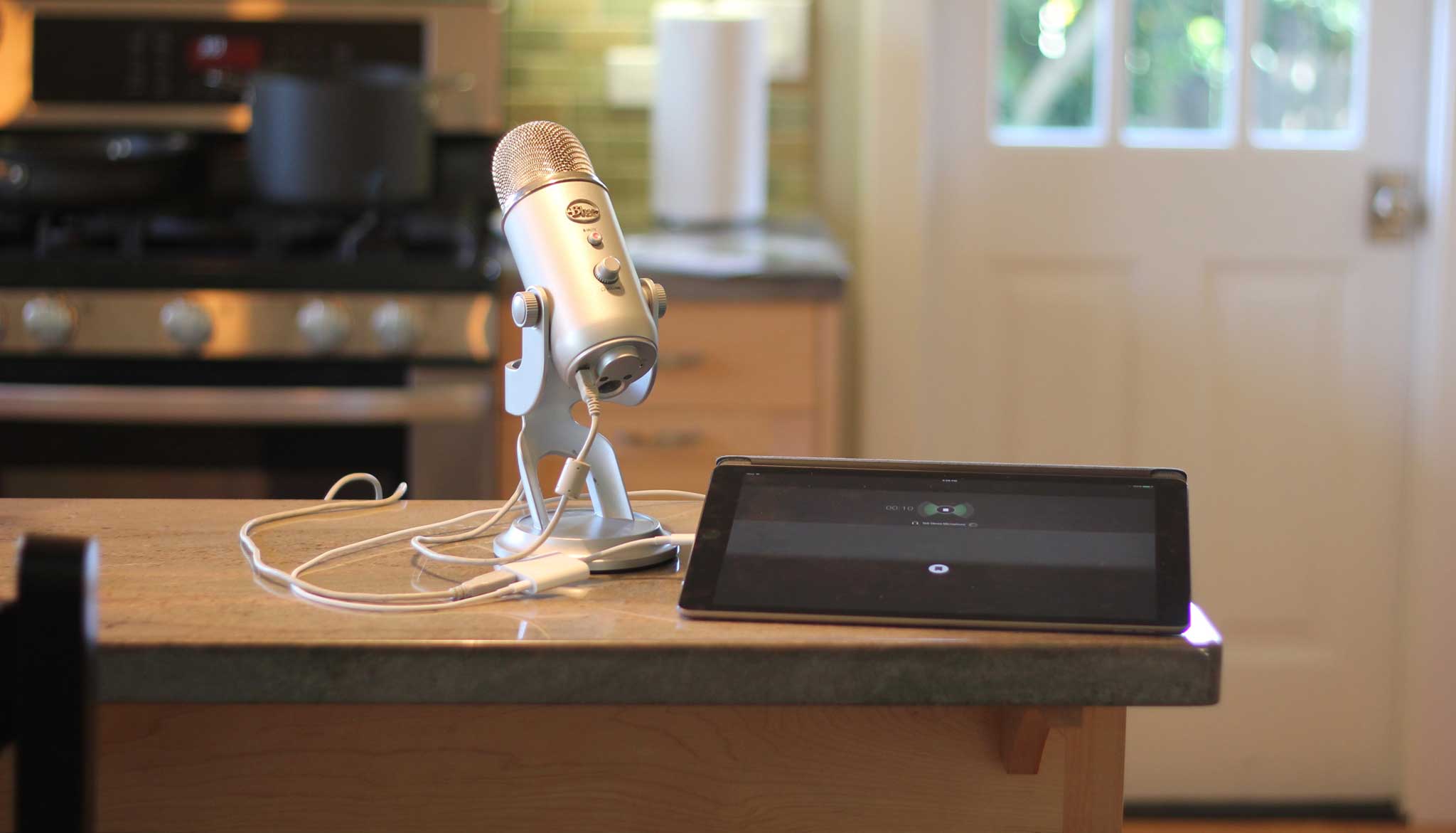
Fraser Speirs asked on Twitter if the Camera app on the iPhone or iPad would automatically pick up the audio from an attached USB microphone. This morning, I attached the adapter and the Yeti to my iPhone 6S and took some video in the Camera app, and the sound that was captured came from the Yeti itself. So the answer is yes!
Phil Schiller said you can connect an iPad to Ethernet via a USB-to-Ethernet adapter, so I tried it. Even in Airplane Mode or with Wi-Fi turned off, I was able to connect to the Internet via my Ethernet adapter, so it works! However, I can’t figure out where you can see any evidence that you’re on Ethernet, or any way to adjust networking settings. But it does seem to work.
Note: This story has not been updated for several years.
While introducing the new 9.7-inch iPad Pro at Monday’s press event, Apple marketing chief Phil Schiller made an aside about a new accessory, the $39 Lightning to USB 3 Camera Adapter:
This is a really powerful accessory, a USB [adapter]. Sure, it lets you plug in your camera, which many of us do, but because it’s powered, you can use a lot of powered USB devices. For example, you can plug in an Ethernet adapter to get on your corporate network. And for those of you who are podcasters, you can plug in a microphone and do your podcast right from an iPad Pro.
I’m a podcaster and an iPad Pro user, so I considered letting out a cheer in the small Town Hall theater, but didn’t want to be the only one. I looked down at iMore’s Rene Ritchie, two rows in front of me, just as he started to clap, and then I joined in. (We did it, everyone, we got podcasting on an iPad to elicit a cheer at an Apple event!)
It’s two days later and I’ve taken delivery of one of these adapters, and have given it a try. The short version is, yes indeed, it works as Apple indicated. But there are also a few quirks to be aware of—and this doesn’t remove all the roadblocks to using an iPad Pro as a dedicated podcasting machine.
Powering microphones and mixers
USB supplies the data; Lightning supplies the power.
Though there’s been a USB-Lightning adapter for some time now, the issue with using a USB microphone for podcasting has been all about power. As Schiller indicated, most common USB microphones require more power than the iPad can deliver—and so they just won’t work if you plug them in to the adapter. One workaround people discovered for this was to attach a powered USB hub to the adapter, and then plug a microphone into the hub… but it was a messy solution.
The new adapter solves this problem by getting wider, adding a Lightning port right next to the existing USB port. This means that you can use a USB device while powering your iPad, which wasn’t possible with the old model. (I sometimes stream live podcast audio via an external USB device, but had to be sure that my battery was fully charged before I did that. Similarly, if you want to hook your iPad to your corporate Ethernet network, as Schiller suggests, you’d probably also want to keep your battery topped up while you worked.)
The power that comes to the adapter via Lightning doesn’t just power the iPad—it’s also feeding the USB device you attach to the adapter. When I first tried to attach audio devices to my iPad Pro, I learned an important lesson: If you want to get power out of the adapter, you’ve got to put power into it. When I attached my USB-to-Lightning cable to Apple’s 5 watt USB power adapter—the tiny cube Apple includes with iPhones—I had no success. When I switched to the larger 12-watt brick, though, everything started to work.
I was able to attach both my Blue Yeti microphone and an XLR-based microphone via the Sound Devices USBPre 2 USB mixer to my iPad Pro with no problem. Both showed up as inputs in Ferrite Recording Studio immediately. This all worked on my iPhone 6S, too—same adapter, same microphones, same result.
One funny thing I noticed accidentally is that when I removed the USB end of my Lightning-USB cable from the power adapter and plugged it into my iMac, it didn’t register the iPad as being present—the adapter seems to only use its lightning port as a source of power.
The USBPre 2 appears as an input inside Ferrite Recording Studio.
But we’re not there yet
So once the applause from Phil Schiller mentioning iPads and podcasting on stage dies down, where does this leave us? If you’re someone who wants to record a podcast in person using an iOS device and a USB mixer or microphone, you’re set. But most of the podcasts I do are conversations that are conducted over the Internet, usually using Skype. And for the iPad to be a viable device for those kinds of podcasts, Apple needs to update its software.
In short, the audio inputs on iOS need to be accessible by more than one app at a time. Right now I can make a Skype call on my iPad, or I can record my voice to a file on my iPad, but I can’t do both at once—the moment a second app wants access to the microphone, the first one has to give it up. Changing that one behavior in iOS 10 would be enough to allow me to travel and record podcasts without bringing my MacBook Air with me. (I can already edit podcasts on iOS quite well—I edited this week’s Incomparable on my iPad Pro, in fact.)
There’s more Apple could do here, like offer apps access to system audio or the audio output of individual apps, so I could record the sound coming out of Skype, as I do with Call Recorder or Audio Hijack on my Mac today. This seems less likely to happen to me, but I can still dream. (Skype could also adopt Apple’s existing Inter-App audio, allowing other apps to record its output, but this seems even less likely to me.)
(An aside: Yes, you can record remote podcasts entirely on iOS today if you use two devices, such as an iPhone and an iPad. One of them serves as your Skype device while the other one acts as a recorder. It’s really not an ideal situation, especially if you want to hear both your own microphone input and the voices of the people you’re podcasting with.)
It would also be helpful if Apple improved importing files from USB devices and SD cards. Right now iOS is a whiz at importing photo and video files from attached USB devices and cards, but it fails at other file types. I travel with an audio recorder that saves files to an SD card (and also can attach via USB)—but once I record audio there, there’s no way to transfer it to my iPad. It would be great if external media was accessible via standard iOS open and import sheets. Right now, if I want to travel and record something on my fancy six-track USB recorder, I am unable to work with those files on my iPad without the intervention of a Mac.
So there’s more work to do on this front, but this new adapter removes another barrier. Podcasters like me are now one step closer to the dream of doing it all on iOS. I hope Apple eliminates the final roadblock with iOS 10 this fall. Until then, my MacBook Air will be mandatory equipment whenever I’m traveling and podcasting simultaneously.
Reuters reports that Cellebrite, an Israel-based company that makes forensic software for law enforcement, is assisting the FBI in unlocking the phone owned by one of the alleged San Bernardino shooters. MacRumors notes that one Twitter found the FBI had signed a contract with Cellebrite on the same day it moved to vacate the hearing to be held this week.
All iPad Pro 9.7”³ devices have a SIM slot right on the exterior and you can put another carrier’s SIM in that slot even if the iPad Pro itself has been locked to AT&T. In other words, the internal SIM may be locked, but you can “switch” carriers by using another physical SIM that you buy. [emphasis in original]
So, there are two SIMs in the iPad: Apple’s own, embedded within, and the swappable SIM. At some point, I’d imagine that Apple would like its embedded SIM to be the one and only, with all band switching handled by hardware, but it’s probably going to need to do some convincing where the carriers are concerned (as well as expanding the Apple SIM compatibility).
This week we talk about Apple’s announcements.
The iPhone SE: http://www.apple.com/iphone-se/
The new 9.7-inch iPad Pro: http://www.apple.com/ipad-pro/
Apple also has some new Watch bands: http://www.apple.com/shop/watch/bands
Tim Cook first spoke about the FBI case: https://sixcolors.com/post/2016/03/apple-shifts-focuses-from-small-products-to-big-issues/
Our thanks to Upsie (http://upsie.com), the new way to warranty. Don’t get those overpriced in-store warranties, go to Upsie.com and use the coupon code “REBOUND” to get 10 percent off your first two purchases.
Our thanks also to Casper (https://casper.com/therebound) for sponsoring this episode. Casper makes mattresses from responsive materials to ensure great sleep for nearly everyone. You spend about a third of your life sleeping, make sure it’s on a good mattress. Go to casper.com/therebound to start your 100-day money-back trial. You’ll get $50 off by using the code REBOUND.
Note: This story has not been updated for several years.
The downside of technology that’s indistinguishable from magic is that when it doesn’t work as expected, it often feels like we have to resort to mystical incantations1 to fix things.
A couple weeks back I noticed that AirDrop on my iPhone wasn’t working as expected: whenever I opened the Share sheet to send a photo over to my laptop, no devices showed up as available destinations. I was irritated, but busy, so I just used some other, less convenient form of file transfer, deciding I would save troubleshooting for another time.
That other ended up being today, when I hit my breaking point. I use AirDrop a lot to send screenshots from my iPhone to my MacBook Air, and it annoyed me that I was having to resort to kludgier solutions.
The plot thickened when it seemed that though no devices showed up in the iPhone’s Share sheet, the iPhone itself shows up in AirDrop from my Mac and my iPad.
So I turned to the troubleshooter’s best friend, Google, and typed in my mystical incantation to see what the all-powerful Internet hive mind suggested. Here are the suggestions I found, all of which I tried:
Turning the iPhone’s Wi-Fi off and on again.
Turning the iPhone’s Bluetooth off and on again.
Turning both the iPhone’s Wi-Fi and Bluetooth off and on again.
Turning AirDrop Off and on again.
Turning the iPhone off and on again.
Hard restarting the iPhone (holding down the Home button and Sleep/Wake button).
Logging out of my iCloud account and back in again.3
Just now, as I was writing out this list, I realized I hadn’t tried to force-quit and restart the Photos app, so I did that. And weirdly enough, that seemed to make AirDrop work again–at least for now.4
Yet I still can’t be entirely sure that that’s what actually fixed it, and I think this is one reason that we’ve been having, of late, this discussion about the declining quality of Apple’s software.
When things don’t work as expected, it’s a) incredibly frustrating, because we are so used to them not only being functional, but working well, b) the number of troubleshooting tools at our disposal is fairly limited, especially on iOS, and even if you’re a pretty tech-savvy individual, and c) oftentimes when we do get things working again, we don’t even understand why.
All three of those factors taken together make the technology, which can feel magical at the best of times, instead seem downright capricious. Especially because as humans, we take these random events personally, sensing an unfounded animus that leads us to conclude that this broken thing is targeting us, specifically and maliciously.
The black-box aspect of modern technology is a double-edged sword: we rave about when things “just work” and rail when they just don’t work. But then again, maybe that’s all part of the deal we made to get a little more magic into our lives.
My mystical incantations usually involve a lot of swearing. ↩
No, but I did have to re-enter a bunch of Wi-Fi passwords, so that was great. ↩
No, but geez that’s a pain these days. Among other things, it prompted a redownload of all of my photos via iCloud Photo Library. ↩
[Dan Moren is the East Coast Bureau Chief of Six Colors, as well as an author, podcaster, and two-time Jeopardy! champion. You can find him on Mastodon at @dmoren@zeppelin.flights or reach him by email at dan@sixcolors.com. His next novel, the sci-fi adventure Eternity's Tomb, will be released in November 2026.]
When I reviewed the 12.9-inch iPad Pro, I made a short comparison video showing import speeds using the old SD card adapter and the new USB 3-capable one. Transferring 1.5 GB of image files took 30 seconds via USB 3 and 2 minutes 20 seconds via USB 2. That’s the actual data transfer; just moving image thumbnails so I could preview the photos before importing took 23 seconds via USB 3 and 1 minute 16 seconds via USB 2.
That effectively means that when you want to transfer photos to the 9.7-inch iPad Pro, you need to also come up with something else to do while that’s happening, because it’s not going to be quick. (And the 9.7-inch model also doesn’t benefit from the fast charging feature in the 12.9-inch model using an Apple 29W USB-C Power Adapter and a USB-C to Lightning cable.)
It won’t be a deal-breaker for everyone, but it’s an interesting wrinkle.
Note: This story has not been updated for several years.
Password-protected items in Notes was one of the major features Apple touted for its spring software updates—but it may not be quite what you envisioned. Protecting notes isn’t about assigning a password to each individual item, but rather creating a general password for Notes, and then choosing whether to lock certain notes with that password. In other words, it’s an all-or-nothing proposition.1
The good news is that, at least in my initial experience, iCloud does a perfectly good job of syncing your password and locked note status between your devices, including iOS and OS X.
OS X
Securing notes on OS X is pretty straightforward: just select a note, click the padlock icon in the toolbar, and select Lock This Note. Done. (You may have to enter your Notes password or create one if you haven’t already done so.) By default, the note will still be visible, and will just have an open padlock icon on it. To actually lock your notes, you can choose Close All Locked Notes from the padlock menu; quitting Notes will also automatically close all your locked notes. Locked notes won’t show any content in the preview pane, or in the list of your notes.
Viewing a locked note just means typing your Notes password and hitting return.
If you want to totally remove a lock later, then you can select a note, click the same padlock icon, and choose Remove Lock; you’ll be prompted to enter your Notes password to do so.
iOS
The process on iOS is a little trickier, if only because it’s not as obvious. To lock a note on your iPhone or iPad, you need to tap the Action button and then find the Lock Note option. (You’ll need to enter your password if you haven’t done so.) A padlock icon will show up at the top of a secure note, letting you unlock or lock it at will. As on OS X, viewing a locked note requires you to enter the password.
iOS devices also let you use Touch ID to view your secure notes (which you have to enable by going to Settings > Notes), but I noticed an oddity with it during my tests.
When I initially created a Notes password, Touch ID worked fine, but when I used my workaround to create a second notes password, I could only use my fingerprint to open some of my secured notes. It seemed to be the notes associated with whichever password I had most recently used to lock a note—i.e. if I clicked the lock button on a note secured with ‘password2’ I could use Touch ID to open any note secured with ‘password2’ but would have to type in the password for any note secured with ‘password1’. And vice versa. Once again, it’s clear why Apple adopted a one password approach.
You can also remove a lock for a note on iOS by tapping on the Action button and choosing Remove Lock.
Well, sort of. There is a workaround: You can reset your Notes password, which doesn’t affect notes that are already locked. The tricky part is then you have different notes with different passwords, which you have to remember…which is probably why Apple went with the One Password to Rule Them All approach in the first place. ↩
[Dan Moren is the East Coast Bureau Chief of Six Colors, as well as an author, podcaster, and two-time Jeopardy! champion. You can find him on Mastodon at @dmoren@zeppelin.flights or reach him by email at dan@sixcolors.com. His next novel, the sci-fi adventure Eternity's Tomb, will be released in November 2026.]