Note: This story has not been updated for several years.
Hello from accessory central! We’ve got a kitchen scale and a bunch of cases and nothing but time. So here are some facts about how the 9.7-inch iPad Pro interacts with accessories:
There’s a reason Apple is selling an iPad Pro Smart Cover separate from the iPad Air Smart Cover. They’re not compatible. I was able to get the magnets on an iPad Air Smart Cover to attach to the edge of an iPad Pro, but the latching magnet would not connect. (In fact, it repelled the connection from the cover.) Do not attempt.
I couldn’t find any weight information about the accessories on Apple’s web site, so I weighed them all myself. The 12.9-inch Smart Keyboard weights 340g (.75 pounds); the new 9.7-inch Smart Keyboard weighs 225g (.5 pounds). The 9.7-inch iPad Pro Smart Cover weighs 110g (.24 pounds). For completion’s sake, the 12.9-inch iPad Pro Smart Cover weighs 164g (.36 pounds). The Apple silicone case for the 9.7-inch iPad Pro weighs 84g (.19 pounds).
So if you’re planning on toting around a 9.7-inch iPad Pro with a Smart Keyboard, that will weigh about 665g or 1.5 pounds. That’s a half a pound lighter than a MacBook. (The 12.9-inch iPad Pro, similarly loaded, weighs roughly a kilogram, or 2.3 pounds—heavier than a MacBook.
Note: This story has not been updated for several years.
There was a time when miniaturization ruled. The smaller you could make technology, the more valuable it became. Smaller products were more expensive than bigger products because it cost more to shrink all the components.
But at some point, the understanding that smaller was better fell by the wayside. Some of it was physical: Human bodies are built on a certain scale. Items too big or small to hold comfortably, displays too small to read clearly, aren’t as good as ones that fit in the proper scale. They could probably make a flip phone the size of a postage stamp today, but nobody would want to hold it, and it would be too easy to lose.
With phones, especially, the conventional wisdom is that bigger is better. The success of Android phones that were comically large to the eyes of an iPhone user led Apple to fully embrace the big-phone world in 2014 with the iPhone 6 and iPhone 6 Plus—and it was rewarded accordingly.
Big phones have lots of advantages. They’re so much easier on the eyes, with their big, bright screens. Typing and tapping is easier, too, because there’s more room for tappable elements on those big screens. Big phones have more room for battery, too.
But big phones have always had disadvantages. They’re heavier. They don’t fit as comfortably—or at all!—in your pockets. You need larger hands in order to hold them in one hand comfortably. As Apple (and its supporters) argued strenuously right up to the point where Apple itself made a large phone, bigger is not always better.
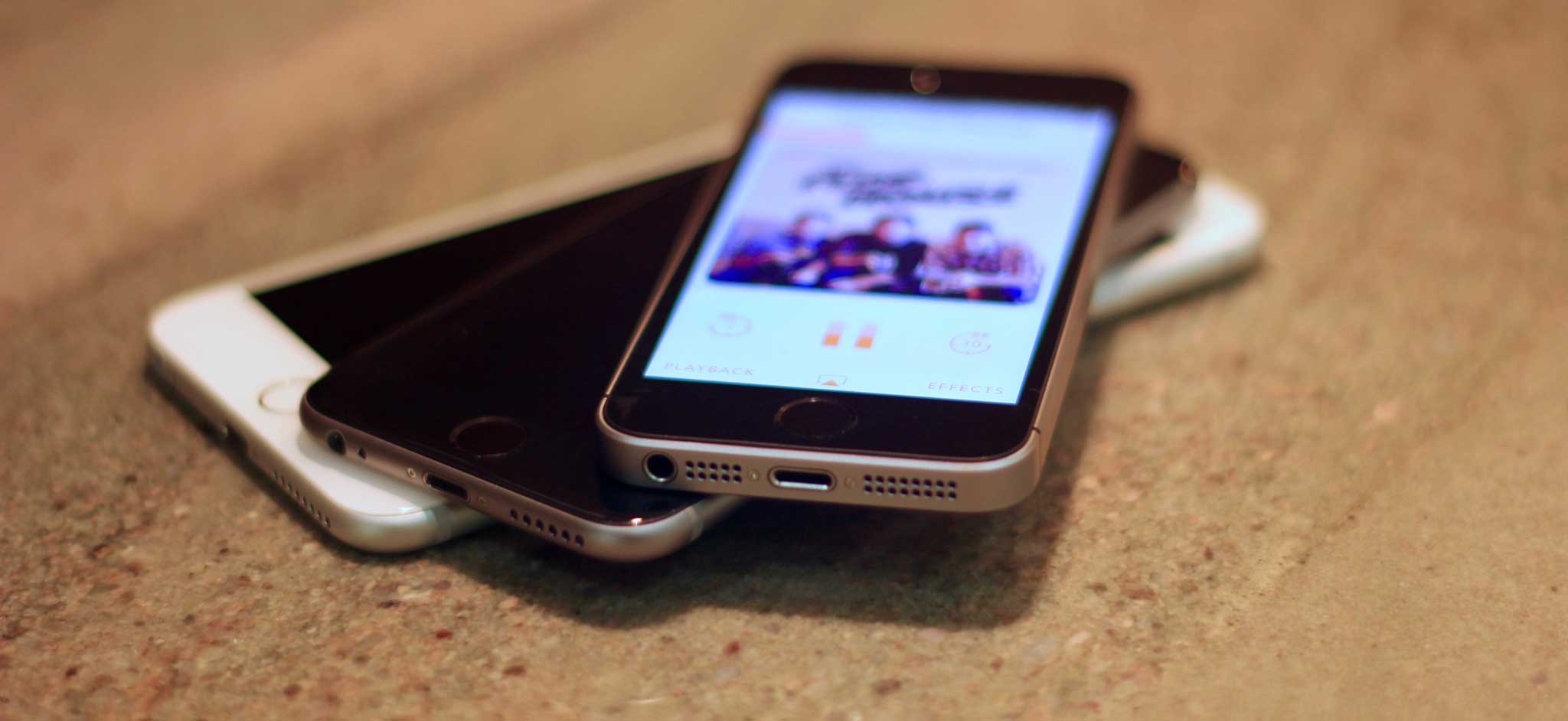
So here comes the iPhone SE, a big update to a small phone. It’s made of current technology, wrapped in an old, familiar package. It’s here to make the case that smaller can be better, and it makes it well.
Note: This story has not been updated for several years.
Apple’s been consistently releasing its annual Supplier Responsibility Report since 2007, when it started investigating the companies involved in its supply chain after reports of working conditions at some of its Chinese suppliers. Its latest report, covering 2015, details the progress made over the last year. A commensurate update to Apple’s Supplier Responsibility website summarizes many of the latest achievements.
In particular, Apple chief operating officer Jeff Williams notes that 97 percent of the company’s suppliers are now in compliance with Apple’s 60-hour maximum work week, more than 3.8 billion gallons of fresh water has been saved, and more than 2400 Environment, Health, and Safety projects have been launched since 2013.
Apple’s certainly been at the forefront of supplier responsibility over the past decade, and it’s clear that Tim Cook, and by extension the company, take the matter seriously, and are constantly pressing for improvements in labor & human rights, the environment, and accountability.
[Dan Moren is the East Coast Bureau Chief of Six Colors, as well as an author, podcaster, and two-time Jeopardy! champion. You can find him on Mastodon at @dmoren@zeppelin.flights or reach him by email at dan@sixcolors.com. His next novel, the sci-fi adventure Eternity's Tomb, will be released in November 2026.]
My thanks to Automatic for sponsoring Six Colors this week. Automatic is a small “connected car adapter” that plugs into your car’s diagnostic port and pairs with your phone. If you listened to my podcast driving home from Apple last week, you heard Automatic chirp a couple of times in the background!
Automatic retails for $99.95, but readers of Six Colors also get 20% off. Automatic ships in two business days for free, and there’s a 45-day return policy.
Six Colors readers can also enter to win a free Automatic Adapter by entering into a drawing from this page. Your email address will be used solely for contact purposes to reach the winner and coordinate the delivery of the Adapter. You can earn additional entries through the widget. Due to the complexities of international laws regarding giveaways, only U.S. residents who are 18 years of age or older are eligible to enter. This contest will run through 11:59 pm Pacific time on April 3rd. The winner will be chosen randomly on April 4th and will be contacted by email. The winner will have 48 hours to respond and provide a shipping address. The prize will be shipped to the winner for free.
Fascinating article by Rabbi Yair Hoffman dissecting whether or not using the Amazon Echo’s voice-activated features violates the Jewish prohibition on working on the Sabbath:
Like most technology, Amazon Echo carries with it a number of fascinating halachic questions. What are the prohibitions associated with its use on Shabbos? If one avoids using the name “Alexa” in conversation, may one leave it plugged in on Shabbos? Is there any circumstance in which it may be used?
The link in which I saw this asked whether the Echo might be the new Shabbos goy, which is to say a non-Jew who essentially carries out work for observant Jews on the Sabbath.1 Rabbi Hoffman concludes not, but that’s not to say there might be alternative interpretations.
Despite my Jewish heritage, I just learned of this term this past weekend when I discovered that Harry S Truman, Colin Powell, Mario Cuomo, Martin Scorsese, and, yes, the king himself, Elvis Presley, all served as Shabbos goy! ↩
Note: This story has not been updated for several years.
Apple will expose major new additions to the web technologies embedded in its Safari web browser on OS X and iOS in a whole new way as a part of a new Safari Technology Preview program it’s launching Wednesday.
Previously, developers were able to download “nightly builds” of WebKit, the open-source technology that powers Safari. With this new program, Apple will be providing a qualified and validated set of releases every two weeks1 to anyone who downloads the Safari Technology Preview. (The updates will be delivered by the familiar Mac App Store software update mechanism.)
And yes, anyone means anyone—the download doesn’t require a developer membership or Apple ID, and the Technology Preview appears as a separate app, allowing developers to run the regular version of WebKit in Safari and the newest preview version side by side.
Apple has recently opened up its software development, making it easy for members of the public to access in-progress versions of iOS and OS X and provide feedback. This announcement, while more developer-centric, seems to be in that same vein. Developers will be able to give feedback to Apple’s WebKit engineering teams early on in the development of new Web features.
The initial release of the Safari Technology Preview features several new technologies not previously released by Apple, including: an implementation of ECMAScript 6, the latest version of JavaScript; a just-in-time JavaScript compiler called B3 that’s optimized for high performance in small Web-based scripts as well as complex Web apps; a revamped version of the IndexedDB technology that allows web apps to better store and manage data; early support for Shadow DOM; support for programmatic cut and copy to the clipboard; and Content Security Policy Level 2.
If IndexedDB sounds familiar to you, you might remember the “Safari is the new IE” blog post by developer Nolan Lawson that was the subject of much discussion last July. Lawson was upset with how poor Apple’s IndexedDB implementation was; it’ll be interesting to see what he thinks of this new implementation. (Update: he seems happy.)
While the Safari Technology Preview runs on the Mac, tools in the product will let developers preview how websites will render and behave on iOS devices as well. And of course, all the technologies Apple builds into WebKit will ultimately be deployed across both OS X and iOS.
I really liked “Shut Up About Harvard“, a piece from FiveThirtyEight by Ben Casselman:
It’s college admissions season, which means it’s time once again for the annual flood of stories that badly misrepresent what higher education looks like for most American students — and skew the public debate over everything from student debt to the purpose of college in the process.
Here’s the reality: Most students never have to write a college entrance essay, pad a résumé or sweet-talk a potential letter-writer…. According to data from the Department of Education, more than three-quarters of U.S. undergraduates attend colleges that accept at least half their applicants….
“College,” in the mainstream media, seems to mean people in their late teens and early 20s living in dorms, going to parties, studying English (or maybe pre-med) and emerging four years later with a degree and an unpaid internship. But that image, never truly representative, is increasingly disconnected from reality. Nearly half of all college students attend community colleges; among those at four-year schools, nearly a quarter attend part time and about the same share are 25 or older. In total, less than a third of U.S. undergraduates are “traditional” students in the sense that they are full-time, degree-seeking students at primarily residential four-year colleges.
The people who write news stories about college, who make movies about college, represent a tiny minority of the reality of higher education, but they create our cultural image of higher education, so it doesn’t mirror reality. Casselman’s argument is that our focus on elite schools makes us miss the huge cuts happening to public colleges and universities and the crisis of many students being saddled with huge debts while being unable to complete their programs of study.
A year ago Fantastical for Mac 2.0 arrived, and I’ve been using it as my Mac calendar app ever since. On Wednesday developer Flexibits released version 2.2, which adds native support for account syncing.
Because Fantastical now supports CalDAV syncing natively, it’s added support for more complex server-based tasks such as person look-ups, invitation responses, and checking for meeting availability. I use Google Calendar as my calendar server, and now Fantastical is more capable of interacting with its more advanced features.
Some of the other new features in 2.2 include printing (with multiple, beautiful layouts), a second time zone time line (to let you quickly view other time zones), multiple selection (to move and delete multiple items at once), and the ability to start the week or month views on the current day or week.
Fantastical is $50 and is available from the Mac App Store or directly from Flexibits.
One of the banner features of the iPad Pro line is the Smart Connector, three metal dots that allow the two-way transfer of power and data between an iPad Pro and an accessory. So far, the first two Smart Connector products—Apple’s Smart Keyboard and the Logitech Create keyboard—have been the only Smart Connector products on the market. At last, there’s a third product for the connector—the $149 Apple Smart Keyboard for the new 9.7-inch iPad Pro. After all, what’s an iPad Pro if it doesn’t have its own keyboard cover?
Since the new-model Smart Keyboard must double as a cover for the 9.7-inch iPad Pro, it’s necessarily scaled down from its 12.9-inch equivalent. The larger Smart Keyboard is 12 inches wide, enough space for a full-sized set of keys. The new, smaller model is only 9.4 inches wide, and that 2.6 inches of lost space does take a toll.
Apple has done a lot to mitigate that reduction in size. In addition to losing the breathing room along the left and right edges that the larger keyboard offered, all the non-alphanumeric keys have been squashed to smaller widths. All of that work isn’t enough to prevent the entire keyboard layout from shrinking, however. Keys are reduced in size and offset by about 17.5mm, as opposed to 19mm on the 12.9-inch keyboard.
Whether this is a dealbreaker really depends on what kind of a typist you are. If you’re someone who hunts and pecks, you’re not going to care. If you’re someone who has mapped the location of every single key on a normal-sized keyboard onto your brain, you may struggle.
I’m a pretty tough critic when it comes to keyboards, and I actually found typing on the smaller Smart Keyboard to be surprisingly good. The fabric keys don’t require as much force to depress as mechanical keys. But more than that, I discovered that if I kept some of my fingers resting on the keyboard, so I could always remain oriented, I was able to touch type at a high rate of speed without ever looking at the keyboard itself. In fact, I’m typing this on the keyboard right now, at full speed.
While the reduced dimensions of the 9.7-inch iPad Pro add complications in some ways, they offer benefits in others. This new Smart Keyboard has to cover a screen that’s 60 percent of the surface area of the larger model, meaning that it’s much lighter and less bulky. On the 12.9-inch iPad Pro (which is already 9.8 ounces heavier), using the Smart Keyboard as a cover felt bulky and burdensome. The smaller Smart Keyboard, on the smaller iPad Pro, doesn’t feel that way at all.
So what can I say? I really like the new, smaller Smart Keyboard for the new, smaller iPad Pro. It’s surprisingly easy to type on, even for someone who usually freaks out when presented with a keyboard that’s not a standard size. And it’s light enough to be your iPad’s everyday screen cover when you’re out and about.
If you’re on a budget, there are better, cheaper options—as nice as the Smart Keyboard is, it’s no match for a more traditional keyboard. The $80 Logitech Easy-Switch is a good alternative for people who are used to using backlit MacBook Pro and Air keyboards. At $149 for the Smart Keyboard, you are paying for the convenience of always having a keyboard attached to your iPad as a cover. If it’s worth it to you, you won’t be disappointed.
A few other notes: I’m a little bit baffled about the lack of forward progress on the Smart Connector front. Between the introduction of the 12.9-inch iPad Pro and the 9.7-inch model, not a single Smart Connector-based accessory was announced. My understanding is that some are in the works, and I’d imagine that vendors reluctant to build a product for the (presumably small) 12.9-inch iPad Pro market will be more inclined to invest in the Smart Connector now that there’s a 9.7-inch iPad Pro that will probably sell in much greater numbers.
I’ve noticed a similar lack of motion on the issue of international keyboard layouts. Back when the 12.9-inch iPad Pro was announced, Apple indicated that the U.S. layout of the Smart Keyboard would eventually be joined by other keyboard layouts for other countries. Thus far, none has appeared—and the 12.9-inch iPad Pro’s software keyboard is similarly limited to a U.S. layout. That’s not great for a product line whose identity is so strongly associated with its keyboards.
Federico Viticci at MacStories just tested Apple’s 29W USB-C power adapter with his iPad Pro. This is the power adapter released last year for the MacBook, but a new USB-C-to-Lightning cable makes it capable of fast-charging the 12.9-inch iPad Pro.
The performance gap between the 29W and 12W power adapters is simply too big to ignore: every iPad Pro user would want to spend less time charging their device and end up with more battery, more quickly. The 12W power adapter essentially brings glorified iPhone charging to the iPad Pro – a subpar experience that, at this point, is barely acceptable.
If you use a 12.9-inch iPad Pro as your primary computer every day, I strongly recommend getting the 29W USB-C power adapter and USB-C to Lightning cable. It’s money well spent.
I’m in the category that Federico refers to as “people who primarily use it at home and charge it overnight,” so I’m not sure that I want to spend $80 for faster charging, but if you’re a 12.9-inch iPad Pro user who is frustrated by recharge times, this is great news.
David Kravets, writing for Ars Technica, explains that the government may not explain (or ever be required to explain) the method they used to crack the iPhone of the alleged San Bernardino shooter:
“We cannot comment on the possibility of future disclosures to Apple,” the law enforcement official said in response to a question from Ars. Just a week ago, Apple told reporters in a conference call that it would insist in court on knowing everything about the vulnerability.
This isn’t exactly surprising, given that the FBI (and other law enforcement) would surely like to be able to hold on to this vulnerability to unlock the dozens of other iPhones they’re holding. Given that the San Bernardino iPhone was an older model running an older version of iOS, it’s possible this method won’t work with newer phones…but it’s also possible it would.
Of course, the bigger question is whether this vulnerability is significant enough that it puts other users at risk. My guess is that it almost certainly requires physical access to the phone, so it’s not something that people should be freaking out about, but that doesn’t mean that it shouldn’t be found and patched, with or without the government’s help.
Note: This story has not been updated for several years.
Regardless of whether you pronounce it with a hard or soft ‘g’, it turns out that not everybody loves GIFs. After my Wish List item on the subject yesterday, reader Bruce wrote in to say that he finds the animations distracting:
What I wish for is to be able to right click on a [GIF] and stop the animation. Better yet, a preference in IOS and OS X that turns [GIF] animation off by default.
I realize GIFs aren’t everybody’s cup of tea, so they should be used sparingly.1 But it is annoying that there’s no way to stop GIFs from animating, especially when loading a bunch of them on a single page can really grind your browser to a halt.
Unfortunately, there’s no simple way to disable GIFs in Safari (or Chrome), as Bruce requested, but I found a few ways to make it happen. The easiest is a Safari extension called Deanimator, which is a bit on the old side but seems to still work.
The second solution I saw mentioned was to use an extension like User CSS to create a custom rule that blocks animations. (This has the virtue of being a solution you can deploy in Chrome as well.) It’s a little less elegant, though: Deanimator will still display a static image, but the CSS hack removes the image altogether.
Unfortunately, Safari’s lack of plugins on iOS makes this way more challenging–as things currently stand, there’s no easy way to block animated images on your iPhone or iPad. It probably means we’ll have to wait until Apple decides to address the issue on its mobile platform. Hopefully before animated GIFs send us all spinning into madness.
But the GIFs in that story were awesome so I REGRET NOTHING. ↩
[Dan Moren is the East Coast Bureau Chief of Six Colors, as well as an author, podcaster, and two-time Jeopardy! champion. You can find him on Mastodon at @dmoren@zeppelin.flights or reach him by email at dan@sixcolors.com. His next novel, the sci-fi adventure Eternity's Tomb, will be released in November 2026.]
Imagine if your sewer pipe started demanding that you make major changes in your diet.
Now imagine that it got a lawyer and started asking you to sign things.
You would feel surprised.
This is the position I find myself in today with IFTTT, a form of Internet plumbing that has been connecting peacably to my backend for the past five years, but which has recently started sending scary emails.
If IFTTT sticks with this philosophy, it will rapidly become a lot less useful and interesting as a service.
I was happy to be a guest on this week’s The Talk Show with John Gruber, a marathon episode (is there any other kind?) where we go through the entire Apple event from last week, plus save a little time for the future of streaming entertainment and a remembrance of Garry Shandling.
There’s an Apple tech note on the process, but here’s the quick explanation.
Open up Mail > Preferences and select Accounts. Under Account Information you’ll see a dropdown menu labeled Alias. Select Edit Aliases from that and you’ll get a window that lets you add additional email addresses: just click the Plus (+) button at the bottom, and enter a full name and email address.
That address will now show up as an option in the From dropdown menu when you send a new message.
Here’s the one caveat: Though this seems to work for Gmail, Exchange, and generic IMAP accounts, iCloud email users are out of luck. Selecting Edit Aliases there will kick you to iCloud’s web interface, which only lets you define aliases at icloud.com, no matter if you use @mac.com or @me.com for your primary email address. More’s the pity.
[Dan Moren is the East Coast Bureau Chief of Six Colors, as well as an author, podcaster, and two-time Jeopardy! champion. You can find him on Mastodon at @dmoren@zeppelin.flights or reach him by email at dan@sixcolors.com. His next novel, the sci-fi adventure Eternity's Tomb, will be released in November 2026.]
Note: This story has not been updated for several years.
When Apple introduced the Live Photos capability of the 6s and 6s Plus last year, it was quick to distinguish those moving images from animated GIFs. (And they’re not quite, of course.) But as much as I enjoy Live Photos, it’s impossible to ignore that animated GIFs have become part of the Internet landscape–especially on social media–and iOS’s native support for them is…lacking.1
For example, I really like the official Star Wars app because it contains a number of super convenient, high-quality, pre-sliced GIFs from the best movies of all times, as well as from the attendant animated TV series, and some other weird trilogy of movies that looks terrible.
But the problem is that not all apps on iOS recognize GIFs as animated. So while I can save an image from the Star Wars app to my photos, if I then open Photos, that image doesn’t show up as animated. I can even then text that apparently static GIF to someone and it wouldn’t animate until it had been sent.2
Worse, some apps on iOS take it a step further by converting animated GIFs into static images. For example, if you paste an animated GIF into Notes–which also shows it as a static image–and then save that image to Photos, you’ll actually end up with a motionless PNG instead.
To help fix this mess, I’d like to see a few small improvements in a future version of iOS: First, better support for GIFs across the system. Display animated GIFs in Photos (if not automatically, then with a long-press or 3D Touch à la Live Photos–or at least with a Play button like videos). Second, make it easier to copy and paste animated GIFs between apps without inadvertently losing said animation. And finally, provide a Smart Album of GIFs within Photos–à la Selfies, Panoramas, Slo-Mo, etc.–to make it easy to find your collection of animated images.
I realize that there’s likely to be some collision and confusion between GIFs and Live Photos, but since the latter are proprietary to Apple’s platforms, it’s not as though people are going to stop using GIFs. Instead, iOS (and OS X) should be better citizens where this standard format is in use.
There are, of course, apps to convert Live Photos into GIFs. Unsurprisingly, that doesn’t seem to work in reverse…because why exactly would you want to? ↩
Until I recently realized that the images saved to Photos really were GIFs and not static images, I had a super confusing workaround that involved texting GIFs to myself via Messages. Stay in school, kids. ↩
[Dan Moren is the East Coast Bureau Chief of Six Colors, as well as an author, podcaster, and two-time Jeopardy! champion. You can find him on Mastodon at @dmoren@zeppelin.flights or reach him by email at dan@sixcolors.com. His next novel, the sci-fi adventure Eternity's Tomb, will be released in November 2026.]
This is a very cool tech demo from Microsoft showing off how you can use HoloLens (plus a somewhat complicated 3D camera setup) to create holograms of people–think of it like 3D Skype.
There are definitely some rough edges in the tech demo, and the equipment involved is clearly unwieldy, but it’s hard not to look at this and think that this could be a commonplace form of communication not too many years down the line.