Despite rising Mac sales, Apple’s financial situation remained dire. The company needed more income. After being informed of IBM’s hundreds of millions in yearly patent revenue, CEO Steve Jobs authorized a change in FireWire’s licensing policy. Apple would now charge a fee of $1 per port. (So if a device has two ports, that’s $2 per unit.)
The consumer electronics industry was outraged. They saw it as untenable and unjustified. Intel sent its CTO to talk to Jobs about the change, but the meeting went badly. Intel decided to withdraw its support for FireWire–to pull the plug on efforts to build FireWire into its chipsets–and instead throw its weight behind USB 2.0, which would have a maximum speed of 480 megabits a second (more like 280, or 30 to 40 MB/s, in practice).
I remember how mind-blowing FireWire was back in my Blue & White PowerMac G3, back in 1999–not that I had much use for it at first. But I also remember the sharp divisions between Apple and Sony’s implementations making it confusing and frustrating, especially when trying to explain the virtues to others. But I still have fond memories of trying to find an enclosure for a portable hard drive that used the Oxford 911 chipset, which resulted in a really sweet little drive that I carried around for many years.
Apple has, of course, moved on to the much more versatile Thunderbolt protocol for high speed transfer and I’m looking forward to my new iMac’s use of the ports. (Even though I had to buy a Thunderbolt 3/USB-C to Thunderbolt 2 adapter).
Standing in Glowforge’s offices, I dragged an image file I’d exported from Illustrator into Glowforge’s cloud-based Web app. A camera inside the cutter let me visualize exactly where the type would be cut out of 1/8th-inch maple plywood in the device’s bed.
A few minutes later, I had the numbers in my hand. They were carved with digital perfection, as neatly as if they’d been printed onto paper. The next step is to mount them on about 0.8″ of plywood to bring them to the height required by a letterpress.
Yep, 3D printers and laser cutters are being used to create type for use in printing presses. Glenn gave me a tour of the School of Visual Concepts when I was in Seattle last month, and I was struck by how beautiful the printing machinery was—and how well it’s cared for. It’s all a pretty amazing mixture of old tech and modern ingenuity.
The Computer History Museum has posted its video of its event Tuesday night:
John Markoff moderates a discussion with former iPhone team members Hugo Fiennes, Nitin Ganatra and Scott Herz, followed by a conversation with Scott Forstall.
Disclaimer: It’s Facebook, and the video quality isn’t spectacular. I used youtube-dl to pull the video file off of Facebook so I could watch it at my leisure.
I’m flying to Phoenix on Friday. The forecast high that day is 112°F (44C), which is a cooling trend. The last couple of days it’s been nearly 120°F (49C) in Phoenix.
So, funny story: Airplanes are really bad at taking off when it’s really hot. Rhett Allain explains at Wired why hotter air means lower air density, which means less lift, which means that smaller jets can’t take off when it gets to 120°F. I do like a good science story.
Good news, though: The day I’m scheduled to come back home from Phoenix, it’s only going to get up to 110°F. My Southwest Airlines Boeing 737 will probably not have any trouble.
Update
Turns out that among my readership are airline pilots and consultants! I will keep their comments anonymous, but to summarize:
Jet manufacturers certify their aircraft to a given maximum operating temperature as part of the standard delivery package for their aircraft. Airlines cannot operate those aircraft above that limiting temperature. If an airline wants to spend some extra money to get a jet off the ground on a very hot day, they can buy additional performance data and use it to approve take-offs. If you don’t have the data, the FAA doesn’t allow you to take off.
Smaller regional jets don’t necessarily have access to the data for their planes, which is why some stories refer to Boeing and Airbus jets taking off when smaller jets are grounded. Then again, cancelling a small jet with 50 passengers costs a lot less money than cancelling a large jet with nearly 200.
William Turton of The Outline has, ironically, a leak from inside Apple about Apple’s war on leakers, namely a recording of an Apple employee session about fighting disclosures of future product information. It’s an interesting read, showing how Apple views its supply-chain leaks and the leaks from Cupertino itself. Also, this bit made me laugh:
Later, during the employee Q&A, Rice gleefully recounts a blog post written by longtime Apple watcher John Gruber, in which Gruber criticized Apple scoop machine Mark Gurman, who now works at Bloomberg, for not having juicy details on Apple’s new HomePod speaker before it was released. “Even [Gruber] was like ‘Yeah, you got nothing.’ So he was actually throwing some shade out, which, like, ‘all riiight,'” Rice says, to the laughter of employees.
The story mentions a couple of Apple people being fired, presumably for leaking, and I’ve heard similar stories. I’ve even heard of people being very visibly dismissed, rather than the usual invisible corporate disappearing act, in order to make everyone else understand the penalties for leaking. I’ve also heard, separately, that Apple’s been working hard to clean up some of its digital paths for leakage, including company communication tools that were sending too much information to too many people who didn’t need to know.
I doubt Apple’s going to ever stop the flow of leaked information, but it’s certainly done a much better job lately in reducing it to more of a trickle.
Note: This story has not been updated for several years.
Many years ago, when I worked at Macworld, I was contacted by an Apple recruiter about a job as an editor for the Mac App Store. Apple, recruiting editorial talent for the App Store? That seemed unusual.
The fact is, while the App Store has indeed had an editorial team for quite a while, Apple’s approach to App Store editorial has been nearly invisible. Editors select apps to highlight and might write short bits of text for use in collections, but for the most part the job has seemed to be more about curation than words1.
This is not meant to disparage curation—it’s an important job and one of the ways the App Store can highlight the hard work of app developers who are making polished, impressive products.
The start of an iOS 11 App Store article.
With iOS 11, though, Apple’s really showing that it has redefined what the App Store editorial team is for. In the redesigned App Store app in iOS 11, app highlights go way beyond buttons that would present an app’s App Store page when you tapped. The new Today tab is populated with full-fledged feature articles, with screen shots, videos, animations, pull quotes, and real writing. There are app spotlights, curated best-in-category collections2, and even how-to articles.
No, this isn’t independent journalism—it’s curation and marketing. But it’s a sign that Apple sees the value in telling the stories of the apps it’s seen fit to highlight.
When I read the sample content that Apple posted in the App Store as a part of the developer release of iOS 11, I was impressed with the level of detail. These aren’t a few sentences of dashed-off app hype; the Monument Valley piece in the App Store is a full-on feature story, well written and complete with quotes from the developers themselves.
It’s a smart approach, though it will be interesting to see how it works once iOS 11 arrives and the App Store team3 is forced to roll out new highlights and features on an ongoing basis. That’s the thing about editorial work, whether you’re writing for a newspaper, magazine, website, or even the App Store—it never stops. Time just keeps rolling on, and your audience is always hungry for new stuff.
Fortunately, given the experience of the last nine years of the App Store, there will probably always be great new apps to highlight—and great stories to tell. As someone who has made his living writing stories about software for a very long time now, I’m a believer in the format. Done well, this will make the App Store better—for both users and developers.
As a person with a high profile editorial background and strengths in writing and editing, I was exactly the wrong person for an invisible curation job. ↩
We did curated app lists at Macworld for a few years. It’s hard to do well, and a huge time investment. ↩
Someone asked me if I thought the App Store might just ask developers to write their own articles and send them in. In a word: No. ↩
Today, all of the logistics that go into a Whole Foods store are for the purpose of stocking physical shelves: the entire operation is integrated. What I expect Amazon to do over the next few years is transform the Whole Foods supply chain into a service architecture based on primitives: meat, fruit, vegetables, baked goods, non-perishables (Whole Foods’ outsized reliance on store brands is something that I’m sure was very attractive to Amazon). What will make this massive investment worth it, though, is that there will be a guaranteed customer: Whole Foods Markets.
When I was a kid, poring over tech books like The Macintosh Bible, I always found myself glossing over the sections about Mail Merge, which I–rightfully, I maintain–dismissed as something boring that only adults had to worry about.
So naturally here I am, twenty-five years later, in a situation where Mail Merge is actually quite useful: I’ve recently been sending out quite a bit of snail mail1, and I discovered that my printer could print envelopes (albeit one at a time, which is kind of a bummer). But rather than typing or copying-and-pasting addresses into the envelope template I set up in Pages, it seemed like it would save time to automate that process. Which is exactly what Mail Merge is supposed to do.
Except Pages doesn’t have a Mail Merge feature.
A little bit of Googling later and I turned up a solution from, of course, from my old Macworld colleague Chris Breen. Chris’s article in turn pointed me towards AppleScript guru Sal Soghoian’s Mac OS X Automation sites. Among the wondrous resources you can find there is a little helper application called Pages Data Merge, which did pretty much exactly what I was looking for.
Long story short, there’s a feature in Pages that lets you tag parts of documents as placeholder text. Those placeholders can then be addressed by scripts, and Pages Data Merge can import rows of data from Numbers (or other sources like a CSV file) and generate separate Pages files (or PDFs, ePubs, DOCs, and more) with the spreadsheet data plugged in to the template.
I used it to grab names and addresses that I’d entered in Numbers, plug them into the envelope template, and then generate individual Pages files for each personalized envelope–and it worked a treat. The one downside is that every time I want to do a new batch I have to remind Pages Data Merge which Numbers columns go to which Pages placeholders, but honestly, that doesn’t take more than 30 seconds or so.
Maybe this isn’t exactly the kind of low-hanging fruit that Apple’s looking to add to Pages, but it’s definitely a bit of a hole in functionality right now. It’s great that Apple’s robust automation (and Sal’s wizardry) means that you can make this work even without Apple building it in, but I would love to see a more robust solution.
In the meantime, if you’ve been looking for a way to personalize this kind of content–and I should note that Pages Data Merge even lets you automatically attach the created files to individualized email messages–then this might work as well for you as it has for me.
[Dan Moren is the East Coast Bureau Chief of Six Colors, as well as an author, podcaster, and two-time Jeopardy! champion. You can find him on Mastodon at @dmoren@zeppelin.flights or reach him by email at dan@sixcolors.com. His next novel, the sci-fi adventure Eternity's Tomb, will be released in November 2026.]
Keyboards come and go. I’ve been through more than a few on my iPad. For a while I used my Apple Wireless Keyboard in an Origami case. Then a Logitech K811 also shoved into the same Origami case. When I got my iPad Air 2, I found a pretty good deal on a Logitech Type+ and used that for a while. But recently I noticed that I’d stopped taking the iPad places because the Logitech case simply made it too bulky. So when I came across a deal on the iClever Bluetooth Keyboard, its compact nature and split design intrigued me, and I started carrying it around when I didn’t need the full keyboard-case experience. Now that I’ve made the jump to a 10.5-inch iPad, the Type+ case no longer even fits, so I’ve ditched it for the iClever full time.
Recently, I posted a couple pictures of my iPad work setup, and was inundated with questions about the keyboard. Inquiring minds, it seems, want to know. So here’s the rundown on what I like about this keyboard, and what could use some work.
The good
Size: The compact design of this keyboard frankly can’t be beat. Folded in half, it’s only very slightly thicker than the 10.5-inch iPad with a Smart Cover. It’s also small enough that you could, if you really wanted to, probably slip it in the back pocket of a pair of men’s jeans. The weight of it is almost negligible—I don’t have a scale handy, but iClever says it’s just 6.2 ounces; it’s certainly a lot lighter than my previous keyboard case. I particularly appreciate the embedded magnetic fastener, which makes it snap pleasantly together when you fold it up, and doubles as an on/off switch to boot.
Battery life: Honestly, I’ve yet to have to recharge the iClever. That’s not too surprising: keyboards are hardly high-power devices. In the eventuality it does need to be plugged in, it takes a standard micro-USB cable. There’s also a battery indicator, which I appreciate, even if it is a bit minimal. (Press the Function key and the R key, which has a battery icon on it, and a light will blink multiple times, each indicating a quarter of battery power left: four times, 100 percent; three times, 75 percent; and so on.) iClever says the keyboard will last for 40 hours of typing and up to 30 days of standby. Seeing as how I left it sitting around for several weeks without using it and I still have at least a three-quarter charge, that would seem to bear out.
Keys: Okay, they’re not the best keys in the world, but they look cheaper than they feel. They are a bit smaller than full size, but not so tiny that I have trouble touch-typing. Obviously they’re not mechanical switches, so if that’s a non-starter for you, look somewhere else. But they do have more key travel than recent Apple laptop keyboards, so that’s a win. There are, however, some downsides to the layout and tradeoffs with the size, but we’ll get back to that in a moment.
Split layout: This one is obviously a bit of a subjective preference, but I’d wager also the reason behind most of the curiosity about this keyboard. Back in the day, I used to use a Microsoft Natural Keyboard after I’d had some problems with RSI; these days I’ve switched back to standard keyboards, but the split ergonomic design still appeals to me. I find the iClever’s split layout pretty comfortable to type on, though it definitely took some getting used to.
The price: At just over $30, the iClever is definitely on the affordable side. You can probably find cheaper, but for me it seems to strike a pretty decent balance for the cost. At that price, it was worth it for me to buy one to test out, even if I didn’t end up using it regularly. As it stands, I’d say that I’ve easily gotten my money’s worth from it, even if it does have some caveats…
The bad
Split layout: As I said above, the layout has taken some getting used to. In particular, the “B” key is just on the wrong side for me: I’m used to hitting it with my right hand, and I’ve had to retrain my muscle memory to look for it on the left side. It’s not a deal-breaker, but it’s definitely an annoyance.
Flaky keys: I’ve remarked on this elsewhere, and I remain unsure if it’s just this unit, Bluetooth connectivity, or what, but some of the keys don’t always register on the first try. Specifically, I find that the ‘V’ key often seems to require a second press—or a firmer, more intentional press—to show up. Many’s the time that I have typed a word with a ‘V’ in it, not realized that it didn’t show up, and then had iOS’s autocorrect gleefully change it to a word that makes no sense whatsoever.1 Other keys occasionally seem to have a similar issue, but with nowhere near as much frequency. Again, I don’t know if this is a flaw that’s endemic to the keyboard or simply this particular unit, but it’s worth noting.
iOS-ish keyboard layout: This is probably my biggest irritation with this keyboard. While it does let you toggle between Android, Windows, and iOS/Mac keyboard layouts, the iClever’s iOS layout isn’t quite right. Specifically, it maps the Windows key to Command and the Alt key to option, which puts them in the opposite places from where they should be. That’s not unique to this keyboard, but at least when you run into it on a Mac you can remap them. No such luck on iOS. I’ve gotten to the point where I at least don’t have to stare down at the keys to remember which is where, but it definitely took some time.
On iOS the Win key is mapped to Command and the Alt key to Option, which is the opposite of what most Mac and iOS users will expect.
Miscellaneous layout issues: Depending again on your personal preferences, some of the rest of the iClever layout may prove less than ideal. The arrow keys have the full-size left/right and half-size up/down of recent Apple keyboards, which not everybody is a fan of. (I prefer the inverted-T layout personally.) The number keys—which double as function keys—are half-height, which makes them more annoying to hit at times, while some of the symbol keys on the right-hand side, like the brackets, colon, and quotes are half-width, which can be a bit maddening as well. The Delete key is a little too far to the right to hit comfortably. The Caps Lock key doesn’t have a light on it to tell you whether it’s on or off, but, frankly, my fingers are usually obscuring it anyway, so that’s kind of a six-of-one-half-dozen-of-another. In other words, like any keyboard, it has its quirks: how much they bother you is going to vary from person to person.
The verdict
Is this the keyboard that will make you settle down and stop looking at iPad keyboards? If you’re a keyboard connoisseur, then no, probably not. The non-iOS layout and the flaky keys are probably going to turn you off. But if you’re just looking for a super compact, long-lasting wireless keyboard to get stuff done? This might very well fit the bill. The split ergonomic layout is the big wildcard, and from what I can tell, it certainly seems like that might be the big draw for some folks.
At the end of the day, for the $33 price tag on Amazon, it’s a pretty solid little keyboard that you can throw in a bag and use when the onscreen keyboard just isn’t cutting it. I might not want to write my next novel on it, but I’ve just written this entire 1300-word review on it with few problems, so consider that at least a modest seal of approval.
It turns out that if you type “very” and the “v” doesn’t show up, iOS is pretty happy to change it to “dry.” Also “I’ve” with no “v” becomes, through some bizarre black magic, “I’be”. Go home, autocorrect: you’re drunk. ↩
[Dan Moren is the East Coast Bureau Chief of Six Colors, as well as an author, podcaster, and two-time Jeopardy! champion. You can find him on Mastodon at @dmoren@zeppelin.flights or reach him by email at dan@sixcolors.com. His next novel, the sci-fi adventure Eternity's Tomb, will be released in November 2026.]
My thanks to Couchbase for sponsoring Six Colors this week.
Couchbase’s Engagement Database is designed to deliver richer and more personalized customer experiences as a business grows and adapts. It can deliver exceptional experiences that old-school transactional databases can’t. Couchbase can provide agility, manageability, and performance at any scale—for web apps, mobile apps, and even Internet of Things devices.
If you’re in the market for an upgrade to your product’s customer experience, check out couchbase.com/sixcolors.
Every week I do a TV podcast with Tim Goodman, the chief TV critic at The Hollywood Reporter. This week, Tim turned the tables and asked me a bunch of questions about Apple’s hiring of two Sony TV executives to run its original-video efforts. If you want to hear me talk about Apple’s future as an original-content player, this week’s TV Talk Machine is the place.
Dan has a keyboard he’s been holding out about: https://twitter.com/dmoren/status/875367583654039556
It’s for sale on Amazon for $33: https://www.amazon.com/iClever-Bluetooth-Rechargeable-Universal-Smartphone/dp/B01JA6HG88
Submitted for your approval (or not), the Apple Pocket Watch: https://twitter.com/MatthewSchneier/status/610396428444131328
Tim Cook spills small beans about Apple’s car project: https://www.bloomberg.com/news/articles/2017-06-13/cook-says-apple-is-focusing-on-making-an-autonomous-car-system
The reviews of the 10.5-inch iPad Pro are pretty good: https://daringfireball.net/2017/06/ipad_pro_review_roundup
The Verge has excerpts from a book that are not flattering about Schiller: https://www.theverge.com/2017/6/13/15782200/one-device-secret-history-iphone-brian-merchant-book-excerpt
Lex likes the game Ballz: https://itunes.apple.com/us/app/ballz/id1139609950?mt=8
Our thanks to Indochino (https://www.Indochino.com) where you’ll find the best made to measure shirts and suits at a great price. Use the promo code “REBOUND” and get any premium suit for just $389.
And our thanks to Couchbase (https://www.couchbase.com/therebound). Get exceptional customer experience at any scale on the Couchbase engagement database. Always on, always fast. To find out more, go to Couchbase.com/TheRebound.
Note: This story has not been updated for several years.
The 10.5-inch iPad Pro (top) and the iPad Air 2 (bottom).
These days I replace my iPhone pretty much every year, thanks to Apple’s iPhone Upgrade Program. But my iPad gets swapped out much less frequently—perhaps every couple years. A major reason for that is that over the past few years, it’s seemed like the pace of iPad improvement had slowed a bit, along with the sales. But when the company unveiled the 10.5-inch model at this year’s WWDC, I found myself once again subject to the upgrade siren song.
My previous model was a refurbished iPad Air 2, and it remains a very capable machine. There’s not a lot that you can throw at the Air 2 that it won’t handle, and the initial improvements in the Pro line—the Smart Connector, the display colors, the louder speakers—hadn’t been enough to persuade me to upgrade. But add in the larger screen in the 10.5-inch model, ProMotion, better support for Apple Pencil, processor improvements, well, yeah, you had a machine that was a substantial bump over what I was using.
So after a few days using the 10.5-inch, where am I at?
I love it. Unqualifiedly. Let’s break down a few of the reasons why:
The form factor Rumor had it that Apple would try to fit the 10.5-inch display in the 9.7-inch iPad’s chassis. That’s not what ended up happening here: the 10.5-inch model is taller and wider than its predecessor, though, in truest of Apple fashions, no thicker. It’s also a little bit heavier as well—to the tune of 0.07lbs—and it remains not the most comfortable iPad to hold in one hand for long periods of time. (The mini still holds that crown, undisputed.)
The thinner side bezels look great and if it’s not as big a difference as between the original iPad’s form factor (last seen in the fourth-generation iPad) and the iPad Air, it’s still a nice improvement. There is an unsightly camera bump on the back now, but it’s a fair trade off for a much better camera and I’ve gotten plenty used to it on the iPhone.
The display As Jason said elsewhere, the new ProMotion feature, which brings a 120Hz refresh rate to the display, isn’t a jump on the order of Retina displays, but combined with TrueTone, wide color gamut, and the larger display? Yeah, this is a huge jump. For the first time in years, I had to change up my wallpaper because the old one—a picture shot with a digital camera back in 2005—just didn’t do it justice.
I’m not a particularly color sensitive person, but the new display definitely pops when it comes to colors; I don’t know how else to describe it. The fact there’s more of it, even if it’s not a huge jump from 9.7-inch iPad, certainly doesn’t hurt.
There’s been a lot of discussion of ProMotion, and there’s no question that it takes some getting used to. But after a couple days, my overriding impression is that this is the way iOS is meant to be seen. Animations and scrolling are smooth and zippy and they look and feel natural—it doesn’t even feel like you’re using a device.
Overall, when it comes to a bigger screen on an iOS device, that’s not only important because it’s more room to display content. Unlike on a Mac, the iOS display is also the control surface, which means more room for user interfaces. With multitouch (and especially multi-hand) being something that Apple stressed in iOS 11, a larger screen is certainly a benefit. Add in more real estate for using the Apple Pencil, and there’s little argument that the bigger screen is all upside.
Better speakers One of those things that I probably wouldn’t have put on a wishlist for my iPad, so used am I to listening on my headphones or a Bluetooth speaker, but the Pro’s speakers are impressively loud—almost too much so at max volume. I feel like I’d have little problem doing a Netflix binge without connecting my speakers. (It’s not about to become my go-to device for listening to music, though.)1
Better cameras I haven’t had much of an opportunity to play around with the cameras yet—I don’t take a lot of pictures with my iPad—but even at a glance it’s clear how much sharper and less grainy the Pro’s new camera is. No surprise, given that it’s the exact same camera in the iPhone 7 and 7 Plus (without the Plus’s second lens), complete with flash and support for Live Photos. Same goes for the FaceTime HD Camera. No longer do I have to switch over to my iPhone to get the best picture.
Faster Touch ID sensor One of the upgrades of the last few iPhone models that sometimes goes overlooked is the new Touch ID sensor. It’s marvelously fast and accurate, and it’s a great addition to the iPad as well. It seems to fail for me way less than the original Touch ID sensor.
I’m sure there’s much more to love in the new iPad, but a lot of the test will be when iOS 11 comes down the pike later this year, bringing new multitasking features and more. I have full faith that the iPad Pro will prove to be more than up to the task, and I look forward to waiting a few more years before my next new iPad.
[Dan Moren is the East Coast Bureau Chief of Six Colors, as well as an author, podcaster, and two-time Jeopardy! champion. You can find him on Mastodon at @dmoren@zeppelin.flights or reach him by email at dan@sixcolors.com. His next novel, the sci-fi adventure Eternity's Tomb, will be released in November 2026.]
Apple has hired two well-regarded executives who shared the job of running Sony’s TV studio. As Peter Kafka reports at Recode:
Both men are longtime Sony veterans, who have helped make some of TV’s best-known and most popular shows, including AMC’s “Breaking Bad” and ABC’s “Shark Tank.” At Sony, they jointly held the title of president; at Apple, they’ll report to media boss Eddy Cue.
Their hiring is the best indicator yet that Apple has real ambitions about making TV and other video content, and that it has plans for that stuff beyond using it to market its Apple Music service.
It’s hard not to look at this as ironclad proof that Apple’s getting into the original video content game… big time. And they’ll have two talented TV industry experts leading the charge.
Over the past few years, rumors of a self-driving car have swirled around Apple with more intensity than almost any putative product since the iPhone. It remains unclear whether or not the company will build an entire car, but the fact that the company is interested in technologies that support a self-driving car is no longer under dispute.
In a Bloomberg TV interview posted this week, Apple CEO Tim Cook confirmed that the company views autonomous systems as a major area of interest, describing it as a “core technology.”
If in fact any such product does surface, it will likely be more than a few years from now. But looking at the announcements out of last week’s Worldwide Developers Conference, it’s not hard to point to a few seeds that might eventually blossom into such a project.
Note: This story has not been updated for several years.
I hadn’t previously given too much attention to the Apple Pencil, largely because Apple’s initial messaging around the product had really pushed it towards artists—and if there’s one thing that’s pretty clear, it’s that I am not much of an artist.
In recent months, though, I’d started to cave a bit. People showing off note-taking apps and PDF annotations made me wonder if maybe there weren’t use cases even for the artistically-challenged among us. But it was Apple’s demo at WWDC of the new Pencil-related features in iOS 11 that tipped me over the edge. So when I ordered a new 10.5-inch iPad Pro just hours after the keynote, I thought “what the hell?” and threw an Apple Pencil into my cart as well.
I may be a johnny-come-lately to Pencil fandom, but now that I’ve been using it for a few days, I’ve really been digging it. It hasn’t magically turned me into an artist or even really improved my atrocious handwriting, but there is something delightful about putting it to the iPad screen and seeing lines appear with all the fidelity of a physical pen and paper. There’s something very natural about holding the Pencil, perhaps because I’m of a generation that came to computing only part way through my youth, so all those habits with writing implements are still ingrained in me. It’s also just a pleasing piece of hardware in the hand, and I’ve taken to just twiddling it in idle moments.1
If anything, my limited time with the Pencil has left me wanting even more from it. So I’ve compiled a quick list of three things that I think would make the Pencil even better.
Handwriting to text
One of the features Apple showed off in its preview of iOS 11 was the ability to write in the Notes app and have iOS turn it into searchable text. That’s pretty cool, and third-party apps like Good Notes have already implemented similar features. But, to my mind, it doesn’t go far enough.
What I’d really love to see is the ability for that handwriting to be turned into actual typed text. And I’d like to see it everywhere across iOS. So, for example, when somebody sends me an iMessage and I’m already holding the Pencil, I could quickly scrawl a response and have that interpreted, turned into text, and sent back.
There’s plenty of precedent here. Remember the Newton? Yes, its handwriting interpretation abilities were famously mocked in the early days, but as Apple continued to develop the tech, it got more and more impressive.2 Apple later started building some of this technology into the Mac with the Inkwell system, a “hidden” feature that only showed up for those who were using graphics tablets.3
I envision this feature working in a similar fashion as Siri Dictation, with the interpreted text showing up in blue underlines and the ability to quickly tap a word to correct it. (Finding a way to markup existing text with the Pencil might be more challenging, but you can get by with using the onscreen keyboard for that at least initially.)
One major reason I think this would be a welcome feature is that if you’re already holding the Pencil and navigating the iPad, as I’ve found myself doing and as I’ve seen other Pencil aficionados doing, it’s a pain to have to put it down and type on the keyboard to answer a message or write a quick email. The other alternative is to peck out a message by tapping the onscreen keyboard with the Pencil, and that’s frankly not much better. You’ve already got a writing implement in your hand—why not just use that?
Pencil storage
That leads into my next point, one that I can’t believe hasn’t been addressed yet. Why, oh why, is there not an easy place to store the Pencil? It seems like a missed opportunity not to have a way to magnet or clip the Pencil to your iPad when not in use. Even just a loop on the hinge side of the Smart Cover would be a welcome addition. As it is, I’ve ended up simply carrying the Pencil around loose, and that seems like a recipe for losing or dropping it.
At WWDC, Apple did announce two Pencil-related accessories: the first is a leather sleeve with a little pocket for the Pencil, which looks very chic—but I don’t particularly want to carry my iPad around in a sleeve, and leather isn’t really my aesthetic. The second is a leather Pencil case…which looks to be just a sleeve that you can slip it in. That’s it. I assumed at first that it would have magnets in it that would let you attach the sleeve to your iPad or Smart Cover, and apparently I was not alone in that. But nope: it’s just a sleeve.
Fortunately, third parties have apparently taken advantage of this void. I’ve already ordered a magnetic holder for the Pencil; I’ll report back when I’ve had a little more time to test it out.
iPhone support
As with so many features that differ between the iPhone and the iPad, it’s weird jumping between the two devices and having a feature on one that doesn’t work on the other.4 I’ve found myself tapping on my phone with the Pencil a number of times in the past few days, and I’m disappointed every time that it doesn’t at least function as a basic stylus.
Frankly, I’d like to see full-fledged Apple Pencil support for the iPhone in an upcoming model. To me, the iPhone 7 feels perfectly natural to hold in one hand while writing on it—it’s about the size of a reporter’s notebook. Yes, I’m sure that Apple would take some guff for building stylus support into its smartphone, but the company’s never been one to shy away from self-contradiction.
I’m sure adding Pencil support to the iPhone isn’t at the top of the list for Apple, but given that there are many more iPhone owners than iPad owners (and specifically of the Apple Pencil-compatible models of the iPad), it might be an opportunity to broaden the appeal of the accessory, and perhaps encourage third-party developers to create even more interesting applications for it.
Smorgasbord
As I said up top, I’ve only been using the Pencil for a few days now, and those are the things that have jumped out to me in that time. There are a few other smaller ones as well: for example, I think it’d be awesome if you could flip over the Apple Pencil and use the back end to erase. But that would require relocating the Lightning connector and finding a different way of pairing/charging, so I doubt Apple’s likely to do it anytime soon.5
And, speaking of charging, while I admire the Pencil’s sleek lines, it would be handy to have some sort of visual indication when it needs charging. Currently you need to rely on checking the Battery widget on your iPad, which isn’t always at hand. Fortunately, the fast charging means that even just a few seconds of plugging it in can generally let you finish whatever you were doing.
(I’m also a little bummed that the Apple Pencil is just slightly too heavy and long to fit behind my ear, as a traditional pen or pencil would. It’ll stay there for a few seconds, but then I’m always worried it’s going to slide off, so, oh well.)
All in, I’ve been very impressed with the Apple Pencil. It’s exactly the kind of device that we’ve come to expect from Apple—I haven’t spent any time with the much-beloved AirPods, but I imagine that they evoke a very similar feeling. It certainly isn’t a cheap piece of hardware in construction or price, and I imagine that it’s a splurge for most iPad users—especially non-artists like me. But if you’ve been curious about it and you’re in the market for a new iPad Pro, I have to recommend indulging that curiosity, especially with iOS 11 coming down the road. You may find yourself as delighted as I’ve been.
Not that the current “sticking out like a vestigial tail” charging method is particularly elegant. Some sort of wireless charging would seem ideal, but it’s still early days in that department. ↩
[Dan Moren is the East Coast Bureau Chief of Six Colors, as well as an author, podcaster, and two-time Jeopardy! champion. You can find him on Mastodon at @dmoren@zeppelin.flights or reach him by email at dan@sixcolors.com. His next novel, the sci-fi adventure Eternity's Tomb, will be released in November 2026.]
Note: This story has not been updated for several years.
The new 12.9-inch iPad Pro (upper portion of image) features an LED flash, changed cellular cut-out, and relocated microphones.
I’ve been a believer in the 12.9-inch iPad Pro from the very beginning. Before 2015 was over, I had bought one of my own and it has been my constant companion ever since. My MacBook Air, once my primary computer, rarely gets used. When the 9.7-inch iPad Pro arrived on the scene, I liked it a lot, but preferred the extra screen size of the larger model.
I’ve got both new iPad Pro models here and I’m planning on writing a more comprehensive review after I’ve spent more time with them, but for fans of the 12.9-inch iPad Pro in particular, here’s what I’ve noticed so far:
Improved cameras. The 2015-model iPad Pro had a 8MP camera with 1080p HD video, and a 1.2MP FaceTime camera. The new one’s gotten a huge upgrade to iPhone 7-level specs: a 12MP camera with support for 4K video, and a 7MP FaceTime camera. The 12.9-inch iPad Pro also now has a LED flash, which it lacked before. (So finally you can use your gigantic iPad as a gigantic flashlight, if you need to.)
With the better camera also comes a bump. Unlike the old camera, which sat flush to the back of the iPad, this one joins most recent iPhones (and the 9.7- and 10.5-inch iPad Pros) in having a small camera bump.
Improved display. The old 12.9-inch iPad just missed out on Apple’s wide color gamut revolution. This new model rectifies it: Its display supports the P3 color gamut and has a True Tone sensor, which means the display can automatically adjust the white point of the display to match the color of light in your current location.
Just this morning I was looking at a friend’s Instagram stream and marveling at the vibrancy of colors on the new display. I’m a person who has a problematic relationship with color, but the difference in the displays is obvious. And last night, as I read a bunch on the iPad, I was struck by how pleasing it was to have True Tone match my room light as I moved around my house and as daylight was replaced by our interior lighting.
The screen’s brighter, too, and with an improved anti-glare coating. Using an iPad in direct sunlight may not be ideal, but you can do it. I’m writing this sentence in direct sunlight, and I can see my screen clearly (turned up to full brightness)… but I can also see every single finger smudge. (Summer tip: Maybe bring a cloth with you if you’re going to be working in direct sunlight?)
Finally, there’s the new 120Hz refresh rate on these displays, which (combined, presumably, with a major upgrade to the graphics power via the A10X Fusion processor) creates ridiculously smooth scrolling and animation effects. I don’t want to overstate it: This isn’t as revolutionary a change to your device’s display as the leap to Retina was. But it’s still a clearly noticeable improvement. This is no placebo effect: The very first time I used one of these new iPad Pros, I was shocked by how smooth all the animation effects were.
Faster processors. It sort of goes without saying, doesn’t it? But let’s just marvel at what a year and a half of Apple processor advancement can provide. Powered by three cores (instead of the two-core A9X on the old model), the new model was 33 percent faster (1.3×) in single-core performance and 89 percent faster (1.89×) in multi-core performance, as measured by GeekBench 4 speed-testing software.
Now, will you use this processing power? Do you use the processing power of your existing iPad Pro? It’s a good question. I rarely ever feel that my iPad Pro is grinding away on a difficult bit of computing work, though when I’m exporting audio from Ferrite Recording Studio, it does happen. The more you stress your iPad, the more you’ll appreciate the power. But I suspect that for most users, making the iPad Pro faster will simply prevent them from ever running into the feeling that the device isn’t fast enough. If there was a performance barrier out there, beyond which the device would begin to struggle, it’s been pushed back substantially by this update.
Faster radios and an Apple SIM. The new iPad Pro has a faster Wi-Fi radio inside it, and support for faster cellular bands. I am nowhere near an expert on this topic, but the previous 12.9-inch model didn’t support LTE Advanced, which gives this new model the ability to connect to faster LTE networks in certain countries. This is also the first 12.9-inch iPad Pro to feature an embedded Apple SIM, the “virtual SIM card” technology that lets you switch carriers without needing to swap in a physical SIM card. (Except on networks like AT&T, which will lock your Apple SIM to their network.) There’s still a physical nano-SIM slot as well, if you’re using a carrier that really wants to give you a SIM card.
Very little physical changes. If you’ve invested in 12.9-inch iPad Pro accessories, I’ve got good news: You’re fine. The new iPad Pro’s only real physical changes involved the LED flash—it’s just below the camera on the back—and a repositioning of the microphones along the top and back edges. My old Apple-branded silicone case for the 12.9-inch iPad Pro fits the new model fine, but it does cover up the microphone and the flash. All my other external keyboards and cases fit just fine. In other words, if you’re upgrading, you shouldn’t need to replace any of your accessories.
Oh, there’s one more cosmetic change: On cellular models, the cellular cut-outs are no longer monochrome strips that somewhat mar the back shell of the iPad. Now they’re thin color-matched antenna lines, with the bulk of the case retaining its existing color (space gray, gold, or silver).
Better Touch ID. Both old iPad Pro models used the first-generation Touch ID sensor, but both new models use the second-generation sensor introduced with the iPhone 6S. This sensor is faster and more capable of working even when your finger’s got a little moisture on it.
“Hey Siri” when unplugged. Little-known fact: The original large iPad Pro didn’t support “Hey Siri” activation unless it was connected to a power source. The new model doesn’t have that issue—it’ll wake up when you call it, even when it’s unplugged.
More accessories. Even if you don’t upgrade to a new iPad Pro, you might want to take advantage of the new accessories Apple is making for the 12.9-inch model. Back in 2015 I complained about the fact that Apple seems to think 12.9-inch iPad Pro users are dull gray drones, owing to the fact that the only case colors they made for the iPad Pro were white and gray. Boring.
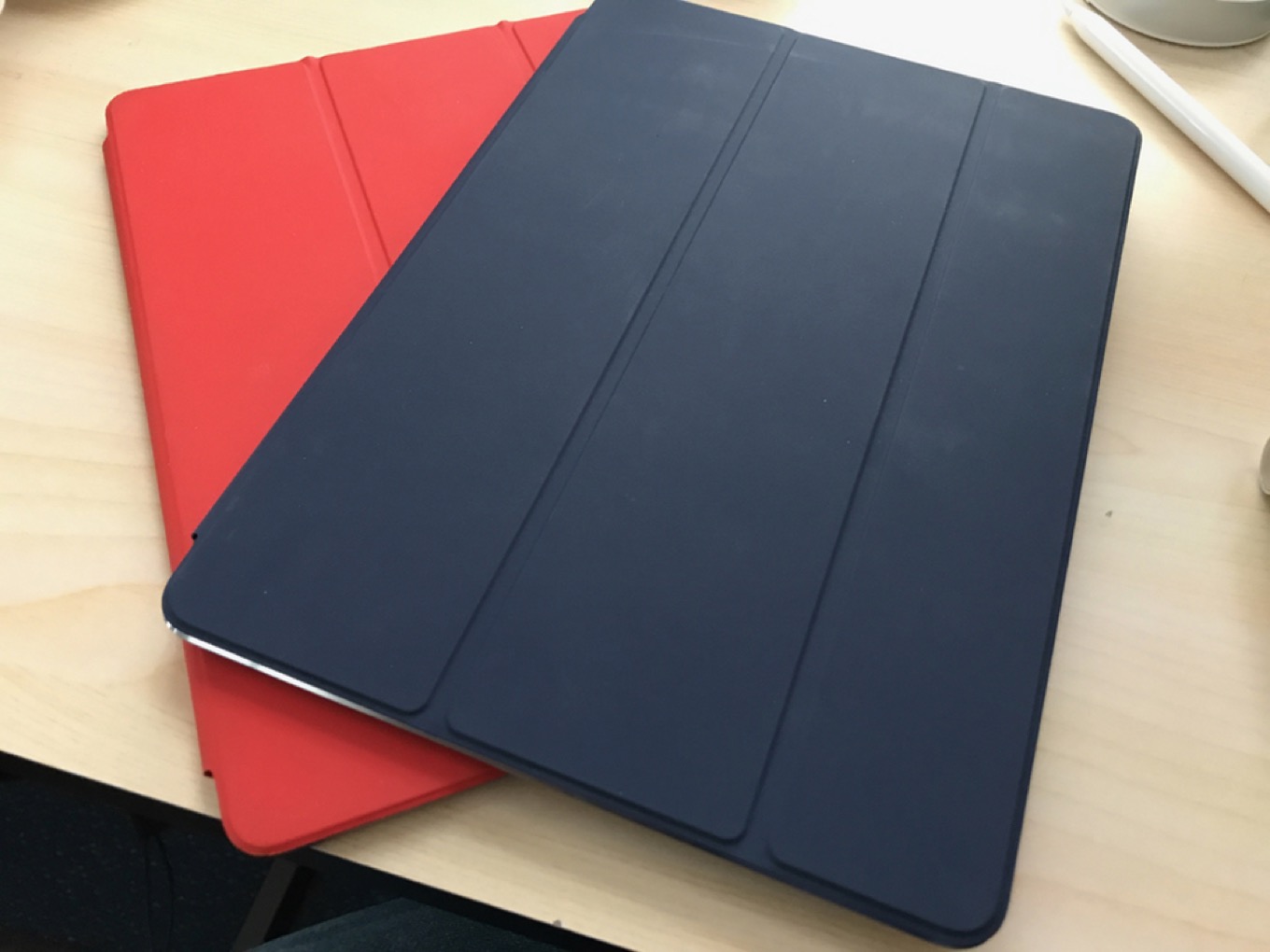
But now there are some new options. The $149 leather iPad sleeve is a bit of an odd product—again, I’ll write more about it later—but it’s available in brown and dark blue. Likewise, the new $79 leather Smart Cover is available in those colors. I bought a Midnight Blue leather Smart Cover the moment it was announced. Color, at last! (Unfortunately, if you don’t like leather, you’re out of luck—the $59 standard Smart Cover still only comes in white and gray. Double boring.)
And now, we wait. Apple’s Worldwide Developer Conference is over, and with all the announcements comes a broad understanding about where Apple is taking iOS and macOS over the next year. But there are still a few lingering questions that Apple didn’t, or couldn’t, address at WWDC.


 On iOS the Win key is mapped to Command and the Alt key to Option, which is the opposite of what most Mac and iOS users will expect.