Note: This story has not been updated for several years.
For this week’s chart1, I thought I’d illustrate how long Apple has historically stuck with different processor architectures. As you probably know, there are lots of reports that in the next year, Apple will begin to roll out Macs powered by its own ARM processors rather than those made by Intel. (Dan and I actually discussed it in depth on this week’s Six Colors podcast, which is available to all Six Colors subscribers.)
This wouldn’t be the Mac’s first processor transition. It’s already been through two, and I’ve been privileged to witness them both. The Motorola 68000 era lasted for the Mac’s first 12 years (non-PowerPC PowerBooks… lingered). In 1994, the PowerPC transition began, and Apple shipped Macs with PowerPC processors for 12 years.
At 14 years and counting, the Intel era is the longest in the Mac’s history. The transition was also the fastest—Apple really cleared out the PowerPC Macs in a hurry and replaced them with Intel models.
While it’s theoretically possible that Apple could swap every Mac model to ARM processors in 2021, it seems unlikely. You’ll probably be able to buy a new Mac running Intel chips into 2022, and possibly for many years after that. But it seems that change is coming (again) to the Mac.
The Newport Beach, California-based startup officially shut down this week, saying on its website that it is “heading in a new direction.” Apple said it buys smaller technology companies from time to time, and generally does not discuss its purpose or plans. It didn’t disclose a purchase price, but website 9to5Mac reported in April that Apple was in talks to buy NextVR for about $100 million.
That’s a ways off, of course, and the current world situation makes nothing certain. But Tim Cook has never been shy about discussing his aspirations for AR, and the addition of the LIDAR sensor on the newest iPad Pro (a feature that is expected to come to at least some of this fall’s iPhones) definitely seem to add fuel to the fire.
I also can’t help but think that a company like NextVR, which has partnerships with sports leagues and entertainment networks, could prove a handy acquisition for creating content that can be broadcast in VR–something that may be attractive in the future, depending on how long it takes before people are congregating in large crowds again.1
In a forthcoming episode of The Incomparable, Jason and I–along with Aleen Simms, Scott McNulty, and Erika Ensign–discussed Sarah Pinsker’s A Song For a New Day, which deals with how live music persists after a worldwide plague, and in which a major player is a company that essentially produces VR performances. ↩
Note: This story has not been updated for several years.
Last month I was sad to report that the new iPad Pro keyboard/trackpad combination from Brydge, the makers of my longstanding favorite iPad Pro keyboard, was just not good enough. The keyboard and price were both impressive, but the trackpad experience itself was poor compared to pretty much any other pointing device you can connect to an iPad.
At the time, I expressed some hope that Brydge might be able to turn things around by updating the trackpad’s firmware. And that glimmer of hope got a little brighter last week with the release of a firmware update app that improves clicking and scrolling features.
Unfortunately, the update that Brydge rolled out along with the app doesn’t really do anything to fix the fundamental failings of the Brydge trackpad experience. Cursor movement and two-finger scrolling is still jerky and unreliable in ways that other trackpads and mice aren’t.
I spoke to people at Brydge and they suggested that now that the app has been released, the company hopes to release more updates soon. The company seems to be well aware of the limitations of its iPadOS experience and is working to make it better. I’ll keep checking back with them in the hope that I can upgrade my view of the Brydge Pro+ in the future.
I do have at least a little hope that the product can be rescued, eventually. We know that Apple’s own Magic Keyboard and Logitech’s Combo Touch acquit themselves fine, as does Apple’s standalone Magic Trackpad 2. iPadOS 13.4 enabled not just cursor support, but support for trackpad hardware.
Brydge’s trackpad, in contrast, is still emulating a mouse. It’s playing checkers while Apple and Logitech are playing chess. What’s baffling about this situation is that Brydge makes a product for Windows—the Surface Pro keyboard—that offers first-class multitouch support. And the trackpad hardware in that product is identical to the hardware in the Brydge Pro+. The only differences are the firmware and the operating system.
As a fan of Brydge’s approach to iPad keyboards and to Apple’s support for pointing devices in iPadOS 13.4, it’s frustrating to see this situation. Here’s hoping Brydge can get its firmware on track, because the world of iPad accessories is stronger with Brydge in it.
For a company with a reputation for sudden bursts of industry-shaking creativity, Apple’s pretty conservative most of the time. The company has a years-long product pipeline, and while we’re beginning to anticipate the 2020 iPhone, its hardware engineers are finishing work on the 2021 model while its component designers are pondering the chips and sensors that will power the device into the mid-2020s.
For so many of Apple’s product choices, a decision now is likely to be a decision that sticks for years to come. Think of how many years it took for the company to backtrack on the butterfly keyboard in the MacBook line, even after it was obvious that it had made a mistake. More to the point, consider the continued existence of the low-end, two-port version of the 13-inch MacBook Pro, which is largely the consequence of a failed attempt to replace the MacBook Air with the 12-inch MacBook and the low-end MacBook Pro.
Some fairly strong news reports suggest that in 2021, Apple’s going to being a major reset of the Mac product line, thanks to its transition from Intel processors to its own ARM chips. After a decade and a half in which Mac product designs were often constrained by the Intel processor types that were available, Apple’s got a chance to build a Mac product line exactly as it envisions it—right down to the right chips for the right computers. It’s not an exaggeration to suggest that this will affect the shape of the Mac for the next five years, if not more.
What is Apple likely to do? I’ve got some ideas, informed by my observations of the last two transitions, a sense of where the Mac is today, and maybe a little bit of wishcasting.
I’m definitely not a programmer, and I can’t proclaim to be an expert at user automation, but I’m very enthusiastic. My latest project has been figuring out the best way to scrape data from webpages and use it in interesting ways, all on iOS via Shortcuts.
Shortcuts includes a powerful Replace Text function that supports regular expressions, which would let me pull out whatever data I needed from the web… just so long as I could figure out how to get Shortcuts to provide me with the source of the page rather than the text on the page.
In the end, the trick was to use another Shortcuts function, Make HTML from Rich Text. I was afraid that this function would give me some weird double-translated code, but it appears to be the original page source.
After that, I got to use my old-school HTML-scraping skills with a series of regular expressions, replacing newlines with a filler character π in order to make it easier to search across multiple lines. This is how I’ve been doing it for years.
But after that, the approach to parsing the text is all Shortcuts. And that means repeating through lists and building up variables until I can finally generate a CSV file containing all of my parsed data, ready to be fed into Charty—in this case, to produce a chart of monthly rainfall totals at my house since 2010:
Nothing captures the Mediterranean climate (or that 2015 drought) like a rainfall chart.
Now that I’ve put in the work to crack the code, though, I should be able to adapt this approach to pull data out of any page and then convert it into something usable. Taking a cue from Dr. Drang, I’ve included the entire annotated shortcut below, and you can import it into your own devices if you’ve got sharing turned on in the Settings app under Shortcuts. Warning: I do use the third-party utility Toolbox Pro at one point to reverse the order of a list.
Action
Comment
1
Shortcuts is chatty. To get the source of a webpage, you need to set a URL, get the contents of the URL, and then use the “Make HTML from Rich Text” action.
2
Now that I’ve got raw HTML I need to make it parseable. (Be sure to select Regular Expression, hidden underneath Show More.) I’m replacing all line breaks (represented by n) with a filler character, π. In this particular case, the data I’m pulling out of my webpage is delimited by multiple spaces, so I’m searching for two or more spaces ss+ and replacing it with another filler character, ¥.
3
Now I need to rip out one particular portion of the webpage, so I’m searching for the text that immediately precedes it, and the text that immediately follows it, and grabbing the rest of it, which I’ve surrounded in parentheses as the second matching group in this regular expression.
4
Now I’m going to take my matched text and convert it into a list containing multiple lines, all by using the Split Text function and using my filler character π as the delimiter. I also need to reverse the order of this list, so I’m using the Reverse Order function of the third-party Shortcuts utility Toolbox Pro.
5
Now a little more data clean-up. The data is preceded by a year and concludes with a sum of the year’s total, neither of which I want. I match each of them with regualr expressions and replace them with empty space. (“World” is just temporary text displayed by Shortcuts.) Once that’s done, I can split the individual data points by my other delimiter character ¥ and I’ve got a giant list of raw numbers.
6
My data set is monthly, beginning in January 2010. Before I loop through my data set, I set the variable Month to December 2009, the last month before the data begins.
7
Now I’m looping through my data points, one at a time. But since this is annual data, the final year will contain some empty spots (marked with -) for months that haven’t happened yet. This If statement returns nothing if a month has - for data.
8
For every month of data, add a month to the variable Month, and generate a line of comma-separated text containing the repeat index, the data, and the month itself. It turns out I didn’t need the index at all, but I didn’t know that when I wrote this.
9
The repeat loop will generate a list with as many items as there are months. I use the Combine Text function to convert those into a big text file with each item on its own line. Then in the Text function, I produce a header for the CSV file we’re building, followed by all of that data. I’ve now got my CSV data file ready to go.
10
The rest of this Shortcut uses the Charty app to create a line chart plotted from my rain data, driven by Charty’s Add Series from CSV function. It exports the result to the clipboard and then displays it via Quick Look.
Apple today unveiled a major update to Logic Pro X with a professional version of Live Loops, a completely redesigned sampling workflow, and new beat-making tools. With its collection of powerful creative features, Logic Pro X 10.5 will be a massive release for all musicians, including those producing electronic music.
The update seems to be mainly music focused, with the Live Loops feature and improved sampler tools, but stuck into the end of Apple’s announcement is that the update should also mean better performance on the latest Mac hardware (read: the Mac Pro). Hopefully that trickles down to other Mac hardware.
Meanwhile, Logic Remote, the iOS app that acts as an external control for Logic, has also received an update to work with these new features, but those holding out for a true iOS version of Logic will still be left waiting.
Last week on the AppStories podcast, Federico Viticci once again interviewed Apple’s Craig Federighi. Federico is someone who has spent an awful lot of time thinking about how the iPad can be used, and Federighi is the leader of Apple’s software team, which recently brought pointer support to iPadOS.
This was a great conversation that provides some glimpses into how Apple views the iPad philosophically. Those of us outside the black box in Cupertino can (and do) think and talk about these issues in public, but it’s rare to hear a conversation between one of us on the outside and someone who was in on those discussions within Apple. It’s definitely worth a listen.
My thanks to Magic Lasso Adblock for sponsoring Six Colors this week. Magic Lasso Adblock is an efficient and high performance ad blocker for the iPhone, iPad and Mac. It runs as a native Safari content blocking extension, and blocks intrusive ads, pop ups and trackers while speeding up your overall web experience. Browsing can be as much as twice as fast on common websites. And, of course, it also improves your privacy and security by removing ad trackers.
Magic Lasso Adblock respects your privacy, doesn’t accept payment from advertisers and is 100% supported by its community of over 150,000 users. You can download it for free today via the Magic Lasso website, the App Store, and Mac App Store.
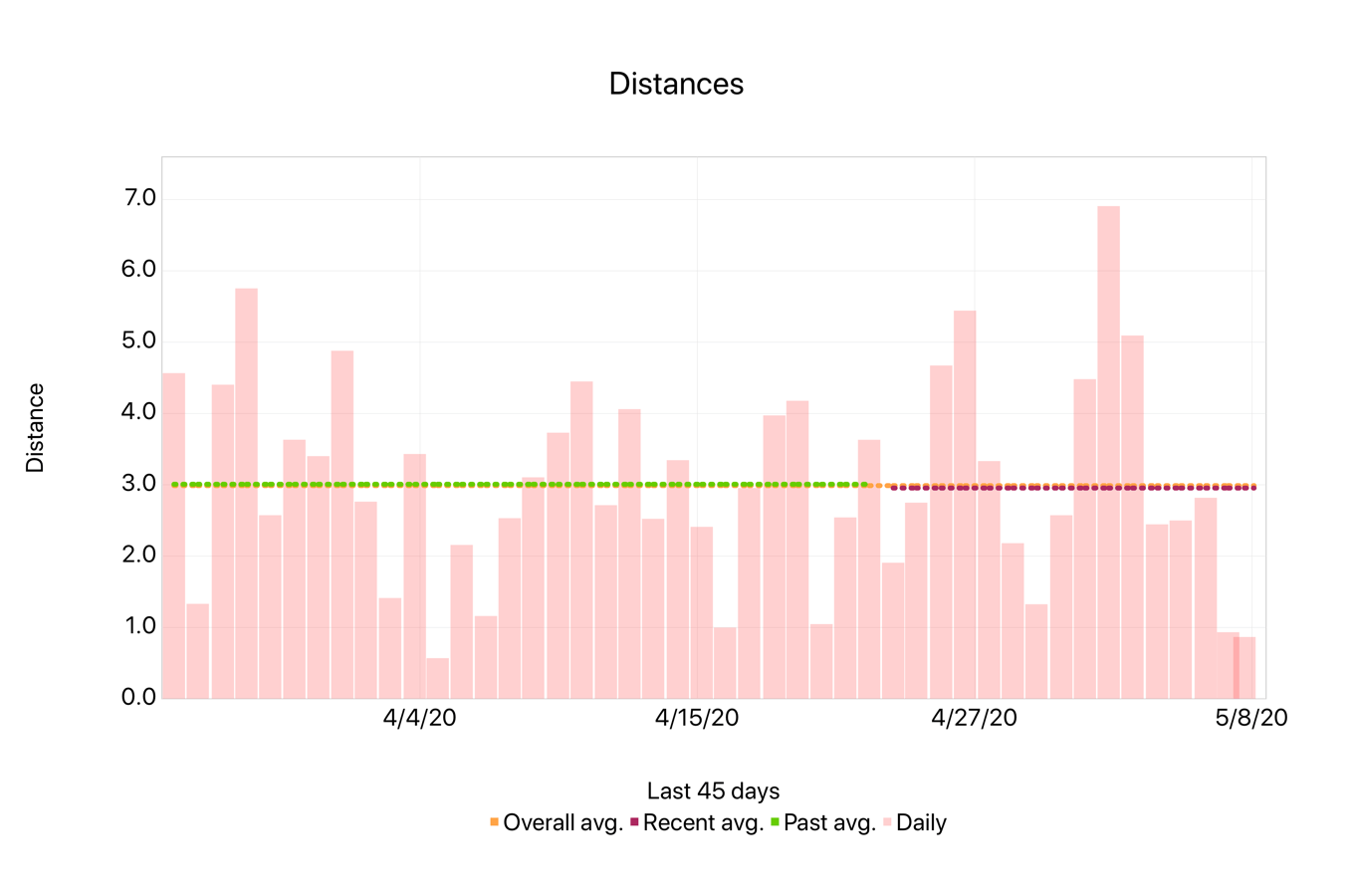
My recent walk distance data, charted via a Charty shortcut.
When I started Six Colors, I had to start making all my charts for myself. Apple financial charts, product-testing charts, and any other data-visualization I could come up with—all of it had to be generated by me, not from someone on my staff or using a template created by a talented designer.
It’s made me appreciate charts, and the strengths and weaknesses of the charting engine inside Numbers. (I never use Numbers as a spreadsheet, but it’s my charting tool of choice, mostly because its charts are just… nicer.) This year I’ve been trying to make a chart every week, and I’ve mostly succeeded. I think there was only one week all year where there hasn’t been at least one chart posted to this site.
Making charts by hand is labor intensive. But it gets easier if you can make the chart one time and just update the data as new numbers flow in. If that sounds like a job for user automation, you’re singing my tune—and I’m happy to report that the new app Charty is built to add charting capabilities to the iOS Shortcuts app.
I got to spend a little bit of time with Charty in advance of its release this week, and while bending my mind around a new set of Shortcuts actions takes a little bit of time, I eventually got the hang of it. I got the idea into my head to build a Shortcut that uses data from my weather station to chart the last week’s high and low temperatures. After a back and forth on Twitter with Charty’s developer, Rodrigo Araújo, I managed to get it done:
It was a warm week.
(Honestly, the trickiest part of the job was generating a data file on my weather station that the shortcut could consume and use as a data source.)
Charty comes with a bunch of example shortcuts that visualize health data, math functions, and more. It’s a free app, but to really use it you’ll want to unlock all the premium features with a one-time in-app purchase. (It’s $2.99 now, rising to $4.99 after this month.)
I’m impressed with where Charty is starting, but as someone who has spelunked every corner of the chart formatting settings in Numbers, there’s plenty of room for more to be added. My basic temperature chart is missing labels on the bars for the temperatures, for example. I’d like to be able to apply custom fonts and sizes for labels, too. And exporting charts out of the app should be a bit more straightforward.
More broadly, I wish Shortcuts was better at parsing remote data sources. This isn’t Charty’s fault, but on my Mac I can pretty easily grep through the source of a web page and pull out all the data I need. Using Shortcuts to attempt the same task made me want to pull my hair out.
Still, I’m looking forward to adding Charty to my set of iOS automation tools. It’s the latest in a series of apps that help expand Shortcuts in interesting ways, following in the footsteps of Data Jar, Toolbox Pro, Pushcut, and LaunchCuts.
Apple chooses its public actions very carefully, so often trying to suss out what it’s up to is a matter of reading between the lines. Because the actions that the company doesn’t take are almost as significant as the ones that it does.
While it hasn’t been an uneventful spring for Apple watchers so far, it’s been informative to see which products the company has been shipping, because they start to point the way towards the areas where Apple may instead be marshaling its forces ahead of some more significant moves.
With about six weeks to go before Apple kicks off its virtual Worldwide Developer Conference with its next big announcements, we’ve got a little bit of time before our latest crop of theories are put to the test.
Zoom will offer an end-to-end encrypted meeting mode to all paid accounts. Logged-in users will generate public cryptographic identities that are stored in a repository on Zoom’s network and can be used to establish trust relationships between meeting attendees. An ephemeral per-meeting symmetric key will be generated by the meeting host. This key will be distributed between clients, enveloped with the asymmetric keypairs and rotated when there are significant changes to the list of attendees. The cryptographic secrets will be under the control of the host, and the host’s client software will decide what devices are allowed to receive meeting keys, and thereby join the meeting.
Sunshine, as they say, is the best disinfectant, and the attention put on Zoom’s security and privacy woes seems to be having the desired result: the company already upped its encryption to 256-bit AES-GCM with the Zoom 5.0 update it recently released. The Keybase acquisition is poised to let it offer true end-to-end encryption as well.
There are, as Yuan points out, drawbacks to implementing that end-to-end encryption, which will be an option for paid accounts, but not mandatory. Namely, certain features won’t be compatible, such as phone bridges and cloud recording (because Zoom can’t decrypt the content). A draft of the cryptographic design will be published on May 22.
Yuan also spells out the company’s ideals in the post, including that it hasn’t and will not build a way to decrypt live meetings for law enforcement, and employees cannot invisibly snoop on meetings.
Even the recent dings to its security and privacy don’t seem to have dented Zoom’s popularity. And, to its credit, the company has moved quickly to fix the problems that have been brought to light–which is exactly what should happen. This does indeed seem to have been a case where expediency trumped the way these features should have been rolling out–here’s hoping this measured response means that the company will think harder about choices it makes in the future.
Note: This story has not been updated for several years.
The most important feature of the new 13-inch MacBook Pro is the keyboard.
With the addition of the new Magic Keyboard design originally introduced in late 2019 with the 16″ MacBook Pro to this model, all of Apple’s current laptop line is using a traditional scissor-switch keyboard with more travel and presumably more reliability than the “butterfly” keyboard design that took over all Apple laptops between 2016 and 2019.
The completion is the big story here. There’s nothing new in this laptop’s keyboard compared to that 16-inch MacBook Pro, or the 2020 revision of the MacBook Air. It’s the same keyboard, with 65 physical keys with scissor switches and decent travel. There’s a physical escape key and four arrow keys in the classic “inverted T” shape. It’s good. It’s the end, at long last, of a disastrous product decision.
Beyond the new keyboard, these are very modest revisions to the existing 13-inch MacBook Pro designs. The 13-inch model has not gotten the revamp that the 15-inch model did when it transformed into a 16-inch laptop last fall. Perhaps that will happen in the future, but this particular revision is all about adding that keyboard and doing some basic upgrades and tweaks.
And it will probably sell well to a lot of people who prefer smaller laptops and have desperately been waiting for a revision of the 13-inch MacBook Pro without that butterfly keyboard. Yes, this is the one you’ve been waiting for.
Apple’s 13-inch laptops seen edge on (top to bottom): iPad Pro with Magic Keyboard, MacBook Air, 13-inch MacBook Pro.
Two models in one
Since 2016, there have really been two different laptops living under the name “13-inch MacBook Pro.” There’s a lower-end model with two Thunderbolt 3 ports (on the left side), and a higher-end model with four ports (two on either side). Originally the lower-end model didn’t have a Touch Bar, but Apple added it to the low-end model last year.
There’s a big difference between the two models, one that’s been heightened with this set of updates. The low-end laptops start at $1299 and are powered by 8th-generation Intel processors. The high-end models start at $1799 and have received a boost to 10th-generation “Ice Lake” Intel processors. The low-end models are closer in base price to the $999 MacBook Air than to the high-end 13-inch MacBook Pro.
Apple furnished me with a high-end model for my review, so I can’t speak to the performance of the low-end models, though I’d imagine they’re not particularly different than last year’s version. They’ll be faster than the 2020 MacBook Air, certainly, especially in multi-processor performance, owing to the four processor cores versus the two on the base configuration of the MacBook Air. (There’s also a quad-core version of the Air available… for the same $1299 price tag as the base 13-inch MacBook Pro.)
Clearly Apple feels that there is room in its product line between the MacBook Air and the high-end 13-inch MacBook Pro, and for the last four years this lower-end model has served that purpose. It feels wrong, though, like it’s the vestige of an old laptop strategy that hasn’t quite faded away.
In any event, if you’re shopping for a new Apple laptop and you’re wary of the $1799 starting price of the high-end 13-inch MacBook Pro, you should consider the MacBook Air as well as the low-end Pro. They’re more alike than you might imagine, the Air is lighter and cheaper, and if you have no use for the Touch Bar, all the better.
The lower-end 13-inch MacBook Pro and the MacBook Air—too close for comfort?
There’s not a lot of news on the low-end model beyond the keyboard upgrade. Apple has boosted the base storage to 256GB, and held the price the same. Well done.
New processors on the high end
The high-end model has more going on. As on the low end, Apple has doubled the base storage capacity—it’s now 512GB—without changing the price. But the big story is the processor.
The high-end models use 10th generation Intel processors. These chips run at lower clock speeds than the previous generation, but are faster and more efficient due to the shrink of the process size to 10 nanometers. Integrated graphics performance is boosted in this generation, RAM speeds are faster, and the memory capacity has been doubled—16GB is standard and you can now configure the four-port 13-inch MacBook Pro with up to 32GB of RAM.
In my tests the new high-end model was definitely faster than last year’s high-end model, across the board. Though Apple claims that graphics performance should receive an extra boost in this upgrade (when compared to last year’s model), the Geekbench 5 scores only showed improvement in line with the general CPU performance. This may be an artifact of Geekbench itself; as I don’t have the previous model to test in graphics-intensive apps like Final Cut Pro X or games, I can’t speak to that.
(There’s also the not-inconsequential fact that the high-end 13-inch MacBook Pro can now drive Apple’s fancy Pro Display XDR at full resolution. I didn’t test this, because I am not fancy enough to own one of those displays.)
This isn’t an enormous upgrade over last year’s model, but it’s a measurable one. (And, of course, the keyboard is the spec most likely to draw upgrades from owners of more recent models.) And if you’ve been holding on to a 2015 MacBook Pro waiting to upgrade, you’re in for a very nice boost.
Where do we go from here?
Apple’s 13-inch laptops.
Keyboard aside, this is a strange update, if only because it holds back some of the improvements that Apple introduced to the 16-inch MacBook Pro last year. It sure would be swell if this 13-inch model became a 14-inch model with smaller bezels and an upgraded audio system—but alas, that is not this update.
As someone who doesn’t have any Touch Bar laptops in my house, every time I review a MacBook Pro I am reminded of its wasted potential. Very little has changed in the Touch Bar software since it was introduced. There’s still no way for users to customize it beyond some very basic choices, and there’s no third party access to the Control Strip. Apps that embrace the Touch Bar can create a rich set of controls, but beyond that, things get rough. (I was appalled to see that one of my favorite apps, BBEdit, still has only perfunctory Touch Bar support.)
Apple can make the Touch Bar better by opening it up. Give third-party apps more control over not only their own space, but access to the Control Strip. Let users assign their own Quick Actions and scripts. A little would go a long way here—but it’s been more than three years and it’s as limited as the day it was released. (Yes, BetterTouchTool will let you customize the Touch Bar—but it’s a hack, and it shouldn’t need to be.)
Whenever Apple makes its next move with the 13-inch MacBook Pro, I hope it’ll also reconsider its confusing decision to sell two entirely different laptops under the same name. The original low-end 13-inch MacBook Pro was intended to be a replacement for the MacBook Air, but it never managed to do it, probably because it was overpriced. Apple finally learned its lesson and released the Retina MacBook Air—but this low-end MacBook Pro remains. It’s appreciably worse than the high-end model in many dimensions, and the gap is only increasing. Perhaps if an equivalent upgrade to the 16-inch MacBook Pro is on the horizon for this class of laptop, it would be time to retire the two-port MacBook Pro for good.
But let’s leave all that aside. The most important feature of these new laptops, by a country mile, is the keyboard. There are legions of MacBook Pro users who have been hanging on, desperate to upgrade but not wanting to buy a laptop with a butterfly keyboard. For some of them, the 16-inch MacBook Pro was just too much—in size, in price, or both.
All of those people who were hanging on can finally let go. There’s a 13-inch Mac laptop, with a good keyboard, waiting for you. Actually, there are now three of them. One’s the MacBook Air, and the other two are the new 13-inch MacBook Pro.
In order to provide for development and continued growth, we are transitioning to a $4.99 monthly subscription, starting on May 13, 2020. This fee is designed to be as modest as possible. Your support will enable us to continue providing you with the functionality that you’ve come to rely on, and focus on accelerating new integrations and app features. Should you choose not to sign up for a subscription you will no longer be able to access your Wink devices from the app, with voice control or through the API, and your automations will be disabled on May 13.
Companies should do what they can to stay in business. If Wink goes under, its products will also break. (This is the problem with buying any product that requires an app or service to keep it running—app rot is real.)
Ideally, though, a company would correctly price its products in the first place so that it could keep operating—and maybe consider an ongoing subscription tier from the start if single purchases can’t cover all expenses.
It’s the deadline of a single week that I find incredible. That’s either a sign of desperation or malevolence; either one would make me hesitant to pay them a dime.
“There was a process to figure out exactly how various elements would work together,” Federighi says. “We knew we wanted a very touch-centric cursor that was not conveying an unnecessary level of precision. We knew we had a focus experience similar to Apple TV that we could take advantage of in a delightful way. We knew that when dealing with text we wanted to provide a greater sense of feedback.”
I hadn’t really thought of the connection to the Apple TV’s interface, but now I can’t unsee it.
Jonathan Deutsch released the last version of HyperEdit more than a decade ago. Now he’s released Whisk 2.0, a (renamed) update to the very same app, which he launched in 2004:
With encouragement from that passionate group of beta testers, I was able to bring out version 1.0 a little less than a year later. A few updates followed. Yet HyperEdit was frequently put on the back burner while I focused on my corporate job and subsequently on developing Hype. Some of HyperEdit’s code lived there: the source editor is the same in both apps. I personally kept using HyperEdit and it continued to have a dedicated user base asking for updates. Whisk 2.0 was a labor of love, meant as a fulfillment to the promise of an update for these users.
This is a fascinating look at what has changed in Mac software development—not just on the platform, but with all the tools that now surround it, including notarization, gatekeeper, and even the accepted methods for distributing independent software (like Read Me files)! Also, Deutsch added support for auto-updating in the very last update, meaning he never used that feature until now. Amazing.