After a couple of developer betas, iOS 15 and iPadOS 15 are now available as part of Apple’s Beta Software Program, alongside beta versions of tvOS 15 and watchOS 8. A macOS Monterey beta is listed as “Coming soon.”
Let me cut to the chase: I don’t think iOS and iPadOS 15 are massive updates like iOS and iPadOS 13 or 14 were. There are dozens of interesting new features in both updates, but none of them feels “obvious” to demonstrate to average users like, say, dark mode and iPad multiwindow in iOS and iPadOS 13 or Home Screen widgets in last year’s iOS 14. And, for the most part, I think that’s fine. The wheel doesn’t have to be reinvented every year, and the pandemic happened for everyone – Apple engineers included.
Over at Tom’s Guide, our old Macworld colleague Philip Michaels has similar thoughts:
iOS 15 poses a challenge that recent iPhone software updates haven’t had to face. Those recent iOS updates were pretty easy to sum up. Sure, each update contained its fair share of new features and enhancements to existing capabilities, but it was usually easy to pinpoint the biggest changes and summarize them in a couple bullet points.
Try doing that with iOS 15, and you’ll soon spiral into madness.
iOS 15 and iPad 15 are kicking off their public betas today, and after a few weeks with the developer betas of the new software, Apple’s OS updates feel like more of a grab bag of new features than ever before.
A major rethinking of either platform, this year’s updates are not. The two updates were clearly born in 2020’s norm-shattering pandemic. The feature list at WWDC and on Apple’s website wears last year’s remote-first influences firmly, from the heavy emphasis on FaceTime features to a better system for corralling notifications into “work” and “personal” buckets.
There are at least two months before Apple releases these updates, and while that time will probably largely be spent squashing bugs, there’s always the possibility of changes and tweaks along the way. Of course, you can always find out for yourself—though, as usual, we recommend being careful about what devices you install this software on: it is, after all, a beta.
How we handle email, the potential of Shortcuts on the Mac, our latest tech delights, and whether we prefer our social media to be fed to us by the algorithm.
Old habits are hard to break, and when it comes to my very online life, there's no habit older than email.
I've had an email address since roughly 1994, and over the quarter-century since, I've used everything from command line programs1 to webmail to native apps for reading, sending, and organizing my mail. But since around 2001, my mail client—Apple's built-in Mail app—hasn't changed.
Also, Apple Mail, well, it hasn't changed.
That's one big reason I was so eager to check out Big Mail, an app for the Mac, iPhone, and iPad which aims to use AI and machine learning to improve the email experience. Because, believe me, the email experience could stand to be improved.
Unfortunately, after the better part of a week of using Big Mail—even making a game attempt by replacing Mail in the dock on all my devices—my general conclusion is that while its full of good intentions, it's hampered by an (admittedly somewhat Apple-like) insistence that it knows how to make your email work better. In sum: I don't think it's quite ready to be my email replacement yet, but what it's doing ought to push the needle for mail apps everywhere.
Running a shortcut via the command line on macOS Monterey.
Last week, Dr. Drang wrote an excellent post summing up where Shortcuts on the Mac fits in with all of the Mac’s existing automation frameworks:
Two years ago, shortly before WWDC 2019, Guilherme Rambo told us that Shortcuts was coming to the Mac as a Marzipan app. I wrote a post about the levels of automation on the Mac and how a Marzipan Shortcuts would add a new level. I was concerned with whether Shortcuts would carry on the tradition of allowing communication between the Mac’s different levels. Since Shortcuts didn’t come with Catalina—or with Big Sur, for that matter—I haven’t had to revisit that post. But with WWDC 2021 and the official announcement of Shortcuts coming to Monterey, it time for an update.
The post comes with some helpful visuals about how all the layers in macOS interact.
When I started imagining Shortcuts coming to the Mac, I steeled myself for disappointment—namely that Apple would ship a version of Shortcuts that didn’t do much more than talk to Catalyst apps and iOS apps running natively on Apple silicon.
That didn’t happen. What happened is much better.
Running a Perl script inside a Shortcut on macOS Monterey.
Shortcuts in macOS Monterey lets you run AppleScripts and shell scripts. It comes with its own shortcuts command-line utility that lets you list, run, and open shortcuts. And now in developer beta 2, which was released Monday, is the “Shortcuts Events” process, which lets AppleScript scripts run shortcuts, including passing and receiving input.
A script that passes BBEdit text to a shortcut.
Add this to the fact that I could get some complex shortcuts running on the Mac with no modification, and things are looking good. I know it’s just the beginning of a longer transition, but macOS Monterey is shaping up to be a great release for anyone who wants to use automation to make Mac tasks easier.
The Upgrade Summer of Fun kicks into gear with new beachwear, a very special summer-themed edition of Ask Upgrade, dreams of larger iPads, and a bunch of streaming news. On the less fun side, we discuss why Apple has reacted the way it has to threats of new laws and regulations that might change how it does business.
This is the story of how the new Apple TV remote cost me hundreds of dollars, but in a good way.
We were happy earlier this month to take delivery of a new Apple TV 4K, to replace one that I had given to my daughter when she returned to college last fall. (I thought a new model might have been imminent—oops.) And along with that new Apple TV box came a new remote, which has earned a lot of praise for not being the old Apple TV Siri Remote.
It was a single button on that remote that started it all: the new Power button. While the Apple TV has been able to control external devices for a while now, the Power button is so much more explicit: You should be able to use this button to turn your TV on and off.
Which is great, except that I have a complicated setup that includes a home-theater receiver and a TiVo, neither of which can be controlled via HDMI-CEC1, the protocol that Apple TV uses to control other devices.
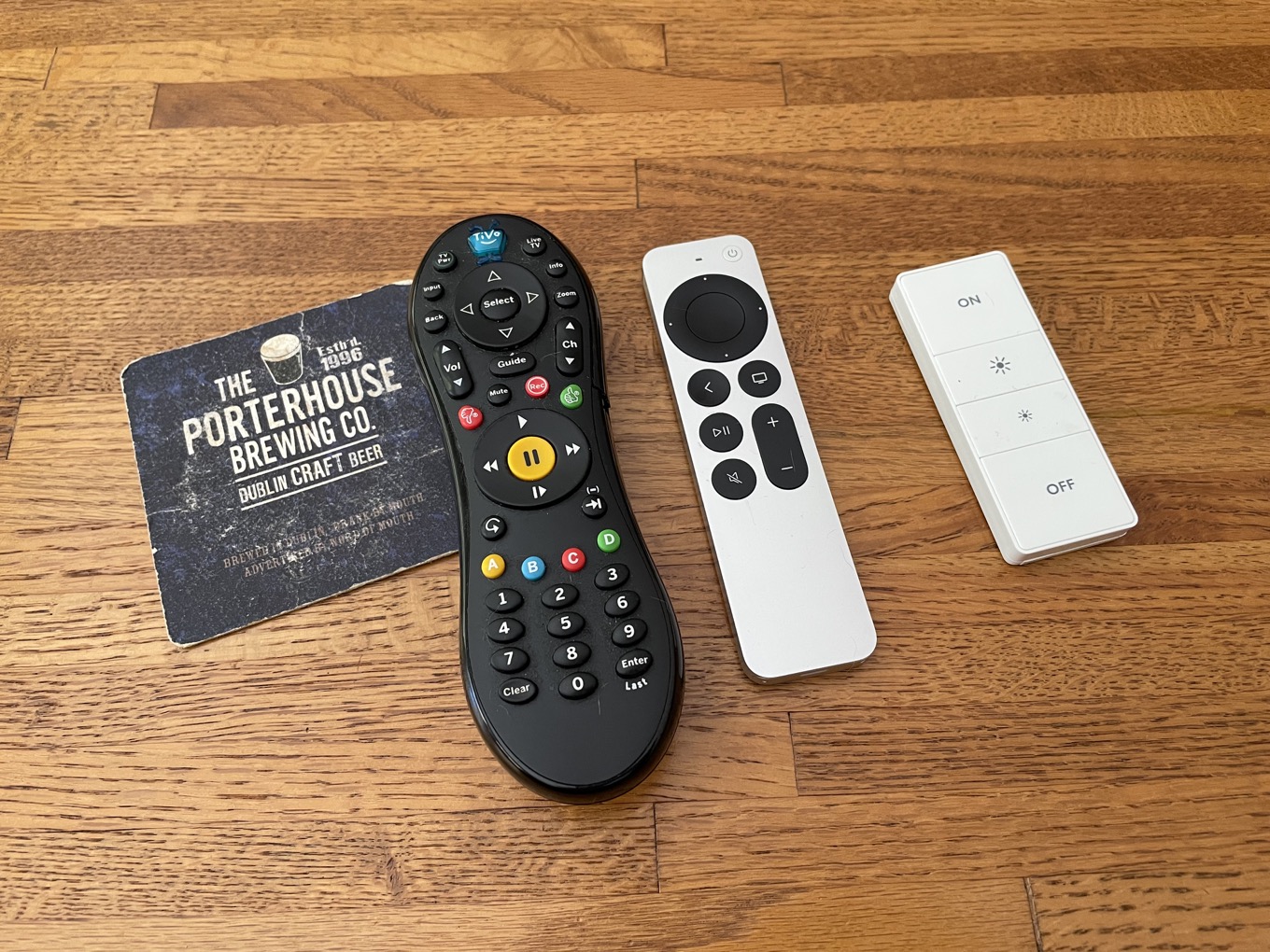
I’ve also been frustrated by the number of remotes we have to keep around. We’ve got a TiVo remote, an Apple TV remote, a Logitech Harmony remote, and even a Lutron Caseta remote for our living-room lights. Plus, occasionally we need to use the remote that came with our TV. It’s a lot.
So, inspired by the Apple TV Remote, I ripped up my entire living-room setup and tried to build something better. It started with a new receiver, one that supports HDMI-CEC, AirPlay, (and—via a Homebridge plug-in—HomeKit).
With a new receiver, I was able to use the Apple TV remote to turn my TV, receiver, and Apple TV on and off, adjust the volume, the works. This is great, except we still use the TiVo for a few things, mostly Jeopardy! and live sports. I’m not ready to give up on the TiVo, and Logitech has given up on the Harmony, so I decided to see if I could find an alternative way to control the TiVo using HomeKit.
Here’s my solution, at least for now: I replaced the Logitech remote with a HomeKit-compatible Remote I had laying around. I reprogrammed the top button on the remote to turn the receiver on and set it to the input being used by the TiVo. (The receiver, when it powers on, uses CEC to turn on the TV itself.) The bottom button I set to turn everything off.
I had two buttons left, so I set them to control our living-room lights at two different levels of brightness generally associated with TV viewing—dim and off.
With all that done, I’ve reduced my remotes on the coffee table to three: the simple smart remote, the TiVo remote, and the Apple TV remote. Yes, I would greatly prefer to simplify further—if I can train the TiVo remote to fire off the right infrared signal to the receiver, it might be able to kick off the whole thing without needing that third remote.
Still, not only is my living-room setup simpler than it was—there are fewer remotes, and they’re easier to use!—but I got a more modern, full-featured receiver with Dolby Atmos support out of it.
And all because of the Power button on the Apple TV remote.
Newer versions of the TiVo software do support CEC, but those new versions are awful, and I refuse to upgrade. ↩
In iPadOS 15, Apple is making another round of changes to iPad multitasking. It would be easy to consider this yet another spin on the merry-go-round as Apple struggles to figure out how to break the iPad out of the iPhone’s fundamental one-app-at-a-time interface.
But I don’t. Instead, I think Apple is finally assembling all the pieces of the puzzle that will allow the iPad to become more Mac-like than ever before—all the while retaining its unique position in Apple’s ecosystem.
Is Apple waiting for the right moment to unveil proper external-display support on the iPad, perhaps alongside the release of a new Apple display? I’m not saying it will definitely happen, but I want to believe. So let’s look at the evidence.
As of iPadOS 15, all apps now include those three-dot multitasking controls at the top. It’s certainly an improvement over the previously existing flat bar: tap on it, and you get options to put the window in Split View or in Slide Over1—illustrated using glyphs that are nearly identical to what you’d see on the Mac if you hover over a window’s green “full screen” (formerly Zoom) control.
Familiar-looking glyphs.
But what hit me was something so obvious it was a bit like missing the nose on your face: this multitasking widget is always there. Always. Even in apps that don’t support Split View or Slide Over. In those cases, tapping on the multitasking control will still show the Split View and Slide Over icons, but they’re grayed out.
Now, that might seem obvious, but if you think about it a little more, it’s also remarkably telling. Because in the past, given that multitasking was kind of hidden away—or, at least, a power feature that appealed mainly to savvy users—an app that didn’t support Split View or Slide Over was mainly an annoyance only to those aware that it was even an option.2
Name and shame: iPad apps that don’t support multitasking are now much more obvious.
In iPadOS 15, by contrast, multitasking is now way more obvious than before, which will likely lead to greater adoption. And that means that any user who taps on that control will see when an app doesn’t support these features, letting them join in on the frustration.
To me, this reads as Apple providing a tacit encouragement to all developers that they’d better start thinking about embracing Split View/Slide Over/windowing, because users are going to notice when they don’t.
That makes even more sense when you think about this as part of a gradual transition for multitasking on the iPad. If Apple had, by contrast, implemented a full-fledged windowing system in iPadOS 15, a lot of developers who hadn’t implemented these multitasking modes might have had to hustle to make their apps work properly.
Instead, the next year is going to introduce multitasking capabilities to a lot more users, which may in turn drive app developers who had not previously enabled Split View and Slide Over to build support into their apps. With the end result that when iPadOS 16 (or 17) rolls around and Apple takes multitasking to the next logical step, the company can pull out its time-honored method of saying “And hey, if your app already supports Split View and Slide Over (and, say, multiple instances), you don’t have to do a thing—your app already works with all these new windowing features!”
It also makes sense from the perspective of using these controls as drag handles, because it implies a future where even apps that don’t support multitasking will need these controls—say, if apps need to be dragged or sent to an external display. Look back up at the Mac full screen widget and its support for Sidecar, which lets you send any app to a connected iPad. Not hard to imagine that the iPad version might some day let you send an app to another monitor.
All in all, it’s a good old traditional Apple slow pedal. There are those amongst us—myself included—who had been hoping that this year Apple would just rip the band-aid off in one fell swoop, but the company has demonstrated in the past that it’s perfectly capable of slooooowly peeling it off when it wants to.
One odd choice: when you go from full screen to Split View on iPad OS 15, you only seem to have the option to put the current app on the right side of the screen. Why can’t I choose whether a window be in the left or right Split View or Slide Over? I get that it provides fewer options, and is thus less overwhelming, and I can always change it later, but it seems weirdly arbitrary. ↩
Looking at you, Google apps. Took you long enough. ↩
[Dan Moren is the East Coast Bureau Chief of Six Colors, as well as an author, podcaster, and two-time Jeopardy! champion. You can find him on Mastodon at @dmoren@zeppelin.flights or reach him by email at dan@sixcolors.com. His next novel, the sci-fi adventure Eternity's Tomb, will be released in November 2026.]
The legislative challenges to big tech, including Apple, are beginning:
A House panel pushed ahead Wednesday with ambitious legislation that could curb the market power of tech giants Facebook, Google, Amazon and Apple and force them to sever their dominant platforms from their other lines of business. Conservative Republican lawmakers haggled over legislative language and pushed concerns of perceived anti-conservative bias in online platforms but couldn’t halt the bipartisan momentum behind the package.
I share John Gruber’s view on how unnecessary this whole thing is. As Gruber put it:
What’s weirdest about Apple’s antitrust and PR problems related to the App Store is that the App Store is a side hustle for Apple. Yes it’s earning Apple $10+ billion a year, and even for Apple that’s significant. But it’s not Apple’s main business by a longshot. To my knowledge no company in history has ever gotten into antitrust hot water over a side business so comparatively small to its overall business. Apple doesn’t need this.
The downside of Apple opening up parts of the App Store, including its payment system, is arguably negligible. Apple would lose some revenue, but not all of it. And to Gruber’s point, the App Store is not Apple’s core business.
But some of the proposed legislation in Congress would be no less than an existential threat to Apple as we know it. All of the company’s strength in integrating hardware, software, and services would be put under scrutiny. Why risk everything that makes your company and its products unique and successful for chump change?
It’s never too late, but it sure feels like Apple is playing a spectacularly dangerous game of chicken and time is running short.
One of the oldest arguments for having employees all work in the same office (and, within that space, out in the open and not behind office doors) is the idea that if you have a bunch of people bouncing around together in person, something magical will happen.
Or as Tim Cook put it, “Innovation isn’t always a planned activity… It’s bumping into each other over the course of the day and advancing an idea you just had.”
“There’s credibility behind the argument that if you put people in spaces where they are likely to collide with one another, they are likely to have a conversation,” said Ethan S. Bernstein, who teaches at Harvard Business School and studies the topic. “But is that conversation likely to be helpful for innovation, creativity, useful at all for what an organization hopes people would talk about? There, there is almost no data whatsoever.”
“All of this suggests to me that the idea of random serendipity being productive is more fairy tale than reality,” he said.
And, as Miller’s article details, believing the fantasy also requires you to ignore all sorts of arguments that cut against it. The practice can also drive out other kinds of innovation and stifle contributions from some members of a workforce.
To be sure, some companies and some jobs really do require being together in person. There’s no one-size-fits-all approach for creating a good workplace. But we’d all be better off—Apple included—if the fantasy of the miraculous conversation by the coffee pot was dispelled once and for all.
We discuss the future of the Apple Watch, from new materials to new shapes to all the sensors Apple might want to put on any product that touches your body. And then we talk about the risks Apple might face by failing to learn the right lessons from the pandemic about altering its corporate culture.
With Apple’s Worldwide Developers Conference firmly behind us, we’re taking our sweet time picking our way through everything coming to Apple’s platforms this fall. As usual, there were way more changes than Apple talked about onstage, and between watching the conference sessions, scrolling through long webpages of features, and keeping a gimlet eye on Twitter, even more have come to light.
But with such a preponderance of information, it can sometimes be hard to suss out which changes are likely to make a big impact on the lives of Apple users, and which will end up disappearing into the pond without so much as a ripple. Will we still be talking about iPad widgets a year from now? Will everyone have switched to Apple’s new two-factor authentication generator? Some features will have staying power; others won’t.
With that in my mind, here are my bets on which of Apple’s new features will make the biggest difference for its users.
To my surprise, as much as anybody’s, I’ve ended up using Apple’s Notes app a lot over the last several years. I use it when I want to jot down things about my novels, when I’m taking notes for podcast episodes, and even for making checklists.
But I don’t use it because it’s the most full-featured note application around, or because it’s even the most attractive. Simply put, the one thing that Notes has going for it is its ubiquity: I can guarantee that anything that I put in Notes will immediately be available across all my devices. And with the next updates to Apple’s platforms, that ubiquity just got a whole lot… more ubiquitous(?), thanks to the introduction of Quick Note.
Quick Note in use on iPadOS 15.
Quick Note is a fascinating feature from both usability and philosophical standpoints. On the iPhone and the iPad, there’s nothing else that’s had this kind of systemwide support; and only Picture-in-Picture has boasted a similar interface: a floating window that can appear, hovering atop everything else, no matter what app you’re in. But Picture-in-Picture is a far more passive feature, without the complexity of interaction that Quick Note has.
In and of itself, that would be enough to get me interested. On the Mac, plenty of apps have offered the option to trigger actions via global keyboard shortcut, but on iOS and iPadOS, that option’s always been limited to a feature like screenshots, which has only recently been designed to really be user-facing. But, as Jason pointed out, Quick Note on the iPad is never more than a Globe-Q away. Or a swipe with the Pencil, or—according to Apple’s own feature description, though it doesn’t yet work in the current beta—a swipe with the finger. Simply put, it’s always there.
Scrivener, my app of choice for writing fiction, has a similar sort of feature within the app called the Scratchpad, which serves as a place that you can jot down notes and information, regardless of which app or document you currently have open. But it requires you be running Scrivener.
Quick Note takes this idea and runs with it. And not just like a slow lope, or a jog, but like Usain-Bolt-runs-with-it. Barry-Allen-runs-with-it. Because not only can you pop up Quick Note wherever you want on the system, but it can interact with Safari, letting you capture information on web pages. That pops a link to the information in your note, but it also highlights it on the page. Persistently. Tap the link in Notes, and it takes you back to that web page and highlights that information again. Visit that website, and your Quick Note pops up.
This is fantastic if you want to take a note about a specific thing on a page. Although, it does raise questions about page mutability—if you note something on Wikipedia, for example, which later changes, what happens to your highlight? (My quick test suggests that the link to the page will still function, even though your highlight no longer shows up).
Quick Note scales very nicely from those complicated use cases of researching, linking, highlighting, and so on, all the way down to a basic example that we can all get behind: you’re on the phone and you need to quickly jot down some information. In the past, I would have turned to a Post-It note on my desk, or maybe—if I was in front of my computer—opened the Notes app, created a blank note, and then typed in the information. But Quick Note is like a virtual version of that Post-It pad, always at my fingertips.
My biggest concern, when it comes to Quick Note, is that it’s exactly the kind of thing that seems to get Apple into hot water about these days: a feature that it can create and take advantage of, but that nothing else on the system can come even remotely close tod duplicating. I’m sure there are plenty of note-taking (and other) apps that would love to offer this kind of ubiquitous capture, but just can’t. Perhaps that will change in a future update, and Apple will open up this floating window or global keyboard shortcuts to third-party developers, but I can’t say that I’m holding my breath on that one.
The real challenge with Quick Note is that it’s going to require rewiring our brains. Right now, I’ve only had the chance to play around with Quick Note on the iPadOS beta, so I’m intrigued to see how I’ll end up using it on the iPhone or my Mac; having it available everywhere makes a big difference, but I still need to remember it’s there, and have the presence of mind to bring it up instead of reaching for pen and paper.
I’m not sure what it will take to get my brain to adapt to the idea of an always-on feature, but the fact that it’s building on the benefits of an app I already use will likely help. This is transformative for Notes; it’s more than just an app—it’s a service1.
[Dan Moren is the East Coast Bureau Chief of Six Colors, as well as an author, podcaster, and two-time Jeopardy! champion. You can find him on Mastodon at @dmoren@zeppelin.flights or reach him by email at dan@sixcolors.com. His next novel, the sci-fi adventure Eternity's Tomb, will be released in November 2026.]
I’ve seen the future of the iPad, and it’s hidden under a key.
The future of an entire platform is a lot to pile on a single plastic square, but here we are. Down in the bottom left corner of Apple’s keyboards is a new key labeled with the picture of a globe. Initially intended for supporting multiple languages, in iPadOS 15 the Globe key has become something much bigger: it’s a symbol for global keyboard shortcuts.
In iPadOS 14, if you hold down the Command key, you can see a list of app-specific features and their key equivalents. It’s like a quick-reference card for keyboard shortcuts. In iPadOS 15, Apple has expanded this feature to make it more like the iPad equivalent of the Mac menu bar—not only does it list keyboard shortcuts, but it can list every command in the app, and you can click any of them to execute them. iPad apps that build out the Mac menu bar for their Catalyst version can pick this feature up for free. It’s another way that the Mac and iPad are increasingly complementing one another.
Then there’s the Globe key. Hold it down in any app in iPadOS 15, and you’ll see a different set of commands, all of which can be applied globally. (Get it?) These menus are full of shortcuts to switch to the home screen (Globe-H), open a Quick Note (Globe-Q), activate Control Center (Globe-C), and pretty much any other system-level area.
The Globe menu also contains loads of keyboard shortcuts to control multitasking. You can put apps into Split View and Slide Over, pop them back into full screen, and cycle between apps, all via Globe key shortcuts.
My first reaction upon realizing how Apple was retasking the Globe key was to wonder why we need another modifier key when Command, Control, and Option exist. It’s an embarrassment of modifiers, yes, but all of those other keys are already being used for all sorts of in-app shortcuts—I guess you could say that they act locally. The Globe key is unencumbered by any app’s conventions—it’s a free space for Apple to think globally, without any fear of colliding with individual apps.
On the Mac, systemwide shortcuts and individual app shortcuts can collide and interact in strange ways. It’s kind of a mess. On the iPad, Apple seems to be saying that global shortcuts use the Globe, and apps use the other modifiers. That makes… a lot of sense.
The potential on the iPad is enormous. It seems almost inevitable that Shortcuts will let users assign Globe-key shortcuts that will work in any app, giving users keyboard control over their automations. (In fact, I’m a little surprised this isn’t already a feature of iPadOS 15!)
It feels like it’s inevitable that Apple will add hardware and media controls to the Globe key. I’m writing this on Apple’s Magic Keyboard for iPad Pro, which is a great keyboard—but frustratingly lacks a function row. So when I want to adjust the device’s volume or brightness, pause music, or skip to the next track, I have to use Control Center1. It would make sense for all of those controls to have key equivalents, and assigning them to the Globe means they won’t collide with keyboard shortcuts available in individual apps.
Clearly, there’s a lot more work to be done, but I’m excited that Apple is staking out space for keyboard shortcuts that can work across different apps. This Globe-key kid has potential. We should keep them around and see what happens next.
Or take my hands off the keyboard entirely and reach up to the volume buttons on the iPad. No thank you. ↩
Apple’s been crowing about the pace at which its users install software updates for ages. Rapid uptake of updates is a sign of a healthy ecosystem—and yet, as announced last week, Apple has made a change that threatens to derail the iOS update train. Just as it unveiled all the features that threaten to make iOS 15 a must-have update this fall, Apple also announced that iOS 14 users who aren’t ready to board will have the opportunity to step off and wait it out.
“iOS now offers a choice between two software update versions in the Settings app,” reads a page on the iOS 15 website. “You can update to the latest version of iOS 15 as soon as it’s released for the latest features and most complete set of security updates. Or continue on iOS 14 and still get important security updates until you’re ready to upgrade to the next major version.”
It’s not quite the end of iOS updates as we know them, but it’s a fascinating change that has a lot of ramifications for the future of iOS.