Among the artifacts recently accessioned into the Museum’s permanent collection is an authenticated iPhone 17 Pro used during an Apple TV broadcast of Friday Night Baseball. The Sept. 26, 2025 matchup between the Boston Red Sox and Detroit Tigers incorporated live game footage from four devices, marking the first use of an iPhone as a primary camera in a professional sports broadcast.
Apple integrated iPhones into its last couple of baseball broadcasts last year, and it’s only appropriate that it would donate one of them to the Hall of Fame’s collection. (Please note: Lots of things are in the Hall of Fame Museum’s collection, and it does not make them “hall of famers,” though technically you could say that an iPhone 17 Pro is now in the Hall of Fame. Probably more than one right now, given all the people who work there.)
In non-coincidentally related news, Apple announced the first half of its Friday Night Baseball schedule on Wednesday, marking the fifth year that Apple will be streaming two MLB games to 60 different countries and regions, exclusively on Apple TV. Apple says that iPhones “will be further integrated into the broadcast camera lineup for select games” this season.
While planning for a week on vacation, two things happened that totally derailed me. The Wall Street Journal asked me to review David Pogue’s book “Apple: The First 50 Years,” which pretty much wrapped up most of my beach reading. The book is long!
And then there was the text message I got from John, who claimed to be a contestant producer for Jeopardy!
In early 2023, after many years of curiosity, I took the venerable quiz show’s “anytime test” on the Web. I had no idea how I did, though I was sure I got a few wrong. Anyway, it was fun! My in-laws have been watching Jeopardy! religiously forever, and they turned me into a regular viewer. Despite being a bit game-show obsessive as a kid, being on a game show was never part of my plan. I liked the challenge of the anytime test, though.
A few weeks later, I got an email from Jeopardy! asking me to take the test again—this time with a group on Zoom, cameras on, presumably so they could watch us take the test and make sure we had passed it without any assistance.
And a few weeks after that, in June 2023, I got the call: Appear on Zoom to play a sample game with a bunch of other potential players. At this point, they told us that we had all qualified for Jeopardy!—the Zoom call was really so the producers of the show could see us and hear us playing the game.
It makes sense. Jeopardy! is a TV show, and that Zoom call was essentially a casting session. Maybe 100,000 people apply to be on Jeopardy! and only a tiny group qualify, but there are a minuscule number of slots on the actual show. Jeopardy! producers really do want the show to reflect a cross-section of North America, and the casting process helps ensure they get the right contestant mix, week in, week out.
Two and a half years passed. After a year, I assumed I was not going to make it on Jeopardy! and stopped watching every episode with a clicky pen standing in for the Jeopardy! buzzer. Ah well, it was a fun idea while it lasted.
And that’s when John texted me. His phone number was from the correct area code, and when I did a web search, I found a podcast transcript that also described getting a text from John. (I had expected a phone call, which led to an exciting moment not too long after my audition—I got a 90-second voicemail from the 310 area code. It was, of all things, a fax machine.)
I checked in with Dan Moren, who played Jeopardy last year, and he confirmed that he knew John. So I texted him back, and then we talked on the phone, which is when I got “the call”—I was going to be on Jeopardy! in one month. (And yes, future contestants searching to find out if John Barra is a real person who might text you about being on Jeopardy!—he is.)
My vacation reading suddenly consisted entirely of David Pogue’s book and trivia-themed children’s books. (That’s a pro tip from Ken Jennings himself: Children’s books are very high-density on facts. Good for trivia studying.)
Those fish tacos are calling, Ken.
So here we are: Six Colors now has three Jeopardy! players as contributors. I can’t say anything about what went down in early February in Culver City (though I can reveal that Ken had fish tacos after), but I can echo Dan’s comments about the experience: The other contestants were wonderful, and the Jeopardy! staff was supportive above and beyond the call of duty. It was a surreal experience to essentially step inside the television and play the game, for real, in front of a live studio audience. I am adding it to the memory bank of amazing experiences I never really expected I would have in my life.
So please tune into Jeopardy!—either on your local station, or the next day on Hulu or Peacock! (That’s a new development.) My good friends from the Jeopardy! contestant green room will be competing the entire week of March 16, and you can tune in to see me on Thursday, March 19.
When all is said and done, I’ll break down what happened on The Incomparable and Upgrade and, who are we kidding, the Six Colors podcast, too.
I don’t know what else 2026 has in store for me, but it’s already been a very interesting few months.
With the M5 generation, the MacBook Air finds itself in an unfamiliar, though not unprecedented, position: that of the middle sibling.
Previously Apple’s most affordable laptop, the Air has been undercut in that department by the new MacBook Neo, social media darling and—if you’ll pardon the expression—apple of its parents’ eye. Not since the polycarbonate MacBook’s retirement in 2011 has there been a notebook in Apple’s lineup with a lower price point than the MacBook Air, and it’s gotten used to that status, which led it to its long-running and, for the moment still undisputed, title as Apple’s best-selling Mac.
But with the eye-catching Neo now substantially undercutting the Air’s base price (itself now slightly higher than previously), and the MacBook Pro family bringing unmatched performance, what’s the MacBook Air’s role in the modern Mac lineup? Though it might seem like the Air is on the brink of an identity crisis, the truth is that, in the way of middle children since time immemorial, the MacBook Air is all about getting its job done without fanfare.
Performance, no anxiety
Though it may not boast the sheer power of the MacBook Pro, the Air, like the rest of its M5 siblings, does feature those newly rechristened “super” cores, of which it features four, in addition to six efficiency cores (none of those newfangled “performance” cores like the M5 MacBook Pro). There’s also the 16-core Neural Engine, as well as either 8 or 10 of the improved GPU cores with their Neural Accelerators.
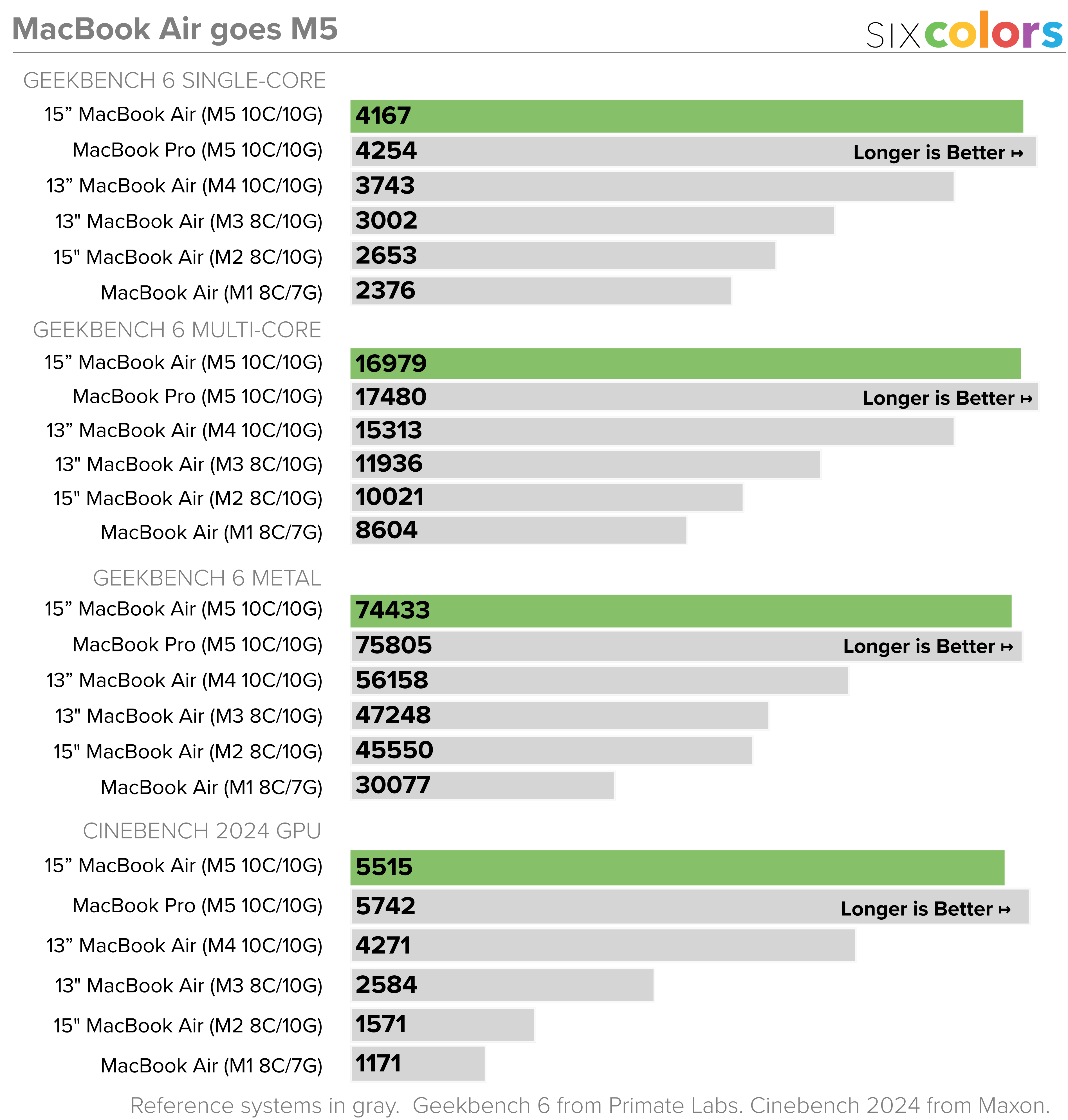
Of course, we’ve had an idea of the ballpark of M5 performance since last fall’s first slew of products using the latest chip generation, and there’s little surprising here: just the usual generation-over-generation bump, in this case of about 11 percent in both single and multicore performance over the M4 Air. GPU saw more measurable improvement in the M5 Air, with about 31 percent better performance on average. In keeping with previous generations, the MacBook Pros, with their active cooling systems, eke a bit more performance out of those individual cores—but just a bit.
As ever, there’s little reason to upgrade from the immediately previous models—the difference between the M4 and M5 is negligible for most users. But those small improvements do add up: go back to the M3, M2, M1, and you’re talking jumps in the 38 percent, 57 percent, and 75 percent range for single-core performance. I only just replaced an M1 Air with an M4 model last year1, and it’s a testament to Apple’s engineering how good that first generation of Apple silicon still is, almost six years later.
Memory options are constant with the previous generation, starting at 16GB standard, with options for 24GB or 32GB on the 10-core GPU models. However, memory bandwidth is up to 153GB/s, a bump from the 120GB/s on the M4 Air, even if it’s only half the bandwidth of the higher-end MacBook Pro models.
One place you will find a noticeable bump is in storage. The Air now starts at 512GB of SSD storage, double that of its predecessor, and offers up to 4TB, the same maximum as all but the M5 Max-configured MacBook Pros. That capacity increase comes with a speed improvement as well: Apple says the new SSDs are twice as fast as the previous generation and my tests concur. Compared to my personal M4 MacBook Air, the M5 registered read speed improvements of 125 percent, and an extraordinary 219 percent improvement in write speed, according to Blackmagic’s disk tests. So impressive were those numbers, I ran AmorphousDiskMark as a comparison and came away with somewhat lesser, but still outstanding gains up to 139 percent.
Apple’s claim that the M5’s SSD speeds (right) are up to twice that of the M4’s SSD is, if anything, underselling the matter.
I ran an informal test copying a 29GB Final Cut Pro project from an external SSD to both machines, and the M5 was about 30 percent faster. It picked up a more meager 13 percent improvement in compressing that same project, though there are other factors at play there beyond sheer disk speeds. In short, your disk speed is probably not going to be your performance bottleneck here.
Apple’s also updated the wireless in this model via its in-house N1 chip, which first debuted last fall across several product lines. That means support for Wi-Fi 7 (aka 802.11be) and Bluetooth 6, neither of which I have an easy method to test, given my downright decrepit Wi-Fi 6 home network, but it’s perhaps more significant in that we will surely see N2 and N3 chips down the line, ensuring prompt and efficient support for the latest and greatest wireless technologies. And since, as with the M and A series chips, this is Apple’s own effort, the company’s penchant for control comes with a promise to make networking ever more integrated and power efficient.
Still lacking in any of Apple’s laptops, however, are cellular options, all the more apparent as the company touts its C1X modem in recently released iPhones and iPads. Might that finally find its way into a future MacBook? Maybe, but it’s not happening here.
The devil’s in the details
So much is the same with the M5 MacBook Air—the screen, the ports, the webcam, the mic and speakers, the very form factor itself—that it’s all the more significant when this year’s model does deviate from its predecessor. Two small examples caught my attention this time around.
The first, which surprised me, is the keyboard. Gone, in this generation (including the new MacBook Pros), are several keys’ text labels: tab, caps lock, return, shift, and delete. In each case, they’ve been replaced by glyphs, of the same kind long used for keyboard shortcuts in drop-down menus.
The MacBook Air’s U.S. keyboard layout joins the rest of the world’s in using glyphs instead of text labels on several common keys.
If you’re sitting there thinking “Wait, what do you mean—it’s been that way forever?” then congratulations, you’re probably outside the United States. The U.S. has remained an outlier even as the rest of Apple’s international keyboard layouts use this near universally agreed-upon standard.2 This standardizes this style across Apple’s laptops (and probably soon its standalone keyboards as well), while also bringing them into line with iOS and iPadOS keyboards, which now use the same symbols (and, in some cases, have for a very long time). Labels are not totally gone, though: the Air’s keyboard still sports text on the function, control, option, and command keyboards, alongside their long-used symbols.
Holy missing holes, Batman!
The second thing that I noticed was that Apple is now shipping a new power adapter with the M5 Air. Previously, the company included either a 30W adapter for the base model or a 35W adapter with 2 USB-C ports. With this model, we’re back to a single port “Dynamic Power Adapter” that is rated for 40W with a maximum of 60W. It’s a little smaller than the old dual port design—and, interestingly, lacks the standard holes on the prongs that you find on most plugs, which can add some degree of stability to the connection—but can handle fast charging with the iPhone 17, 17 Pro, and Air, as well as the 11-inch and 13-inch M5 iPad Pro models. Honestly, I’ll miss the convenience of the second USB-C port, though that adapter model is still available for purchase separately from Apple.
Air to the empire
Like the M4, the M3, the M2, and even the M1 before it, the MacBook Air remains what it’s long been—even going back to the days before Apple silicon: the best Mac for most people.
Once upon a time, the MacBook Air may have been the newest and flashiest of Apple’s laptops, whether it was being plucked from a manila envelope on stage or compared to the thickness of a pencil. But nothing stays new and flashy forever.3 After 18 years, the Air isn’t a kid anymore, and that’s okay. Squeezing between the Neo and the Pro means there’s room for the Air to chart its own course. The pressure of being the cheapest MacBook is off—all too clearly, given the $1099 base price in this generation. Apple may very well try to get that back under a thousand in the future, but for now it’s okay, because if price is your main factor, you now have a far better option.
The Air remains a truly great Mac. Those who butt up against the limitations of the Neo will be more than comfortable here: after all, it’s unquestionably better than the Neo in pretty much every way—with the exception of its color options. There’s a clear value proposition with the Air: pay more to get more. And that higher cost is reasonable for what you get, especially when you compare the starting prices of the MacBook Pro.
The Neo may vie for the title of Apple’s bestselling Mac, but it’s got its work cut out for it: the crown remains the MacBook Air’s to lose and if you come at the king, you better not miss.
Updated on March 10 at 4:37pm Eastern: An earlier version of this article had incorrect percentages for the performance gains in the SSD tests.
And honestly, only then because I’d run out of disk space. I handed it over to my dad and it meets his needs nicely. ↩
[Dan Moren is the East Coast Bureau Chief of Six Colors, as well as an author, podcaster, and two-time Jeopardy! champion. You can find him on Mastodon at @dmoren@zeppelin.flights or reach him by email at dan@sixcolors.com. His next novel, the sci-fi adventure Eternity's Tomb, will be released in November 2026.]
This week, Jason reviews the MacBook Neo! Plus: Draft results, Jason is (back) in print, and new MacBook Pros and Studio Displays. But it’s mostly about MacBook Neo!
The two most important things about the MacBook Neo are these: It has a base price of $599 ($499 for education buyers), and it’s a full-fledged Mac.
The price is staggering. The lowest list price for a new Mac, ever, was $499 for the original Mac mini, which famously required you to bring your own display, keyboard, and mouse. While Apple has experimented with lowering laptop prices by selling older models at a discount, and savvy shoppers have been able to find MacBook Airs on sale for $799 or even below, a new Mac laptop with a base price of $599 is a major breakthrough.
For that price, you might be suspicious that the MacBook Neo is not a real Mac. Before the product was announced—and we’ve been anticipating its arrival for more than two years—I saw a lot of speculation that this low-cost laptop would be broken in a bunch of artificial ways in order to separate it from more expensive and full-featured Macs.
So to be clear: Beyond the price, the most impressive thing about the MacBook Neo is that it is just a Mac like any other. It does all the things you’d expect a Mac to do. Yes, it’s got lesser specs than more expensive Macs, just as an M5 MacBook Air is not as powerful than an M5 Max MacBook Pro. Yes, it’s powered by a processor that was previously spotted in 2024’s iPhone 16 Pro, which might make you suspicious that it’s some kind of baby Mac that can barely run Safari.
It’s not like that at all. It runs all the apps. If you’re patient and careful, you could use it in ways that are wildly beyond what Apple recommends. (I’ve been misusing Logic Pro as a podcast editing app for more than a decade, on devices vastly more underpowered than the MacBook Neo, and it hasn’t been a problem.) In many ways, the MacBook Neo is a remix of the M1 MacBook Air, which is a pretty incredible computer even five years after its introduction.
From the ground up
In creating the MacBook Neo, Apple could probably have upgraded the guts in the M1 MacBook Air and called it a day. But that would have sent the message to potential customers that they were buying a rehashed old product, and Apple wisely didn’t want to do that.
Instead, it built the MacBook Neo using the laptop look first introduced with the M1 MacBook Pro in 2021 and exported to the M2 MacBook Air in 2022: It’s got a flat top and bottom and curved corners, and a non-enthusiast would probably assume it was a MacBook Air if they were looking at a silver one. It weighs 2.7 pounds, just like the MacBook Air, and is roughly the same dimensions. (The Air is slightly wider and deeper, and the Neo is slightly thicker.)
The Apple logo is anodized aluminum rather than polished steel.
Apple has decided to differentiate the Neo by giving it a set of color options that include hues not generally found in other Apple laptops. Yes, there’s a standard silver that will allow the Neo to blend in with almost every other MacBook out there. Indigo is a somewhat lighter cousin to the Midnight MacBook Air, a dark blue that will satisfy those who prefer their devices to be on the darker side. The more interesting choices are blush, which adds a pink pop to the traditional silvery MacBook look, and citrus, a bright yellow gold that’s undoubtedly the most aggressive laptop color Apple has made since the days of the tangerine iBook.
Clearly, Apple expects that MacBook Neo buyers might be a bit younger and more open to their laptops expressing a bit of fun and personality. And as someone who has been advocating for Apple to embrace colors in their designs, I’m happy that this moment has come. That said, Apple remains pretty conservative with its color choices. It probably has data to back those decisions up, and may have even tested brighter colors and decided they were just too much to stare at when you’re trying to use your computer. I admit that as I write this story on a citrus MacBook Neo, I can not for a moment forget that the keyboard plane is bright greeny-yellowy-gold, with a greeny-yellowy-gold frame encircling the display. (It doesn’t bother me, though.)
In a nice touch, the MacBook Neo has white keys that are slightly tinted to fit the theme of the device’s color. So this citrus model’s keys are white, pushing into the yellow. It’s a very subtle and frankly unnecessary choice that shows that Apple really did sweat the details when it came to giving the Neo a proper design that makes it feel unique and part of the MacBook family, rather than some cut-rate monster built out of parts found in a bin. The Apple logo on the top has changed, too: it’s still a separate part, but made of anodized aluminum rather than polished steel, with a slightly different color shade than the rest of the device’s body. It’s a subtle difference that sets the Neo apart.
The tough choices
So how did Apple manage to build a new laptop that’s roughly half the price of the MacBook Air? It made some difficult decisions. When I talked to Apple people about the process, they were quick to emphasize that the MacBook Neo was not created by pulling features out of the MacBook Air, but was built from the ground up. Fair enough, but Apple still had to make choices that resulted in a full-on Mac laptop while reducing costs enough to sell that laptop for $599 instead of $999 or $1099.
It starts with the processor: The MacBook Neo uses an A18 Pro chip with six CPU cores (two performance, four efficiency) and five GPU cores. Yes, this is the iPhone 16 Pro processor, now put into a Mac. That would worry me more if we hadn’t spent six years watching Apple ship generations of new Macs that run on Apple silicon chips based on the very same architecture.
Apple built the M series chips because iPhone chips didn’t quite have enough juice to power a Mac. But that was then. My best guess is that the entire project of making the MacBook Neo began with the realization that Apple’s chips have become so capable, the base performance of even the MacBook Air has become so powerful, that even an A-series chip could run a Mac just fine. And they’re right, as these benchmark tests show:
In terms of single-core performance, the MacBook Neo performs somewhere between an M3 and an M4. For multi-core and GPU, it’s more like an M1. That combination is not going to break any records, but the fact is, the vast majority of computer use by computer users will be covered by that level of power, and easily. I’ve spent days working on the MacBook Neo, writing and using the Web and browsing PDFs and playing music—you know, computer stuff—and the fact that it’s running a chip originally meant for an iPhone has not revealed itself once.
Of course, this laptop is a bad choice for people who need to do more with their computers. (You know who you are.) I do find it funny that at the product’s launch event in New York earlier this month, Apple representatives said several times that people seeking more power should opt for a MacBook Air instead. Remember when the MacBook Air was the compromise and the MacBook Pro was the upgrade option? (Obviously, the MacBook Pro is still there for the most demanding users.)
A lot of the technical limitations of the MacBook Neo do come from the original decision to put an iPhone chip inside. iPhones come with a single port, but Apple tried to make a one-port MacBook and it learned that was not a great idea. So Apple has done the work to put two USB-C ports on the Neo—and those ports reveal a bit more of the struggles Apple had in building this computer. Both of the USB-C ports will let you charge (which is good, because there’s no MagSafe), but only the one that’s furthest back is a fully functional USB 3 port with support for driving an external display at 4K, 60 frames per second. The closer-in USB port only offers USB 2 speeds. (The good news is that Apple has built alerts into macOS that will warn you if the device you’ve plugged into the slow port would be better off plugged into the faster one, so you won’t be transferring files slowly unnecessarily.)
Plugged into the wrong USB-C port? The MacBook Neo will warn you.
Honestly, I’m more disappointed by the fact that mismatched ports can lead to user frustration—no, not that port, the other one—than I am about the one slow USB port. I’m struggling to imagine likely scenarios where MacBook Neo users will need to use two high-speed ports at once and find themselves frustrated. Yes, only offering two ports—and needing one of them for charging—could potentially be frustrating, but we did survive with that scenario for several years with the retina MacBook Air. And I’m convinced that most users just won’t care, because they’ll just use these ports for charging and the occasional plugging in of a flash drive or projector.
The other limitation baked into the choice of the A18 Pro is that Apple only built 8GB of RAM into that chip. At the time, that was an important step forward because it conferred Apple Intelligence on iPhones, but in late 2024, Apple raised the lowest amount of RAM in a new Mac from 8GB to 16GB, and we all cheered. Welp!
More RAM is always nice, but Apple does a good job of managing memory in macOS and swapping it to disk when necessary. I’m sure there are some specific, RAM-hungry applications that will not do well on a MacBook Neo. But again, I used the Neo for days performing all sorts of normal, computery tasks with many apps open and never felt that I was running into a wall.
Apple prides itself on the quality of its displays, and as a result, the MacBook Neo’s display is good, if a little compromised. At 13.0 inches diagonal, it’s slightly smaller than the MacBook Air’s 13.6, and as a result, it’s got bigger bezels and no menu bar notch—which many users might see as a positive. It only supports the sRGB color space, not P3 wide color, and doesn’t support True Tone color adjustment—but again, these are limitations that seem worth accepting given the price of the device. The screen is good. It’s up to Apple’s standards, even though better screens are available on more expensive laptops.
Speaking of not repeating old errors, the MacBook Neo sports the familiar Magic Keyboard Apple design that’s pretty much in all of Apple’s keyboards these days. There’s no backlighting, which is understandable as a cost-saving measure but also a bit of a bummer. And the $599 model only has a lock key, while Touch ID is reserved for the $699 model with 512GB of storage. It took me no time to get used to opening the Neo and typing my password1 like I used to do in the olden days, but there’s no denying that this is an area where Apple is straining to find ways to lower the cost of the Neo.
The keyboard is coupled with a bit of a throwback: a trackpad that doesn’t sense force and vibrate with haptics, but physically depresses. It supports the full range of multi-touch gestures, and reminds me a lot of the trackpad on the original Magic Keyboard for iPad Pro. Users familiar with other modern MacBook trackpads will notice the difference—a real click makes a real click noise!—but it’s entirely functional and after a few minutes I forgot that it was any different from the other trackpads I use.
Similarly, the MacBook Neo doesn’t have Apple’s latest 12MP forward-facing camera with Center Stage, but an older 1080p camera with no Center Stage support. It looks fine, in the same way that the old MacBook Air and iMac cameras were fine. They do the job, and it’s understandable why Apple saved some money here.
The speakers on the Neo are neither the four-speaker array on the current Air nor the rear-firing stereo speakers from older Airs. Instead, two speakers fire outward from slits in the sides of the laptop just to the left and right of the wrist rests below the keyboard. Once again, Apple has done a good job of making laptop speakers that sound surprisingly decent, even if they’re not up to the standards of Apple’s latest and greatest.
Welcome to the party, pal
If you do the math, the sheer number of iPhones sold every year means that most iPhone users can’t be Mac users. Most quarters, Apple claims that roughly half of the Macs it sells are going to first-time Mac buyers. Even with Mac sales at all-time highs, Apple has an enormous opportunity to sell Macs to more iPhone customers, and the MacBook Neo gives Apple access to a huge slice of the market that simply would never consider buying a laptop for $1000.
This doesn’t make the MacBook Neo a “ChromeBook killer”—the education-market dynamic is much more complicated than that, regardless. But it does put Apple up against a lot of lower-cost PC laptops that previously didn’t have to face this level of competition. And, despite all the compromises, the MacBook Neo is unmistakably an Apple product that upholds the company’s fundamental brand promise. This is not a computer anyone will be embarrassed by, but it may very well embarrass many of the laptops it’s now competing against.
It may come as a shock and disappointment for people who read websites like this one, but a lot of people (even if they have the money, which many of them do not!) just don’t prioritize computers enough to consider that a $1000 MacBook Air would ever be worth the additional cost over a $500 notebook from Hewlett-Packard. Even if the Apple device was clearly nicer, and even if it offered some nice integrations with their iPhone, at the end of the day… why buy a $1000 computer when a $500 one will do the trick?
I know, I know, all of us veteran Mac users shake our heads when we hear talk like that, but it’s true. The MacBook Neo gives Apple a fighting chance to get in front of those people at a price where they might actually consider buying a Mac, perhaps for the first time. An old boss of mine used to say, “You must be considered to be bought.” At $599, the MacBook Neo is going to be considered by a whole selection of people who have never considered a Mac before. Some of them will buy it. And what they’ll get is the full-fledged Mac experience.
I think they’ll like it.
If a Neo owner has an Apple Watch they should also be able to biometrically unlock it that way. ↩
These days, Apple is approaching its Mac releases a little bit like how a car company approaches its model years: Every once in a while, it does a complete redesign, and there’s a whole new generation of devices. In the intervening years, the devices don’t change much, other than some of the internals. In Apple’s case, the regular release of new generations of Apple silicon drives the changes.
So when I say that the M5 Pro MacBook Pro, released this week, is very much the same pro laptop we’ve seen from Apple for the last few years, I’m not trying to be insulting. It’s the familiar, definitive MacBook Pro that was introduced with the M1 Pro and Max in 2021 and updated with new processors for the M2, M3, and M4 generations.
The display still rocks. It’s a 120-hertz ProMotion display with a wide color gamut, backlit by mini-LED display technology that allows it to run bright and peak even brighter, while also maintaining black levels that contribute to a remarkably extended level of dynamic range. The design, with flat sides and top and curved corners, defined what a 2020s Apple laptop looks like.
Some reports suggest that this fifth iteration of this design will be the end of the line, and that a new generation awaits later this year or in early 2027. That may be, but if you need a new Mac laptop now, or prefer to buy your Macs at the end of a design cycle after all the theoretical bugs have been shaken out, you will not find a finer Mac laptop available today than the M5 MacBook Pro with M5 Pro or Max processors.
Apple sent me the M5 Pro model, with 18 CPU cores and 20 GPU cores. It was like welcoming an old friend into my house, especially since I switched to an M4 Max MacBook Pro a year ago. This is a familiar, solid laptop, but the new generation of high-end M5 chips changes the game a bit.
In the end, it’s all about those chips. So here are the numbers in handy chart form:
To summarize, the M5 CPU core is about 15% faster than the M4 generation, and the Pro and Max 15- or 18-core CPU configurations are going to blow my 14-core M4 Max out of the water. My review unit is 23% faster than my M4 Max laptop.
As you might expect, GPU performance on the Pro laptops really depends on which chip class you buy. The Max versions have way more GPU cores and will generate much better performance. That said, my M4 Max’s Metal score was only about 14 percent ahead of the M5 Pro’s, despite my M4 Max having 32 GPU cores instead of the M5 Pro’s 20. It’s pretty impressive, and the M5 Max is there if you really want a ridiculous number of GPU cores to apply to your GPU-intensive workflows.
Of course, I need to mention that Apple has renamed its CPU cores as a part of the upgrade to M5 Pro and M5 Max. The top-speed cores, previously called performance cores, have been redubbed “super cores.” Meanwhile, the new lower-speed/higher-efficiency cores in the M5 Max and M5 Pro have been confusingly rebranded as “performance cores.”
The bottom line is still the same: In normal use, you’ll see the lower-tier cores grinding away on tasks efficiently, while the more power-consuming cores will leap into action when there is CPU heavy lifting to be done. On my 18-core review unit, there are 6 super cores and 12 performance cores, while those who choose the lower-end 15-core configuration will get 5 super cores and 10 performance cores.
The pace of Apple silicon progress is breathtaking, not just at the base level that powers the MacBook Air and iPad Pro, but up here at the level of bespoke chips designed for Apple’s most powerful systems. The M5 Pro and M5 Max both look like major steps above the M4 equivalents, let alone against older chip generations.
In the end, the question for upgraders coming from older Apple silicon MacBook Pros will be: Is it worth it to get a more powerful chip to do whatever it is you’re doing? And, secondarily: Are you willing to wait to see what Apple might have up its sleeve with the first iteration of an entirely new design, if that’s indeed what’s coming?
These are questions I can’t answer for you. But I will say that the M5 Pro chip seems really impressive. Even if the laptops look the same on the outside as they did in 2021, the stuff inside just keeps getting better.
Suddenly, the globe key on the iPad and the hybrid globe/Fn key on the Mac were equipped with a million Windows-like tasks: Globe-C to activate Control Center, Globe-A to show the dock, Globe-N for Notification Center, and so on. There was also Globe-left arrow and Globe-right arrow to jump between apps (even though Command-Tab also did that), Globe-H to go to the home screen (same as Command-H), Globe-F for fullscreen (also available via Command-Control-F), and a bunch of other window management functions. You could even press Globe-D for dictation, even though by now F5 was promoted to serve the same purpose.
The most frustrating thing about the Globe key, as Wichary points out, it that it’s basically a repurposed Fn key that’s been broken so that it’s not compatible with most (but not all!) non-Apple keyboards.
The Notes app is a handy way to share material with other people. My family—particularly my spouse and I—has about 15 to 20 shared notes that let us collaboratively update various household, financial, college-related, and other details. We even use it with meal planning.
However, once you start adding a shared note, you get alerts about modifications. Notes let you see the editing history and highlight changes. But the stapled-on interface for this makes it harder to figure out what to choose and what you’re seeing than, say, the version history in Google Docs.
All the options to see what’s changed over time can be reached via the Shared Note menu, by clicking or tapping the profile icon with either a generic head and shoulders with a checkmark in it or a tiny profile pic from your contacts for the shared person:
Show All Activity: This displays a pane revealing the editing history, as well as when people accepted the invitation.
Show Highlights: You can get a clearer idea of what changes were made when and by whom.
Show Updates: If you haven’t clicked or tapped the Shared Note menu, you may see a button that reveals changes since your last visit. This status doesn’t appear synced: although I had already viewed a note on my Mac months ago, when I opened it on my iPhone, it still displayed “Show Updates.”
Use the Shared Notes menu to reveal highlights and activity (left). The Activity pane details edits from newest to oldest.
You can use activity and highlights in a couple of different ways.
First, you can use the Activity pane (Profile Pic: Show All Activity) to find previous revisions, listed from the top, oldest to newest, with a profile pic and name next to each. Click or tap the revision, and the note shows additions and changes; deletions don’t appear to be marked, and I don’t see any way to roll back to earlier versions. (If you need version history for shared documents, you can turn to Google Docs or Pages, among many apps.)
Second, when you choose Show Highlights, you see changes in the margin reflecting all edits across the history of the document tagged with the editor’s name and the date. If there are too many edits to fit, you will see +1 next to the name—click or tap it to reveal all names and dates associated with the edit, and that highlight is isolated from the rest of the document.
Third, you can combine Activity and Show Highlights: with a revision selected, choose Show Highlights, and you see just the edits in the margin associated with that set of changes.
Select a revision in the Activity pane with Show Highlights active, and the editor and date are called out in the left margin.
For further reading
Take a gander at my revision of Take Control of Notes, which tells everything you need to know about Apple’s Notes app for iPhone, iPad, Mac, and the web, from basic features like formatting text and creating lists to advanced features like scanning documents, protecting notes with passwords, making sketches, and managing attachments.
[Got a question for the column? You can email glenn@sixcolors.com or use/glennin our subscriber-only Discord community.]
You’d think. But a lot of comments from Apple fans were oddly reminiscent of the first comments about the iPod: “No MagSafe. One port is USB 2. [ableist pejorative redacted].”
It was never going to be cheap and have all the features of the MacBook Air. How could you think that? Probably for the same reason you keep trying coconut water and thinking maybe this time you’ll like it. You’re not going to like it, Jeff! It’s objectively terrible! Give it up!
Remember netbooks? Sure you do. The year was 2009. The hit song was “Poker Face” by Lady Gaga, “Fantastic Mr. Fox” proved that Wes Anderson can make even stop motion characters annoyingly twee, and netbooks could be had three for a penny.…
Tech empires rise and fall so quickly that the mind can hardly conceive of one lasting half a century, but it’s true: In 1976, two 20-somethings named Steve (Jobs and Wozniak) asked their 41-year-old mentor, Ron Wayne, to file the paperwork that created Apple Computer.
Like most people who reach midlife, Apple has a complicated history. The path from a bunch of young people assembling computers in a Silicon Valley garage to the international titan it is today was far from linear. Early successes in helping define and popularize the personal computer were followed by a troubled adolescence that almost proved fatal. That crisis moment created the opportunity for a storied rebirth, setting Apple on the trajectory that has made it one of this century’s most profitable and valuable companies, currently valued near $4 trillion.
“Apple: The First 50 Years” (Kindle, Kobo, Apple Books) tells the stories that lie behind dozens of Apple’s tech creations. David Pogue has seen many of those years up close, having written for Macworld magazine before becoming a columnist for the New York Times and a correspondent for PBS’s “Nova” and “CBS Sunday Morning.” Apple’s successes are famous, but Pogue doesn’t steer away from discussing the dead-end products and corporate malfunctions. While tech media tends to focus on hot new products and strong personalities, Pogue’s book is resolutely a biography of Apple Inc. itself—one of the most distinctive characters in American business history.
In the early days, Silicon Valley was still full of fruit orchards and Apple was far from the carefully styled corporate behemoth it became. Steve Wozniak and Steve Jobs were a perfect (if unlikely) match. Mr. Wozniak performed a series of technical miracles while designing the components of the earliest Apple computers. Meanwhile, Jobs tapped his innate marketing sensibilities to start selling computers preassembled in friendly plastic cases. This decision made the devices far more appealing to consumers who would never think of building one out of component parts.
Early Apple computers worked like all computers at the time: Users typed in commands via a keyboard. Just as the Apple II was taking off, however, Jobs and other Apple employees (most notably Jef Raskin) became inspired by inventions being created at research labs such as the nearby Xerox PARC, whose staff was building devices with entirely different interfaces. These computers let a user guide a pointer with a mouse, clicking on interface elements and selecting commands from drop-down menus.
Popular myth might suggest the Mac was born full-fledged from Jobs’s brow, but as Pogue details, the truth was much messier. A different Apple computer, the Lisa, had a windowing interface but was so expensive that it had been an overnight flop. Raskin’s Macintosh team was working on building a much simpler and cheaper computer—but Jobs took over the project and kicked Raskin out. Jobs redefined the Mac as a smaller, constrained riff on the Lisa, and that design is what made its debut in a Ridley Scott-directed commercial during the Super Bowl in 1984 and changed how people thought computers should work.
Pogue does not spare any details about the trouble the company went through in the 1980s and ’90s. Jobs was ousted in 1985 by the chief executive he recruited; he started NeXT Computer, purchased Pixar and only returned to Apple when the company was on the brink of running out of money.
These days the corporation doesn’t like to draw attention to that interregnum period, but anyone who believes it was a complete wasteland will be surprised by the numerous successes discussed here, including the PowerBook, which defined the design of modern laptops, and the Newton MessagePad, a handheld computer that was the butt of jokes at the time but now can be seen as a decade-too-early forerunner of the iPhone.
A big problem was that early Mac sales success cloaked some of the severe technical problems that almost led to the company’s failure. Most notably, it struggled to produce a modern multitasking operating system to replace the Mac—and eventually had to buy NeXT to acquire one.
Back in the ’80s and ’90s, Apple’s tiny user base was mostly at universities and in the art and design departments of various firms. Only upon Jobs’s return in 1997 did the company undertake a strategy that would make it appeal to a much larger audience. Apple almost immediately introduced the bulbous and translucent iMac, a hit product that gave the company the necessary cash flow to survive until he could transform the entire business. It’s about as dramatic a business narrative as you could think up.
If Jobs’s return to Apple isn’t the pivot point of the Apple story, that title probably belongs to the introduction of the iPod in 2001. Apple’s pocket music player largely owed its existence to one fortuitous meeting Apple executives had with the maker of a tiny hard drive that didn’t seem to have any practical application. As Jon Rubinstein, then a hardware executive at Apple recounts: “They go, ‘Hey we’ve got this thing. We don’t really know what to do with it.’” But Apple’s team, Pogue writes, knew that “a hard drive the size of an Oreo” would be the perfect platform for a portable music player, and they negotiated exclusive access to the drive.
The iPod broke out of Apple’s traditional markets, became a mainstream hit and drove customers into Apple’s newly opened retail stores. Improved Mac sales followed. Most of all the iPod led Jobs to consider a future where Apple did not merely make personal computers but also produced small, hand-held devices.
Pogue doesn’t limit himself to the creation myths behind the biggest products. After the iPod, there was an iPod Mini, an iPod Nano and an iPod shuffle. Readers less enrapt about the details of these might find themselves skimming sections about them, or those about operating-system updates and later iMac models.
The book’s sweet spot is probably the 2007 introduction of the iPhone, the groundbreaking smartphone that remains the core of Apple’s business. This device was the perfect combination of different projects at Apple, including a touch interface that was originally intended to drive an iPad-like tablet. But the handheld form factor of the iPod, among other factors, influenced the decision to make a phone instead.
Jobs’s decision to forgo the physical keyboard that was standard at the time, thanks to the popularity of BlackBerry devices, was risky: Engineers kept trying and failing to build usable software-based keyboards but couldn’t get one that met Jobs’s exacting standards. (Modern iPhone users frustrated with how easy it is to make mistakes on the keyboard would be horrified by some of the original approaches illustrated in the book.) In the end, they figured it out. Apple’s business exploded with the introduction of the iPhone and the App Store, with annual sequels that increased market share and profits.
As Pogue moves closer to the present day, the candid observations of people involved in building these products begin to fade. The Apple of the second Jobs era was much more tightly guarded than in the wild early days, and many of the main characters still work in the industry, including at Apple. (Pogue did speak on the record with several current employees, an unusual degree of cooperation for Apple—though those recollections are largely anodyne, honed through years of public-relations training.)
The author does leave room for some of the company’s post-iPhone triumphs: The iPad was Apple’s last significant product whose design was driven by Jobs before he died in 2011, and more than 15 years after its introduction, the tablet still is the definitive product in its category. The company’s wireless AirPods headphones may at first have seemed “shockingly weird,” as Pogue writes, but these days it’s more notable when people opt for wired models instead.
The era of Jobs’s successor, Tim Cook, is hard to grasp from a historical perspective. Surely there are many great anecdotes about the creation of the Apple Watch, Vision Pro and the rise of Apple’s in-house chip-design group, all of which will come out when the principals involved have retired. Mr. Cook’s era will mostly be known for its relentless drive toward efficiency and an increased focus on subscription services, which do well for the company’s bottom line but might make for fewer delightful tales told out of school.
To write a biography of a corporation that has lived numerous lives in its 50 years is a huge task, and Pogue’s easy style fits with the enthusiastic culture that has surrounded Apple’s products from the very beginning. While the stories from the ’70s and early ’80s might be familiar to readers of other Apple-focused histories, Pogue was right to include them as a part of this definitive history.
Perhaps for some far-off future anniversary of the company, a book may come along to tell the true story of Apple’s past 15 years of product development. Who knows how many more lives Apple might have lived, and how many more hit products it will have launched, by then?
[Originally published in The Wall Street Journal.]
When Apple announced the “revision” to its Studio Display last week, I—among others—did a bit of a Spock eyebrow raise. That new tag was doing a lot of heavy lifting: aside from a revamped camera and the addition of Thunderbolt 51, the display is the same as the 2022 model, right down to the $1599 price tag and tilt-only stand.
Is this disappointing? From one point of view, sure. After all, it’s almost four years since the last model; are we to believe that the state of the art hasn’t changed at all? That point is, of course, somewhat belied by the addition of the Studio Display XDR to the lineup, though it has many of the same specs, such as size and resolution.
The argument to the contrary—and one that shouldn’t shock longtime Apple watchers, since it’s often their modus operandi—is that if it ain’t broke, why fix it? Compare a newly released M5 MacBook Air to the M2 model, also from 2022, and guess what: those displays didn’t change either. Honestly, you’re probably going to find more similarities between those models than differences.
Now, I concede this could all just be cognitive dissonance reduction doing its work. I’ve been using a 2022 Studio Display since around the time of its release, paired first with my MacBook, and later with an M2 Pro Mac mini.
Frankly, it’s great. Perhaps I’m basic, but I didn’t even shop around for displays: I was a longtime 27-inch iMac user before making the switch, and the panel on the Studio Display being essentially the same as in the iMac eased my transition. Granted, I don’t consider myself particularly exacting when it comes to the visual, and I’m certainly not doing any professional graphics or video work that relies on perfect reproduction. To wit, I definitely do not know the difference between sRGB and P3. But for everything I do, the Studio Display is, in the manner of Apple’s best technology, completely transparent.2 I was honestly surprised to see Nick Heer’s comment about sketchy firmware issues—I cannot remember the last time I touched anything on my Studio Display. Again, as per Apple’s most famous maxim: it just works.
So, as a happy owner of a Studio Display, I applaud Apple for not changing it3—I consider this a boon to my wallet and my mental health, since there’s no reason for me to crave an update I don’t need. I can remain confident that my Studio Display is just as good as this one, which Apple will probably keep selling for several years—because they are essentially the same. And I can continue to amortize the not inconsiderable cost I paid back in 2022 over the foreseeable future, making it an even better investment. Even if this Mac mini gets shuffled off my desk in the next couple years, the Studio Display will keep on trucking.
So, I’m okay with all of it: after all I’ve saved myself $1599. And, honestly, I’m going to need that—and probably then some—when that folding iPhone comes around this fall.
And, though Apple does not explicitly say, an A19 chip to drive it, replacing the old model’s A13 Bionic. ↩
The one thing I will ding them for? Not making the height-adjustable stand the default: I don’t feel like ergonomics should come at a premium. That said, I opted for a VESA mount model exactly because of this. ↩
[Dan Moren is the East Coast Bureau Chief of Six Colors, as well as an author, podcaster, and two-time Jeopardy! champion. You can find him on Mastodon at @dmoren@zeppelin.flights or reach him by email at dan@sixcolors.com. His next novel, the sci-fi adventure Eternity's Tomb, will be released in November 2026.]
In late 2008, Steve Jobs hopped on the company’s quarterly phone call with analysts and, besieged by questions about Apple being threatened by low-cost PC laptops called “netbooks,” he explained how Apple approached its product decision.
“We don’t know how to make a $500 computer that’s not a piece of junk,” he said.
It took Apple nearly 18 years to figure it out, but here we are. The announcement of the $599 MacBook neo ($499 for education buyers!) is the low-cost laptop Mac users have been wondering about for years. But there are plenty of reasons it took this long.
Apple’s history with education is a long and twisty one. Like many folks my age, my earliest school experience with computers were an Apple IIs, carted in to a classroom, on which you could wait your turn to play Number Munchers. Later on, it was labs full of newer models where we cleverly wrote infinite BASIC loops to print “DAN IS AWESOME” all up and down the rows.
By the time I got to college, though, Macs were already in the minority. Even then, the year that the iMac debuted, I was one of just a few folks in my dorm that had an Apple computer at all.1
In more recent years, Apple’s found itself squeezed out of the K12 education market by the advent of cheap Chromebooks, which often cost just a couple hundred bucks for a unit—a price point that Apple couldn’t (or chose not) to meet with either the Mac or iPad. Couple that with Google’s dominance in courseware, and some big splashy Apple deals ended up evaporating—or worse—and it hasn’t been the best time for the company in education.
A couple recent moves by Apple, however, have me wondering if Cupertino hasn’t decided to take a different tack when approaching education—one that plays more to its strengths.
Checking in with “The Sims,” whether hardware colors sway our buying choices, Apple’s new pricing strategy with the iPhone 17e and MacBook Neo, and whether the Studio Display XDR is a bad deal.