Six Colors
Six Colors

Apple, technology, and other stuff

Support this Site

Become a Six Colors member to read exclusive posts, get our weekly podcast, join our community, and more!

By Stephen Hackett

It’s Time for Another ‘iMac to Go’

At Macworld New York in 1999, Apple filled out its “Grid of Four” with a consumer notebook called the iBook.

I’ve written about the iBook at length elsewhere, but the gist of the machine was pretty straightforward — Apple viewed it as an iMac to go.

Looking at the iBook, it’s not hard to see the family resemblance to the colorful, curvy iMac G3:

With the iBook, Apple was able to bring the fun and whimsy of the iMac to a portable computer that was unlike anything else on the market at the time. Its bright colors just screamed iMac!

During the introduction of the iBook, Steve Jobs said that taking the iMac spirit and putting it into a portable was about more than just the design; it was about making the best consumer notebook possible. That meant building the notebook around a 12-inch 800 x 600 display and powering the machine with a 300 MHz G3 processor coupled with the fastest possible graphics. In short, the iBook was faster than Windows notebooks, and second only to Apple’s own PowerBook in terms of power.

But the colorful iBook didn’t last. In 2001 Apple released a new iBook with a much more tame design, and Apple’s notebooks have been conservatively designed ever since.

It’s past time to spice that up. And making a MacBook Air (or two) with the spirit of the 24-inch M1 iMac would do just that.

In August, analyst Ming-Chi Kuo reported that a new MacBook Air is in the works, sporting an all-new design similar to the design featured in the 14- and 16-inch MacBook Pros — complete with flatter edges and MagSafe. Kuo also reported that the new Air would include a mini-LED display, which would be super impressive in a cheaper notebook.

YouTuber Jon Prosser reported back in May that a new MacBook Air would come in a range of colorful finishes, like the 24-inch iMac:

Prosser’s track record is not perfect, but some more traditionally reliable reporters, including Bloomberg’s Mark Gurman, have also reported that color is coming to the MacBook Air in the future. MacRumors has compiled a list of evidence concerning these rumors, and it all seems very compelling.

Then there’s just the feel of the story. I mean, just look at this line and tell me Apple wouldn’t at least consider jumping into this:

I can very easily see a Mac lineup where the consumer iMac and notebook are colorful and fun, sharing many design elements. While I find the look of Apple’s pro-focused hardware a little boring, it’s likely that it will remain so.

Mind you, Apple is already doing this with the iPhone. The XR was bright and colorful, while the XS was cold and sterile. The same has gone for the 11, 12 and now 13 lines—the mainstream iPhones are colorful, while the Pro models are more subdued.1 It just makes sense to me that Apple would replicate this with the Mac. The 24-inch iMac is fantastic, and it should rub off on the MacBook Air.


  1. Same goes for the iPad. The iPad Pro’s powerful chassis comes in just two finishes, while the mini and Air can be had in a wider range of colors. For years, even the cases for the iPad Pro were less colorful than the ones for the other models. 

[Stephen Hackett is the author of 512 Pixels and co-founder of Relay FM.]


By Stephen Hackett

Considering Tim Cook’s record, ten years after Jobs’ passing

Back in August, we passed the 10th anniversary of Tim Cook being named CEO of Apple, and of course, this week marks ten years since the passing of Steve Jobs.

A lot of water has gone under the bridge in the decade since, and in my mind, there are three major inflection points when it comes to Apple under Tim Cook.

Apple Watch

Announced in the fall of 2014, many say the Apple Watch is the first new product to materialize under Tim Cook. While the exact timeline isn’t known, I think it’s clear that the Apple Watch is a very Tim Cook product with its focus on health and fitness.

The Apple Watch has come a long way in the years since its introduction, but looking back at the original announcement and the first set of models, it is surprising how muddied things were. Apple didn’t quite seem to know what the Apple Watch was for yet, so it threw a lot of stuff at the wall. Kevin Lynch demoed about a ton of apps that never really materialized, and the emphasis on personal communication was way off the mark.

However, as the hardware and software have matured, so has the idea of the Apple Watch: it’s a wearable for people who want to track their fitness and get notifications wherever they go. It’s come into its own quite nicely I think, but it’s easy to look back at its launch and wonder if things were a little too broad because Tim Cook, Jeff Williams, Kevin Lynch, Jony Ive and the other people who led the charge to create the Watch lacked the editor Steve Jobs often proved to be.1

Cook is never going to have the product sense that Jobs had, but I’m that’s a fair measuring stick for anyone. However, as Cook and his lieutenants have gained more experience, products like the Apple Watch have gotten better and better.

iPhone Boom

The second inflection point for Apple under Cook has everything to do with this chart:

Guess which number corresponds with the iPhone 6 and 6 Plus.

When Apple relented and finally made a set of bigger iPhones in 2014 — ironically introduced just minutes before the Apple Watch — the market rewarded the company with record sales that made their subsequent earnings look weak for years.

The iPhone 6 and 6 Plus were far from perfect phones. The industrial design was lackluster in some people’s eyes, and the 6 Plus, in particular, was starved for RAM and could bend if left in the wrong pocket. Out in the world, none of that mattered. There was so much pent-up demand for larger iPhones that Apple could barely keep up with demand. Some reports claimed that the iPhone 6 line accounted for some 20% of iPhones in use worldwide after being on sale for just three months.

It propelled the iPhone — and Apple — to new financial heights. Much of this growth was thanks to the iPhone 6 and 6 Plus being incredibly popular in China.

The company’s cash reserves, stock price and power in the marketplace have only grown since. In many ways, Cook’s legacy at Apple has more to do with the company’s stability than its products.

Apple as a Global Power

That brings us to the third way Apple has changed under Cook’s leadership. Cook has used Apple’s vast power and wealth to back causes he believes in, from the environment to social justice, education and beyond. He’s been to multiple White House meetings and even gave the former President a tour of the Mac Pro factory in Texas.

I think Cook would disagree with any assessment that ends by stating that he has political power, but it’s true of him and many other tech CEOs. These companies wield more power than most countries and enjoy a seat at the table not only in the United States but in China and other countries as well.

It’s hard to imagine Steve Jobs willingly taking these roles on, regardless of which party is in power.

Who’s Next?

There’s no doubt that Cook had big shoes to fill when taking over the CEO role. Whoever is next in line will too; they’ll just be a little different from Jobs’ grass-stained New Balances.


  1. Not to mention the whole question of “What was Apple thinking releasing a gold Apple Watch that started at $10,000?” 

[Stephen Hackett is the author of 512 Pixels and co-founder of Relay FM.]


By Stephen Hackett

Apple’s car project has a long track record

Tim Cook reportedly wants to usher in one more new product category before retiring. Here, he can be seen practicing hailing a driverless cab. (Or just greeting a keynote audience. Your call.)

For years, it has been rumored that Apple has been working on a car or car-related project. Dubbed Project Titan, this project seems to have seen all sorts of stops and starts1 over the years if reports are to be believed. Way back in 2014, the project was supposedly approved by Tim Cook, with Apple veteran Steve Zadesky at the steering things.2 Zadesky left the company in 2016, but in those two short years, it seems that the project really gained traction.3 Employees were poached from several car companies, including Tesla and Mercedes-Benz.

As the team grew, news broke that Steve Jobs had been interested in looking at a car project way back in 2008, the year after the initial iPhone launched. This was confirmed by Mickey Drexler, who was an Apple board member from 1999 to 2015. Not one to miss out on the limelight, Tony Fadell also confirmed the claim to Bloomberg. Here’s Adam Satariano, writing in the fall of 2015:

Jobs and Fadell, who had collaborated on the iPod and iPhone, swapped ideas about car designs on multiple occasions. “We had a couple of walks,” Fadell said in an interview with Bloomberg’s Emily Chang. The pair posed hypothetical questions to each other, such as: “If we were to build a car, what would we build? What would a dashboard be? And what would this be? What would seats be? How would you fuel it or power it?”

That same year, Tim Cook spoke about the car industry as being “at an inflection point for massive change,” but was quick to point out that Apple’s current efforts were centered around CarPlay.

For a while there, it seemed like Apple really was stepping on the accelerator,4 especially when Apple talked Bob Mansfield out of partial retirement to run the program. Mansfield had overseen numerous hardware products in his time at Apple, stretching back to 1999, and there was a certain clout his presence brought to Project Titan.

In 2016, it was reported that Apple had set up a secret vehicle research and development lab in Germany. Added to earlier stories of “motor noises” being heard outside of an Apple campus in Sunnyvale, CA, most Apple followers believed Apple was prototyping full-blown vehicles. However, just a year later, reporting took a turn, saying that Apple was now focused on autonomous systems, something echoed by Tim Cook in June 2017.

Around this time, several vehicle engineers left Apple. In 2019, some 200 Project Titan employees were laid off some six months before Apple purchased a self-driving startup named Drive.ai, which resulted in even more layoffs. To further Apple’s artificial intelligence when it comes to cars, John Giannandrea reportedly took over the project in late 2020, with Bob Mansfield leaving to enjoy retirement. (Kevin Lynch is now in the mix too, apparently.)

In short, reports of what Apple is up to here have been all over the map5 over the years. Perhaps the company is really just interested in making a self-driving system that other companies could integrate into their vehicles. There have been lots of Apple-related self-driving vehicles spotted in California over the years, after all. The more exciting possibility is, of course, Apple making a car of its own, either in partnership with a traditional car manufacturer, or all on its own.

Time will tell if either (or both!) of these possibilities come to pass, but just this month, there’s been a rash of Apple Car news. DigiTimes is reporting that Apple has been in talks with Toyota, LG Electronics and others to line up suppliers for a future project. Apple’s long-time manufacturing partner Foxconn has been in conversations about the car as well, according to Mark Gurman.

In Arizona, it’s been reported that Apple is behind the recent purchase of a vehicle testing site formerly used by Chrysler. This one is hard to write off, as it is believed that Apple has been leasing the site since 2017. Then there’s Apple’s recent hiring of two former Mercedes engineers to work in Apple’s “Special Projects Group.” The newly-minted Apple employees have expertise in the mass production of vehicles, vehicle steering, vehicle dynamics, and software management.

Then, just today, another change took place, with Doug Field leaving Apple for Ford.

If Project Titan ever results in an actual product, we’re probably still years away from seeing it, despite some of the initial conversations at Apple apparently taking place over 13 years ago.

In the meantime, it’s fun to follow the rumors and speculate, even if some Apple followers aren’t thrilled at the prospect of Apple entering the car business. Complaints of Apple taking its eye of the ball when it comes to its core products is nothing new—and they’re frequently at the center the negativity out there about Project Titan.

Of course, Mac users were worried when the iPod came out, and then again six years later when the iPhone was announced. Today, Apple is bigger than ever, and capable of working on many projects at once. I’m pretty confident that those engineers from Mercedes are not working on the Apple silicon Mac Pro. Though stranger things have happened.


  1. So to speak. 
  2. So to speak. 
  3. Ok, I’m done with the car puns. 
  4. Look, I’m sorry. I can’t change who I am. Jason can, though. I wonder if he edited this out. 
  5. [Stephen. No. —Jason

[Stephen Hackett is the author of 512 Pixels and co-founder of Relay FM.]


By Stephen Hackett

Apple keeping its Mac Pro promise in the waning days of the Intel era

Mac Pro
And I thought they looked good on the outside!

Earlier this week, Apple announced a range of new GPU options for the Mac Pro, adding support for AMD’s RDNA2 architecture via its own MPX module format. All three of the new options are overkill for my uses, so I’ll be sticking with my Radeon Pro W5700X, which was the first additional GPU offered by Apple beyond the options that originally shipped with the machine.

Since the Mac Pro’s late 2019 launch, Apple has also added options for 8 TB of storage, not to mention the parts that let a user switch from feet to wheels and back again.

All in all, there are almost two dozen components on Apple’s online store that can be installed inside the Mac Pro, including GPUs, SSD modules, cables, drive enclosures, and RAM kits.

The ability to upgrade a machine over time is exactly why some users are drawn to the Mac Pro—and one reason the 2013 model was such a dud. No, the Mac Pro isn’t as open as the old-school Power G3 and G4 towers, but even this level of upgradability isn’t present anywhere else on the Mac.

This hardware is not cheap—not even close—but the flexibility is there if you’re willing to pay for it.

I’m encouraged to see Apple still putting out new parts for this Mac, and not only because one is silently doing its thing under my desk. When Apple announced the Mac Pro, it was making a promise to high-end users that the company wasn’t going to ghost them again as it had with the previous model. Apple made that commitment while knowing that Macs running Apple silicon were just around the corner.

I hope this newfound willingness to support users with high-end and esoteric needs continues into the Apple Silicon era. The time of Intel Macs and the 2019 Mac Pro is inevitably drawing to a close, but that doesn’t mean that the period of Apple offering high-end Mac users a computer with plenty of upgrade options has to end.

[Stephen Hackett is the author of 512 Pixels and co-founder of Relay FM.]


By Stephen Hackett

The life cycle of Apple Watch backups

Apple Watch

I recently had to go back to my Series 5 Apple Watch after my Series 6 met an untimely end when I slid down a waterfall at a state park on family vacation. I was fine, but my watch’s glass face met an underwater rock, and uhhh… it did not survive.

When I got home, I grabbed my Series 5 off the shelf, knowing I didn’t have time to deal with having my Series 6 repaired and didn’t want to be without an Apple Watch, as I’ve recently begun using the watch in a major way after we spent some time apart.

Getting my old Series 5 back up and running was a real journey.

First, I had to unpair the shattered Series 6 from my iPhone. While its display was a loss, my watch was still functional enough for this process to take place. Unpairing is an important step when changing Apple Watches, as that is when a backup is made of the device.

Setting up an Apple Watch from scratch is a lot faster than most other Apple devices, but I was hoping to avoid that hassle. Here’s how Apple explains it:

When you unpair your Apple Watch from your iPhone, the watch is backed up completely to your iPhone to make sure that the latest data is saved. You can use the backed-up Apple Watch data on your iPhone if you ever need to restore your Apple Watch, or when you set up a new Apple Watch.

When you back up your iPhone to iCloud or your computer, your iPhone backup includes your Apple Watch data. This means that when you set up a new iPhone and restore it from backup, your latest Apple Watch data is also restored.

(That document also outlines what is backed up, which is an interesting read.)

Once the broken Watch was unpaired, I had to set up the Series 5 Watch as a new device so I could update watchOS to the same version as my Series 6. After that, I unpaired it and was able to apply the backup. Despite the hoop-jumping, the Series 5 is working just fine now.

One thing I noticed is that several very old Apple Watch backups were present on my iPhone. Turns out, they are pretty easy to get rid of, if you know where to look. In the Settings app, go to the iPhone Storage page, then select Watch.1 On that screen, you can review and remove old backups that are no longer needed.

These backups are just a couple hundred kilobytes in size, so leaving them around surely isn’t hurting anything. There’s a Remove All Backups button at the bottom of that screen, but there were so many listed that I didn’t see it at first, so I started removing them one by one. I got tired of the Settings app kicking me back out to the iPhone Storage page each time I deleted one. Once the Settings app crashed after a few were removed, I just gave up and deleted them all.

It will only annoy me once a year, unless I smash another Apple Watch. I can’t make any promises there, apparently.


  1. Once the iPhone Storage page actually loads. It has to be the slowest screen in any of Apple’s operating systems. I’d love to know why it takes so long, even on my iPhone 12 Pro Max. 

[Stephen Hackett is the author of 512 Pixels and co-founder of Relay FM.]


By Stephen Hackett

WWDC 2021: Safari 15 to bring huge UI changes

Note: This story has not been updated since 2021.

When Apple’s annual updates ship this fall, Safari will be at version 15. Each new version of Apple’s browser is marked by security and performance improvements, but this year Safari is getting an all-new design as well.

Apple seems to be unhappy with the traditional browser design that includes navigation tools at the top, with websites being forced to live in their own view down below, and with Safari 15, it has blurred the line between browser and web content. This goes far beyond the mere splashes of color that Safari users may be used to seeing behind their navigation controls when scrolling a long webpage.

Now, the new tab bar takes on the color of the website, letting the entire window take on the personality of whatever website is visible. Apple says that this lets browsing feel more expansive, as the browser’s UI is now yielding to the content.

Safari 15

The color the tab bar takes on can be manually set by including setting a meta tag named theme-color in the head of the webpage.1 (Optionally, different values can be set for light and dark modes.) If this value isn’t set, Safari will choose its own color from the website’s background color or header image. Thankfully, Safari is smart enough to not use colors that interfere with UI elements like standard window controls in macOS.

Tab Groups are a new way to organize tabs and save groups of them for later. Conceptually, these are different from bookmarks in that they dynamically adjust as you open and close tabs and move to different webpages, but if you’ve ever used the trick to open a folder full of Safari bookmarks at once, it’ll feel a bit familiar. Tab Groups sync across iOS, iPadOs and macOS via iCloud. They are accessible via the sidebar in Safari and appear as a menu item in the tab bar itself.

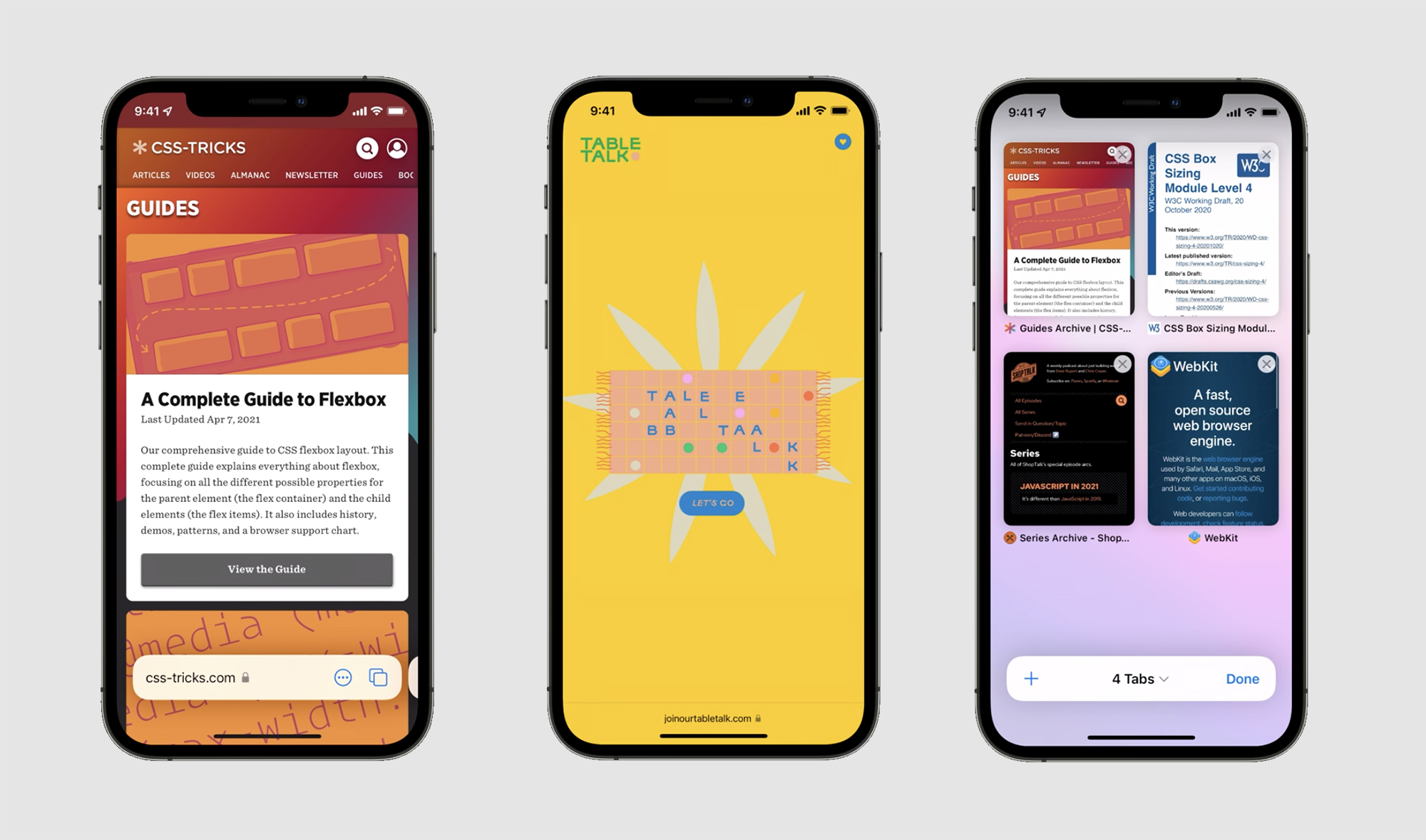
To further minimize Safari’s UI, the tab bar and address field have been collapsed into one new user interface. When a tab is active, it expands into a full address field. Taken all together, Safari looks radically different than before:

Safari 15

On the iPhone, things get even weirder. The tab bar is now at the bottom of the screen and will minimize as the user starts scrolling. This new tab bar works a bit the Home indicator on a Face ID device. The user can swipe horizontally between tabs, like swiping between apps. A swipe up brings up an overview of open tabs and a UI to swap between Tab Groups.

Safari 15 on iPhone

Safari 15 brings big changes, and surely not everyone will be a fan. I, for one, think the expanded use of color is distracting, and the tabs-aren’t-just-tabs-anymore design confusing at times. I hope Apple might reconsider some of these more drastic design changes during the beta process this summer.


  1. Six Colors readers on Safari 15 will have already noticed. -J.S. 

[Stephen Hackett is the author of 512 Pixels and co-founder of Relay FM.]


By Stephen Hackett

WWDC 2021: MailKit set to offer new Mail extension possibilities

Note: This story has not been updated since 2021.

For many years, power users have been able to use plug-ins to extend the capabilities of macOS’ built-in Mail application. And for years, those users have been accustomed to those plug-ins breaking as Apple has updated Mail and the operating system.

This year at WWDC, Apple introduced MailKit, a new Mac-only framework for building modern Mail.app extensions. This framework is based on the same underlying technology that powers Safari app extensions and share sheet extensions.

Mail Extensions

There are four types of Mail extensions:

  • Compose extensions will allow new workflows when composing mail messages.
  • Action extensions help people manage their inbox by providing custom rules on incoming messages.
  • Content blocking extensions provide WebKit content blockers for Mail messages.
  • Message security extensions can provide further security by signing, encrypting, and decrypting messages when people send and receive mail.

These extensions can be bundled into existing Mac applications, or be offered on their own, but must pass through the Mac App Store.

Time will tell what types of Mail extensions are possible in this new framework, but if Apple’s WWDC session about them is any indication, this should be an exciting change to an app that hasn’t seen much excitement or change in quite a long time.

Apple is clear that extensions are the future; existing Mail plug-ins will stop being supported in the future. While this means that some favorites may not be long for this world, I’m excited that Apple is now offering a sustainable, official way for developers to make Mail.app on the Mac more useful and flexible.

[Stephen Hackett is the author of 512 Pixels and co-founder of Relay FM.]


By Stephen Hackett

WWDC 2021: New App Store Features Coming in iOS, iPadOS 15

Note: This story has not been updated since 2021.

When iOS and iPadOS 15 launch later this year, the App Store will have new tools for developers to optimize their product pages to better stand out in the busy marketplace.

The first tool to do this is called the custom product page, which will let developers market their app differently to different sets of users. Each version of the product page can have a different set of videos, screenshots and text, and each one comes with its own unique URL for sharing.

App Store in iOS 15

In App Analytics, developers will be able to see which page performs best, giving them data to better reach potential customers in the store. The backend will provide both retention data and average proceeds each custom product page.

Each app can have up to 35 different custom product pages, so developers will be able to go wild if they are so inclined.1

The other addition to the App Store is product page optimization, which will let developers set up and run automatic A/B testing on their pages to see what works best for them and their app. Each test can have up to three options, and developers can set what percentage of users will see a given option. These tests have to go through App Review.

The iOS App Store is a big place, and it’s hard to stand out. With these new tools, Apple is hoping that developers will be able to manage their product pages more effectively. I don’t think this was at the top of anyone’s App Store wishlist for 2021, but I am very interested to see how developers will use this once it launches.


  1. Nobody tell James Thomson. 

[Stephen Hackett is the author of 512 Pixels and co-founder of Relay FM.]

By Stephen Hackett

WWDC 2021: macOS Monterey further blurs lines between Mac, Catalyst, and iPad apps

Note: This story has not been updated since 2021.

How one can define what a “Mac app” is has gotten more complicated as time has gone on. In the early days of Mac OS X, developers could choose between Cocoa, Carbon and even Java. As the latter two faded, we saw the rise of wrappers around web apps that via technologies like Electron.

But Apple has made the water murky as well, thanks to Mac Catalyst and more recently, the ability of M1 Macs to run iPhone and iPad apps natively.

Photos and Messages on macOS Monterey
One of those applications is built with Mac Catalyst.

Mac Catalyst

To recap, Catalyst allows a developer to take an iPad app and tweak it to run on both Apple silicon and Intel Macs. These apps can pick up a lot of native Mac UI and UX features along the way. Messages, for example, is a Catalyst app as of macOS Big Sur. Apple has done a lot of clever things to give developers incentives to use Catalyst. If an iPad app supports multitasking, for example, the Mac version gets multi-window support out of the box.

This year at WWDC, Mac Catalyst didn’t get the massive improvements it did last year, but Apple still took some time to go over how it can be used to make a great Mac app.

Apple has continued to improve the things Xcode does automatically when the “Mac” button is checked and a developer builds an app. Beyond that, though, developers need to fine-tune the Mac experience.

At first, all Mac Catalyst apps felt a little weird, as they were all displayed at a reduced scale of 77%, owing to the differences between iPad and Mac display. That’s has since been changed—now apps can be set to run in the “Mac idiom” at 100% scale. These apps also utilize native AppKit controls, making them look and feel like more traditional apps.

Apple encourages developers to think about the various display sizes that a Mac Catalyst app may encounter—it’s a far cry from what’s found on iOS and iPadOS. Not only are there a bunch of non-Retina MacBook Airs and iMacs still running around, but there’s probably a daredevil out there somewhere who’s running apps in full screen on a Pro Display XDR at 6K resolution.

Likewise, Macs are hooked up to a wide range of input devices, none of which is a touchscreen. Apps can’t assume that everyone has a trackpad, either. Any navigation that requires gestures will need to be re-thought for the macOS environment.

In many ways, creating a good Mac Catalyst app is just like writing a good AppKit app. Apple’s tools are good, but making something truly great requires time and care. Even if Catalyst ends up being a transitionary technology in the long haul, it’s an important step, and one that seems to be going well. It’s getting harder and harder to tell what apps are using Catalyst, and that’s a good thing.

iOS and iPadOS apps on M1 Macs

There are over one million iOS and iPad apps already on the Mac App Store for users of new M1 Macs. While developers of many, many major apps have opted out of this program, Apple is working in macOS Monterey to improve the experience for users and hopefully make developers more willing to look at Apple silicon Macs as a reasonable target for their mobile development.

To be frank, these apps still stick out on macOS Big Sur. They work well enough, but they look and feel a bit foreign, even when compared to apps built with Mac Catalyst. But for developers who don’t go through that work, it’s a painless way to have their applications in front of Mac users.

In macOS Monterey, Apple is working to conform these apps to feel more at home on the Mac. In addition to mapping iOS functionality to things like the menu bar and Mac input devices that started in Big Sur, these applications on Monterey can now support Shortcuts for Mac, Apple Pay, full-screen video with HDR and new gesture support when a trackpad is present.

On the App Store side, developers can also now confirm that their app has been tested to work well on macOS, and they can set a minimum OS that they support, or let Apple automatically set that on the app’s needs.

Additionally, Apple is tweaking the Mac App Store to make these titles easier to find. No longer will users have to switch to the “iPhone and iPad Apps” tab to discover these apps; they will appear in-line with traditional Mac titles in the Store, blurring the line between Mac-first and Mac-second apps even more.

[Stephen Hackett is the author of 512 Pixels and co-founder of Relay FM.]


By Stephen Hackett

WWDC 2021: watchOS 8 to shave time off everyday interactions

Note: This story has not been updated since 2021.

watchOS 8

With watchOS 8, Apple isn’t setting out to radically change the experience of using an Apple Watch, but the new capabilities the release will give developers will make it feel more dynamic and useful throughout the day.

The biggest change in this regard is how applications will be able to work in the “Wrist Down” position. In watchOS 7, apps were dimmed and blurred out when the Watch was inactive, with the time overlaid in the upper-right corner:

Fitnes in watchOS 7

With watchOS 8, the blurring will be replaced with a new dimmer state, that is ready to become inactive with just a single tap:

Fitbod in watchOS 8

watchOS tells the application the state of the Watch, and the app should be able to quickly dim and hide personal data that shouldn’t be visible to others when the user’s wrist is down.

In this dimmed state, a watchOS app can still receive data from the system and update their UI. Workout apps or audio apps can update once per second when there is an active session going on to keep the user informed with a mere glance. Out of session, this time between updates is once per minute to preserve battery life.

In watchOS 8, Apple is also updating how apps are sent updated information from HealthKit. Critical data — such as fall events, low blood oxygen saturation and heart rate events — is sent immediately. Other data types are delivered hourly, if not longer.

If you use a Bluetooth heart rate monitor or other equipment and pair them directly with the Apple Watch, watchOS 8 has some features for you, too. Bluetooth device will be able to connect when their corresponding application is in the background, as long the app is being used as a Complication. From there, data from the device (such as heart rate) can be kept up to date directly, up to four times an hour.

Lastly, text entry is being sped up this year as well, as the Watch will remember if the user prefers Scribble or Dictation, on a per-app basis.

The Apple Watch has always been about small interactions, and with watchOS 8, Apple has continued to work in making those faster and smoother than before. Starting later this year, the Watch will be more up to date all the time, even when your wrist is down, while Health data and even text entry will be faster as well. These small interactions are often just seconds long, but time matters when it comes to the Watch.

[Stephen Hackett is the author of 512 Pixels and co-founder of Relay FM.]


By Stephen Hackett

WWDC 2021: Shortcuts for Mac

Note: This story has not been updated since 2021.

For years, automation on the Mac has been an onion of sorts. Automator and its ability to create Quick Actions, Folder Actions and even Applications has given Mac users the ability to create workflows with drag-and-drop efficiency since its introduction with Mac OS X Tiger way back in 2005.

Applications can donate actions for use in Automator, but this never took off the way it was intended.

Thankfully, Automator came with an escape hatch: the ability to run scripts within workflows. This meant that bailing out to something like AppleScript or even a shell script was simple.

None of this even touches the wide range of third-party tools for automation on macOS such as Keyboard Maestro, BetterTouchTool, Alfred and more.

As good as these utilities are, as the platform owner, Apple needs to steer the ship when it comes to automation on the Mac, and with macOS Monterey, it’s poised to do just that … with Shortcuts.

Shortcuts on the Mac, at last.

What was once Workflows on iPhone and iPad, then bought by Apple and reworked as Shortcuts is coming to Mac later this year, and so far, I’m impressed. Shortcuts on the Mac looks like it does on iOS, and feels like a Mac app. Its data even promises to sync over iCloud to other devices seamlessly.

It’s important to know what sorts of applications Shortcuts can be used to automate. Here’s what Apple says on the macOS Monterey features page:

Run compatible iPhone and iPad shortcuts on Mac with M1 or on Intel-based Mac systems with Catalyst apps.

However, things are actually a bit more complex than that. Developers of traditional Mac apps — even those built with AppKit — can add Shortcuts support to their projects via Intents, just like support is added in iOS apps.

That might seem surprising, but considering that Apple pitched this as the start of a longer transition, getting traditional Mac apps on board is going to be required if Apple wants to discontinue Automator somewhere down the line. Even though the app future is probably more SwiftUI or maybe Catalyst, almost every major Mac app uses the much older AppKit framework. Ignoring those apps really wasn’t an option.

Moving workflows from Automator to Shortcuts couldn’t be easier. Drag and drop your .workflow file onto Shortcuts, and it will be transformed into a Shortcut automatically.

To make this work, Apple has added many new actions to Shortcuts, based on the most popular actions in Automator. Here’s the complete list:

Shortcuts Actions based on Automator

In short, the importer crawls your Automator workflow and translates it, step by step, into the correct Shortcuts actions. If for some reason it can’t be translated, Shortcuts will let you know. Given Automator’s rather thin support, my guess is that most people’s workflows will just come over without any issues.

Additionally, Shortcuts for Mac brings with it new actions extending what the software will be able to do on macOS:

New Actions in Shortcuts for Mac

With these new actions, I think Shortcuts is going to feel Mac-native from day one. Most people won’t miss Automator.

You may have noticed that in those screenshots, Apple highlights AppleScript, JavaScript and shell scripts as actions within Shortcuts for Mac.1 Like Automator before it, this will allow users to fall back to more traditional automation methods within their larger workflows, bridging Shortcuts’ new fanciness to the old solid foundations under macOS.

Over the last several years, there has been a lot of hand-wringing about what Shortcuts would mean for old-school Mac automation. It is clear to me that Apple thought about this, and has designed Shortcuts for the Mac to be able to support the old and new, all at the same time. That’s not always Apple’s modus operandi, but it was the right move in this case.


  1. Shortcuts for Mac comes with command line support, so you can run a Shortcut via shell scripts, or run them by name in Terminal. 

[Stephen Hackett is the author of 512 Pixels and co-founder of Relay FM.]


By Stephen Hackett

Is WWDC a hardware event?

If you ask a bunch of people in Apple community if WWDC is a hardware event or not, you’ll get a bunch of different answers, but I think most people consider WWDC to be a software event mostly aimed at developers.

What does Tim Cook have up his sleeves this year?

I don’t think that’s wrong. The bulk of WWDC takes place in sessions and labs, where developers get an in-depth look at what makes Apple’s updated operating systems and platforms tick.

Over the years, however, WWDC has also become a place for Apple to speak to the public. Sure, most users don’t know what it is, but for those who are plugged into what the company is doing, the WWDC keynote is a big deal.

As such, I got wondering. How many WWDCs actually feature hardware announcements in addition to the traditional software news?

I decided to look back twenty years. It’s a nice round number, and it’s roughly the start of the modern era, as Mac OS X was taking shape pretty nicely by 2000. And in fact, WWDC has been used for hardware product announcements in 13 of those years.1

I have to admit, I was pretty surprised by the number. A full 65% of the time, Apple has hardware news to share from the WWDC stage:

  • 2001: A 17-inch LCD, joining the 15 and 22-inch models
  • 2003: The Power Mac G5 and iSight camera
  • 2004: Updated Apple Cinema Displays, now in aluminum, in 20, 23 and 30-inch sizes
  • 2005: Intel Developer Transition Kit
  • 2006: The first Mac Pro and Intel Xserve
  • 2008: iPhone 3G
  • 2009: iPhone 3GS and updated MacBook Pros
  • 2010: iPhone 4
  • 2012: Updated notebooks and the first Retina MacBook Pro
  • 2013: Trash can Mac Pro preview
  • 2017: Updated notebooks and iMacs, HomePod and iMac Pro previews
  • 2019: Mac Pro and Pro Display XDR previews
  • 2020: Apple silicon Developer Transition Kit

Other than that rash of iPhones in the late 2000s, when Apple has hardware news to make at WWDC, it usually pertains to high-end Mac hardware.

I don’t think the 65/35 split is enough in and of itself to make predictions about future WWDCs—and it falls to 50/50 if you only consider the last decade—but I think it can be a factor when considering the rumors that swell before the annual event. I don’t know if Apple has new Macs ready to go for next week, but we can’t rule it out, that’s for sure.


  1. The number is 11 out of 20 if you don’t count the Intel Developer Transition Kit and the much newer Apple silicon DTK. I’m counting them. 

[Stephen Hackett is the author of 512 Pixels and co-founder of Relay FM.]


By Stephen Hackett

All hail consumer hardware

Three years ago, I wrote about how far Apple has strayed from its once-iconic Grid of Four product strategy:

The Grid of Four

To quickly recap, this is what Jobs and company came up with after his return to Apple and the Great Purge of many, many Macintosh models. It was so obviously simple: a user could find where they were on the grid and purchase the right machine for them.

Apple has moved way beyond this strategy, blurring the lines between consumer and professional Macs, even as notebooks have taken over the industry.

On the mobile front, there have been some clarifications over the last few years, with the resurgence of the MacBook Air and the death of the 12-inch MacBook and its one lonely USB-C port. Sure, having two models of the 13-inch MacBook Pro is still a bit awkward, but maybe that will get sorted out with time as well.

Over in Desktop Land, I think things could be shaping up to make a lot more sense than they used to, especially when it comes to the iMac. While we’re still waiting for the other Apple silicon shoe to drop, putting the M1 in the new 24-inch iMac aligns that machine pretty clearly with Apple’s other consumer-focused products.

For years, the two sizes of iMacs have formed a sort of spectrum of computing power and features.1 The smaller machines had a ceiling in terms of capability, and the larger ones picked up from there.

But with the M1 and whatever comes next, I believe we’ll see a sharper distinction between the consumer and professional iMacs, just like we will with the notebooks.

This will manifest itself not only in terms of raw CPU speed, but also the number of ports, RAM and storage ceilings and GPU performance. The M1 has hard limits in what it is capable of, but Apple can use those to its advantage when wanting to separate and clarify its lines of computers.

The M1x—or X1, or whatever Apple will call it—system-on-a-chip destined for larger notebooks, the bigger iMac and even the Mac Pro will outclass the already amazing M1. This will let more users make the move to Apple silicon. That is great for users like me, Jason and Dan who use our Macs to crunch audio and video on a regular basis.

Perhaps just as exciting is that it marks the return of truly consumer-focused Mac hardware. It gives Apple the freedom to do things like make colorful iMacs and (hopefully) colorful notebooks. It can lead to lower starting prices, as consumers won’t need to pay for pro features they don’t really need. The Mac can become more approachable and fun, which is something we haven’t always seen since the Grid of Four fell apart.


  1. For a moment let’s forget the fact that Apple basically abandoned the 21.5-inch iMac for the last few years of its life. 

[Stephen Hackett is the author of 512 Pixels and co-founder of Relay FM.]


By Stephen Hackett

Safari is the Loneliest Browser

A few years ago, I switched from Chrome back to Safari, wanting a more fluid experience between my Macs and iOS devices. While I now enjoy having my bookmarks, tabs and history everywhere I go — as long as iCloud is working — there is one Chrome feature that I wish Safari would swipe: multiple profiles.

Profile Switching in Chrome

In short, this feature is designed to let you have multiple instances of Chrome, all with their own settings, bookmarks, history and more. This comes with a bunch of obvious potential benefits.

If you want to use Chrome for both personal and work browsing, creating a separate profile for each means you can be logged into the same website with multiple accounts but never accidentally be in the wrong one. As someone who uses Gmail for both personal and work email, this can be a real lifesaver. You can also keep work bookmarks and history separate, keeping your personal data nice and tidy.

This is basically how I use this Chrome feature. I have my main account, which has a few bookmarks for things I prefer to do in Chrome, but then two additional ones.

The “Relay” profile is a pretty basic one that is logged into a specific Google account for using the admin tools for Google Podcasts. I rarely need to interact with this, so I don’t stay logged into that particular account in Safari.

My final Chrome profile is for managing the 512 Pixels YouTube channel. The Google account I use to log in for publishing videos is only used for publishing videos; there is a complete firewall between it and my main accounts. As such, it not only has its own profile, but its own theme as well. As it’s for dealing with YouTube, I’m using one that is all red and black. It’s hideous, but I know without a doubt when I’m looking at a Chrome window that belongs to that user.

Apple’s iCloud is mostly focused on individual users, but I think this concept would still fit within that framework. Being able to have different sets of browser settings for different tasks is a nice productivity feature where Google is simply ahead of Apple.

[Stephen Hackett is the author of 512 Pixels and co-founder of Relay FM.]


By Stephen Hackett

MagSafe in a USB-C World

When the first MacBook Pro was announced in 2006, it was better than the PowerBook G4 is a myriad of ways: it was way faster, promised to run cooler, included a camera for video chats and — of course — included an amazing new charging technology that made it to the top of Apple’s “Design” webpage for the machine:

MacBook Pro Design Webpage
From Apple.com, via the Wayback Machine

Like many of Apple’s best features, the idea was so simple. Instead of a connector that had to plug into the side of the machine, this one was simply held on by magnets. This would protect countless Mac notebooks from repair after their power cords were tripped over by a pet or yanked out by a careless child.

MagSafe was introduced to great applause, and it quickly worked it way into the hearts of Mac users the world over. It showed up on the 13-inch MacBook a few months after the MacBook Pro was introduced, and was even present on the LED Cinema Display that came out in 2008.

LED Cinema Display
The younger readers among you may be shocked this 24-inch display cost only $899. The later 27-inch model was $999, or the cost of the Pro Stand for the Pro Display XDR. Sigh.

In 2012, MagSafe got slimmer to fit Apple’s new Retina MacBook Pro. MagSafe 2 made its way onto the MacBook Air as well, and Apple still sells a $10 adaptor to use a MagSafe power brick with a MagSafe 2 machine.

Some complained that MagSafe 2 wasn’t as good as the original, but the dust settled pretty quickly. And then came 2016, when MagSafe was replaced by USB-C ports on everything but the then-neglected MacBook Air. When the Air was brought back from the brink in 2018, MagSafe was truly gone from all of Apple’s modern notebooks.

USB-C charging has a bunch of advantages, like being able to use any port on the machine, including those on the right side of the notebook if present. If a user has other USB-C devices, a single brick can be used to power them all if it’s powerful enough.

These upsides clearly were enough for Apple to move past MagSafe, despite the fact that an ill-timed accident can send a Mac notebook to the ground, pulled to its death by a USB-C charging cable.

Rumor has it that MagSafe may be coming back to the Mac as Apple continues to update its machines with Apple silicon inside. I think most Mac notebook users would welcome that. I know I would, but I am hoping that Apple does this and keeps USB-C charging around. Sometimes, it’s just super handy to plug in a MacBook Pro on its right side, and whenever I travel again, I wouldn’t want to have to carry a MagSafe brick and a USB-C one for my iPad Pro.

When the USB-C machines came out, there was talk about people accidentally plugging in two power adaptors at once, but I can’t imagine that has been an issue out in the real world, and I think the same would be true if a future notebook could charge via MagSafe and USB-C.

Often when Apple makes a change, it cuts off the old way of doing things. If MagSafe comes back, I hope USB-C charging stays around, too.

[Stephen Hackett is the author of 512 Pixels and co-founder of Relay FM.]


By Stephen Hackett

The Hackett File: A Look at GoodLinks

GoodLinks
GoodLinks runs on the Mac, iPad and iPhone.

Since the dawn of time the App Store, I’ve used Instapaper to save links for later, but last year I checked out GoodLinks, thanks to John Voorhees’s review at MacStories.

GoodLinks is developed by Ngoc Luu, who also develops Jason’s favorite iPad text editor, 1Writer. And like that app, GoodLinks has a simplicity about it that betrays the complexity it offers.

The Mac app is admittedly much simpler than its mobile sibling, but it looks good and offers a sharing extension, so getting links into it from something like Safari is just a couple of clicks away.

Both versions support tagging for organization, as well as the ability to star an item to find it later more quickly. Additionally, the title and summary of saved items can be manually edited, which is a nice touch if a webpage has some wonky metadata that GoodLinks can’t parse.

Both apps also save article content for off-line reading, which is standard for this genre of apps, as Instapaper was designed by Marco Arment for reading web content on the subway.

The iPad and iPhone version also offer an extension for quickly saving links from the Share Sheet. Details can be manually edited while being saved, but I prefer the app’s “Quick Save” feature, which imports the link without the intermediate step of updating its metadata. It’s really, really fast.

Unlike some of its competitors, GoodLinks syncs via iCloud, so there’s no third-party server in the middle to worry about and no new account to set up. In my experience, sync between my devices has been very good, even when I dumped 10,000+ links into it from my Instapaper account. It took iCloud several minutes to figure out what I had done, but after that things have been really smooth.

If you do run into issues, iCloud data can be forcibly re-synced or deleted altogether. And, of course, data can be easily exported.

When it comes to reading, GoodLinks uses a Safari Reader-like experience that is easily customizable. If, for whatever reason, GoodLinks can’t render the article in its own view, loading the page in an in-app browser is easily done. There, GoodLinks defaults to using Safari’s native Reader mode to help keep things minimal.

If you’re the type of iOS or iPadOS user who is into automation, GoodLinks has you covered there as well. The mobile app comes with a long list of Shortcut actions as well as deep URL scheme support, as Voorhees wrote in his review last year:

On the iPhone and iPad, the Action menu can also include Custom Actions defined by the user that allows components of an article saved in GoodLinks to be passed to another app using URL schemes. Among the data that can be passed is an article’s URL (escaped or unescaped), image URL (also escaped or unescaped), title, description, author, and content in HTML, plain text, or Markdown.

GoodLinks also has extensive Shortcuts support with actions to show a specified list of articles, add links, display a list of all links or just links tagged with a specific tag, open links, open the last unread link, open a random link, retrieve links with a specific tag, get all links with a specific tag, and get a list of tags. It’s a long list of actions that, along with GoodLinks’ own URL scheme, opens up some interesting possibilities.

GoodLinks is a universal app with a one-time cost of $5. If you’re looking for a Read-it-Later app without a subscription, or one with a more modern feel than its competitors, it’s well worth the price of admission.

[Stephen Hackett is the author of 512 Pixels and co-founder of Relay FM.]


By Stephen Hackett

On Continuity’s Complexity

For several years, Continuity has been a growing set of features that ties macOS to its more mobile cousins. Here’s how Apple describes these features:

When you sign in to your Apple ID on all of your devices, you can use Continuity features that make it seamless to move between your devices. Click a feature below to learn about it, such as how to automatically unlock your Mac when you’re wearing your Apple Watch or how to use your iPad to extend the workspace of your Mac.

Better together, mostly.

Under the Continuity umbrella live several different features:

  • Handoff — Switching to an application or document from one device to another.
  • Universal Clipboard — Copying and pasting content from one device to another.
  • iPhone Cellular Calls — Making and receiving calls on Macs, iPads and iPod touches on the same Wi-Fi as an iPhone.
  • Text Message Forwarding — Sending and receiving SMS and MMS messages on non-iPhone devices.
  • Instant Hotspot — Connect to Personal Hotspot without the need of a password.
  • Auto Unlock — Logging into and authenticating on an Mac while wearing an Apple Watch.
  • Continuity Camera — Using an iOS device to take a photo for instantly inserting into a document on a Mac.
  • Continuity Sketch — Creating a sketch on an iOS device for inserting into a document on a Mac.
  • Continuity Markup — The same as above, but for uhhh … marking up a document.
  • Sidecar — Using an iPad as a second Mac display.
  • AirDrop — Wirelessly sharing content between devices if the stars are properly aligned.
  • Apple Pay — Using an Apple Watch to authenticate Apple Pay on a Mac without Touch ID.

That’s a lot of stuff under one overarching name, and while I understand the impulse to unify these features, I would argue that this particular collection is a bit out of sorts.

Many of these features feel like children of Handoff, especially Continuity Camera, Sketch and Markup, as well as Universal Clipboard. On the other hand, AirDrop feels like it doesn’t belong on the list at all.

Beyond just being angsty about labels, my main problem with Continuity is the overall lack of control a user has over its many features. Additionally, what features can be tweaked are often scattered across various Settings screens and System Preferences panes.

Here are just a few examples of how messy this can be:

  • On the Mac, there is a single setting named “Allow Handoff between this Mac and your iCloud devices” at the bottom of the General preference pane. It doesn’t say this, but this single checkbox enables (or disables) both Handoff and Universal Clipboard.
  • Auto Unlock is enabled in macOS’ Security & Privacy settings, which requires a mid-2013 or later Mac, and an Apple ID with two-factor authentication turned on. Even then, macOS seems inconsistent about when it will prompt to confirm something via a connected Apple Watch and via a password prompt.
  • To set up Text Message Forwarding, a user has to go into Settings on their iPhone, then navigate to Messages and then “Text Message Forwarding.”
  • To take advantage of Continuity Camera, Sketch and Markup, an individual Mac app has to support it, and so far, the list of those that do isn’t very long. To use it, a user has to find an insert or import command, which vary in location app to app.
  • AirDrop lives in the Share menu across devices, and the settings for which devices can be accessed via the features live in Finder, Big Sur’s new Control Center, and in the Settings app on iOS.
  • On the Mac, phone calls are managed through the FaceTime app’s own settings screen.

I know this messiness is the natural outcome of Apple adding these features piece by piece over several years and several OS revisions, and on the whole, they do make using the Apple ecosystem a more fluid place to work and play.

However, many users need more control over features than Apple’s current web of confusing settings and features. If someone wants to use Handoff, but Universal Clipboard poses problems for them, they don’t have enough options. SMS forwarding relies on device names, which can be confusing and very slow to update via iCloud when one is changed, and I’d wager most users have no idea what Continuity Camera, Sketch and Markup even are.

It’s not that these features are bad; Apple just needs to clarify what they do and how to manage them. That’s just as much as a marketing challenge as it is an engineering one.

[Stephen Hackett is the author of 512 Pixels and co-founder of Relay FM.]


By Stephen Hackett

Apple’s ‘vintage’ list needs rethinking

This week, Apple added several machines to its list of vintage models:

  • iMac (21.5-inch, Late 2013)
  • iMac (27-inch, Late 2013)
  • iMac (21.5-inch, Mid 2014)
  • iMac (Retina 5K, 27-inch, Late 2014)
  • iMac (Retina 5K, 27-inch, Mid 2015)

If you aren’t familiar with it, Apple’s vintage list is for products “that have not been sold for more than 5 and less than 7 years ago.”

Maddie Stone at OneZero explains:

Once Apple hasn’t sold a product for seven years, it’s considered “obsolete,” meaning the company won’t offer any repair services. But vintage products exist in a liminal space: Despite what I learned when I called Apple Support, Apple Stores as well as AASPs can, in theory, repair them for you “subject to availability of inventory, or as required by law,” according to Apple.

In practice, people in the repair community told me Apple isn’t particularly interested in fixing vintage tech. “The AASPs I’ve spoken to in the past have told me they don’t bother with customers looking to repair older devices,” said Rob Link, a right-to-repair advocate who owns a company that sells repair parts for older devices including iPhones, iPods, and iPads. In the past, Link said, he would call up AASPs to see if they had older parts to sell “but I would stop when no one did.”

So after a machine is marked vintage, serious repairs get tricky. Once seven years pass and that product gets added to the obsolete list, they are all but impossible.

This can put users in an awkward position if they experience a hardware failure, especially if their hardware — including all of the iMacs listed above — are still supported by the current version of macOS and are perfectly capable machines.

This wasn’t such a big issue ten or fifteen years ago when Mac OS X moved at a slower pace and Macs were full of spinning disks, but today, Macs last longer than ever, and a new version of macOS shows up every fall. I suspect that Apple silicon-based Macs will remain viable for even longer. (In Apple’s defense, newer versions of macOS don’t always run great on older hardware, and new features may not be supported at all, but that’s really a story for a different time.)

Apple should extend the number of years it supports Mac hardware. Such an extension would give users more options when it comes to running older Macs, which is good for the environment, customer loyalty and third-party repair shops.

There’s a big reason I don’t think we’re going to see that. Aaron Holmes at Business Insider writes:

Apple hasn’t turned a profit on repairing people’s broken devices in the past decade, the company disclosed this week…. The company made the disclosure in response to a House Judicial Committee probe, which is investigating whether Apple engages in anticompetitive practices to edge out competition when it comes to repairs and third-party apps.

Gulp.

It’s not all doom and gloom. In the last few years, Apple has opened programs to give third-party repair providers1 better access to parts, tools and diagnostics, but that doesn’t really solve the problem of the ticking clock.


  1. And to the horror of some, Best Buy. 

[Stephen Hackett is the author of 512 Pixels and co-founder of Relay FM.]


By Stephen Hackett

The Hackett File: The End of the Intel Era

In the very near future, the Mac will join the iPad, iPhone, Apple Watch and all of Apple’s other devices in being powered by the company’s own systems-on-a-chip, and over the next several years, Intel Macs will slowly fade into history.

One of these things is not like the other … for now.

There’s been plenty of ink spilled over comparing the upcoming Apple silicon transition to the previous transition to Intel—including by me. However, there’s one last angle on this that I would like to explore: the state of the final old-school Macs at the time the transition started.

Let’s start at the end of the PowerPC era. By the time the Intel switch was announced at WWDC in June 2005, Apple’s notebooks were in pretty sorry shape. The desktop Power Mac G5 has been out for two years at this point, and the iMac G5 was about a year old.

These machines requires massive amounts of cooling, and frankly, I was really surprised Apple managed to shoehorn a G5 into the two-inch thick iMac after seeing how much air moved through the Cheese Grater case. The trade-off was much better performance, a higher RAM ceiling and the mainstream availability of a 64-bit processor.

Meanwhile, the PowerBook G4 was getting pretty long in the tooth. From the first aluminum model in September 2003 to the last one just 25 months later, Apple managed to get the machine from 1.0 GHz to 1.67 GHz, but the system bus speed and cache sizes remained the same, as did the maximum amount of supported memory.

Today, the vast majority of Macs sold are notebooks, but even in the mid-2000s, the rise of notebooks was well underway, and the underpowered nature of the PowerBooks was only stifling what pros could do on the go.

It’s easy to copy those issues and paste them directly onto Apple’s current crop of Intel Macs, but I think that overall, the Mac line is in much better shape today than they were leading up to that WWDC 15 years ago.

Even though Intel has struggled to shrink its process size and ship cooler-running chips, Apple has still been able to build very capable machines, from the MacBook Pro to its pro desktop. Technologies like Thunderbolt 3 have kept the Mac up to date with the PC industry in terms of I/O, and it seems that there’s no problem integrating custom chips like the T2, which now manages a wide range of Mac features, despite residing inside Intel machines.

In short, it feels to me that Apple is undergoing this processor change from a position of strength, not weakness. Last time, Apple had to move because the Mac was suffering, and there was no way forward with the PowerPC. This time, yes, Macs could be thinner, cooler and more energy efficient, but I think the decision is much more about what Apple silicon can do, not what Intel can’t.

Perhaps that is a pretty fine hair to split, but I think it’s an important one. Apple silicon is a huge deal; Apple is taking the fate of the Mac into its own hands in a brand new way, and it wouldn’t be doing so if it wasn’t confident about the products it can build. As a long-time Mac user, that’s really exciting.

[Stephen Hackett is the author of 512 Pixels and co-founder of Relay FM.]


By Stephen Hackett

The Hackett File: Apple’s Home Products Should Think Cheaper

Apple’s two smart home products have something in common: they are far too expensive for the markets they compete in.

Apple TV 4K

The Apple TV 4K. Not that’s easy to tell, as it shares its design with the previous model.

The Apple TV 4K was announced in September 2017, over three years ago. It carried forward the app-based model and software that debuted on the previous generation announced in 2015. (Which is still on sale, because of course it is.)

While Tim Cook’s proclamation that “the future of TV is apps” hasn’t quite panned out, and Apple Arcade is a bit lackluster on the platform, I believe the bones of tvOS are in pretty decent shape. The Apple TV app is a nice way to pull content in from across multiple streaming services, even if Netflix is notably absent. Features like AirPlay and multi-user support are nice additions as well, and see frequent use in my living room.

However, the hardware is downright ridiculous. The A10X Fusion-powered box retails for an eye-watering $179, unless you get duped into spending an extra $20 for 64 GB of storage.

Then there is the Siri Remote. Which is… ummmmm… hot, hot garbage.

Strolling into a Best Buy really shows how out of place the Apple TV 4K is these days.

The just-announced Chromecast with Google TV is priced at $49, and features a wide range of streaming services, including Netflix data integration. Sure, the Chromecast lacks AirPlay, Apple TV+ and Apple Arcade, but I’m not sure anyone thinks those additions are worth $130.

Roku has been killing it in this market, too. The company offers a wide range of streaming boxes, priced from $29 to $99. Like the new Chromecast, they come with remotes designed for actual humans, and voice control. Rokus can even stream Apple TV+ content.

If Apple wants to keep a high-end option for people who want to game on their streaming box, that’s fine, but for those of us who just want to stream in 4K and use AirPlay, it’s time for the company to become competitive. That means having a product that is smaller, cheaper and easier to use.

It’s just far too painful to recommend or buy an Apple TV right now, and the company is losing what ground it had in the living room.

HomePod

Siri, why is the HomePod so expensive?

Oh, the HomePod.

Introduced at WWDC 2017, Apple’s smart speaker didn’t end up shipping until February of the next year. In his initial pitch for the product, Phil Schiller described it as an incredible wireless speaker, designed to sound better than anything on the market. It was going to “reinvent home music” and “rock the house.”

I can’t deny that the HomePod does sound good, especially when set up in a stereo pair. However, people want more than a good speaker — they want a smart one.

At WWDC 2017, it seemed like the non-music aspects of what Siri could do on the device were pretty limited, and that turned out to be true once the HomePod started landing in living rooms and kitchens. Since then, Siri on the HomePod has gotten better, but it still lags behind the Google Assistant and Alexa in many areas.

Thing is, I think most regular people interested in devices like this are more interested in the smart than the speaker aspect, and the initial price tag of $399 for something that wasn’t as useful as much cheaper options from other companies wasn’t that enticing.

In April 2019, Apple shaved $100 off the price of the HomePod, but even at $299, it’s not a great deal for most consumers. Even those who prefer Apple Music and the company’s privacy standards would be better off searching for a model on sale at someplace like Best Buy or Target.

If Apple is serious about making the HomePod a more serious contender, a smaller and less expensive option is a must. People are far more forgiving of smart speaker that costs $99 than one that runs $299. I’m sure Apple could still ship something that sounds pretty good, too.

[Stephen Hackett is the author of 512 Pixels and co-founder of Relay FM.]


Search Six Colors