

By Philip Michaels
App Report: Help is on the way
As the song goes, we all need a little help from our friends. And that applies to apps for our Macs and iPhones as well.
Fortunately, the apps in the spotlight this week all aim to lend a helping hand, whether it’s tracking down files to free up space on your devices, expanding text or storing clippings to save time or even doing things with the photos and screenshots you’ve accrued over the years.
Do you know of any helpful macOS and iOS offerings? Drop us a line at apps@sixcolors.com with a brief description. We won’t be able to respond to every email we receive, but we will give any and all suggestions a helpful once-over.
Crumb
I’m not as diligent about keeping my Mac free of detritus and cruft as I should be, to the point where gigabytes are often in short supply on my laptop’s drive. Crumb promises to do the hard work of freeing up space on your Mac, with some more sophisticated tools to help you track down the files that have outlived their usefulness.

At its most basic, Crumb clears out your caches, which can remove a surprising amount of filler if you’ve not used a cleaner app in a while. Running the app for the first time, I wound up with 2.4GB of cache and logs that could be safely jettisoned — I imagine that number won’t be as garish with more frequent cleanings, but anything that helps me keep my drive free of cruft is welcome.
Crumb has some other modes, like a Visualize tool that shows you what’s in different folders and how much space that folder takes up. An analysis tool can spot whether the content in the folder contains things you’ve created and, therefore, should be reviewed manually before deleting. You can also tap a shortcut button to head straight to a folder to review its contents.
I find Crumb’s Duplicate tool particularly useful, since I’m in the habit of downloading images, tweaking their sizes for stories and then keeping copies in multiple places. Duplicate tracks down the extras for purging, while an Uninstall feature helps you remove apps and any files they leave behind.
The free tier of Crumb entitles you to one full cleanup — a trial of the app, in essence. A one-time $9 payment unlocks unlimited cleanups as well as the Uninstall, Duplicates and Organize tools. (The latter feature sorts things into folders such as Images, Videos, Documents and more.) A Crumb license works on up to two Macs.
Klackey
Klackey is a multipurpose text expander that works on both Windows machines and Macs, though it’s only the macOS version we’re concerned with here. And while some may find the extensive toolset to be overkill — Klackey brings a lot to the table — the text expansion features certainly impress.
![Screenshot of Klackey, a text-expansion app, with the Abbreviations list showing the "Email sign-off (try the abbreviation)" clipping, abbreviation ;sig, in the Welcome folder. Rich text editor reads "Best, [Your name]" and a hint to type ;sig then space.](https://i0.wp.com/sixcolors.com/wp-content/uploads/2026/10/klackey-noshadow-6c.png?ssl=1)
I get a lot of email submissions, as you might imagine, and I’ve been struggling with a way to send out a reply that doesn’t make responding to emails my full-time job. In Klackey, I can write a general reply and give it a simple code preceded by a semicolon — say ;reply — so that when I type that code into a Mac app that accepts text input like a mail client, my form letter shows up automatically. I can do that for any other frequently used text snippets I want to store in Klackey as well.
Klackey offers other features like a clipboard history for keeping everything you copy close at hand, a notes tool for organizing your thoughts and even an encrypted secure folder for storing items like passwords. I found the text expansion to be the real selling point, but you can decide for yourself with a free 14-day trial when you download Klackey. After that, a payment unlocks all the current features with a year of updates, with a cross-platform license covering up to two computers.
As I write this, Klackey is available for $35, a discount from the regular price of $49.
MemoryString
You’re not hurting for options when it comes to assembling your photos and videos into a movie that you can view or share with others. MemoryString is betting you’ll give this macOS offering a try for a couple of reasons, not the least of which is that it’s free.
That’s not “free” as in you get to assemble a video or two before you’re required to unlock the full app. MemoryString won’t cost you a dime to download — neither initially nor through any in-app purchases. Just grab the app, import some photos or videos and fiddle around with the transitions, titles and audio. (There’s a royalty-free library included with the app, or you can add your own music.) A MemoryString watermark does appear at the end of the finished video.
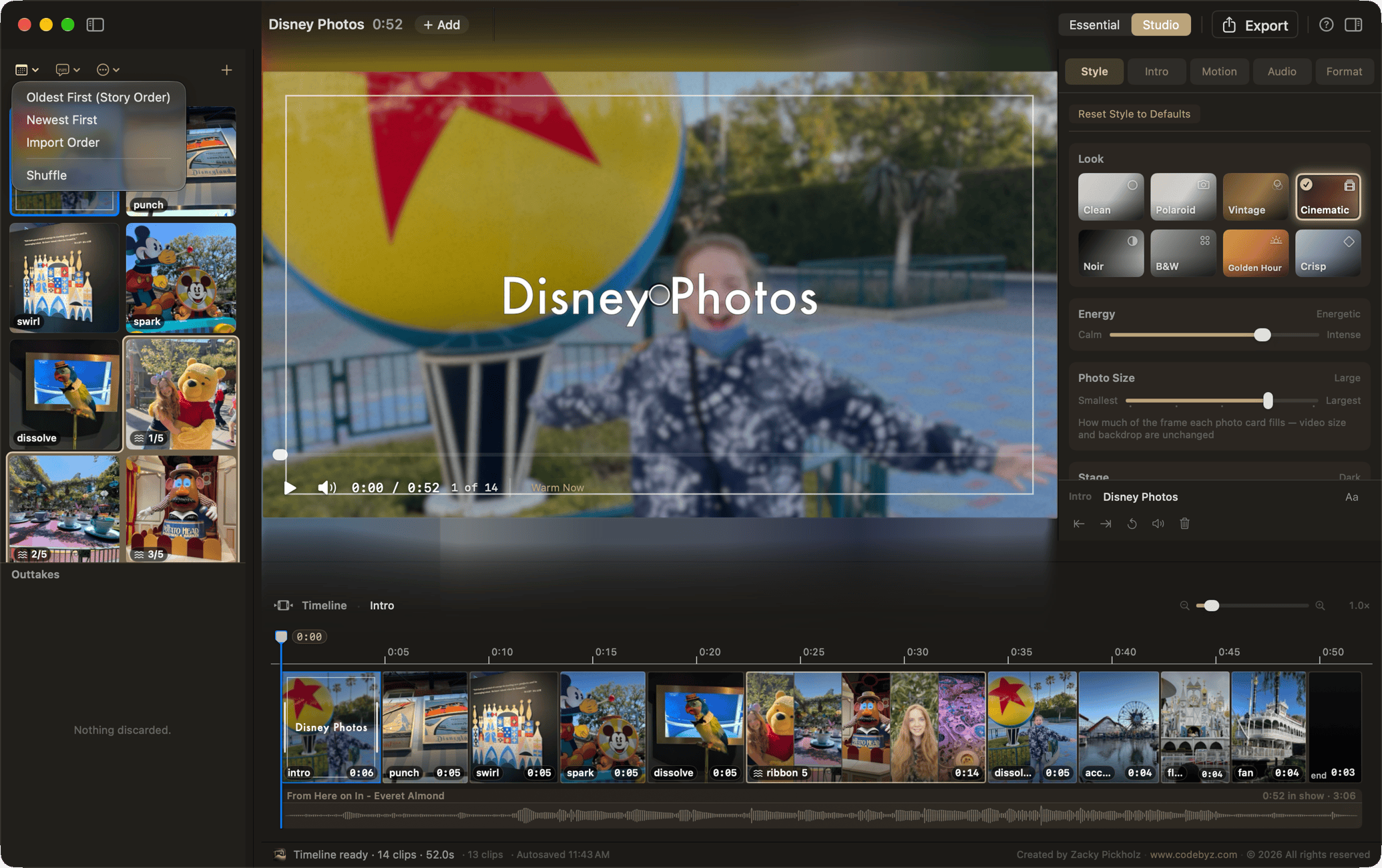
MemoryString looks to be an alternative to iMovie by getting you to the finished product faster, while also offering more control over your project than the Memory Movie feature included in Photos.
I found that the app works best when you import an image or folder, as MemoryString crashed when I tried dragging things directly from the Photos app on my Mac. However, MemoryString’s developer responded promptly to my bug report.
In other words, it’s a promising alternative if you’re looking for a tool that helps you turn the photos on your Mac and iPhone into moving pictures, and the free status means there’s no barrier to giving MemoryString a try.
Pixph

Just as there are lots of ways to assemble your photos into a video or slideshow, you also have many options for managing all the things you save to your clipboard. So why turn to the $10 Pixph as a place to stash text, URLs or anything else you care to copy? Besides the convenience of having a storage space on the side of your display — or wherever you choose to position the Pixph window — there’s also the matter of organizing all those clips.
It’s easy to copy something over to Pixph: just highlight and tap your shift button twice to capture it in the app. But Pixph also lets you organize clippings into projects, so that if you’re researching something, all the related text strings, links and images you’ve saved are all in one place, ready to move back into the window that you’re working in. Pixph lives in the menu bar of your Mac, and it’s easy to pivot between projects when you find a relevant clip to save.
I found Pixph’s commitment to the Liquid Glass interface a little bit distracting, though it was easy enough to open up settings and switch to dark mode so that the app behind the Pixph window wasn’t as visible. Pixph also treats your clippings as a checklist, with buttons for marking off items when you have no further use for them. Some may appreciate that approach, but it really didn’t fit into my workflow.
Nevertheless, the ability to organize items and even add your own thoughts via a note feature makes Pixph a useful tool for people to add a little structure to their projects.
DumpPixels
If you find yourself filling up your iPhone’s Photos app with screenshots — and then forgetting to delete those screenshots later on — DumpPixels can clean up your photo library without sacrificing the information you were looking to capture in the first place.

Anytime you capture a screenshot, it appears in DumpPixels, which also copies any text that appears within that screenshot. Say you capture an article in the News app because you spot an interesting snippet of text. Within DumpPixels, you can save a note containing that text to the app’s Notes tab. You can then delete the screenshot, freeing up space in your Photos library while retaining whatever information you wanted from the screenshot.
Or at least, DumpPixels will delete the screenshot after you’ve unlocked the app. The free download only lets you save copied text from screens, while a $20 in-app purchase unlocks the deletion feature.
If there’s a limitation to DumpPixels, it’s that it only works on screenshots. If you were to take a photo of a flyer with date and address info, that wouldn’t get copied into DumpPixels — unless you were to take a screenshot of the photo itself, of course. Still, if you find yourself snapping a lot of screenshots to collect data for later use, DumpPixels could be an effective way to better manage all the info and imagery you’ve collected.
[Philip Michaels has been writing about technology since 1999, most notably for Macworld and Tom’s Guide. He currently finds himself between jobs, so if you need someone who can string a few sentences together (or make your sentences read a lot better), drop him a line.]
If you appreciate articles like this one, support us by becoming a Six Colors subscriber. Subscribers get access to an exclusive podcast, members-only stories, and a special community.