

By Glenn Fleishman
Migrate to Apple Passwords from your current secret-keeper

You might be interested in knowing how to embrace Apple Passwords with a bear hug, leaving behind your current password manager. If you tried Apple’s Passwords app in the past and were disappointed, you should probably give it another try. The improvements Apple has made in the last couple of releases have brought it to what I consider parity with the most important useful features of well-designed third-party password managers.
Despite that, Passwords is focused on—no surprise—passwords and password-like items: website logins, passkeys, and Time-based One-Time Passwords (TOTPs). Many password managers include a junk drawer of other kinds of structured material you can store that doesn’t map directly to Apple’s Passwords structure. If you’re mostly using a third-party system for password-esque stuff and use all Apple devices or Apple and a Windows PC, a migration is straightforward. Otherwise, it can be hairier and could involve rethinking how you store assorted data.
You can use iCloud Passwords with Windows (and then use Microsoft Edge, Firefox, or Google Chrome). You can also use browsers other than Safari on a Mac with an iCloud Passwords plug-in or extension. However, if you or people you currently shared information with use Android, Linux/Unix, or ChromeOS, this migration won’t work for you: those platforms aren’t supported, and there’s no web app for iCloud Passwords.

Because Joe Kissell and I have written entire books that help with different components involved in a password manager migration, I’ll include references throughout to appropriate Take Control series books. For a general grounding in passwords, for example, I recommend reading Joe Kissell’s Take Control of Your Passwords, updated earlier this year.
Map the data connections
As I noted, Passwords is best at passwords (and passkeys and TOTPs), and filling them in on webpages and in apps. If you care mostly about this, you’re in luck, as you can easily migrate data of these kinds:
- Website and app logins: Account logins move to Passwords.
- Loose passwords: Ones that have no direct connection to an app or site, like a bank card PIN, also move to Passwords.
- TOTPs: These confirmation codes can be migrated. However, there’s a technical detail with how they may be stored by third parties (or Apple) that can prevent the migration and might require using a backup code; see details below.
- Passkeys: The password “industry” finally developed and rolled out a secure copying system that Apple supports that will let you move passkeys among password managers. This requires migrating on an iPhone or iPad; you can’t move these on a Mac.
Two other categories of fill-in entries that aren’t managed in Passwords can be handled—and you may already be using—in Wallet and Safari:
- Payment cards: Payment cards need to move to Wallet & Apple Pay. You have to enter these manually as AutoFill Cards, unless you’ve already done so or added the card to Apple Pay. It’s a little complicated, as I explain.
- Identities: Apple supports filling in personal or business address information through Safari using AutoFill.
(You can see Safari’s evolution on the Mac at Safari: Settings: AutoFill: your personal contact now links to Contacts, user name and passwords to Passwords, and credit cards to Wallet & Apple Pay.)
Where you will be left hanging by Apple:
- Miscellaneous secure items and attachments: If you store Social Security numbers and other account information that is distinct from a password, but you want to have available to fill in at particular websites or by searching Passwords, you can create these as entries in Passwords. In some cases, you may want to create entries in Notes (with additional security, described later).
- Structured data: You may have bank accounts, passports, driver licenses, memberships, software licenses, or other structured information stored in a password manager. That is a trickier needle to thread, as Passwords offers no support beyond a Note field.
For both of these, you might want to migrate to… a password manager. But wait! This would be one you use solely for secure storage of these miscellaneous structured or less-classifiable items, not for field-oriented secrets and accounts you want to fill in.
There’s one more important migration issue:
- Shared vaults and items: If you use a password manager that supports secure storage areas with other people—like vaults in 1Password, Dashlane, or LastPass, for example—Passwords provides something akin, though not precisely the same: Shared Groups. Because of the above provisos, many non-password items shared via a third-party manager will need to be migrated to Notes or another secured shared item-storage-based space.
Three big things that may derail the whole migration for you:
- Tags/labels: Some people make use of metadata organizational systems, like tags. These don’t transfer to Passwords at all!
- Extra data: Much like the paper card catalogs of yore had book information plus tons of annotation, accumulated over time, you may have used password manager features to add extensive notes, additional fields, include attachments, and create richly detailed records. All that will be gone, like tears in rain. True, Passwords has a Notes field, but it lacks structure, rich text, and Markdown support. If you move to another, more focused password manager, you may be able to retain this.
- Access after you’re gone: Non-Apple password managers have recovery kits that could allow a relative or other party who has that information to gain access to stored, synced data. Apple’s Legacy Contacts system, which allows an executor or other authorized person to access your data when you’re gone, excludes iCloud Keychain: no passwords, passkeys, Wi-Fi passwords, or other data. However, Legacy Contacts must be activated; until it is, it’s possible for someone who retains access to one or more of your devices to view your passwords and other data in Passwords. (See Joe Kissell’s Take Control of Your Digital Legacy, or my Take Control of Your Apple Account.
One last bit of aggravation? Passwords does not yet support removing duplicates!
Plan your migration
As you consider migrating, I urge you to run your old manager and Passwords in parallel.1 Particularly if you store a lot of different kinds of data in your old manager, you may want to be able to consult it and migrate some of it over time. This can be a pain if you are paying an annual fee and the renewal is coming up soon. Consult the maker’s website to see whether you retain access to your data after a subscription expires and, if that bothers you, in what form.
The place to start is pruning old entries.
First, sort by last modified date. Did I know that nearly 2,200 of my 2,600 entries haven’t been modified since 2022? Some since 2008? I did not. However, you likely don’t want to delete these wholesale, because there may be secrets you can’t recover. Online backup private keys (such as with Backblaze), Bitcoin and other cryptocurrency phrases or keys, or other secrets you set once need to be retained or you lose access forever.
My strategy:

- First, export everything. These exports are unencrypted and must be performed on your Mac. The export won’t include passkeys. (See below for that pathway.) This gives you a revert point. Because there are so many export formats across systems, I refer you to the software documentation to pick the best one. Warning: That file will be unencrypted and is like plutonium. Handle with care. The best plan is to use Disk Utility to create a disk image (APFS, 256-bit AES, Sparse Bundle Image), use a password you know or that is stored in Passwords, and then export directly to that encrypted image. The reason? If you save the file elsewhere, it might be backed up to Time Machine or become accessible in a way you didn’t intend. When unmounted, the drive is as secure as your startup volume. Just don’t forget or lose the password!

- Move all the older entries into a group. You might be able to create a group, tag all entries, or, in the worst case, move to a separate vault. In 1Password, the only strategy I found was to create a new vault called Outdated Entries and move all the older entries there. Warning: When selecting, make sure you aren’t including entries from all vaults, as that might move items you share with others or that others share with you.
-
Next, sort by name or title. This lets you scan through entries and identify duplicates. I found a number of items I’d already labeled “outdated,” or that were from services I couldn’t even remember. However, there were also a huge number of passwords and account logins that hadn’t been changed in more than four years—some for more than a decade! (There’s no reason to change uniquely set passwords routinely unless your current one is weak and a site is compromised. Most password managers, including Passwords, let you know about weak and reused passwords.) This process can be mighty tedious, which is why I’d recommend tackling it over time rather than all at once.
When you’re pruned, cleaned up, and otherwise reduced, you can now use the set you’re exporting; it’s time to go to the next step.
Export your secrets
Your best and first choice should be to use your iPhone or iPad; at this time, you can only perform a secure password storage transfer in iOS.2 Major password managers support this transfer method, which lets you move passkeys—it’s currently the only way to migrate a passkey.3
Here’s how it appears and works in 1Password:4
- Navigate to the export section of 1Password—that’s Lock (upper-left corner): Settings: Advanced: Start Export.
- Enter your account name; the app provides a hint. Tap “Approve export.”
- An explanation screen appears. Tap Continue.
- Choose the destination. In this case, tap Passwords, then tap Continue.
- Tap Continue in “Passwords,” and you’re switched to the Passwords app, where you can watch the import in progress.

While this is the best method, you can also export from most apps in CSV (comma-separated values) format, which truncates most information and likely leads to problems. Warning: You will have to re-create your passkeys. You may need to use the desktop version of the password manager to export. In Passwords for Mac, choose File: Import Passwords from File, click Choose File, select the file, and proceed. This doesn’t overwrite entries.
Now, check important accounts:
- Does the regular login work? If not, reset the password. Take this opportunity to upgrade to TOTP or a passkey if either is available.
- Does TOTP or a passkey work for logging in? If not, find a backup code or another method to generate a new TOTP or passkey.
TOTPs have a particular idiosyncrasy. They are seeded with a secret generated by a website. The site displays that code as a QR code, so you rarely need to copy it, though Password and other managers allow you to do so. When migrating an entry with a TOTP, it might appear in its URL format, which is generically like otpauth://totp/user@user.user?secret=SEQUENCE in the Notes field instead of appearing as a TOTP within Passwords. If that’s the case, you can fix it manually:
- Copy the text after
secret=. - Tap or click Edit.
- Tap or click Set Up Code.
- Paste the secret you copied into the Setup Key field.
- Tap or click Use Setup Key.
- Tap or click Done.
If that fails, log into the website in question and use a backup code or other means to re-enroll with TOTP.
Enter credit cards, set up AutoFill, and move to Notes
Before getting started, I strongly recommend enabling Advanced Data Protection in iCloud. ADP improves iCloud security by encrypting nearly all application data—iCloud Drive, Messages, Photos, Notes, etc.—via keys stored only on your devices, just like iCloud Keychain. Without ADP, these kinds of data are encrypted in transit and at rest using only Apple’s encryption secrets, and could be demanded via a government subpoena or someone gaining access to your Apple Account. (Note that contacts, events, and email remain encrypted at rest, not end-to-end, because of the need for compatibility with third-party software.)
Follow the steps in the link to enable. You can also still access this information via iCloud.com through a process that enables a temporary end-to-end session. (For more about ADP, see Joe Kissell’s Take Control of iCloud or my recently updated for the 27 releases, Take Control of Securing Your Apple Devices.)
Now, work through these categories:
- Payment cards: Use Settings: Wallet & Apple Pay on an iPhone or iPad, or System Settings: Wallet & Apple Pay on a Mac. Tap or click AutoFill cards and authentication. Now you can tap or click Add Card to provide the card details. This lets you fill in the card anywhere there’s a form field or wherever you can tap or Control-click/right-click in a field and bring up AutoFill as a menu item. AutoFill cards sync across your devices when Wallet sync is active in iCloud (Settings/System Settings: Your Name: iCloud: See All). For more on working with Wallet and payment cards, see my book Take Control of Apple Wallet. This information is secured end-to-end.
-
Identity filling: A different kind of AutoFill, for identity information, is found in Settings: Apps: Safari: AutoFill or Safari: Settings: AutoFill. Enable Use Contact Info on an iPhone or iPad, or check “Using information from my contacts” on a Mac. Now you can tap the entry next to My Info on an iPhone or iPad, or click Edit to the right of the checkbox label. This lets you pick an entry—you probably already did—and populate it with all the things you’d want to fill in on a form, including multiple addresses. Safari doesn’t protect identity information with ADP. However, the type of address and other information you would use are likely the least important to protect in what would be a very unlikely break-in to an Apple Account or one of your devices.

- Fill in Notes: As I noted earlier, the structured entry style of third-party password managers doesn’t mesh well with either Passwords or Notes. Passwords has a single Notes field, which may be enough for some entries, but not the more detailed ones I describe. The Notes app is structured around entries, but it’s not well designed for hundreds or thousands, and it lacks inherent field data or structure. Judge what you’re storing in your old password manager to figure out if Notes could work. With ADP enabled, it offers strong security. For migrating structured data intact, read on!
Migrate structured data
If you’re looking to move structured entries, I suggest checking out Strongbox, but not for passwords, passkeys, TOTPs, and the like. Its developer offers a free syncing version (for iPhone, iPad, Mac, and Apple Watch) with everything you need except Touch ID/Face ID unlocking. That requires the Pro flavor at $24.99 per year, which includes several other features.5
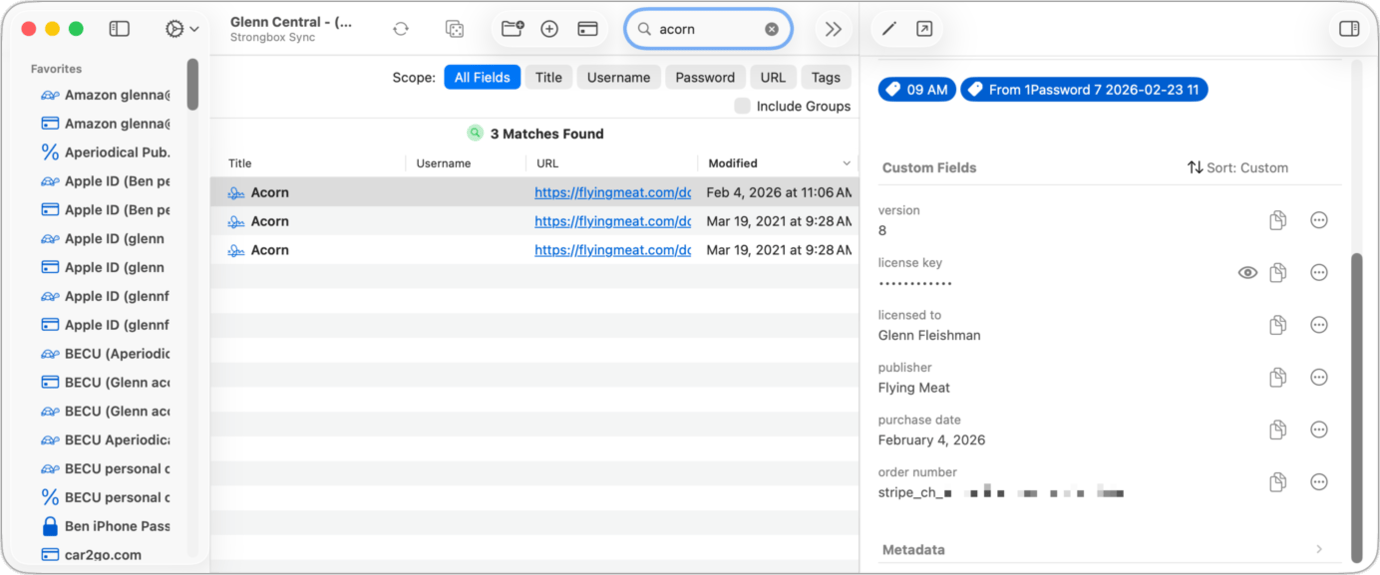
Strongbox, unlike some managers, allows you to sync via a file under your control or through its secure syncing service, depending on your preference. This lets you keep your, er, digital strongbox under your personal control, if that matters to you. It can import from all major password manager export formats.
In testing, it preserved my 1Password structured data extremely well. This included tags. It also arranged my vaults into what it calls groups, letting me retain a sense of what I was sharing with others.
The one complication is that if you want to use one of the migration processes above to copy your items into Passwords, you have to do one of two things after performing your migration:
- In your old manager, delete all passwords, passkeys, and TOTPs. This is dangerous in my accounting, as it reduces your ability to have a parallel working solution, and you could accidentally delete secrets you need to keep.
- Import everything into Strongbox, then select all the passwords, passkeys, and TOTPs from Strongbox, and empty the trash. This gives you two copies of everything: Passwords and old password manager for secrets; Strongbox and old password manager for structured data.
When you’re ready to abandon your old password manager, maybe weeks or months from the migration, you can retain a securely stored backup copy or perhaps retain access depending on the product, while not using it actively or paying renewal fees.
Working in groups

Sharing your passwords and other secrets with other people remains Passwords’ weakest aspect, because Apple offers only Shared Groups. Each entry can be stored only in your personal Passwords storage or in Shared Groups. Otherwise, you have to duplicate an entry, which can cause such entries to drift out of sync.
In the Passwords app, select any entry, then click or tap the Group pop-up menu. You can then choose an existing group or create a new one. When you make your choice, the password, passkey, or other item is now exclusively found in the Shared Groups section, not copied! Passwords doesn’t offer a copy or duplicate feature, so you have to re-create the entry if you want to share it with two or more groups that aren’t a complete overlap of the same people.
It may be easier to understand from a family perspective. Let’s say you have items you share only with your spouse, others with your children, and some with both. You can’t create a “spouse” group and a “children” group. You need to have one for your spouse, one for your children, and one for the whole family. This is where there’s real room for improvement by Apple.
The password rhymes with orange
I know this is a whole rigmarole, but I’m actually impressed that it’s finally doable in a reasonable manner. A couple of years ago, it was not. It was possible a year ago, but I wouldn’t have recommended it. Now, if you’re careful with each step, maintain a backup, and keep your old manager running in parallel as you complete the migration, you should be able to achieve success.
This article was updated on Sept. 10th to add missing details about fixing a broken TOTP import.
[Got a question for the column? You can email glenn@sixcolors.com or use /glenn in our subscriber-only Discord community.]
- Frankly, I’ve been in this state for years: iCloud Keychain and then the Passwords app weren’t robust enough for a long time; as Passwords improved dramatically, I’ve gradually moved items over and set up new passwords only in Apple’s system. ↩
- Apple supports this migration on all its platforms. It’s unclear why third-party storage apps don’t yet let you do it in macOS. ↩
- I have noticed more sites let us create at least two passkeys, which is handy if you want to have passkey login in multiple password managers during a transition. ↩
- This process can’t be screen captured on the device; I had to use another camera to take photos. ↩
- You can also pay $2.99 a month, which seems silly, or $124.99 for a lifetime license, which I’d wait on—if I were you—until you’re sure you’ll use it for a few years or longer. ↩
[Glenn Fleishman is a printing and comics historian, Jeopardy champion, and serial Kickstarterer. His current books in preparation, which you can pre-order, are Flong Time, No See, and That One Matt Bors Comic. Other books include Six Centuries of Type & Printing and How Comics Are Made.]
If you appreciate articles like this one, support us by becoming a Six Colors subscriber. Subscribers get access to an exclusive podcast, members-only stories, and a special community.