

By Glenn Fleishman
February 4, 2026 9:30 AM PT
Why AutoFill Cards sync and Apple Pay cards don’t
Apple lets you store payment cards in two places on your devices. Apple Pay is for point-of-sale (POS) transactions at a payment terminal or the like, as well as for payments in apps or in Safari. AutoFill Cards, the name of the menu items, lets you, er, automatically fill cards within Safari, and in any browser that supports Apple’s autofill framework.
Why does Apple have two places to store credit and debit cards? Why is the way you set them up similar, but not identical? When can you use one and not the other?
I thought I knew the full answer prior to researching my new book, Take Control of Wallet, but it took a lot of careful reading and testing to understand what I had been missing.
(Yes, I wrote an entire book about Wallet. You may laugh! But Take Control Books publisher Joe Kissell and I agreed on it after I realized how many pain points I kept finding as an ostensibly experienced user. Wallet has a lot of unexplored territory for many people—including me!)
Pick a card, any card, to enter
As far as I can tell, you could start entering and syncing payment cards within Safari as of 2013, with the release of Mac OS X 10.9 Mavericks and iOS 7 (which encompassed iPad at that point). Apple added secure password synchronization via iCloud Keychain in those releases, including support for debit and credit card numbers.
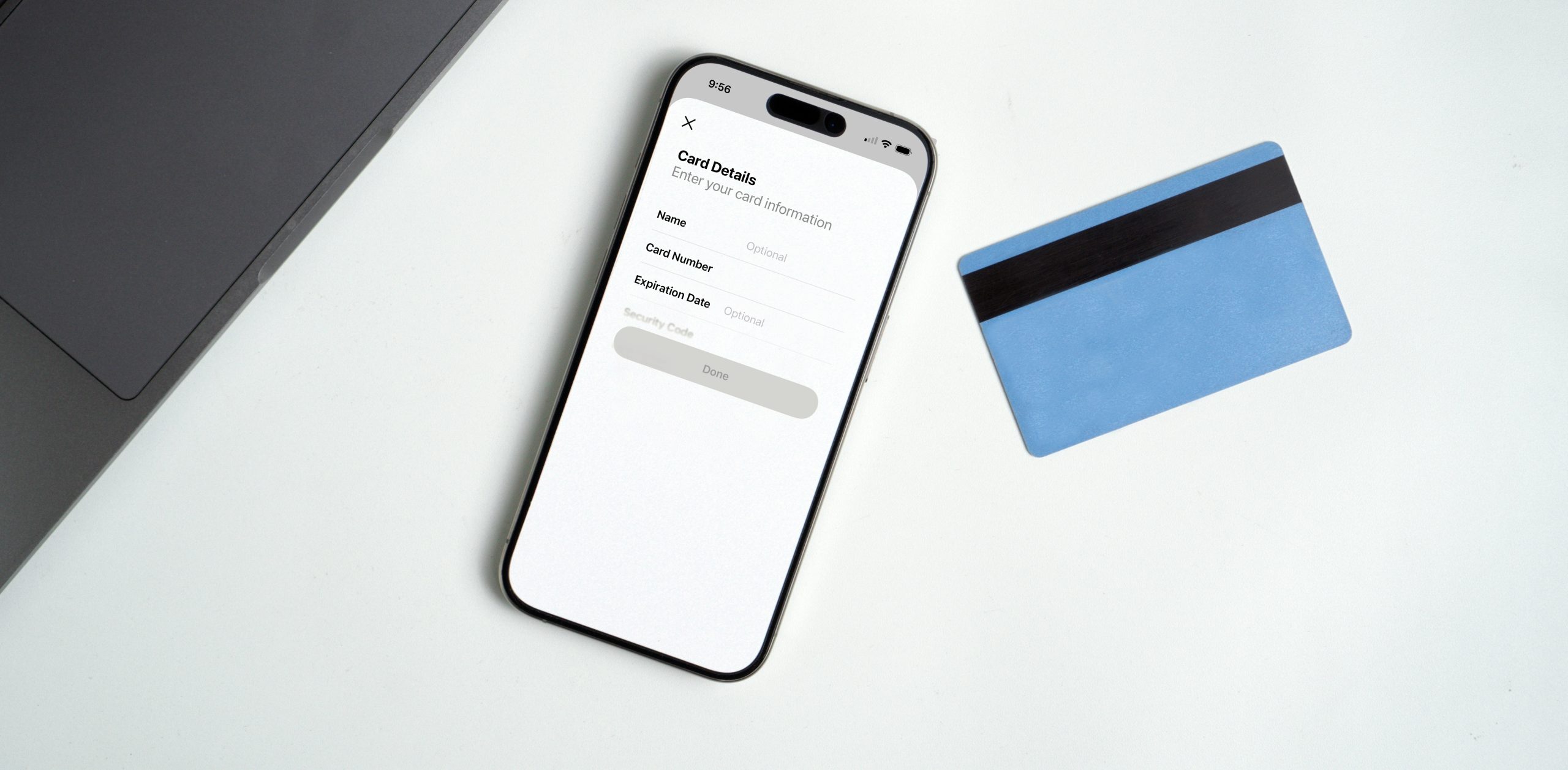
An autofill card entry requires you to enter a card number and all associated details.1 You can start on a Mac at Safari: Settings: AutoFill, and click the Edit button next to “Credit cards” (it also includes debit cards). On an iPhone, iPad, or Mac, you can also go to Settings/System Settings: Wallet & Apple Pay: AutoFill Cards. The iPhone and iPad let you bypass manual entry by pointing your camera at a card, and visible details are extracted and dropped into the form for you.


You will note that when you go to that particular location on any device, Apple prompts you for some kind of authentication. That’s because you’ve stored card information that could be extracted and used by someone else simply by looking at it—the details are exactly what would be entered in a Web form.
Visiting a payment site in Safari on any Apple platform, you can tap or click in most payment card form fields, and Safari provides a list of cards that you can drop in. Autofilling requires authentication. On other browsers that support autofill in macOS, you typically have to Control-click/right-click in a field, then choose AutoFill: Credit Card, authenticate, and then use a long scrolling pop-up menu to fill in or copy information.
But note that at the bottom of AutoFill Cards, there’s an option labeled Apple Pay Compatibility: if enabled, either before or after you have entered cards, your device checks whether a given card or cards support Apple Pay’s contactless method. If so, you’re prompted to add the card or cards to Apple Pay. (One advantage of AutoFill Cards is that you can include payment cards here that aren’t supported by Apple Pay, which can include some store-brand cards and stored-value cards.)
Now, we know Apple Pay uses a different process, one that doesn’t send the actual card number, and which involves some encrypted handshaking with merchants, banks, or card-processing networks. So why are we storing cards for autofill, too? And what exactly is the difference?
Let me introduce you to the Secure Element.
Keeping card numbers in a special lockbox
I confess I had never heard of the Secure Element before. Or, perhaps having seen the name, I confused it with the Secure Enclave, Apple’s proprietary security component that handles private information and security keys.
The Secure Enclave is built largely around material entering and not leaving, or generating cryptographic elements internally. For instance, when you enroll in Face ID or Touch ID, the data collected is passed to the Secure Enclave and not stored in regular memory or on a drive. When you later authenticate, biometric details are sent to the Secure Enclave for verification, and it responds. The Secure Enclave is built into the T2 Security Chip for later Intel Macs and is part of the system-on-a-chip (SoC) of M-series Macs.

In contrast, the Secure Element allows two-way communication, though not with Apple or your device! When you add a card to Apple Pay by entering the details or using a card’s RFID chip, the card number is passed to the Secure Element and never stored by Apple. The Secure Element negotiates a secure connection with the card issuer or its payment network, and you’re asked to validate possession in one of several ways, like entering the security code or a texted confirmation number.
Once validated, the card network passes back a cryptographic element used as part of future transactions and a device-specific card number (called a Device Account Number or DAN).2 This number does not correspond to your physical card’s number. It’s stored within the Secure Element. Card networks also mark the number so it can’t be used for in-person swipe transactions, on websites when entered manually, or when read to a merchant over the phone. This number can only be deployed via the Secure Element with a secret that only it possesses, unique to the DAN and device.
Apple has no access to this number; only the “applets” that run on the Secure Element do. The last four digits of the number are passed back to the operating system so they can be displayed in Wallet, but the rest of the number remains secret.3
(With Apple Card and Apple Cash, Apple creates this number with the Secure Element during card setup. Apple provides access to a virtual card number via Wallet for iPhone or Apple Watch for manual or autofill transactions, which is a substitute for a physical card number, and you can see it in full.)
When you use Apple Pay at a payment terminal over NFC (near field communication) via an iPhone or Apple Watch, the Secure Element creates a cryptographically secured transaction with the DAN and a unique security code, which passes directly over NFC between the terminal and the chip. Only the card issuer or network can decrypt that transaction.
When you use Apple Pay via Safari, a third-party browser (by scanning a 2D code), or within an app, Apple requires all the parties involved—like the website and charging merchant—to have completed steps with Apple or payment networks. The transactions are wrapped in more complicated layers with verification codes and encryption that are as secure as an in-person NFC payment.
All right! Now you know about the Secure Element and this unique handoff that Apple engages in. But why don’t Apple Pay and AutoFill Cards share information?
Pay as you go
Here’s the crux, as you will have seen:
- Apple Pay cards don’t sync across devices.
- AutoFill Cards do, so long as you have Settings/Systems Settings: account name: iCloud: See All: Wallet enabled.
Now you know the reason: Apple Pay cards must be enrolled on each device, because there’s a process of creating a device-specific number for the card that can only be accomplished with biometric or other authentication on the device. AutoFill Cards are identical across all devices, so protected by iCloud security and device-based authentication when you want to view them or fill them into a browser form.
However, there is a time-saver for adding Apple Pay cards that I’m not sure everyone is aware of. In Wallet for iPhone or Apple Watch, you can tap the Add button (iPhone) or More…: Add Card (Apple Watch), and choose Cards Found For You. You can also tap Add Card in Settings/System in Settings on an iPhone, iPad, or Mac. (The Mac shows these cards initially, as “Select cards to use with Apple Pay.”)

If Apple Pay can’t sync, why do these entries appear? Apple Pay can’t sync payment cards for use, but it can sync just enough information about a card that you can select it on another device and use the bank, issuer, or network’s verification process to complete adding it to Apple Pay, since—I would guess—you’ve previously proved your ownership on another device. It’s not perfect, but it still achieves the necessary goal of creating a Secure Element entry.
For further reading
If you found this useful or enlightening, please take a look at my new book, Take Control of Wallet. Wallet isn’t just about payment cards: you can add digital IDs, track orders, manage transit passes, and handle tickets, rewards cards, and boarding passes. I cover more ins and outs than you might believe possible in an app as simple as Wallet.
- Apple allowed you to enter the security code in autofill—the three- or four-digit number typically printed on the back of a physical card, and variously referred to as CSC, CVV, and other names. However, you could only sync that code starting in fall 2022, as far as I can tell. (I discovered this in spring 2023.) ↩
- The Secure Element has a finite amount of storage, apparently. ↩
- The last digit of a payment card number is a checksum that verifies the previous digits are accurate, once useful for manual card entry to ensure a valid card before it was processed, in an era when that required a dial-up phone system. ↩
[Glenn Fleishman is a printing and comics historian, Jeopardy champion, and serial Kickstarterer. His latest book, which you can pre-order, is Flong Time, No See. Recent books are Six Centuries of Type & Printing and How Comics Are Made.]
If you appreciate articles like this one, support us by becoming a Six Colors subscriber. Subscribers get access to an exclusive podcast, members-only stories, and a special community.