Six Colors
Six Colors

Apple, technology, and other stuff

This Week's Sponsor

Clic for Sonos: The fastest native Sonos client for iPhone, iPad, Mac, Apple Watch, Apple TV, and visionOS.

68: June 29, 2017

Public betas, iPhone anniversaries, and Echo Shows.


By Jason Snell

What’s new in Photos for macOS High Sierra

Note: This story has not been updated for several years.

One of the major areas of improvement in macOS High Sierra is to the Photos app, which is only a couple of years old and has plenty of room to grow. I literally wrote the book on Photos, so it’s been interesting to watch Apple’s replacement for iPhoto as it has grown and changed. Here’s a look at the changes and new features in Photos for Mac on macOS High Sierra.

New image formats. Beginning with iOS 11, the iPhone 7 and later and the latest generation of iPad Pro models no longer capture photos and video in the JPEG and H.264 formats they’ve previously used—at least by default. Instead, they use the new High Efficiency Video Codec (HEVC) for video and HEIF (pronounced “heef”) for photos. Photos for High Sierra supports these formats natively, as you’d expect. If you share your photos (or drag them into the Finder), Photos will transcode them to JPEG and H.264, because Apple realizes that many devices can’t yet understand the formats.

(Because these formats are not supported on Sierra, Macs that are still back on Sierra will be able to view low-resolution derivative files synced via iCloud Photo Library, but not edit them.)

Portrait mode support. Photos for High Sierra supports the same portrait effects supported in iOS 11. This means that if you edit a photo taken in portrait mode on an iPhone 7 Plus, 8 Plus, or X running iOS 11, you can edit the portrait effects. (This is all aided by the fact that unlike JPEG, the HEIF format allows Apple to embed multiple images and depth-sensing data inside the HEIF file, so all that data carries along with the file up to iCloud Photo Library and back down to the Mac.)

Photo editing upgrade. Perhaps the biggest changes in Photos are in the editing pane. Previously, when you decided to edit a photo, you’d be presented with a sidebar containing seven icons: Enhance, Rotate, Crop, Filters, Adjust, Retouch, and Extensions. You could click through to any of them to reveal a subset of editing tools—or in the case of Enhance, do a one-click global enhancement to your photo.

There are nine new filter presets, replacing the older ones.

With Photos on High Sierra, when you edit a photo you’re taken to an interface with a sidebar as well as a toolbar. Tabs at the top let you toggle between three different editing views: Adjust, Filters, and Crop. (One-click Enhance is now an icon at the top right of the screen, next to the Done button.) Clicking the Crop tab will bring up the Crop functions of Photos, largely unchanged; clicking Filters will bring up a revamped set of nine pre-built image filter presets, three variations each on three different styles (Vivid, Dramatic, and black and white).

<

figcaption>Every advanced editing tool now lives under the Adjust tab, including the new Curves and Selective Color tools.

Everything else—all the more advanced editing tools—now live under the Adjust tab. Instead of having to hunt for them, they’re all there in the sidebar together. You can click disclosure triangles to show additional editing options, or hide them away entirely. It’s certainly more cluttered than the old approach, but you no longer have to remember if a particular effect is in the Filters, Adjust, or Retouch section.

There are also two new editing tools, though they’ll be familiar to users of other editing tools, including Apple’s discontinued Aperture: Curves and Selective Color.

Support for third-party edits. In the transition from iPhoto to Photos, the ability to edit a photo in an outside app and then save it back into your photo library was lost.1 It’s back now, and it’s better than it ever was in iPhoto.

In Photos on High Sierra, you can open any photo in an external image editor via the Edit With command under the Image menu. Under the Edit With menu will be a list of all the apps on your Mac that have been updated to take advantage of this feature of Photos, meaning you don’t need to pick a single external editor—you can choose different apps as you see fit.

Once an image has been opened in an external editor, you can do pretty much anything you want to it. Once you save in the app, the adjustments you’ve made come back to Photos right where you left it. You can make further edits on that photo if you want, and as with any photo in Photos, the original image is stored so you can revert back at any time.

One caveat: If an image is shot in the Raw file format, the Raw file is not sent to the external editor; instead, a JPEG version is transferred. (The Raw original is always saved and can be reverted to later, of course.)

Browsing adjustments. In previous versions of photos, the interface focused on tabs at the top of the screen—which you could optionally swap for a more iPhoto-like sidebar pane. On High Sierra, Photos has fully embraced that sidebar—it’s always visible when you’re browsing photos. (As someone who always ran Photos with the sidebar on, I applaud this move.)

<

figcaption>The selection counter (top) and a quick-filter pop-up (bottom) are additions to the Photos interface.

The contents of the sidebar have been reorganized into sections. The Library section contains different views of your library—auto-generated Memories, all of your Favorites, the People who appear in your images, the Places you took your pictures. And, in a new feature, all the photos you imported—organized by when you imported them. (This is the new import-history feature, so if you remember you imported a bunch of photos a few weeks ago, you can scroll back and see everything that came into your library from that batch.)

The Albums section of the sidebar now contains two two-level items, Media Types and My Albums. Media Types contains automatically-generated views of your library filtered by media type—Selfies, Live Photos, Panoramas, and so on. My Albums contains every album and Smart Album you create manually.

Another new feature in the image-browsing interface is the selection counter in the upper right. As you select images, the selection counter keeps count. Select 18 images and it will helpfully tell you, “18 photos selected.” The image counter is also a draggable proxy for your images—drag the image counter to your desktop or into an album, and the selected images will go there, too.

Just below the selection counter is a new quick filtering option that lets you quickly narrow the view to show only favorites, edited items, photos, or videos.

Speaking of albums, in macOS Sierra you can now import photos directly into an album—either an existing one or a new one. If you’re someone who always organizes photos by album, this will save you a step or two, since you will no longer need to import photos, make a new album, and then drag the imported items into the album.

Improvements to Memories and People. Memories, introduce to Photos last year, is a feature that looks for commonalities in the photos in your library and gathers them together into collections. Think of them as computer-generated albums that are meant to surprise and delight you with images from the past.
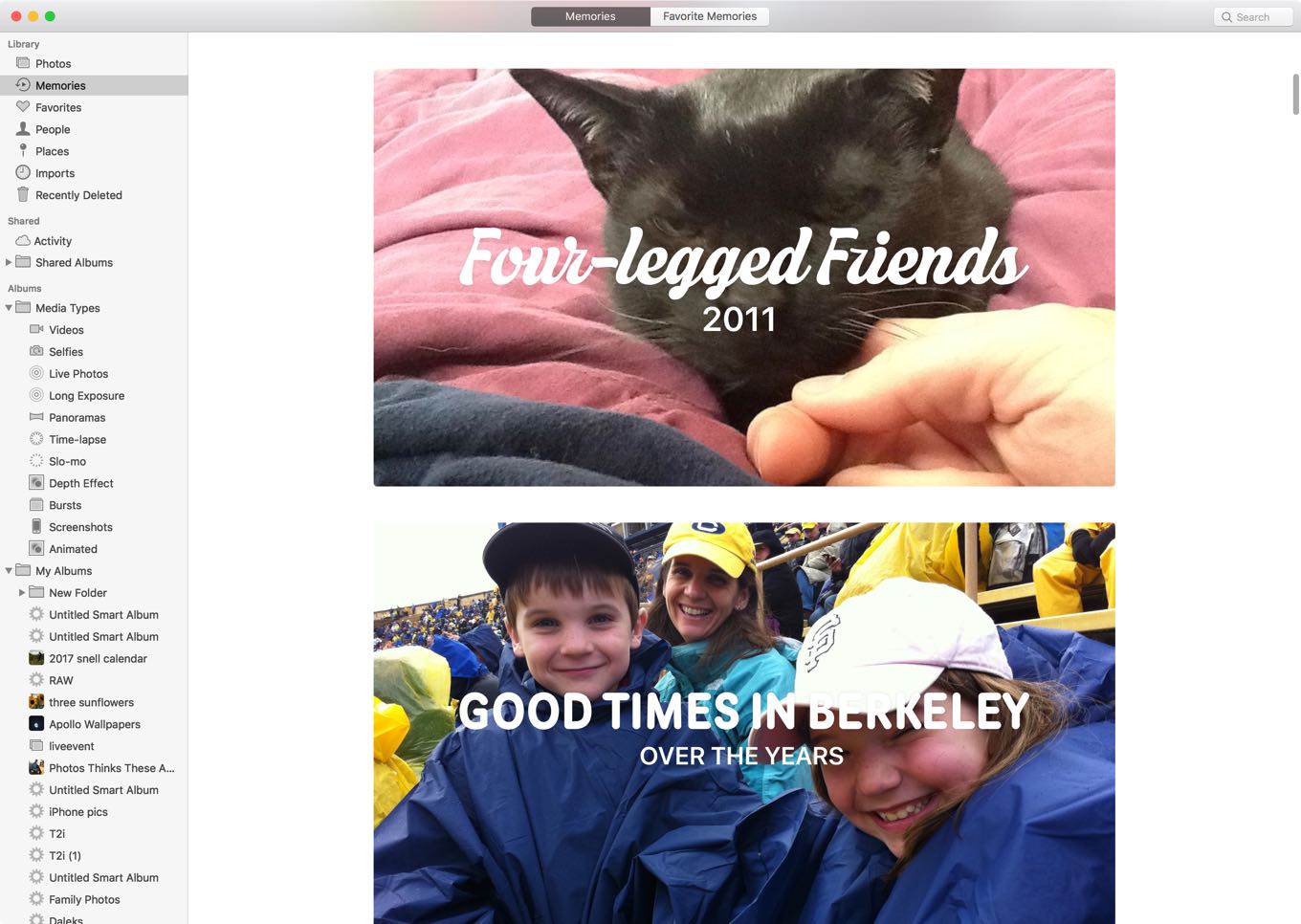
In High Sierra and iOS 11, Photos has increased the number of ways it parses your library looking for commonalities. According to Apple, among the new types of Memories are ones for pets, kids, hiking, diving, winter sports, nights out, and meals with friends.

In High Sierra and iOS 11, Memories is also better at picking photos from particular events, using image analysis to try to pick the best image out of many—the best smile or one where nobody’s blinking.

The People interface, which uses facial recognition software to lets you view all the images of a particular person, has been updated in High Sierra. It’s a more attractive design, and the face-recognition engine has been upgraded (Apple says it’s as much as twice as accurate) with the ability to make educated guesses about who is in a photo based on a face’s relationship to the other faces in a photo. For example, if a child is frequently in pictures with another child, the algorithm can use that to improve its confidence in its ability to assign a face to a particular person. And when you identify a photo as containing a particular person, that data is synced along with the photo, which aids your other devices in identifying that person themselves.

Transform Live Photos with the Long Exposure effect.

Live Photos improvements. Apple’s Live Photos format was introduced two years ago, and in this version of Photos, there are finally much better controls for editing Live Photos. You can manually change the Live Photo’s representative image to a different segment of the video, trim Live Photos video, and set one of three effects: a traditional live photo, a back-and-forth bouncing effect, or a Long Exposure image that processes the stack of images to create the equivalent of a photo with the shutter left open for a long time. Think about streams and waterfalls going from freeze-framed reality to a luminous, fuzzy fantasy.

Third-party projects. For years, Apple’s photography apps have made it easy to design and order printed versions of your photos—books, calendars, prints, and more. Those still exist, but in High Sierra, Photos allows third-party developers to integrate directly with Photos to create new projects. There’s a new third-party app interface that lets companies build Mac apps—there’s a special category in the Mac App Store for them, linked to from within the Photos app—that connect to Photos and allow you to order products or integrate with outside services from directly within Photos.

Apple’s announced several partners who will support this feature, including photo printers Shutterfly, Whitewall, Mimeo, iFolor, Mpix, slideshow builder Animoto, and web-hosting service Wix.

What’s not here. With every new version of any app, there are inevitably the wish-list items that didn’t get crossed off. I’m disappointed that Apple hasn’t made machine-learning-generated metadata syncing available across devices, so that every device you own doesn’t have to re-scan every photo in your library. Photos on iOS has the ability to auto-generate a movie for every Memory, but the Mac still lacks this feature. Smart Albums don’t have access to the categories generated by machine-learning scans, making it impossible to automatically combine two categories together.

And, of course, the big one: There’s still no way for members of a family to opt in to automatically sharing some or all of their photo libraries with one another, something my wife and I have been wanting for quite a while now—and a feature that Google is adding to Google Photos. Still, there’s no denying that this update to Photos is a big stride forward on several fronts.

Updated September 2017 for the final version of macOS High Sierra.


  1. Apps could previously provide Extensions that ran inside a Photos window, which some apps used as a gateway to then open the image themselves. This new approach is direct, requiring no intermediate extension window. 

By Jason Snell

The iPhone at 10: Into the woods

Note: This story has not been updated for several years.

Happy second 10th birthday to the iPhone, which was released a decade ago today. (No, you’re not forgetting things—everyone celebrated the 10th anniversary of the iPhone back in January, but that was the anniversary of the announcement, not the release of the product. The media loves an anniversary story, so why not do it twice in the same year?)

The iPhone was released on a Friday. Phones went on sale at 6 p.m. local time, and there were enormous lines around Apple and AT&T/Cingular stores leading up to the event. (This means Dan got his phone three hours before I did!) I got the iPhone late in the evening, and if my Twitter feed at the time is any indication, recorded a Macworld podcast about it?

The next morning my family and I had to be up bright and early to go to a previously scheduled weeklong family camp in the high sierras (no, not that High Sierra). That’s right, I would be writing my review of the original iPhone from a tent cabin in the mountains. This one, in fact:


That camp is remote enough that there was no AT&T service there. Kind of hard to review a phone when it can’t actually connect to the network! The drive up to camp was basically my best chance to test out the iPhone’s connectivity, so I sat in the passenger seat as my wife drove and checked and sent email and texts, browsed the web, and used a Twitter web interface to tweet my journey.

The first photos I took on the iPhone are from that passenger seat in the car, of my family during the drive. Once we arrived at camp, I managed to snap a few pictures of my kids playing in a flowery meadow, showing off the original iPhone’s mighty 1.9 megapixel camera.

I remember sitting in a camp chair inside that canvas-topped tent, writing diligently. It felt strange to be using and evaluating a piece of advanced technology while out in the middle of a forest, but in hindsight, it doesn’t seem as weird. The thing about the iPhone is that it’s a device that integrates itself into our lives, wherever we roam. I could hardly have lugged a new iMac with me to review at camp, but the iPhone came along easily. That’s what it does, and one of the reasons it’s great.

And it is a truly great piece of hardware. I wrote about it in a lot more detail at Macworld today, but I could make an argument that the original iPhone has the best design of all of them. Yeah, its screen is laughably small by today’s standards and it’s way too thick, but there is beauty in the glass front and the brushed aluminum back. Future iPhone designs (with the exception of the 3G/3GS, which feels like a regression for the sake of mass production) seem to be following the same track as the original iPhone design, refining it as technology and manufacturing methods improve.

Here’s what I wrote in that tent cabin ten years ago to conclude my review of the iPhone:

…The iPhone’s positives vastly outweigh its negatives. It’s a beautiful piece of hardware with a gorgeous high-resolution screen and a carefully designed, beautiful interface inside. The iPhone’s touchscreen keyboard will end up pleasing all but the most resistant Blackberry thumb-typers, making it an excellent device for email. Its Safari browser cleverly condenses full-blown Web pages into a format that’s readable on a small screen. Its iPod features make it a versatile audio player and a drop-dead gorgeous video player. And, yes, it does pretty well at making phone calls, too.

To put it more simply: The iPhone is the real deal. It’s a product that has already changed the way people look at the devices they carry in their pockets and purses. After only a few days with mine, the prospect of carrying a cellphone with me wherever I go no longer fills me with begrudging acceptance, but actual excitement.

It’s true—before the iPhone, I only carried a cell phone with me when I felt it was necessary. Being connected was optional, and not being connected was the default. When the iPhone arrived, I put it in my pocket and never looked back. On June 29, 2007, the world changed for me—I now had an Internet-connected computer with me wherever I went, even if it was up into the mountains—and in the ensuing years it would change for billions of other people around the world.

The iPhone’s influence will continue to reverberate for years to come. One decade in, that much is certain.


By Jason Snell for Macworld

iPhone at 10: The greatness of the original iPhone

Ten years ago, after six months of hype and after waiting in very long lines around Apple and AT&T retail stores, people first got their hands on the iPhone. Time has a way of flattening our memories of events: Steve Jobs unveiled the iPhone and the world changed.

But that simple sentence misses the initial fierce debate about whether the iPhone was going to be a usable product, the fact that the iPhone software wasn’t close to being done when it was announced in January, and the building of increasing excitement for a product that in some quarters was already being hailed as a game-changer. It was also the first time that I can remember where being in line at an Apple Store was an event.

Continue reading on Macworld ↦


By Jason Snell for TechRepublic

The revolution in your pocket: How the iPhone changed everything

Today, for billions of people in the world, it’s impossible to imagine not having a smartphone. But even more than that, it’s impossible to imagine working without a smartphone. When I think about how I worked 10 years ago—in the days before the original iPhone was released—it seems like a century ago.

It’s not that there weren’t “smartphones” in the days before the iPhone; I had a Palm Treo and a whole lot of people had BlackBerries. They connected to pricey, slow cellular data networks and let you read and reply to email, no matter where you were. It was the cutting edge at the time. I do recall, however, that I only carried my big, bulky Treo with me when I was traveling out and about for business. It wasn’t on my person at all times, but if I needed to be in touch I would bring it along.

Continue reading on TechRepublic ↦


By Dan Moren

Super Nintendo Classic arrives in September

Note: This story has not been updated for several years.

As promised, Nintendo has announced it will release a mini version of its 16-bit console, the Super Nintendo, this fall. The Super NES Classic comes with 21 games…including, as Polygon reports, one unexpected one:

Star Fox 2, which has been widely available as a ROM, never actually made it out onto the Super Nintendo. It was canceled before its official release.

That game won’t be available to play from the start, however. Players will have to unlock it through playing the original Star Fox game, also included with the SNES Classic Edition system.

Costing $80, the Super NES is more expensive than its predecessor, but it does also bundle in a second controller. (And those controllers get longer cables too, hurrah!)

The real question on everybody’s mind is exactly how hard will these be to get? And, moreover, how long will Nintendo sell them. The company’s previous foray, the NES Classic, was the hot item of last year, but Nintendo up and stopped selling them once the initial run was gone. Nintendo says that there will be more of the SNES Classic, though the company also has shied away from committing to producing them after the end of the year. In other words, the operative strategy is probably still to get ’em while they’re hot.

My real question is whether or not the trend will continue next year–because I really want an N64 Classic.

[Dan Moren is the East Coast Bureau Chief of Six Colors, as well as an author, podcaster, and two-time Jeopardy! champion. You can find him on Mastodon at @dmoren@zeppelin.flights or reach him by email at dan@sixcolors.com. His next novel, the sci-fi adventure Eternity's Tomb, will be released in November 2026.]


By Dan Moren

FRTMA for Apple Pencil Magnetic Sleeve Review: A modest attraction

Note: This story has not been updated for several years.

Apple Pencil Magnetic Sleeve

It’s a pretty good state of affairs when the biggest frustration with a product is its name. I don’t entirely understand why the nomenclature of this accessory is quite so…fraught, so I’m simply going to call it the Apple Pencil Magnetic Sleeve and leave it at that.

A couple weeks back, when I first wrote about the Apple Pencil, one of my big complaints was that there’s no built-in way to store it on the iPad—something that still seems like an oversight to me. So I ponied up the $13 for the aforementioned Magnetic Sleeve and have been using it for the last week and a half or so.

It’s not a complicated device: as the name suggests, it’s a soft silicone sleeve that slides onto the Pencil. One side is flattened because it contains a magnet, which can be used to stick to any metal or magnetic surface.1 It’s available in four colors—Ice Sea Blue, Lavender, Red, and Midnight Blue; I opted for the last because it more or less matches my new Smart Cover. The package also comes with a few adhesive metal plates that you can attach to something that’s not magnetic. That’s it.

I find the feel of the sleeve to be pretty comfortable—it reminds me of the silicone grips on many pens, or those rubber things you slid onto your pencils in grade school to make gripping them easier and more comfortable. It doesn’t particularly affect my use of the Pencil and, in fact, probably makes it more comfortable to hold over time.

Apple Pencil Magnetic Sleeve

As for the magnetic aspect, it’s pretty solid. I can attach the Pencil to either my iPad’s Smart Cover or even to the iPad itself. The latter is not as secure: if you start shaking your iPad around, the Pencil’s going to fall off. Attaching it to the Smart Cover (specifically to the edges where the magnets are) is far more robust. Even then, it’s not a crazy strong magnet. If you’re looking for something that you can, say, throw into a bag and have the Pencil stay in place, you might want to look for something that attaches more firmly to the iPad and provides a pocket for the Pencil.

All in all, I think it’s worth the price I paid for it, and the Amazon reviews largely seem to agree. It doesn’t completely solve my storage problems: if I’m putting the iPad in my backpack or another bag, I’m still more likely to put my Pencil in a separate pocket just so it doesn’t get lost or banged around. But for just carrying around the iPad in your hand, the Apple Pencil Magnetic Sleeve at least lets you keep it all together.


  1. Added benefit: that also means the Pencil can’t roll off your desk anymore. 

[Dan Moren is the East Coast Bureau Chief of Six Colors, as well as an author, podcaster, and two-time Jeopardy! champion. You can find him on Mastodon at @dmoren@zeppelin.flights or reach him by email at dan@sixcolors.com. His next novel, the sci-fi adventure Eternity's Tomb, will be released in November 2026.]


By Dan Moren for Macworld

How Apple’s wearable tech could and should help your health

Apple talked about many things at its Worldwide Developers Conference earlier this month, but one that got relatively short shrift was the Apple Watch. Now more than two years in, the Watch has undergone a major transition from the product that was first announced, focusing in on specific uses like notifications, health, and fitness.

But some, myself included, had expected to see a bigger push on the health front in watchOS 4. A new marquee feature like sleep tracking, perhaps. Or a glucose monitor. (Apple mentioned that watchOS 4 will now work with external glucose monitors, but if it’s working on such tech itself, it’s not ready for prime time yet.)

While these types of health tracking features are all well and good, it would be far more interesting to see Apple leveraging its technological innovation to push health tech forward into an even more critical category: prevention. Or, to paraphrase the old saying, “Everybody talks about their health, but nobody ever does anything about it.”

Continue reading on Macworld ↦


67: June 22, 2017

Airplanes, microphones, iPads, and public betas.


Leaked information about Apple’s leaked information: https://theoutline.com/post/1766/leaked-recording-inside-apple-s-global-war-on-leakers
Tech leaders super happy to visit the White House: https://twitter.com/lachlan/status/877158391419994112
Apple does sell something that holds both your iPad and your Pencil and it’s only $149: https://www.apple.com/shop/product/MQ0U2ZM/A/leather-sleeve-for-129‑inch-ipad-pro-black
MyScript Stylus, a handwriting keyboard on the App Store: https://itunes.apple.com/us/app/myscript-stylus-handwriting-keyboard/id931394264?mt=8
What the heck is the TextBlade? https://waytools.com
The TouchType iPad case is getting updated: https://touchtypecase.com
Amazon has removed its unlimited storage plan for Cloud Drive: https://techcrunch.com/2017/06/08/amazon-ends-its-unlimited-cloud-storage-plan/
Our thanks to Blue Apron (http://blueapron.com/rebound) for sponsoring this episode of The Rebound. Blue Apron ships you ingredients and amazing recipes. Learn while you cook and cook meals you’ll love. Go to BlueApron.com/REBOUND and get three meals FREE with free shipping.
Our thanks also to Mack Weldon (https://www.mackweldon.com/rebound). Mack Weldon makes glorious underwear to hold your bits in the way they deserve, anti-microbially. It is truly awesome stuff. So go to MackWeldon.com/REBOUND and use the promo code “REBOUND” to get 20 percent off your order.
And our thanks to Couchbase (https://www.couchbase.com/therebound). Get exceptional customer experience at any scale on the Couchbase engagement database. Always on, always fast. To find out more, go to Couchbase.com/TheRebound.


by Jason Snell

‘Uber Can’t Be Fixed’

Benjamin Edelman, writing at the Harvard Business Review:

I suggest that the problem at Uber goes beyond a culture created by toxic leadership. The company’s cultural dysfunction, it seems to me, stems from the very nature of the company’s competitive advantage: Uber’s business model is predicated on lawbreaking. And having grown through intentional illegality, Uber can’t easily pivot toward following the rules.

Brutal.


By Jason Snell for Macworld

Why the 10.5-inch iPad Pro is a typing champ

If there’s a defining quality to the iPad Pro, it’s that the device seeks to go beyond the traditional touch interface of iOS to seek out additional ways of getting work done. For people who are comfortable with pencil, pen, and paper, the Apple Pencil brings a new dimension to using an iPad. And for those of us who are most comfortable with a keyboard beneath our fingers, the iPad Pro—with its Smart Keyboard, the first Apple keyboard designed for iOS—was a sign that Apple realizes that sometimes, even an iPad needs to behave a bit more like a laptop.

There are probably innumerable reasons why Apple decided to expand the size of the second-generation iPad Pro, replacing the old 9.7-inch model with a new 10.5 one. But one benefit of the slight expansion—the 10.5-inch iPad Pro is 10.6 millimeters wider than the old model—is more room for typing, whether it’s physical keys on the Smart Keyboard or the virtual keys of the built-in software keyboard.

Continue reading on Macworld ↦


The life and death of FireWire

Richard C. Moss has an interesting history of the high-speed protocol over at Ars Technica:

Despite rising Mac sales, Apple’s financial situation remained dire. The company needed more income. After being informed of IBM’s hundreds of millions in yearly patent revenue, CEO Steve Jobs authorized a change in FireWire’s licensing policy. Apple would now charge a fee of $1 per port. (So if a device has two ports, that’s $2 per unit.)

The consumer electronics industry was outraged. They saw it as untenable and unjustified. Intel sent its CTO to talk to Jobs about the change, but the meeting went badly. Intel decided to withdraw its support for FireWire–to pull the plug on efforts to build FireWire into its chipsets–and instead throw its weight behind USB 2.0, which would have a maximum speed of 480 megabits a second (more like 280, or 30 to 40 MB/s, in practice).

I remember how mind-blowing FireWire was back in my Blue & White PowerMac G3, back in 1999–not that I had much use for it at first. But I also remember the sharp divisions between Apple and Sony’s implementations making it confusing and frustrating, especially when trying to explain the virtues to others. But I still have fond memories of trying to find an enclosure for a portable hard drive that used the Oxford 911 chipset, which resulted in a really sweet little drive that I carried around for many years.

Apple has, of course, moved on to the much more versatile Thunderbolt protocol for high speed transfer and I’m looking forward to my new iMac’s use of the ports. (Even though I had to buy a Thunderbolt 3/USB-C to Thunderbolt 2 adapter).


by Jason Snell

Letterpress, meet 21st century

Here’s a fun story from my pal Glenn Fleishman about traditional printing methods being revived with a 21st-century spin:

Standing in Glowforge’s offices, I dragged an image file I’d exported from Illustrator into Glowforge’s cloud-based Web app. A camera inside the cutter let me visualize exactly where the type would be cut out of 1/8th-inch maple plywood in the device’s bed.

A few minutes later, I had the numbers in my hand. They were carved with digital perfection, as neatly as if they’d been printed onto paper. The next step is to mount them on about 0.8″ of plywood to bring them to the height required by a letterpress.

Yep, 3D printers and laser cutters are being used to create type for use in printing presses. Glenn gave me a tour of the School of Visual Concepts when I was in Seattle last month, and I was struck by how beautiful the printing machinery was—and how well it’s cared for. It’s all a pretty amazing mixture of old tech and modern ingenuity.


by Jason Snell

iPhone anniversary event video

The Computer History Museum has posted its video of its event Tuesday night:

John Markoff moderates a discussion with former iPhone team members Hugo Fiennes, Nitin Ganatra and Scott Herz, followed by a conversation with Scott Forstall.

Disclaimer: It’s Facebook, and the video quality isn’t spectacular. I used youtube-dl to pull the video file off of Facebook so I could watch it at my leisure.


by Jason Snell

Why airplanes can’t take off in extreme heat (updated)

I’m flying to Phoenix on Friday. The forecast high that day is 112°F (44C), which is a cooling trend. The last couple of days it’s been nearly 120°F (49C) in Phoenix.

So, funny story: Airplanes are really bad at taking off when it’s really hot. Rhett Allain explains at Wired why hotter air means lower air density, which means less lift, which means that smaller jets can’t take off when it gets to 120°F. I do like a good science story.

Good news, though: The day I’m scheduled to come back home from Phoenix, it’s only going to get up to 110°F. My Southwest Airlines Boeing 737 will probably not have any trouble.

Update

Turns out that among my readership are airline pilots and consultants! I will keep their comments anonymous, but to summarize:

Jet manufacturers certify their aircraft to a given maximum operating temperature as part of the standard delivery package for their aircraft. Airlines cannot operate those aircraft above that limiting temperature. If an airline wants to spend some extra money to get a jet off the ground on a very hot day, they can buy additional performance data and use it to approve take-offs. If you don’t have the data, the FAA doesn’t allow you to take off.

Smaller regional jets don’t necessarily have access to the data for their planes, which is why some stories refer to Boeing and Airbus jets taking off when smaller jets are grounded. Then again, cancelling a small jet with 50 passengers costs a lot less money than cancelling a large jet with nearly 200.


by Jason Snell

Inside Apple’s anti-leak fight

William Turton of The Outline has, ironically, a leak from inside Apple about Apple’s war on leakers, namely a recording of an Apple employee session about fighting disclosures of future product information. It’s an interesting read, showing how Apple views its supply-chain leaks and the leaks from Cupertino itself. Also, this bit made me laugh:

Later, during the employee Q&A, Rice gleefully recounts a blog post written by longtime Apple watcher John Gruber, in which Gruber criticized Apple scoop machine Mark Gurman, who now works at Bloomberg, for not having juicy details on Apple’s new HomePod speaker before it was released. “Even [Gruber] was like ‘Yeah, you got nothing.’ So he was actually throwing some shade out, which, like, ‘all riiight,'” Rice says, to the laughter of employees.

The story mentions a couple of Apple people being fired, presumably for leaking, and I’ve heard similar stories. I’ve even heard of people being very visibly dismissed, rather than the usual invisible corporate disappearing act, in order to make everyone else understand the penalties for leaking. I’ve also heard, separately, that Apple’s been working hard to clean up some of its digital paths for leakage, including company communication tools that were sending too much information to too many people who didn’t need to know.

I doubt Apple’s going to ever stop the flow of leaked information, but it’s certainly done a much better job lately in reducing it to more of a trickle.


By Jason Snell

In iOS 11, App Store editorial comes out of the shadows

Note: This story has not been updated for several years.

Many years ago, when I worked at Macworld, I was contacted by an Apple recruiter about a job as an editor for the Mac App Store. Apple, recruiting editorial talent for the App Store? That seemed unusual.

The fact is, while the App Store has indeed had an editorial team for quite a while, Apple’s approach to App Store editorial has been nearly invisible. Editors select apps to highlight and might write short bits of text for use in collections, but for the most part the job has seemed to be more about curation than words1.

This is not meant to disparage curation—it’s an important job and one of the ways the App Store can highlight the hard work of app developers who are making polished, impressive products.

appstore-article
The start of an iOS 11 App Store article.

With iOS 11, though, Apple’s really showing that it has redefined what the App Store editorial team is for. In the redesigned App Store app in iOS 11, app highlights go way beyond buttons that would present an app’s App Store page when you tapped. The new Today tab is populated with full-fledged feature articles, with screen shots, videos, animations, pull quotes, and real writing. There are app spotlights, curated best-in-category collections2, and even how-to articles.

No, this isn’t independent journalism—it’s curation and marketing. But it’s a sign that Apple sees the value in telling the stories of the apps it’s seen fit to highlight.

When I read the sample content that Apple posted in the App Store as a part of the developer release of iOS 11, I was impressed with the level of detail. These aren’t a few sentences of dashed-off app hype; the Monument Valley piece in the App Store is a full-on feature story, well written and complete with quotes from the developers themselves.

It’s a smart approach, though it will be interesting to see how it works once iOS 11 arrives and the App Store team3 is forced to roll out new highlights and features on an ongoing basis. That’s the thing about editorial work, whether you’re writing for a newspaper, magazine, website, or even the App Store—it never stops. Time just keeps rolling on, and your audience is always hungry for new stuff.

Fortunately, given the experience of the last nine years of the App Store, there will probably always be great new apps to highlight—and great stories to tell. As someone who has made his living writing stories about software for a very long time now, I’m a believer in the format. Done well, this will make the App Store better—for both users and developers.


  1. As a person with a high profile editorial background and strengths in writing and editing, I was exactly the wrong person for an invisible curation job. 
  2. We did curated app lists at Macworld for a few years. It’s hard to do well, and a huge time investment. 
  3. Someone asked me if I thought the App Store might just ask developers to write their own articles and send them in. In a word: No. 

Whole Foods: Amazon’s best new customer

As usual, Ben Thompson offers some sharp analysis, this time in explaining why Amazon is buying Whole Foods:

Today, all of the logistics that go into a Whole Foods store are for the purpose of stocking physical shelves: the entire operation is integrated. What I expect Amazon to do over the next few years is transform the Whole Foods supply chain into a service architecture based on primitives: meat, fruit, vegetables, baked goods, non-perishables (Whole Foods’ outsized reliance on store brands is something that I’m sure was very attractive to Amazon). What will make this massive investment worth it, though, is that there will be a guaranteed customer: Whole Foods Markets.


Search Six Colors