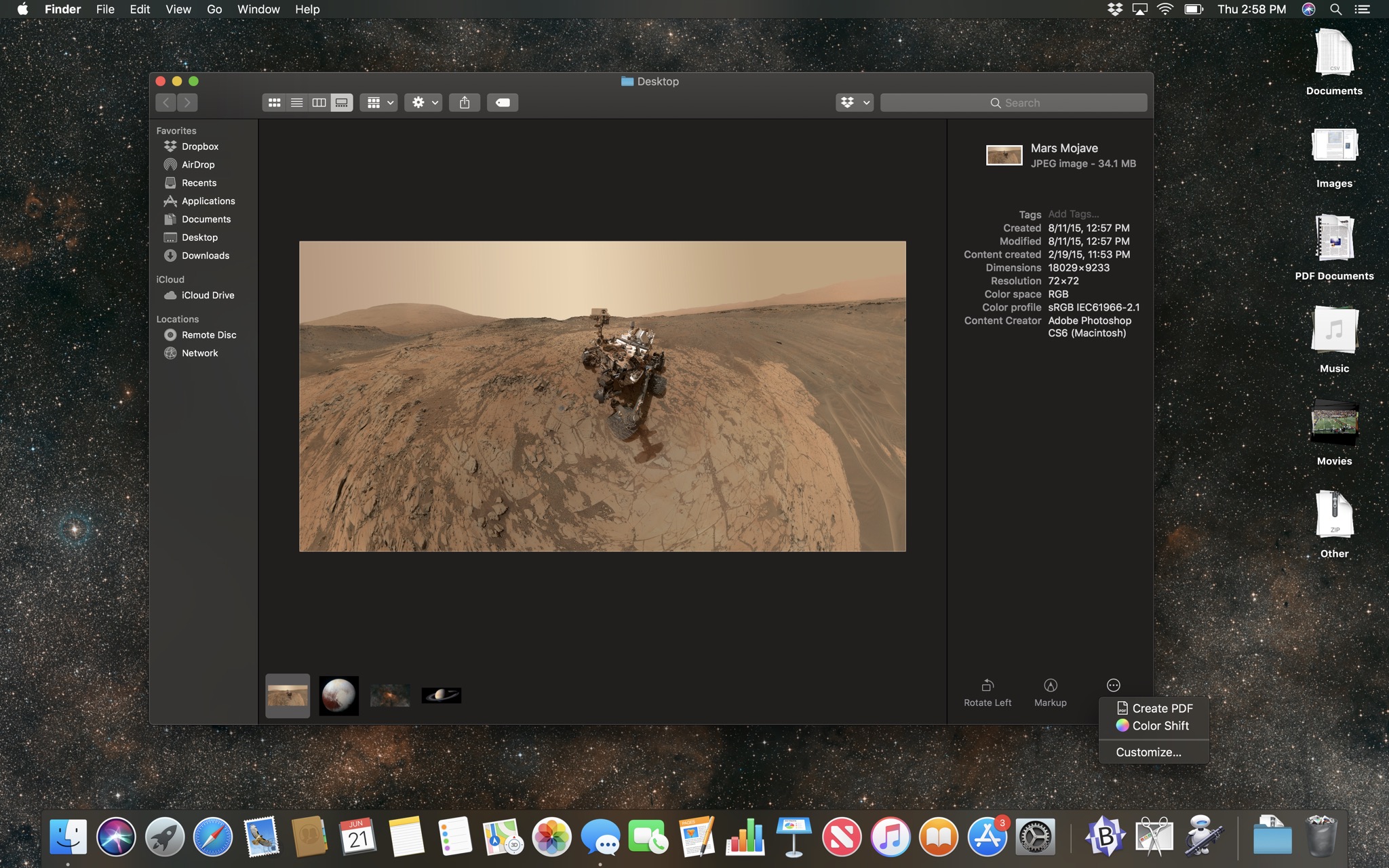
Online backup service Backblaze has put up a post on compatibility issues with Mojave. The latest macOS update’s security model introduces some complexity for Backblaze (in part because the service doesn’t use a traditional app model, running instead as a combination of preference pane and daemon process). Backblaze’s post details a workaround to get the software running on Mojave, but it’s definitely a bit technical.
Backblaze says it’s working on a better solution for this problem, but if you rely on the service, you may want to hold off before jumping on the Mojave train.
So said Apple senior vice president Phil Schiller in an interview in this very publication on the occasion of the computing platform’s 30th anniversary in 2014. With this week’s release of macOS Mojave, the modern version of the Mac’s operating system hit its fifteenth major release, and celebrated its seventeen-and-a-half birthday–quickly closing in on outliving its predecessor, the classic Mac OS.
Mojave charts some new directions for the Mac, most notable of which is the ability to run iOS apps with little to no modification. That feature has its fair share of shortcomings and has also caused a degree of consternation from some longtime Mac users who don’t want peanut butter in their chocolate.
But it seems unlikely Apple’s going to back away from the idea of bringing more iOS into the Mac–the former is, after all, the more popular of the company’s two platforms, and with more than 1.3 billion active devices overall, it’d be strange for Apple not to figure out a way to bring them together. But what’s equally clear is that Apple is trying to balance incorporating iOS with keeping the Mac the Mac.
macOS Mojave is here, and with it, Apple is now officially shipping four Mac apps that were written for iOS and run using a translation system that Apple’s planning on rolling out to app developers next year.
But while it’s fun to consider what apps from the iOS App Store might come to the Mac App Store in 2019, it’s also worth asking what else Apple might bring to macOS next year—and whether it might have some unexpected benefits for iPad users in the process.
Shortcut creator par excellence Federico Viticci has come up with a pair of cool workflows that let you automatically add an iPhone XS/XS Max frame around your screenshots.
This is probably most useful for developers making screenshots of their apps or tech writers who want to gussy up the imagery in their pieces. And, of course, destructive idiots like me who just want to see if they can break things.
Chris Schieffer, Slate’s senior product manager, said Slate still makes virtually no money from Apple News even as its audience there has skyrocketed. I did one back-of-the-envelope calculation that startled me: Slate makes more money from a single article that gets 50,000 page views on its site than it does from the 6 million page views it receives on Apple News in an average month.*
That’s not terribly surprising, since Apple News essentially uses its own advertising model instead of serving the ads sites already have. This has so far meant relatively few ads in articles read via Apple News; great for readers who don’t want to be bombarded with ads, but obviously not great for publishers dependent on ad views.
But the other shoe hanging over this whole piece is Apple’s acquisition of Texture back in March. The expectation is that the “Netflix for publications” will be folded into Apple News, though Apple has obviously made no announcement of its plans.
Given Apple’s usual timeline for integrating technology that it’s acquired, I’d expect next year’s iOS 13 to include whatever the company’s plans are for the service. But providing some sort of collective subscription service (or the ability to easily subscribe to publications via Apple News, like signing up for your video streaming services via iTunes or Amazon) could prove a more feasible way for publications to bring in income.
Or perhaps Apple News will go the way of Apple’s Newsstand venture and go out of print.
Update: This app has since been sold to another company and now contains some dubious code that could introduce privacy and security risks.
Since Apple announced the addition of Dark Mode to macOS Mojave back in June, I’ve been hoping that there would be a way to automate its use, having it automatically turn on at a certain time of day à la the Night Shift feature on macOS and iOS. Apple, for its part, didn’t see fit to include such a capability in Mojave.
Unsurprisingly, however, third-party developers have picked up the slack. Benjamin Kramser’s NightOwl accomplishes just what I wanted and more. It lives in the menu bar and allows you to quickly toggle between Light and Dark Modes, as well as setting a schedule based on either times or on sunrise and sunset.
I’ve only tested out NightOwl on my MacBook Air so far (it’s the only one of my Macs with Mojave currently installed), but it seems to do the trick. Unfortunately it appears Apple didn’t necessarily plan for such a feature, so the transition is a little bit on the jarring side. However, as it’s only a once or twice-a-day occurrence, it’s not too bad.
Some have hoped for the ability to use a Mac’s built-in ambient light sensor to shift back and forth, and while I can see the appeal, I think it might prove to be a little inelegant, especially based on the current transition. (If you have a room, like my office, where the light level fluctuates even during the day, you could end up having that jarring switch much more often. I learned that the hard way with some of my smart home experiments.)
Maybe when next year rolls around Apple will incorporate an automatic Dark Mode switch, but for now, NightOwl is worth your investment. It’s a free download, though if you end up using it, you might consider donating some money the developer’s way.
[Hat tip: Six Colors member Craig.]
[Dan Moren is the East Coast Bureau Chief of Six Colors, as well as an author, podcaster, and two-time Jeopardy! champion. You can find him on Mastodon at @dmoren@zeppelin.flights or reach him by email at dan@sixcolors.com. His next novel, the sci-fi adventure Eternity's Tomb, will be released in November 2026.]
Note: This story has not been updated for several years.
We’re taught that good things come to those who wait, but delaying gratification is no fun. It’s easier to eat the marshmallow now rather than wait for the cookie later.
And yet sometimes patience is required. Apple seems to have embarked on a years-long effort to update the Mac into a computing platform that makes more sense in the era of touchscreen devices, and in macOS Mojave we see the first glimmers of that effort. But the truth is, we don’t get to eat that marshmallow this year. Next year, when third-party app developers will get to bring their own iOS apps to the Mac, we may all get a cookie.
While that’s all going on under the surface—and make no mistake, there’s a lot going on in macOS Mojave that’s largely invisible but incredibly important to the future—it’s up to Apple to add visible, fun new features to its annual operating-system update to help motivate everyone to update.
On that front, Mojave delivers an entirely new desktop theme—Dark Mode—along with the first official changes to the macOS/OS X color scheme in years. The Finder, the app that’s the hub of the Mac experience, has gotten several new organizational upgrades. Even Automator, part of a macOS user automation story that was seemingly abandoned, has gotten a few new features that make it more accessible to users.
Yes, macOS Mojave is probably destined to be known as the beginning of a journey, rather than a milestone. This is a release that has a lot to say about the future of the Mac. But the present’s been given a new coat of paint and some useful new features. And perhaps most importantly, after several months using prerelease versions of Mojave, I’m happy to report that it also has been a stable, drama-free update.
My thanks to PhotoLemur for sponsoring Six Colors this week.
PhotoLemur is an award-winning photo enhancer that uses Artificial Intelligence to improve your images automatically. Its Face Enhancement detects faces in your photos, then removes imperfections and blemishes with pleasing, natural-looking results.
In 2011, Apple announced that its newest iPhone would incorporate a brand new virtual assistant, based on an app developed by a company that Apple had acquired: Siri. This fall’s release of iOS 12 marks seven years since Siri’s debut, meaning that the virtual assistant would be roughly in first grade by now.
Over the intervening years, Siri has grown in fits and starts, expanding its features and its knowledge base, often with only a little fanfare from Apple. On rare occasions, Apple does devote some attention to the virtual assistant, such as when it produced a whole video dedicated to the relationship between action star–and impossibly cheerful human–Dwayne Johnson and the intelligent agent. But more often than not, Siri’s presented as a facet of Apple’s other products.
In iOS 12, Apple’s made perhaps the biggest improvement in Siri’s history, by adding the Siri Shortcuts feature. Shortcuts unlocks a lot of functionality for the virtual assistant and makes it truly customizable for the first time, but it also brings to light the virtual assistant’s frustrating shortcomings.
Apple updated all the wares that are soft and shipped Shortcuts for iOS. Here’s the user guide: https://support.apple.com/guide/shortcuts/welcome/ios
John Gruber’s thoughts on the iPhone XS and the camera: https://daringfireball.net/2018/09/the_iphones_xs
What went wrong with AirPower: http://sonnydickson.com/2018/09/16/what-really-happened-to-apples-airpower/
Some interesting stories in this oral history of Apple: https://www.wired.com/story/apple-infinite-loop-oral-history/
Dan and Moltz don’t do an ad for Office 365 but you might be excused for thinking it is: https://products.office.com/en-US/?legRedir=default&CorrelationId=4edd419b-b036-42dd-a220-334d0e82d996
Our thanks to Casper (https://casper.com/therebound) for sponsoring this episode. You spend about a third of your life sleeping, make sure it’s on a good mattress. Go to casper.com/therebound to start your 100-day money-back trial. You’ll get $50 off by using the code “REBOUND”.
Our thanks as well to LightStream (http://lightstream.com/rebound). Consolidate your credit card debt with a LightStream loan featuring great interest rates and no fees. You could save thousands of dollars in interest! Get an additional rate discount by going to LightStream.com/REBOUND.
Todd Vaziri is an Apple fan, and he has also worked on a few movies you’ve probably seen in his position at Industrial Light and Magic. Todd’s credits include entries in the “Star Wars”, “Star Trek”, and “Mission: Impossible” franchises.
Note: This story has not been updated for several years.
The day the Apple Watch was introduced, four years ago1, I immediately envisioned a use case for it that would be the perfect way for me to embrace a universe where I could strap a computer on my wrist. It involved using a pair of wireless headphones to listen to podcasts while using a “Couch to 5K” app to get me in running shape.
This summer, I achieved this goal. It took this long because watchOS needed more time to evolve on a bunch of fronts. Third-party apps needed better control over the device, especially to run (and play audio) in the background. The entire device, originally designed to be a remote screen for code that ran on its companion iPhone, needed to be able to run more reliably on its own. Bluetooth audio connectivity needed to get better. AirPods needed to exist.
But last month I was able to walk out the door of my house with nothing in my pocket but a house key, and go for a run with my favorite podcasts playing in my ears and a running trainer occasionally interrupting (and tapping my wrist) to tell me whether it was time to run or walk.
Interval training
The App Store is littered with Couch to 5K apps, the kind that get a person who hasn’t run in a long time (that’s me!) back into shape. They work by gradually increasing the amount of running you do over time, generally by alternating periods where you walk and run, with the run time slowly getting longer until on one fateful day you’re just told to run for 11 minutes. I’ve done this program before. That’s an interesting day.
Intervals Pro now offers an entire Couch to 5K training program.
But my goal was to run without an iPhone swinging around in the pocket of my gym shorts. And finding a Couch to 5K app that could reliably run without any iPhone nearby proved impossible. (If there was one out there, I never found it, and I tried a bunch.)
In May I mentioned my plight on the Upgrade podcast, and Listener Ben replied by pointing out an app that wasn’t designed for Couch to 5K programs, but more generally for interval training. It’s called Intervals Pro, and while I had to crib a Couch to 5K program from a different app and manually enter it in, once I had done that, Intervals Pro was capable of guiding me through a workout while my iPhone stayed at home.
Things are even better now. Intervals Pro was recently updated to add a Couch to 5K workout pattern, so no data entry is required. You just tap on which day of the program you’re in, and the timers begin. I’ve set the app to speak each event—essentially, the Siri voice says “Run in 5 seconds,” and haptics begin firing every second, ending in a large tap that is your final prompt to begin running. It works perfectly. The watch app even shows distance, pace, and heart rate, and the newest version offers audio playback controls, too.
Podcast playback
The other piece of the puzzle was getting podcasts to load on my watch and play back while I’m running2. When watchOS 5 was announced, I had been keeping my eye on its release, because Apple is finally including a Podcasts watch app. But I’m an Overcast user, so it would be a bit messy—I’d have to manually adjust which podcasts I had listened to across devices.
Turns out I didn’t need to wait. I got to beta test Overcast 5 for a month, and developer Marco Arment added a standalone Apple Watch app that plays back audio that’s been automatically synced to the watch. Generally, if I walk right out of the house with my watch and AirPods, I will find my current podcasts loaded without having to pre-load any of them. (In the beta there were occasional hiccups where podcasts wouldn’t sync, but I haven’t noticed any in the final, shipping version.) Play status data syncs both ways, so when I go back to my iPhone, it knows that I got 20 minutes into the next episode while I was on my run.
A dream realized
I don’t love running—that is an understatement—but it’s a whole lot more pleasant when I’ve got podcasts to listen to, and I’m much more likely to do it if I’ve got a coach telling me when to run and when to rest. And now I’ve got that, reliably, on my Apple Watch.
Perhaps most impressively, these two apps—Overcast and Intervals Pro—play well together. When Intervals Pro needs to talk, it dips the Overcast audio and talks. It would be nice if it recognized that Overcast is spoken audio and paused the audio entirely, but that is a level of polish that will come in time. The two apps keep on running, and I guess that means I’m going to keep on running, too.
September 9, 2014. I remember it well. It was my last full day on the job at IDG! For me and a whole bunch of other people. Great timing. ↩
Yes, some apps did offer offline podcast playback on Apple Watch before this, but they were really unreliable and labor intensive to sync, when they worked at all. watchOS 5 has changed the game. ↩
In the aftermath of last week’s Apple announcements, it’s so easy to refer to the $749 iPhone XR as a low-price, bargain model, in contrast to the $999 iPhone XS and the $1099 iPhone XS Max. But just three years ago, $749 was what Apple charged for the most expensive new iPhone in its product line, the iPhone 6S Plus.
It’s never been more expensive to walk into an Apple Store and walk out with an iPhone. Changes in the way wireless carriers approach their customers have led, unsurprisingly, to changes in the buying behavior of those same smartphone users. The change in buying patterns then affects Apple, which makes its own changes to compensate.
There’s a lot going on here, and while the end result is that Apple is very slowly cranking up the average selling price of the iPhone, it doesn’t necessarily mean that most people are spending more money on iPhones than they used to.
Note: This story has not been updated for several years.
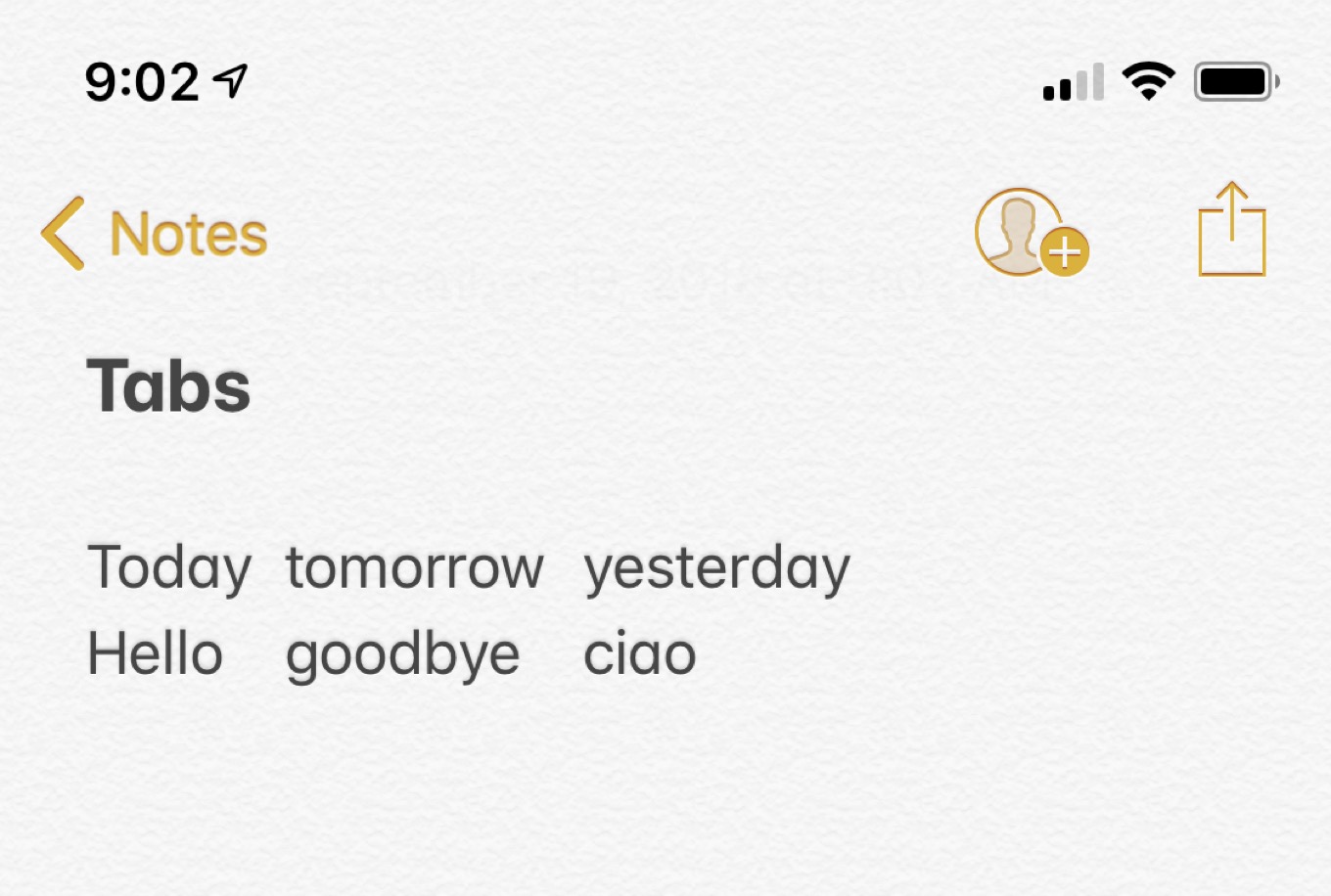
While I was playing around with Shortcuts the other night, I ran into a dilemma. The “Combine Text” action offers the ability to output text separated by a custom delimiter, and I wanted to use a tab character.1
However, as you eagle-eyed readers surely know, the iOS keyboard lacks a Tab key. Searching around for an alternative, I came across a few suggestions, including copying and pasting a tab character from another app, but one that I uncovered on a message board was particularly simple: use Dictation.
That’s right, if you tap that microphone icon on the keyboard and say “Tab key,” iOS will insert a tab for you. That’ll work pretty much anywhere you can use Dictation, including in Shortcuts. So I was able to output tab-delimited data into a file for future reference.
Dumb? A little. Useful? For sure.
Update: A suggestion from reader FJ: you can also create a text shortcut on the Mac that contains a tab, though you have to put in another character as well; this shortcut will then sync to your iOS devices. A little more cumbersome, but nice if you’re in a place where you can’t use Dictation.
The workflow I was creating has the goal of ultimately outputting data that could be easily pasted into a Numbers spreadsheet. Though, as it turns out, that’s a bit stickier on iOS. ↩
[Dan Moren is the East Coast Bureau Chief of Six Colors, as well as an author, podcaster, and two-time Jeopardy! champion. You can find him on Mastodon at @dmoren@zeppelin.flights or reach him by email at dan@sixcolors.com. His next novel, the sci-fi adventure Eternity's Tomb, will be released in November 2026.]
Note: This story has not been updated for several years.
Ferrite in action.
Most of the podcasts I make, I edit on my Mac using Logic Pro X. But when I’m traveling (or just don’t want to sit at a desk) I edit on Ferrite Recording Studio, a spectacularly good multitrack audio editor for iOS.
Developer Wooji Juice has just released version 2 of Ferrite. It’s still free with an in-app purchase to unlock a bunch of pro-level features, and users of the previous version will need to pay $15 to unlock the new pro features introduced with version 2. With all that said, this is a professional audio editor that costs about $20 all-in. It’s a fantastic value, and the app I am most hoping will make the transition from iOS to the Mac in 2019.
Using a Ferrite template saves time.
A few of the new features really hit the spot for me. You can now create project templates within the app, allowing you to get a project set up just the way you like it, with theme music, show art, audio tracks for guests, the works—even placeholders for things like filenames and episode numbers. Once it’s all set, you can just tap on the icon next to the template and Ferrite lets you fill in the blanks and open a fresh, new project based on the template.
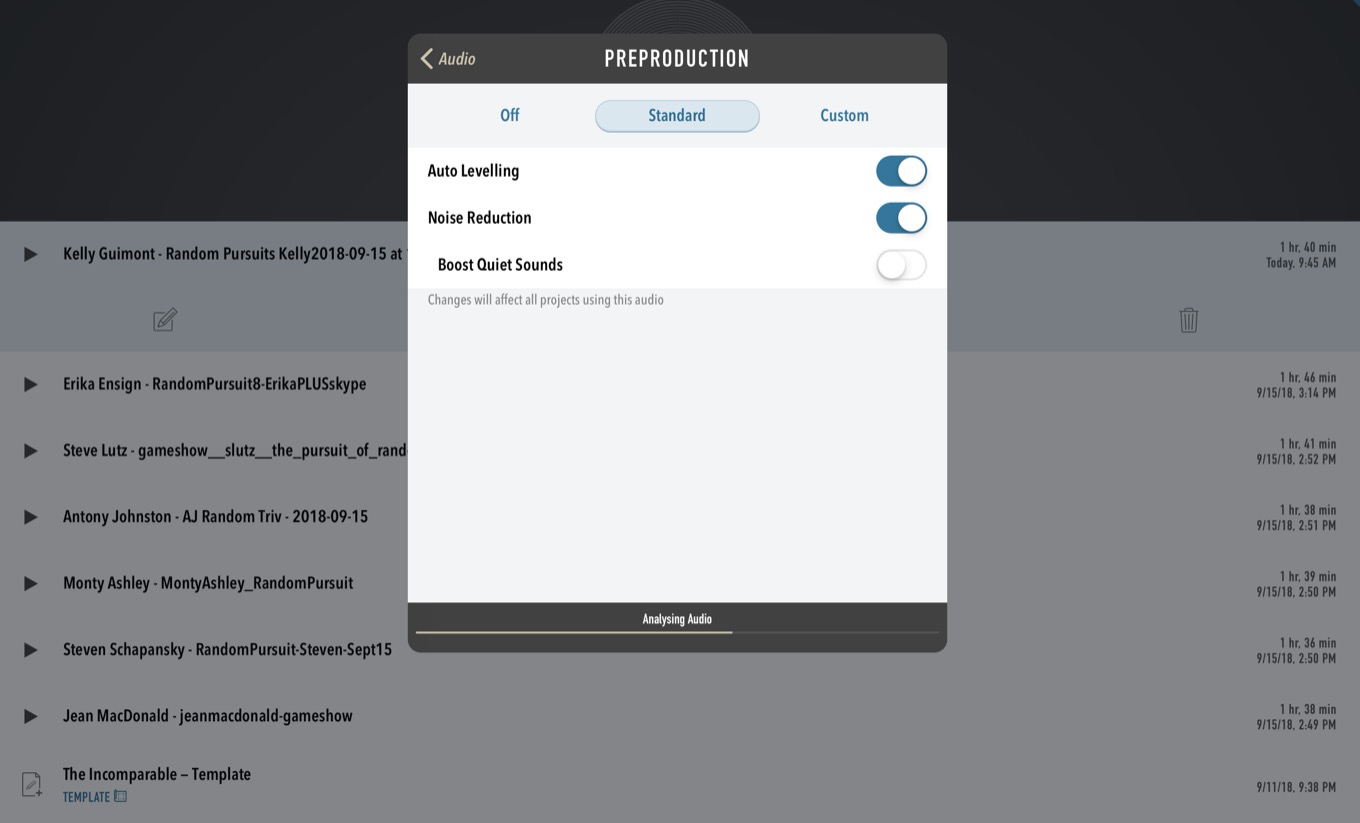
I’m also really excited about the new audio preproduction features, which let you pre-process audio tracks in order to level their volume and remove background noise. Even when I edit podcasts on iOS, I’m generally using files that have been pre-processed on my Mac, including noise removal and volume leveling. To test Ferrite’s preproduction feature, I rebuilt a podcast project on iOS using source files, and compared the result to the project I built on macOS using desktop noise-reduction and compressor utilities.
Ferrite 2 can adjust levels and remove noise on a per-file basis.
The results were really good. I noticed a few places where the Mac version was still superior, but both were vastly superior to an export with the unprocessed audio files—background noises were audible throughout and volumes were highly variable. This is going to be a major step forward when I am producing podcasts entirely on iOS, with no ability to use a Mac to prep my files. (It does take a while to process the files on my first-generation iPad Pro, and currently you have to process each file individually. Hopefully Wooji Juice will make batch processing these files possible in the future.)
And it’s a little thing, but you can now specify the export filename for your project. Previously it would use the title of your project as the source for the filename, so when I export my final MP3 from Ferrite I’d get a file out called something like The Incomparable - Bad Batman Movies.mp3 instead of the much-preferable theincomparable368.mp3.
Ferrite 2 also features a new built-in eight-band equalizer and spectrum visualizer, to tweak the quality of each of your tracks. There’s enhanced support for presets, with the ability to store presets inside templates, sync them via iCloud, rename them, and back them up via iTunes. And in a win for accessibility, Ferrite’s support for VoiceOver has gotten a major upgrade to make it easier to navigate between tracks.
Note: This story has not been updated for several years.
Among yesterday’s barrage of updates was a seemingly minor one: Safari 12. While the most notable news of Apple’s latest browser might have been the long-awaited ability to display favicons in tabs, there were a handful of other changes, including a few to extensions that may be unpopular.
Firstly, Safari no longer supports extensions cryptographically signed by developers themselves. The browser also implements a new Safari App Extensions API, which doesn’t have all the features of the previous, now deprecated extension API, causing some developers to cease work on extensions.1
The good news is that there is still a way to run these extensions for the time being. (My thanks to my friend John Siracusa for letting me in on the secret.) But this approach does come with a few caveats:
Developer-signed certificates can potentially be unsafe, which is one reason why Apple is not allowing them anymore. If you’re going to use this feature, I’d recommend limiting it to older extensions that you already trust, not necessarily as a way to bypass security restrictions for new extensions.
Sooner or later, this trick will probably stop working, and/or older extensions will no longer function correctly with new versions of Safari. It’s unclear when this might happen—you may get a couple years out of them yet, and perhaps by the time they do, sanctioned alternatives will become available.
One downside to this approach, based on my testing with the Mojave public beta, is that every system update re-enforced the new rules, meaning that you might potentially have to perform this procedure again in the future.
Those warnings out of the way, here’s how to actually run those old extensions on your Mac.
Terminal
Extensions are stored in ~/Library/Safari/Extensions. Fortunately, Safari 12 doesn’t remove the extension files for deprecated or inactive extensions. Drag any extensions you want to save from here onto your desktop; I recommend putting them into a folder.
The next part of this requires a little command-line trickery, so fire up Terminal, navigate to that directory you just created on the desktop (or just type cd followed by a space in the Terminal window and drag the folder you just made on your desktop into the Terminal window).
Type xar -xf followed by a space and the name of the extension file, and hit enter. (Tip: If you type the first few characters and hit the Tab key, it’ll autocomplete the rest.) Repeat for each extension file. You’ll now have a folder of source files for each extension.
Safari
Now open Safari. If you don’t already have the Develop menu in the menu bar, go to Safari > Preferences, click on the Advanced tab, and check the “Show Develop menu in menu bar” option.
There should now be a Develop menu between the Bookmarks and Window menus; from it, select Show Extension Builder.
The first time you open the Extension Builder, you’ll be asked whether you really want to use it instead of Xcode: you do. Click Continue.
At the bottom of the Extension Builder window click the Plus (+) button and choose Add Extension. You’ll get a standard Open dialog box; navigate to that folder on your desktop where you put your extension files and choose the folder with the extension name; it’ll have the extension .safari extension. (You can select multiple extensions by Command-clicking the folders, otherwise you’ll have to perform the Add Extension command multiple times for each different extension.) Click Select.
You’ll now see your old extensions in the left hand column, with information about them in the pane on the right side. Click the Run button in the top right-hand corner; you’ll be prompted for your password. Repeat this step for each extension you want to run.
And voilà : you’re done. Your extensions should now be running and should appear in the Extensions pane of Safari’s preferences. As I said above, it’s not a permanent solution, but if you’re looking to eke a little more life out of much-loved extensions, this will hopefully tide you over for now.
Update: Several people have pointed out that Safari will not run these extensions by default when you launch Safari. George Garside has a solution for that, but it will require you to run an Apple Script. Your mileage may vary.
Safari Keyword Search has been an indispensable piece of software for me over the past many years, and I am devastated to see that the writing is on the wall for it, especially with no real alternatives. ↩
[Dan Moren is the East Coast Bureau Chief of Six Colors, as well as an author, podcaster, and two-time Jeopardy! champion. You can find him on Mastodon at @dmoren@zeppelin.flights or reach him by email at dan@sixcolors.com. His next novel, the sci-fi adventure Eternity's Tomb, will be released in November 2026.]