Here’s a very long Medium post by Tomas Pueyo, the latest in a series of articles that included the widely circulated The Hammer and the Dance about how to fight the spread of COVID-19.
There is a lot of research that supports the massive difference between an opt-in and an opt-out… For organ donation, the difference is between ~15% and ~99%. For contact tracing, most people wouldn’t opt out either. And if they do, there are plenty of things we could do to push them to opt-in again, such as asking for a new confirmation every few hours, or asking them to navigate to settings every few hours to confirm the opt-out. Every country might not achieve 99% penetration with an opt-out because of politics, but if we want these apps to be useful, this is the only way.
The point that I am trying to make here is that we need a very, very high penetration of these apps for them to matter, and every decision that users make will drop that significantly. But if we achieve it, the prize is amazing.
His argument is that these Bluetooth-based tracking systems will really only be effective in stopping the spread of the disease if they’re pushed out to as many phones as possible and opted in automatically with a very strong warning to anyone who would consider opting out. Otherwise, they won’t be running on enough devices for it to make an effective tool.
Pueyo also suggests that since wireless carriers have access to GPS data (they’ve even been caught selling it!), an effective contact-tracing tool would involve the carriers giving up all that data so that people’s movements can be tracked even more precisely.
Pueyo’s suggestion that we should get over concerns about privacy and get to collecting as much personal tracking data as possible makes me deeply uncomfortable. He writes:
We fear 1984. We want to avoid an AI-driven world where the government knows our every movement, rate us according to our behavior, and soon tell us what to think. We don’t want to be China…. The first way we break it down is realizing that this is not about everybody’s data, but rather that of two small groups: the infected and their contacts….
We should put privacy in context of the other rights we’ve lost. We’ve lost our health. We’ve lost our economy. We have lost our freedom. If we can get them back with a little bit of privacy, are we not going to consider it?
Josh Ginter wrote a thoughtful review of the Magic Keyboard for iPad Pro over at The Sweet Setup that covers some ground I haven’t seen in all the other reviews. I especially appreciated his on-the-ground comments about the 11-inch model, which I haven’t experienced myself:
As a whole, my worries about the smaller keyboard layout have been unfounded. I do find myself making mistakes I wouldn’t otherwise make on a larger layout, but the learning curve has been fairly short. Apple has made a plethora of great decisions in the layout department and should be applauded for their ability to nail the full-keyboard experience in such a small package.
Cosmic Frontier: Override is a single-player space-trading game in the mold of the inspirational Elite (1984). It is a remake of Escape Velocity: Override (1998), by the same scenario designer. It is planned to be released for Mac, Windows PC and Linux systems, with a target release date in the middle of 2021. We are seeking your backing to meet that target and release a game of the highest quality possible!
The Escape Velocity series, published by Ambrosia Software, was long one of my favorite games on the Mac, a combination of space combat, interstellar trading, and exploration that you could easily sink hours into. And, as mentioned, one of the driving forces behind the remaster is Peter Cartwright, the scenario designer for Escape Velocity: Override, though original Escape Velocity author Matt Burch does not have any involvement with the project.1
In this age of iOS and Mac games, Escape Velocity seems like the kind of property that would flourish, and I’m glad to see there may be some life left in the franchise.
That appears to be the reason behind the remaster’s name change to “Cosmic Frontier.” ↩
My thanks to Float for sponsoring Six Colors this week. Float is the world’s leading resource management software for agencies, studios, and firms. More than 3,000 teams globally, including Deloitte, M&C Saatchi, Ogilvy, and BuzzFeed use Float to plan their projects and schedule their team’s time.
You can assign tasks with an easy drag-and-drop interface, make changes on the fly with a variety of editing tools, and get a bird’s-eye view of your team’s availability and resource capacity. Connect your schedule to Slack, Google Calendar, Outlook, Teamwork Projects, and many more apps through Zapier, and stay up to date from anywhere using the mobile app for iOS and Android. Float saves your team time and keeps your projects on track.
Note: This story has not been updated for several years.
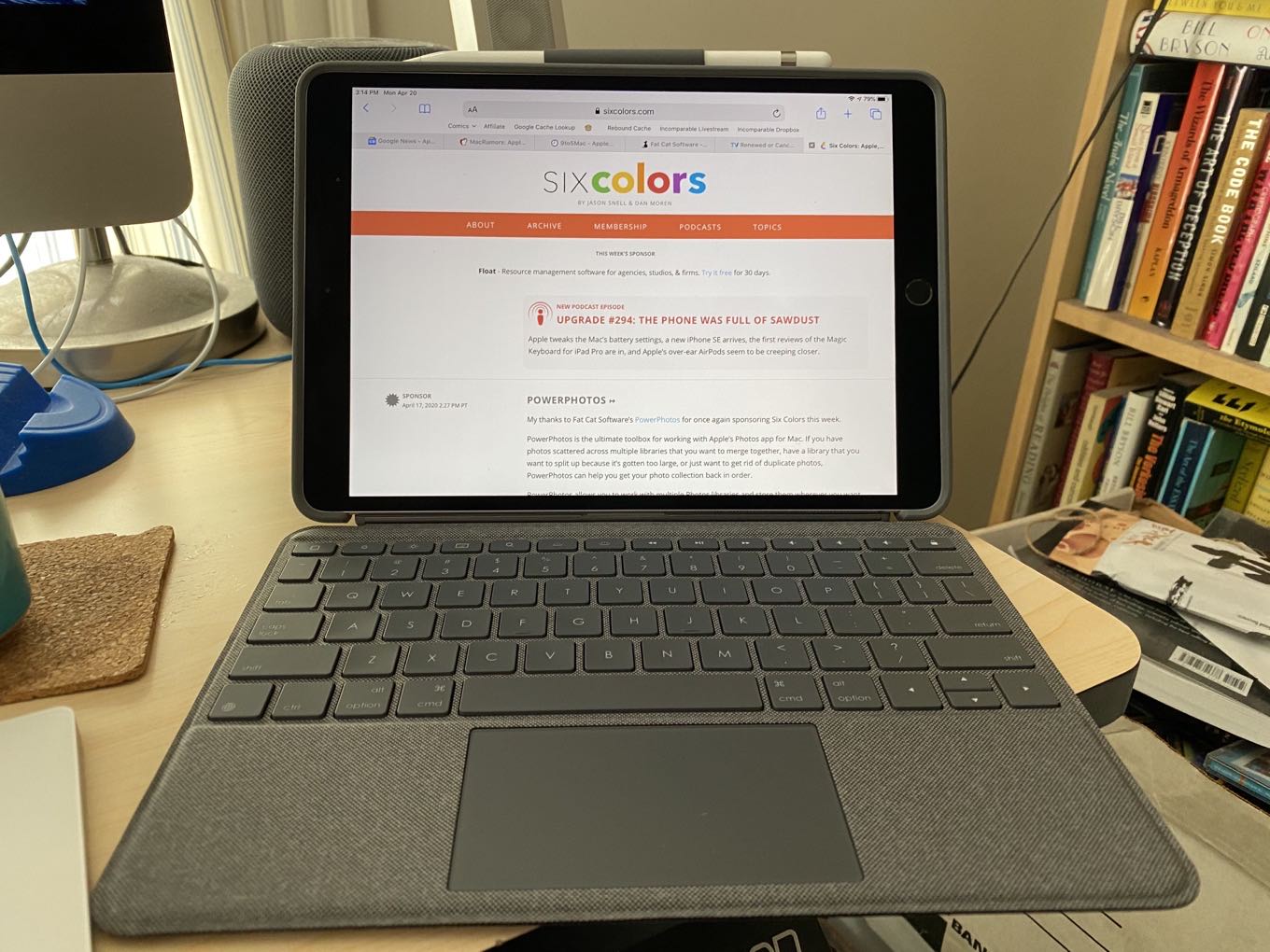
It’s all keyboards and trackpads all the time these days, but if you don’t have one of the fancy new iPad Pro models released since 2018, such as that earlier 10.5-inch iPad Pro, then Apple’s fancy new Magic Keyboard is simply a non-starter for you. Fortunately, there is still an option that integrates a keyboard case with a multitouch-capable trackpad, and it even mostly works: the Logitech Combo Touch.
The biggest argument in favor of the Combo Touch is that it was developed in concert with Apple. That means that, unlike other third-party keyboards with trackpads, there’s a reasonable expectation that the pointer support will work pretty well—and it does! Logitech also has a history of making solid keyboards, and the Combo Touch delivers on that as well.
Where it’s less good is when you want to do other stuff with it.
(Before we proceed, I’ll add one big caveat to my assessment: I’ve only tested the Combo Touch in and around my house, because where else can I go right now? It may be a more attractive option for those traveling or even going to the local coffee shop to get some work done, but for obvious reasons, I can only speculate on those uses at present.)
It all hinges on this
The biggest difference between the Combo Touch and the Magic Keyboard is the lack of the latter’s carefully engineered hinges. Instead, you get a keyboard cover that magnets onto the edge of the iPad, and while it might feel nice and light on its own, that feeling quickly evaporates when you snap the iPad into the back cover, for which it seems as though Logitech turned to the Panasonic Toughbook for inspiration.
Unfortunately, that back cover is a necessary part of the equation, since it also features the kickstand that props up the iPad. I know, I know: everybody hates kickstands. There is some advantage to it here, as it really does provide a wide variation of angles at which to prop your iPad. But it comes with at least two major downsides.
Extending the kickstand nearly doubles the amount of space the iPad takes up.
First, the wider an angle you use, the more space the whole thing takes up on your desk. Once of the things I love about the Smart Keyboard cover for this iPad is that it’s so compact; even when in keyboard mode, it easily fits on the corner of my desk in a small spot next to my iMac’s Magic Trackpad. The Combo Touch, on the other hand, required me to shift a bunch of stuff around on the desk in order to provide enough space for comfortable typing, and even then it was a less than ideal setup.
The kickstand is also not ideal for use on the lap. It is doable, but in my experience, it’s awkward, and the angle seems to exert some pressure on the keyboard cover, which causes it to potentially lose contact with the iPad’s Smart Connector; every once in a while, it seemed to suddenly stop working for a split second, then come back a moment later.1 Even the Smart Keyboard cover is a better lap-typing solution, in my opinion.
Key features
The keyboard portion of the Combo Touch is perhaps the best part, once I got an annoying bug squashed. It turns out that either something in Logitech’s firmware or in iOS does not correctly detect the hardware keyboard layout, so I initially found that some keys wouldn’t work, but only in certain states. For example, I could type a “7” but Shift-7 would not type an “&”—I’d get absolutely nothing. The inverse was true for the apostrophe key, where I could not type that punctuation mark, but using it with Shift would correctly generate a quotation mark. Once I manually set Settings > General > Keyboard > Hardware Keyboard to U.S. English, the problems vanished.
The keys themselves feel good, if it a bit plasticky. Their response and travel are both excellent, though the key caps are a bit smaller than a standard keyboard, especially on the modifier keys. That said, as someone accustomed to the Smart Keyboard cover, I had no trouble writing an entire column on the Combo Touch—or indeed, this very review.
Logitech has included one thing Apple’s Magic Keyboard lacks, and that’s a row of half-height function keys. As on a Mac, these let you adjust everything from display brightness to volume to the backlighting on the keyboard itself (take that, Magic Keyboard!). It also provides buttons for Home, locking the display, spotlight, hiding or displaying the onscreen keyboard, and rewind, fast forward, and play/pause. These are welcome additions that make it easy to access these features without having to resort to the touchscreen or trackpad.
If there’s one addition I’d like to see on this and other iPad keyboards, it’s the return of something deeply ingrained into my muscle memory: the Function key. On Mac keyboards, it’s in the bottom left corner of the keyboard, and not only allows you to access secondary functions of those F-keys, but also other useful features. For example, holding Function and using the up- and down-arrow keys allows you to page up and page down; I haven’t discovered any other keyboard shortcuts for that, though command-up-arrow and command-down-arrow do, as they long have on the Mac, double for Home and End.
One other shortcoming of the Combo Touch, not shared by the Magic Keyboard, is the lack of an inverted-T layout for the arrow keys. Apple has only recently returned to this vastly superior layout, and Logitech is still using the half height up- and down-arrow keys flanked by full height left- and right-arrow keys. Boo.
Tracking signal acquired
I know what you’re here for, and it’s trackpad judgment. So believe me when I tell you that the Combo Touch’s trackpad is…fine? Like the Magic Keyboard, it’s smaller than the truly expansive surfaces you get on Apple’s current laptop line, but as someone who’s still using an 11-inch MacBook Air, the smaller size didn’t bother me too much.
The Combo Touch’s trackpad supports all your standard multitouch gestures, including two-finger scrolling and swiping, three-finger swiping between apps or going to the home screen, and pinch-to-zoom. Many of iPadOS’s gestures felt perfectly natural, while others, like bringing up the Slide Over window or Dock, will definitely take some time to learn—but that’s more on me than on the Combo Touch’s performance.
The tracking speed is adjustable in Settings, and lets you choose whether or not to activate a tap-to-click feature. Unlike current Macs, the Combo Touch’s trackpad is a real physical button, and requires you to click on the bottom portion, rather than anywhere. Despite that, it has a nice satisfying click, requiring enough pressure that you won’t activate it by accident, while also never being unsure of whether or not you just clicked on something.
The case against
As I said up top, if there’s a frustration for the Combo Touch, it’s the enormous, heavy nature of the beast. While the keyboard is easily detachable, allowing you to just use the iPad within the back case, part of me wonders why you’d want to lug around such a heavy monstrosity.
The case itself weighs 610 grams (1.3lbs), and with my 10.5-inch iPad Pro inside, rings in at a not-so-svelte 1.14 kg, or 2.52lbs. That’s slightly heavier than my 11-inch MacBook Air, which weighs 1.08 kg, or 2.38lbs, but lighter than the 1.29 kg/2.8lbs. of the current 13-inch MacBook Air.
Detaching the keyboard is easy, but then you’re left with a honking big case.
However, the advantage of an iPad with a keyboard is you can just pull it off the keyboard and use it as a nice lightweight tablet, right? Well, on the Magic Keyboard you can, but on the Combo Touch, you get to take that back case with you, unless you want to spend the time popping the iPad out again (not particularly difficult, but annoying to do every time you want to ditch the keyboard). Without the keyboard cover, the iPad and case combo weigh in at 829 g or 1.83lbs. Lighter, certainly, but not light—still heavier than either of the current iPad Pro models.
The case provides the usual features: access to all of the iPad’s ports, cutouts for speakers, mics, and cameras, and rubber covers for the Sleep/Wake button and volume buttons. I found those last kind of difficult to use, since the bumpers around the edges of the case are so thick that it’s hard to tell if you’re pressing the buttons or not, but at least in keyboard mode, you can easily use the function keys for most of the same features.
The kickstand, as mentioned, provides a variety of viewing angles and pivots smoothly, though I wonder how long its fold/hinge will last. One nicety: a loop attached to the “top” edge of the case allows you to easily store your Apple Pencil when not in use. (You cannot fold the keyboard cover around to the back; it’ll just end up popping off.)
But I’m not particularly a fan of using the case without the keyboard—the cutout that accommodates the keyboard feels awkward when you’re holding the iPad in portrait mode, especially when combined with the slipperiness of the textured plastic case. (It resembles fabric, but I’m not sure that it actually is.) I also find the pressed-and-sealed edges of the keyboard portion a little bit on the sharp side, and the textured material felt like it could become irritating to your palms if you were typing for long stretches of time.
Overall
Do I love the Combo Touch? No, not really. But, let’s face it: if you’re considering one, it’s because you have an iPad model that doesn’t support the Magic Keyboard. Right now, at least, the Combo Touch is the only game in town.
If you really want a portable keyboard/trackpad combination, the Combo Touch is fine. The keyboard and trackpad portions are pretty good, all things considered. Personally, I found myself missing my light, foldable Smart Keyboard cover, and even the siren song of the trackpad was not enough to lure me away for most usage.
The Combo Touch comes in two models, one that supports the 10.5-inch iPad Pro and the third-generation iPad Air, and another for the seventh-generation iPad. Both cost $150, which is, at least, substantially cheaper than the Magic Keyboard—and definitely cheaper than replacing your current iPad with a new iPad Pro and the Magic Keyboard. So if you’re looking to put off a big purchase for a little while longer, but still want the experience of a trackpad and keyboard on your iPad, the Combo Touch is in the sweet spot—just remember that you get what you pay for.
I have noticed this even when typing on a flat surface, but it definitely seemed to happen less frequently in that situation. It’s also possible the Smart Connector contacts need to be cleaned. ↩
[Dan Moren is the East Coast Bureau Chief of Six Colors, as well as an author, podcaster, and two-time Jeopardy! champion. You can find him on Mastodon at @dmoren@zeppelin.flights or reach him by email at dan@sixcolors.com. His next novel, the sci-fi adventure Eternity's Tomb, will be released in November 2026.]
As much as the Smart Keyboard made it clear that Apple endorsed the idea of writing on an iPad, and as good as the Smart Keyboard is, it still couldn’t quite match the experience of using a laptop. The Smart Keyboard was less stable when you used it on your lap, and while the membrane keys were surprisingly usable, they still weren’t a match for the real, physical keys you’d find on a laptop.
A few companies, most notably Brydge, offered accessories with a more laptop-like experience. When I considered the physical challenges of converting an iPad into a laptop screen—Brydge’s design requires you to slide an iPad into a couple of padded metal clips, and it has to be heavy enough to counterbalance the weight of the iPad—I became more convinced that Apple was never going to bother building anything that would just turn its thin and light tablet into a heavy laptop.
Less than five years after the iPad Pro and Smart Keyboard appeared on the scene, however, Apple has decided that it’s time for the full laptop experience on iPadOS. The new Magic Keyboard for iPad Pro isn’t just a physical keyboard that adds laptop-style weight and stability, though. It’s also got that trademark Apple fusion of software and hardware, thanks to a multi-touch trackpad and the full cursor support of iPadOS 13.4.
This is basically my iPad dream, fulfilled. But dreams are amorphous things, and they fall apart if you begin to interrogate them logically. The Magic Keyboard for iPad Pro isn’t a dream, it’s a real product, one that’s sitting in my lap right now. It’s one thing for Apple to decide that it’s time to offer a full laptop experience on the iPad—and an altogether different thing to execute that vision.
As I scrutinize the Magic Keyboard, it doesn’t fall apart as if it were a dream—it holds together, solidly. This is a product that isn’t for everyone, to be sure… but it’s exactly what I’ve been looking for.
Solve for laptop
Perhaps the most surprising thing about the Magic Keyboard for iPad Pro is that it’s not designed like a laptop. Instead, it’s designed to provide a laptop-like experience. When the product was announced, so many of us focused on that clever cantilevered design, in which the iPad floats above the keyboard, magnetically attached to a hinged backplate.
It’s a clever design, one that pushes the center of gravity of the combined unit forward, making it more stable (and requiring less weight to counterbalance it). But the result isn’t some new, weird floating-screen category of computer. The result is a laptop.
This is a good thing. You could argue that the design of the modern laptop is the result of four decades of evolution, pushing the PC ever closer toward its ideal form. Most computers are laptops.
So don’t get too hung up on the fact that the Magic Keyboard has two separate hinges, one at the back of the keyboard plane and one a third of the way up the other plane. In everyday use, you don’t need to think of it that way, because it works as a single mechanism. Like a laptop, you open it up in one motion, and both hinges extend as far as they can and then stop. Same deal with closing the iPad—it’s one motion, as you grab the top of the screen and push down until the whole thing closes. It’s smooth and laptop-like.
Yes, technically you can pivot the top hinge to reduce the iPad’s angle to perpendicular and, in fact, beyond that into the acute zone. It’s great that there’s some flexibility here, but truth be told, the maximum angle is the best angle. It would actually be nice if it opened a bit wider, but the iPad is already floating slightly above the top row of the keyboard. Any more tilt and the iPad would get in the way.
For my money, Apple has made the perfect set of trade-offs here. The screen angle, at least on the 12.9-inch model (I didn’t test the 11-inch keyboard), is quite comfortable. The balance on my lap seems almost perfect. And because of the double-hinge design, the screen is actually much closer to you than a laptop screen would be. This makes it easier to reach up and touch the display, which I found I still do a lot.
Just as when I used a touchscreen Chromebook, I found that sometimes you just want to reach up with a finger and scroll a webpage or document—and other times, you want to two-finger scroll on the trackpad. One gesture that I’ve found myself doing all the time is holding the bottom corner of the iPad in my hand, with several fingers pressed against its back, and then scrolling by flicking with my thumb.
When you close the whole thing up, it feels like a laptop. It’s solid and, yes, weighty. But instead of being sheathed in aluminum, like all the MacBooks, the Magic Keyboard is covered in the same rubbery gray material as the Smart Keyboard Folio and Smart Folio.
But you don’t need to carry it around like a laptop if you don’t want to. This is one of the things about the iPad that makes it so attractive—it’s truly a flexible, modular device that can be used in all sorts of different contexts. Since it’s only affixed to the Magic Keyboard via magnets, it’s easy to just pull the iPad off and leave the rest behind. That three-pound laptop turns into a 1.4-pound tablet. The real magic of this keyboard is in that transformation.
Keys to success
Since keyboard is in the name of the product, it’s probably worth talking about its actual keys. The 12.9-inch model I used to write this review is a full-sized Apple keyboard, a pretty close match to the exact width of the keyboard on my old 11-inch MacBook Air. The travel may be a little less, but overall this feels like a classic Apple laptop keyboard.
What my MacBook Air had that this one lacks is a row of (fractional-height) function keys, useful for making quick adjustments to brightness and controlling media playback. I can see why Apple left this row off, since the iPad already floats right above the number row. But if Apple’s not going to offer a function row, it needs to come up with another way to give keyboard users quick access to those other functions. It could allow users to redefine a modifier key as a function key, or maybe just let them assign global keyboard shortcuts to a handful of important functions, including brightness and media control.
But it needs to do something. To adjust the brightness of the backlighting—and yes, this keyboard is delightfully backlit—you need to open the Settings app, tap on General, tap on Keyboard, tap on Hardware Keyboard, and then use a slider to adjust the brightness. That’s ridiculous. (There’s no Escape key, either, but there’s a more-or-less global shortcut for that one—Command-period.)
The existence of the Magic Keyboard for the 11-inch iPad Pro has made me think about how much I loved my old 11-inch MacBook Air and wonder if perhaps I’d be happier with an 11-inch iPad Pro rather than the 12.9-inch model I currently favor. But I don’t think so.
The 11-inch model has to narrow several modifier keys in order to fit in the much narrower space of that device. As I wrote earlier, the 12.9-inch iPad is actually narrower than the 11-inch MacBook Air was, though its screen is taller (and of course, it’s heavier when paired with the Magic Keyboard).
I can’t be sure until I try it, but my gut feeling is that I’d prefer the full-sized keys and the greater screen size of the 12.9-inch model. That said, I am thinking that the 11-inch iPad Pro with Magic Keyboard is going to be a pretty awesome portable writing rig—and it’ll weigh the same as the 11-inch Air, too.
The trackpad makes its debut
The Magic Keyboard’s accompanying trackpad is small by modern Apple laptop standards, but it gets the job done just fine. Though it physically clicks (rather than sensing pressure and vibrating to fake a click, as Apple’s modern trackpads do), you can click anywhere on the surface. That beats my old MacBook Air, which got harder to click the further up the trackpad you went.
It’s a full-on multitouch trackpad, too, with support for all the two- and three-fingered gestures that are now a part of iPadOS. Two-finger scrolling is nice, yes, but three-finger swiping between apps is even nicer. The only gesture that has suffered a bit is pinching to zoom, mostly because I’ve gotten used to being able to pinch at a diagonal on the large Magic Trackpad 2 at my desk. This trackpad, which is wide but not tall, requires me to rotate my hand a little and do that pinch in the wider dimension. Or—imagine this—just pick my hand up off the keyboard and pinch on the screen instead.
I’ve already written about iPadOS 13.4’s pointing-device support, so suffice it to say that Apple has done a very good job, and navigating apps with a pointing device feels far more natural than you might expect for an operating system that was built with touch as its primary input. Beyond two-finger scrolling and three-finger multitasking, my favorite feature is the addition of a proper text-editing cursor.
I’ve always been reluctant to do heavy text-editing tasks on the iPad Pro, mostly because editing requires a lot of precision text selection—and my Mac was the best tool for that task. In apps that display the new text-editing cursor, I can move the insertion point and select text just as easily as I can on macOS.
A hubless charging option
Like the Smart Keyboard, the Magic Keyboard connects to the iPad Pro via the Smart Connector on the back. This makes the keyboard’s connection to the iPad more reliable, since it’s direct and doesn’t require Bluetooth. And it supplies the keyboard with power, so as long as your iPad is working, your keyboard is sure to work too.
The iPad’s Smart Connector port (in both of its iterations) can also pass power into the iPad. I think maybe the Logitech Base was the only product that ever provided external charge capabilities via a Smart Connector, and it was a very slow charger indeed.
The new Smart Connector introduced on the 2018 iPad Pro models seems to have a much faster charging capability than the previous generation, because the Magic Keyboard comes with a USB-C charging port on its left hinge. Depending on how you use your iPad, it’s either a great addition or an irrelevant one.
The USB-C port on the Magic Keyboard won’t charge your iPad as quickly as a USB-C fast charging plug will. If you need to charge your iPad quickly, plugging directly into the iPad will generally be preferable. And if you’re not using the USB-C port on the iPad, why not use it?
If, however, you do use the iPad’s USB-C port to connect accessories—I use it to attach wired headphones so I can edit podcasts with zero latency, or to attach a USB microphone so I can record podcasts, or to attach a USB storage device so I can copy files—then you might find yourself in certain circumstances where you’d like to charge your iPad while you’re also using one of those accessories. What happens if you need to record a podcast on your iPad but you’ll run out of battery if you don’t keep it charged?
In the past, the only solution to this problem was to carry an external USB hub with you. But the Magic Keyboard’s charging port lets you do both at once, and it means that a lot of iPad Pro travelers can now leave that extra USB hub at home.
The other use case I can see is someone who tends to leave the Magic Keyboard open on a desk or table, and brings the iPad Pro over to get some work done. You could keep the Magic Keyboard plugged in via the USB-C port and whenever you magnetically attached your iPad Pro to do some work, it would also top up the battery.
What would be nicer, of course, would be a USB-C port that was also capable of transferring data, so you you turn the Magic Keyboard into a full-fledged docking station. That way, if you attached your iPad Pro, it could automatically attach to networking, an external display, and other devices—plus power. Maybe that’s somewhere Apple can take the Smart Connector in a future generation of iPads. But for now, the USB-C charging port is a nice addition, especially for people who get antsy at the idea that they must unplug from power in order to attach a peripheral to their iPad.
One option among many
The Magic Keyboard (left) lacks the function keys of the Brydge Pro (right), but it brings the screen closer to your face—and your fingers.
The iPad Pro is a modular computer system, and you can choose to equip it to serve your needs. The Magic Keyboard gives the iPad Pro the ability to transform into a full-fledged laptop, complete with backlit laptop-style keys and trackpad.
Some people—and I am definitely in this group—have dreamed about a product like this for a long time. I couldn’t be happier that it exists. I haven’t traveled with a laptop regularly for years now. The Magic Keyboard lets my iPad Pro be a laptop when I need it to be—and the rest of the time, I can pull the iPad out of the Magic Keyboard and use it in tablet form.
It comes at a price, however. Not a metaphorical price—a real one. $299 for the 11-inch model and $349 for the 12.9-inch. That’s a lot of dough, but if you use your iPad Pro frequently as a laptop (or have been dreaming of doing so), it’s not unreasonable. What makes the high price a bit more palatable is that the Magic Keyboard is compatible with the 2018 models of iPad Pro as well as the 2020 updates, so users of the 2018 model won’t have to make an even more expensive purchase just to have the right to buy a keyboard.
Still, not everyone needs this product. The Smart Keyboard Folio is a better choice if you want to carry around a iPad with a keyboard, but don’t want it to feel like you’re lugging a laptop. If you only want to work on an iPad at a desk or table, you might be better off buying an inexpensive iPad stand (to get the iPad’s screen at an ergonomic height), a USB or Bluetooth keyboard of your choice, and a Magic Trackpad 2.
There are also plenty of other iPads out there, many of which support Apple’s original Smart Keyboard, and all of which work with pretty much any Bluetooth or USB keyboard. You can buy a 10.2-inch iPad for $329 and pair it with a $159 Smart Keyboard. Or buy an iPad mini and pair it with a cheap Bluetooth keyboard. There are a lot of options.
But if you want an iPad that can also be a full-fledged laptop, the Magic Keyboard is the answer. Apple now sells two more laptops, an 11-inch model that starts at $1098 and a 12.9-inch model that starts at $1348. Those are pro laptop prices, but guess what? The iPad Pro is a pro laptop now. If and when you want it to be.
This year has already been big on change, in and outside of Apple. But it seems as though the company may still have more big moves ahead of it.
Rumors of a Mac processor transition to Apple-designed, ARM-based chips has already garnered a fair amount of momentum, but new reports have started to spell out details like a timeline, chip capabilities, and more. All of which only lends credence to the speculation. On the other end of the spectrum, the iPad has recently taken on more Mac-like features with the addition of cursor support and a brand new keyboard accessory.
Tied together with Apple’s continuing foray into unifying its software efforts, it points to these two Apple platforms getting closer than ever. But there are still places where each can learn and benefit from the experiences of the other.
If you’d like to see what goes into taking a big data set and generating charts that are readable and informative, Healy’s post—complete with plenty of R code—is the one for you. I particularly enjoyed his work on removing weekly seasonality from the data and his legwork finding explanations for certain aberrations in the data sets.
The Cupertino, California-based technology giant is working on three of its own Mac processors, known as systems-on-a-chip, based on the A14 processor in the next iPhone. The first of these will be much faster than the processors in the iPhone and iPad, the people said.
So, no surprises here in that we’ve been talking about an ARM transition for a couple years now. What is new is that we’re getting to the point where specifics are being bandied about: that these new processors will be based on the A14, that they’ll use a 5nm production technique, and that they’ll feature a combination of eight high-performance cores and “at least” four energy-efficient cores. Bloomberg even reports on the project’s codename, “Kalamata.”
This all sounds good, and bodes well for future Mac performance and, hopefully, power efficiency. But it’s not without its challenges, the most significant of which right now is probably the current world environment: as the story points out, the situation with employees working from home and disruptions to the supply chain could push this back further.
Again, if the company is planning such a transition for next year, it will want to give developers some lead time to figure this out. But, it also wouldn’t be a surprise if Apple decides to hold off on announcing the transition at this year’s WWDC, if only to allow for flexibility in this volatile global situation.
Personally, the good news for me is that not leaving the house means I haven’t needed to replace my MacBook Air yet, so maybe by the time we are ready to head back out into the world, an ARM-based MacBook won’t seem so far off.
When UC Berkeley cancelled all on-campus events this spring due to the spread of Covid-19, a small group of students embarked on a quest to build a virtual version of the campus at 1:1 scale inside Minecraft. As KQED’s Jasmine Garnett reports:
On March 15, UC Berkeley senior Bjorn Lustic got the idea to recreate his graduation in Minecraft, a video game where the objective is to build structures by placing blocks around a 3D environment. He cites a sarcastic Facebook comment as the source of inspiration. A month, a few more Facebook posts and several thousand likes later, the project has grown into a full-scale recreation of the UC Berkeley campus with a waiting list of students trying to get in on the fun of construction.
When IRL events started to disappear around campus, students, like everyone else, turned to the internet. “It’s kind of a natural thing at this point to look online and look to virtual communities to hang out, that’s what we’re used to,” Lustic says.
As someone who has spent hundreds of hours at California Memorial Stadium, I can attest to what a great job they’ve gone modeling it. And the work continues.
When Apple announced the new Magic Keyboard for iPad Pro, it decided to play coy about how much it weighed. The result is that, despite some accurate speculation, none of us found out for sure until this week when the first keyboards arrived in the hands of reviewers and customers. And so, during the midst of our global isolation event, we were all spared a couple of weeks of bad takes from tech pundits. Alas, those days are now over.
But I’ve got good news! While the Magic Keyboard for iPad Pro does indeed make an iPad Pro weigh as much as a laptop, you only have to buy one if you want to use your iPad that way. It’s your choice—and that says it all about the iPad’s greatest appeal.
I was fascinated by John Gruber’s review of the Magic Keyboard because he’s really a Mac guy, not an iPad guy. He has continued to experiment with it and try to understand it, but I’ve never really felt his passion for it. Until now, maybe:
Same with the iPad Magic Keyboard. Once I let go of my preconceptions, I fell in love. This took all of 15 minutes. I went from that “I don’t like the way this thing feels at all” first impression to “I can’t wait to start raving about how great this thing is” in 15 minutes. The iPad Magic Keyboard is to iPad-as-laptop accessories what AirPods were to earbuds: a game changer.
Let’s face it, Federico Viticci is the one we need to hear from about Apple’s first laptop-level input accessory for iPad Pro:
The Magic Keyboard is an accessory that fully embraces Apple’s modular approach to the iPad Pro: it enables a reliable, functional laptop mode while at the same time encouraging you to detach the iPad at any time and use it as a tablet when you no longer need a keyboard and trackpad. This is, I believe, the key differentiator for the iPad Pro and Magic Keyboard: when paired together, you have a useful, credible laptop mode for your iPad; pick up the iPad – which you can even do with one hand by just pulling it from the cover without knocking it loose – and you still have a fantastic tablet with a vibrant ecosystem of tablet-optimized apps and a multi-touch OS. For the same price and weight, yes, you could get a MacBook Air (or even a MacBook Pro) instead of an iPad Pro with Magic Keyboard; however, I wouldn’t recommend trying to pull a MacBook’s display away from the keyboard when you’d like to use a tablet instead.
The ability to choose your preferred working style moment to moment, with the ability to switch it up on a moment’s notice when your needs change, is really the killer feature of the iPad.
For a few years now I’ve been live streaming stuff on YouTube, mostly Dungeons and Dragons play sessions as a part of the Total Party Kill podcast. For a while I was using Gameshow, Telestream’s dedicated game-streaming app, and it was okay, but it was discontinued and I ended up using Wirecast, a behemoth of a product that lists for $599.
So a funny thing happened earlier this month: Streamlabs OBS, one of the leading video-streaming apps on Windows, arrived for the first time on the Mac. (It’s powered by the OBS engine, an open-source streaming system I’ve tried a couple of times and always felt way too rough for me to want to use.) Streamlabs OBS is open source, free, and I think I like it better than Wirecast.
Does Streamlabs OBS have rough edges? Sure it does. But it somehow seems better integrated with streaming services like Twitch and YouTube than Wirecast does. While it doesn’t offer some of the precision layout tools that Wirecast does—I’d like to be able to specify the exact size of objects on the canvas—it’s got some nice shortcuts that make it easy for me to create a new layout in a hurry.
Audio capture can be an issue. I use Rogue Amoeba’s Loopback to create a custom audio input for use by OBS, but Streamlabs also suggests that you can use the free iShowU to do much the same thing.
The results are pretty good! And given that my Wirecast license is about to run out, I think I’m going to move to Streamlabs OBS permanently—and save a whole bunch of money.
So why doesn’t Apple have a program in place to help out people with disabilities in a financial capacity? Though the income of people with disabilities ranges across all financial classes, there are a number of people that live on very tight budgets. Apple products are practically essential for quality of living for some people, but they have no financial help to get these quality essentials.
In her piece, Lory includes a memo from writer Michael Bettiol that makes the case.
In a vacuum, offering people with disabilities financial aid is a splendid idea and the right thing to do. Upon further contemplation, however, creating a “disability store” using the existing template isn’t as cut-and-dried as it sounds. In actuality, such a plan opens a can of worms that isn’t easily cleaned up.
If you write in BBEdit (I do), using Markdown (I do), you may be interested by an update in a recent BBEdit public beta, which dramatically improves Markdown preview.
Most notably, Bare Bones has rewritten BBEdit’s preview command to use the current version of WebKit, which results in much less flashing and scrolling when it’s updating. This is a major step forward, as I had given up using BBEdit’s built-in preview feature due to its distracting flashing every time it tried to update my document as I was writing.
There’s also support for Markdown-specific control over rendering, via the Languages settings, and support for numerous Markdown flavors, including CommonMark, classic Markdown, and MultiMarkdown (which is what I use) if it’s installed.
If you write in BBEdit, now would be a great time to try out its Preview command if you haven’t used it in a while. Assuming, that is, you install the most recent BBEdit beta.