Six Colors
Six Colors

Apple, technology, and other stuff

Support this Site

Become a Six Colors member to read exclusive posts, get our weekly podcast, join our community, and more!

By Joe Rosensteel

When you give tech gifts, also give the gift of installation

A smartwatch with a black band hangs from a Christmas tree adorned with lights, beads, and ornaments.

‘Tis the season to be harried. There’s a work thing, a friend thing, some poor sucker has a birthday in December, shopping for food, shopping for presents, donations, shopping for food again because you forgot something… The list of things to do is endless. So when you do get a gift lined up for a loved one, and it’s something from a premium electronics brand like Apple, you might feel like you’ve done your job. The recipient will be so excited to open that new Apple Watch for the holidays, but remember that they may not really be prepared for a multi-part setup process.

I’ll share a slightly cautionary tale of giving myself an Apple Watch Series 11 as a combination Christmas and “It’s too bad my birthday is close to Christmas” gift.

The battery on my Apple Watch Series 7 was no longer lasting the day, and that is the primary reason to upgrade an Apple Watch these days. Whomever you’re gifting an Apple device to is probably in a similar situation, where it’s mostly the battery or physical damage, so it seems like a straightforward gift.

First of all, the new Watch paired with my iPhone just fine, but it needed to download and install watchOS 26.1. That took forever, and it lacked an accurate estimate of when user intervention would be needed again.

Sure, there are several spans of time that are mentioned, but it might as well be a random number generator. I just kept checking my iPhone over and over by unlocking it, and waiting for the interface to refresh to tell me what cryptic step it was on.

That’s a really crummy experience, since the iPhone and the Watch need to be near each other, and the Watch needs to be on a charger. Keep in mind that a charging cable is included with the Watch, but there’s no power adapter. You might want to have a charging block on hand, and potentially the means to keep their iPhone charged, too, if you don’t want to have to keep leaving your holiday celebrations to check on the installation, pairing, and restore process.1

Don’t merely hand a boxed Apple Watch to your loved one before you walk out the door, or they hop on a plane. Part of your gift is this annoying setup.

Second of all, after watchOS 26.1 was installed, the pairing process froze. I needed to back out of it on my iPhone, complete with a dire warning that my Watch would be reset to factory settings. There was little choice, so I resigned myself to it. This got the iPhone in a state where the Watch app said it was unpairing with my Watch for about 10 minutes. Once that was finished, the iPhone and Watch were able to start the pairing process again, but did not have to redownload and install the latest watchOS. In total, this was an hour and a half of my time.

Third, even though it’s supposed to migrate your data and settings from your old Watch, it doesn’t do that in its entirety.

Reauthorizing credit cards for Apple Pay means taking out each credit card and entering the security code information. Also, as it turns out, you need to make sure the default credit card for Apple Pay doesn’t get changed, and confirm that express transit is set to the correct card. Neither was correct for me when I upgraded from Series 7 to Series 11. I spent a couple of days using another card that was the same color as my default card before I realized it was wrong.

There’s no way to skip some of the helpful onboarding dialogs, even if the person is migrating from a recent Apple Watch. My old watch was running watchOS 26.1, but I still got the whole walkthrough about how the Digital Crown works, and the Workouts app still wanted to explain the “new” Workouts app I had already been using. These are minor annoyances that require no guidance from you, but rest assured that Apple just doesn’t care if someone has already gone through these steps.

I have the Tips app set to never, ever, ever give me tips about anything, and yet that was reverted to helpful pings about how Apple Watches work. If the person you’re gifting an Apple Watch to finds these useful, then that’s fine, but if they don’t, they will really appreciate it if you dig into the Watch app’s notifications tab for them.

After the watch was allegedly ready to go, my Modular watch face was missing all of my complications, and there didn’t seem to be any way to force it to reload them. They did appear when I checked again an hour later, but nothing is reassuring about it. If you notice something is missing, then preemptively tell the person that you’ll leave it on the charger for a little bit and wait for it to finish doing some background tasks. Again, adding to that hour and a half to two hours you might have already spent.

The final thing that will spring up on their new Apple Watch are permissions authorizations. Those are not restored from the old watch, and they don’t happen during the setup process. They reveal themselves only if something is invoked that requires those permissions.

For example, when I got into the car and used Siri to pull up directions in CarPlay, my wrist buzzed that Maps wanted access to my location information. It was not safe for me to fiddle with my wrist watch while I was driving on the freeway, so I didn’t get any of the helpful little wrist buzzes for turns. It’s not a huge deal, but maybe just pop Maps open for them before they go out into the world.

Remember that as a technology enthusiast, your gift giving is not the money you spend on the gift, or physically wrapping and handing them a box, but in supporting them to actually enjoy their present instead of being frustrated by some of the technical hiccups. If you’re not ready to go through with helping them set up Apple products, maybe get them some pears from Harry & David instead?


  1. Or maybe you do want an excuse to leave your holiday celebrations. Your secret’s safe with me. 

[Joe Rosensteel is a VFX artist and writer based in Los Angeles.]


Lex and Moltz discuss holiday traditions in this special free for everyone holiday bonus episode!


By Glenn Fleishman

AirDrop codes allow temporary persistent contact

Glenn Fleishman, art by Shafer Brown

With the release of iOS 26.2, iPadOS 26.2, and macOS 26.2, Apple has tweaked its AirDrop protocol once again, adding an additional bar to sending items to other people through this wireless service when you are not in their contact list. Instead of just tapping or clicking, you must exchange a code. The new AirDrop code provides more privacy (and security), and even creates a temporary contact entry for a party agreeing to receive material.1

Webpage shown with AirDrop sharing sheet overlaid with two designations
AirDrop lets you send all manner of things, including a link to a Web page.

However, it makes it even harder to use AirDrop in an ad hoc fashion—sending or receiving items quickly with another person a single time or a few times when permission is granted.

How did we get here? And how does AirDrop code work in practice? Let’s dig in.

I will turn this plane around

Apple had a problem with AirDrop. Even as the company made the proximity-based protocol for sending files, links, and images work consistently—after years of complaints—people persisted in using it for harassment or trolling. If you left AirDrop’s receive setting tuned to Everyone, you might get unwanted images, including photos of private parts.2

In 2022, a Southwest Airlines pilot told passengers he was going to return the plane to the gate if they didn’t stop using AirDrop to send unsolicited nude pictures. “Whatever that AirDrop thing is — quit sending naked pictures. Let’s get yourself to Cabo,” he was recorded saying on a TikTok video.

Possibly in response to that, and possibly due to reported but unconfirmed demands by the Chinese government, Apple changed the iPhone and iPad receiving option “Everyone” to “Everyone for 10 Minutes.” After 10 minutes, the setting reverted to Contacts Only. (You can also disable receiving items via AirDrop entirely.)

That 10-minute period ostensibly let you provide an opening for someone else to transmit something to you via AirDrop without providing a longer time period in which you might receive unwanted images. (I have to expect that most trolls and creeps using AirDrop to send such stuff gave up on it when there wasn’t a massive list of available destinations anymore.)

(In iOS 17, Apple also added a way to verify that two iPhones can exchange AirDrop transmissions by holding them next to each other. That proximity generates a bubbly visual effect and grants permission for a transfer, so long as you have Start Sharing By Bringing Devices Together turned on in Settings: General: AirDrop.)

With the introduction of AirDrop codes in the 26.2 releases last week, the AirDrop verification process has changed further. Instead of a recipient enabling Everyone for 10 Minutes on an iPhone or iPad or Everyone on a Mac and then being able to accept items one at a time after that, you have to take an additional step to send or receive material.

One more step in the permissions dance

An AirDrop code effectively prevents an unknown party from sending without authentication, as the code is now required for any attempt to transmit an item to someone who doesn’t have the sender in their contacts.

Screen capture from a Mac reading: Use AirDrop Code – 
Share a secure code with people not in vour contacts to use airprop. You will be able to find each other for the next 30 davs. You can manage access in Settings. With Not Now and Get AirDrop Code buttons.
A recipient gets this prompt when a sender not in their contacts attempts to send them an item over AirDrop.

The requirements for an AirDrop code are as follows:

  • Both parties have a 26.2 release installed.
  • The recipient has enabled Everyone for 10 Minutes/Everyone.
  • The sender is not in the recipient’s contacts by the identity used with AirDrop.

You cannot disable the use of an AirDrop code.

Screenshot AirDrop code notification on a Mac.
After clicking or tapping Get AirDrop Code, a code appears as a notification.

Here’s how the process works:

  1. The recipient sets AirDrop to Everyone for 10 Minutes (on iPad or iPhone: Settings > General > AirDrop) or Everyone (on Mac: System Settings > General > AirDrop & Handoff). (You can also use Control Center’s AirDrop widget.)
  2. A sender tries to send a file, image, or other item over AirDrop to the recipient.
  3. The recipient has a notification appear on their device. Tap or click Get AirDrop Code. To turn down the request, tap the X close button on an iPhone or iPad, or click Not Now on a Mac.
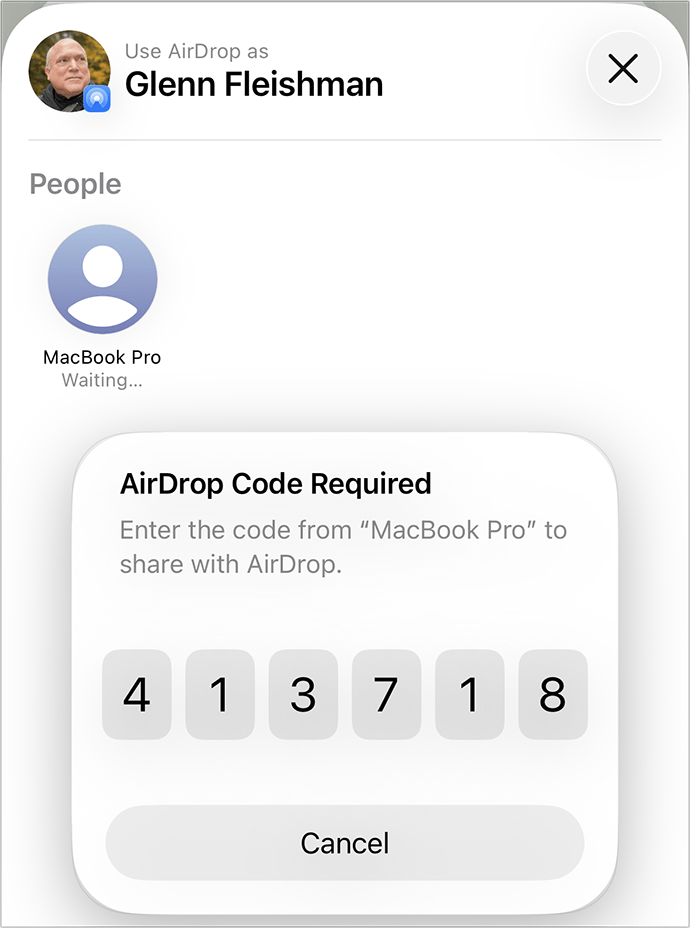
  4. If you chose Get AirDrop Code, the recipient sees a six-digit code appear with a message that lists the other party’s name as it’s shared. The recipient provides that code to the sender to proceed.
  5. The sender enters the code (or taps or clicks Cancel to exit). In testing, I was able to get a Mac to accept a code generated on an iPhone, but no matter what I did, the iPhone would not accept a code generated by the Mac; I assume this is either particular to my system or a bug soon to be fixed.
  6. Once the code is accepted, the normal Contacts Only style of AirDrop ensues, where the recipient must accept or deny the incoming item.
Screenshot of entering an AirDrop code on a sender's device.
The sender gets the code from the recipient and enters it on thir device to proceed.

With the process successful in step 6, the sender is added for 30 days to a Other Known list within contacts, allowing future AirDrop transmissions within that period when the recipient’s AirDrop is set to Contacts Only. This list includes any contacts in FaceTime, Messages, or Phone that you’ve marked as known from the Unknown Callers/Senders or Spam categories.

To remove the contact before 30 days is up, go to Settings > General > AirDrop and tap Manage Known AirDrop Contacts or System Settings > General > AirDrop & Handoff and click Manage next to Known AirDrop Contacts.

Extra friction in a service designed to be smooth

Adding friction to AirDrop seems to run counter to the simplicity of how it is supposed to work. For sending in circumstances like protest rallies or other semi-anonymized gatherings, it definitely provides more grit, something desired by authoritarians. Is this another potential nod by Apple to repressive governments? There’s a case to be made, though the 10-minute limit already restricted AirDrop’s utility in such cases tremendously.

Because this code method allows 30 days of sending after using a code, it offers some balance between unwanted contact and persistent availability in the vast majority of cases in which AirDrop is used.

[Got a question for the column? You can email glenn@sixcolors.com or use /glenn in our subscriber-only Discord community.]


  1. Apple’s first pass at the documentation of an AirDrop code is incomplete and, in some places, inaccurate. The company also left errors in place, such as using Settings instead of System Settings for the macOS notification for a generated code (see below). 
  2. One Six Colors staff member reports receiving a photo of Dick Van Dyke via AirDrop as a gentle nudge to close the wide-open door to AirDrop transfers. 

[Glenn Fleishman is a printing and comics historian, Jeopardy champion, and serial Kickstarterer. His latest book, which you can pre-order, is Flong Time, No See. Recent books are Six Centuries of Type & Printing and How Comics Are Made.]


After whipping through a bunch of segments in order to play as many jingles as possible, Myke and Jason celebrate the festive season by aesthetically judging the new icons of macOS Tahoe. Happy holidays to all who celebrate!


‘A 2,200 mile EV test drive from Texas to Oregon’

Matt Haughey wanted just the right Volkswagen ID Buzz, and (despite living in Oregon) he found it in Texas:

The dealer quoted me $2,200 to ship it back to Oregon, but it would take a couple weeks and I figured I could drive that distance in just a few days for less money, plus, what better way to get to know a new car than to spend half a week in it?

This is a great post about shopping for an EV, the current stage of EV charging in the U.S., and how Volkswagen has unfortunately managed to overemphasize touchscreen interfaces while also relying on capacitive touch controls.

Still, I love the look of that car. And I love the idea of getting to know a new car with a road trip.


By John Moltz

This Week in Apple: Free range Macs

John Moltz and his conspiracy board. Art by Shafer Brown.

New Macs are in the pipeline, Japan gets alternative app stores, and Apple deigns to give someone back their iCloud account.

Things to come

Good news, everyone! Apple is working on new Macs! Thank goodness. For a minute there I thought they were done. That would be very concerning because I use Macs and hope to continue to use them in the future.

And what form will these future Macs take? How ‘bout the return of the King? Of 2017.

“Apple Developing iMac Pro With M5 Max Chip”

Yes, last seen sporting an Intel Xeon processor, dressed in space gray, and listening to Ed Sheeran, a new M5-based iMac Pro has been spied in leaked debug code that fell off a truck or something. I don’t know how computers work.

Somehow they read a thing and it has a code in it and they can tell by the code what the unreleased Mac will be.…

This is a post limited to Six Colors members.


By Jason Snell

Apple is forcing iPhones to update to iOS 26 to patch security holes

Screenshot of an iOS update notification. It shows 'iOS 26.2, 1.64 GB' with text about enhancements to Apple Music, Podcasts, and Games, plus bug fixes and security updates. Includes a link: 'https://support.apple.com/100100.'

I wrote earlier this week about the important security updates Apple just rolled out in its 26.2 operating system updates. Among the security fixes are two zero-day bugs affecting WebKit, the browser engine that drives Safari. According to Apple, “this issue may have been exploited in an extremely sophisticated attack against specific targeted individuals on versions of iOS before iOS 26.”

Pretty serious. There are also many other security fixes, including (as I mentioned) a major Messages privacy leak. When a serious security update comes out, users should update. It’s just the smart move.

Apple generally tries not to leave behind users who haven’t updated or can’t update to the latest OS version. Apple also usually offers security updates for past OS versions, and indeed, the company also released iOS 18.7.3 to address the same issues.

Unfortunately, there’s an ugly catch: Numerous iPhone users have reported that if your iPhone is capable of running iOS 26 but you’re still back on iOS 18, you won’t be offered iOS 18.7.3. Instead, the only update option you’ll be given is iOS 26.2.

There are a lot of reasons to avoid updating to iOS 26, from a dislike of Liquid Glass to software compatibility to a general wariness to install major updates for a while. This move effectively forces users to take the iOS 26 upgrade if they want the security updates. (iPhones not capable of running iOS 26 are offered the 18.7.3 update. iPads seem to be unaffected.)

This isn’t great. Apple shouldn’t be withholding a security update from people not willing to upgrade to the next OS version. I don’t know if this is an error, bug, or policy decision, and as of this writing, Apple hasn’t responded to my questions about this issue.

Several users have reported to me that a workaround is to sign up for Apple’s public beta program and opt in to the iOS 18 public beta track, at which point you’ll be offered 18.7.3. Seems like a long way to go just to get security fixes.

In general, Apple is very good about supplying security updates to older operating systems, so all its users can stay protected. But in cases like this, users should never be forced to choose between ignoring a security update and updating to an OS version they’re not ready for.


Screen flickering issues persist in macOS Tahoe

Juli Clover at MacRumors:

Mac users with the Studio Display have been complaining about intermittent flickering since the [macOS Tahoe] update launched in September. There are also complaints from users who have other kinds of displays, so it might be a bug that is affecting more than one type of external monitor.

I’m glad this is finally gaining some attention because I have been seeing this since the earliest betas of Tahoe back in June (I complained about it again more recently). And that’s been on multiple Macs, including my Mac mini attached to a Studio Display, my old M1 MacBook Air, and my current M4 MacBook Air. I’ve tried deactivating several of the display features to see if makes a difference (TrueTone, Night Shift, automatically adjusted brightness); it felt like maybe turning off Night Shift helped, but it’s one of those frustrating intermittent issues that can be hard to track down.

Anecdotally, I’ve heard from others with this problem, and it’s definitely only been happening to me since Tahoe. I’m surprised Apple hasn’t squashed this bug yet, but hopefully gaining more attention will shed some more light on it.


Tim Goodman pops down the chimney again to reunite with Jason and discuss the Oscars on YouTube, finding balance in the TV review game, the rise of international content, episode deconstructions, “Pluribus,” and his top shows of the year.


iPhone rumors — under-glass Face ID and a foldable, the iMac Pro’s possible return and our ideal pro Mac lineup, automations that solve problems, and what we do when the power goes out.


Apple works with immersive creators to push Vision Pro content forward

Harry McCracken of Fast Company has a great, in-depth story about how Apple is working with filmmakers and other creators to help them build more immersive content for the Vision Pro:

…much of the progress the Vision Pro has made hasn’t stemmed from the routine tick-tock of software and hardware updates. Apple has also been throwing itself into the equally vital work of getting third-party developers and creators to build experiences that will help the rest of us understand what, exactly, its headset is good for. That was the goal of a Vision Pro developer event the company held at its Cupertino campus in late October.

I wrote a little about this event at the time, and met some of the creators Harry interviewed for his story, which really captures the current state of Apple’s immersive content evangelism.


Security updates in Apple’s 26.2 updates

Last week Apple released 26.2 updates to its operating systems, and if you’re on the 26 train, you should install .2 because it includes a bunch of security updates including some zero-days.

In its list of security update details, Apple credits a bunch of security researchers for discovering the issues. Among them is Rosyna Keller of Totally Not Malicious software—fantastic name—who found bugs in MediaExperience, Messages, and Telephony. Keller says that the Messages fix alone is worth updating to iOS 26.2, or if you’re still on iOS 18, updating to iOS 18.7.3. (Though I’m hearing reports that phones that can run iOS 26 aren’t being offered iOS 18.7.3, only iOS 26.2—which is not great, since this is a security update and shouldn’t force migration to iOS 26.)

Related: Due to health and other reasons, Keller has fallen on hard times and apparently hasn’t been compensated by Apple for the security reports. There’s a GoFundMe campaign to help the long-time Mac developer.


Is the iMac Pro coming back?

A sleek black Apple iMac with a thin bezel displays a vibrant blue nebula wallpaper. The monitor is mounted on a minimalist stand.
The iMac Pro sure was awesome when it first came out.

I didn’t have this on my bingo card, but here’s Hartley Charlton at MacRumors with a report about Apple testing a high-end iMac configuration:

Apple is developing a high-end iMac featuring the M5 Max chip, according to information from leaked internal software… The software contains references to an iMac with the identifier J833c running platform H17C. H17C is associated with the codename “Sotra C,” which relates to the expected marketing name “M5 Max.” This suggests that an iMac with the M5 Max chip is in active testing.

As Charlton notes, this isn’t the first we’ve heard about Apple potentially doing a high-end iMac. Bloomberg’s Mark Gurman reported back in 2023 that Apple had initially planned an M2-based iMac Pro, but tabled it “due to cost concerns.” However, Gurman emphasized that a pro iMac was still on Apple’s agenda:

It’s worth noting that the pro version was tabled but never canceled. This larger model is still poised to follow the 24-inch one, coming in either late 2024 or 2025. It will have a 32-inch display, making it the biggest iMac in Apple’s history.

Well, it’s very late 2025 and it’s not here, but sometimes these things slip. Perhaps 2026 will be the year of a true large-screen iMac Pro. I have to admit I’m a bit surprised—I was a very happy iMac Pro owner, but I thought the model (introduced eight years ago this month) was just too niche and that Apple would prefer to refer pro users to a MacBook Pro or Mac Studio attached to an external display. Maybe the iMac Pro might once again be used to soften the blow of the possible discontinuation of the Mac Pro?


Adobe Photoshop 1.0 source code now available

Screenshot of Adobe Photoshop 1.0.7 for Macintosh. Features Adobe logo, copyright info, and personalization for Apple Computer. Includes 'About Plug-In' and 'OK' buttons.

The Computer History Museum is doing an amazing job trying not just to preserve the history of the computer revolution, but to keep it alive by getting permission to release source code for classic software. The latest is the crowning achievement of the Knoll brothers, Photoshop:

With the permission of Adobe Systems Inc., the Computer History Museum is pleased to make available, for non-commercial use, the source code to the 1990 version 1.0.1 of Photoshop. All the code is here with the exception of the MacApp applications library that was licensed from Apple. There are 179 files in the zipped folder, comprising about 128,000 lines of mostly uncommented but well-structured code. By line count, about 75% of the code is in Pascal, about 15% is in 68000 assembler language, and the rest is data of various sorts.

CHM had trustee Grady Booch of IBM comment on the (ironically not very commented) code, and he called it “well-structured”, “mature”, and “so easy to read, that comments might even have gotten in the way.”

As the post by Leonard J. Shustek continues:

…this is the kind of code we all can learn from. Software source code is the literature of computer scientists, and it deserves to be studied and appreciated. Enjoy a view of Photoshop from the inside.

I really like the phrase “the literature of computer scientists.” The only shame is that this release doesn’t include the code from the MacApp applications library, which Photoshop used and is owned by Apple. It would sure be nice if Apple made that code available as well.


This is now a home improvement podcast. We do find time to discuss products we wish Apple had shipped before the holidays, what happens when Apple locks you out of your iCloud account, and the Epic court battle.


We discuss what laptops Apple is expected to release in 2026, Apple’s AI parsing of podcasts, that time Jason didn’t really almost work for Apple, and weird snacks.


By Glenn Fleishman

It’s pronounced “Throat Warbler Mangrove,” Siri

Glenn Fleishman, art by Shafer Brown

Siri can be frustrating. And we know from the most recent Apple financials call that Tim “This is Tim” Cook thinks so, too, even if he would intentionally not state that. While Siri doesn’t always know what you want or how to do it, people’s feathers get ruffled when it refuses to understand their name or that of people around them or with whom they refer to all the time.1

Six Colors reader Jackson wrote in with such a situation (and I received permission to share his and his partner’s name):

I have a partner with an uncommon spelling of a common name. Caryn is pronounced like Karen. Routinely my various devices will tell me I don’t have someone by that name in my contacts when I try to tell Siri to call or message her. The extra frustrating thing is that the text display of my input reads “Caryn” and it works if I repeat her full name.

I’ve gone into the contacts in added in the “Pronunciation First Name” field and filled it in with Karen but that doesn’t seem to have made a noticeable improvement. But there are also fields in there like “Phonetic first name” or “Nickname.” That’s three types of fields and I’m not sure if any of them would solve my problem or if I’m using them right when I do it.

I can fully understand why you would not know how to proceed, because Apple doesn’t provide guidance within the app or online about the phonetic and pronunciation fields, nor how to solve this name problem. The three fields each serve a different purpose:

A screen capture from Add Field in Contacts showing several fields related to pronunciation and phonetics.
You can add fields in Contacts (or via Phone) to correct Siri’s understanding of the sound of a name as it is spoken or how to speak it.
  • Pronunciation First Name: This field tells Siri how to say the name. So if you had a contact with the Irish name “Eòghann” and Siri might say “Eh-oh-guh-hann.” The name is often pronounced like “Owen” or “Ewan.” Using Pronunciation First Name, you can enter that anglicized version if Siri isn’t getting it right. With Caryn/Karen, the pronunciation seems to be the same, so this field won’t help. (You can also add last name pronunciation guidance.)
  • Phonetic First Name: Here’s where you should enter “Karen”—no special phonetic symbols required (or, perhaps, accepted). (You can also add middle and last name phonetic details.)
  • Nickname: Nickname can work as well, as adding “Karen” to a “Caryn” entry will provide a match. However, Siri might then use “Karen” in text onscreen when it refers to “Caryn”!

You can add any of these fields (and a number of others) by opening Phone or Contacts, selecting an entry, tapping Edit, and tapping “add field.”

Screen capture of iPhone screen after speaking
Siri recognizes Caryn once I added “Karen” to phonetic first name.

I had several Karens and even a Carren in my address book. I added a “Caryn” with my phone number, and told Siri to “call Karen.” It showed all the Karens and Carren, but not Caryn. I then added “Karen” as Phonetic First Name, tried again, and it suggested Caryn as the first match! (See figure.)

One hopes that Future Siri will be able to deal with the vagaries of spelling names, given that it’s a critical component of what Siri should be able to recognize.

[For more about Siri, consult Scholle McFarland’s book, Take Control of Siri.]

[Got a question for the column? You can email glenn@sixcolors.com or use /glenn in our subscriber-only Discord community.]


  1. At least it’s not as bad as this: “Eleven! Eleven!” 

[Glenn Fleishman is a printing and comics historian, Jeopardy champion, and serial Kickstarterer. His latest book, which you can pre-order, is Flong Time, No See. Recent books are Six Centuries of Type & Printing and How Comics Are Made.]


By John Moltz

This Week in Apple: Will he or won’t he?

John Moltz and his conspiracy board. Art by Shafer Brown.

Johny Srouji issues a statement, Disney makes some big deals, and the Apple/Epic fight will outlive us all.

Come back, Johny

After Mark Gurman’s worrisome report last week that Apple SVP of hardware technologies Johny Srouji was considering leaving, the report was contradicted on Monday by a subsequent report from, um, Mark Gurman. Hmm.

“Apple Chip Chief Tells Staff He’s Not Leaving ‘Anytime Soon’”

In a memo sent to staff, Srouji denied reports that he had been wistfully staring out the window as autumn leaves fell down onto the piles of cash Meta had been dumping on the lawn at Apple Park to try to entice employees into their unmarked, white van.

After poaching Alan Dye, it’s clear Meta isn’t being that picky. They’ll take anyone from Srouji all the way to Gary, the guy who makes those killer chicken Caesar wraps at Caffè Macs. (Mark Zuckerberg will reportedly stop at nothing to get Gary and corner the market on superior chicken Caesar wrap technology.)…

This is a post limited to Six Colors members.


By Jason Snell

Apple releases OS 26.2 updates

Wrapping things up for the calendar year, Apple has released its final OS 26.2 updates for Mac, iPhone, and iPad.

Perhaps the biggest changes are on the iPad, which has added a bunch of new ways to multitask using the Dock, including to create/change a Slide Over app and dragging app icons to automatically have them fill half of the screen.

Other new features include more customization of the time in the iOS lock screen, a new method to grant AirDrop permission via a numerical code, and a new “Edge Light” on macOS that places a white ring on your display to increase the overall brightness when you’re on a video call.


Search Six Colors