Six Colors
Six Colors

Apple, technology, and other stuff

Support this Site

Become a Six Colors member to read exclusive posts, get our weekly podcast, join our community, and more!

By Joe Rosensteel

Pivoting to Numbers

Setting up a filter in a Numbers pivot table

Not too long ago I came the realization that I have a lot of camera equipment, and that I didn’t know where all of it was, or what condition it was in. Like most hobbyist photographers, it all starts with a low-end DSLR… and then flash forward 15 years and not only have you bought many cameras and lenses, but you have inherited even more.

I kept thinking I would track this with a personal, bespoke wiki, or Craft, or Obsidian, as nerds are wont to do, but they didn’t seem to fit the bill. I needed to be able to know not just their details on a page, but details across all of it.

Unfortunately, this meant spreadsheets. I work with really complicated, intricate software all day long, but I almost never do anything with office productivity software that’s more complicated than a 2nd grade book report, so this was admittedly a little humbling to fumble my way through this.

Kieran Healy and Dr. Drang can stop reading now.

The particulars

I needed to be able to sort and process the data in a non-destructive way, that would auto-update as new data was entered, or edited. I needed a solution that was going to be able to be used—not just read—on iOS and my Mac. It should ideally not cost very much, and not nag me to upgrade along the way.

When I posted about my needs on Mastodon, real professionals replied and suggested Google Sheets and AirTable. I immediately eliminated AirTable after going through its pushy account sign-up and intimidating set-up process. If you’re someone that uses AirTable for other things in your life, it’s probably great for the task. But it didn’t seem like a worthy investment of my time to watch a lot of how-to videos on AirTable for this one project.

Google Sheets certainly works on iOS and the Mac, and while I know there are many complaints about Google’s iOS apps, it’s easy to live with it as I’m not doing iOS-centric things that rely on share sheets and multi-app workflows.

At the same time, I tried Apple’s Numbers app, which no one suggested. I’m generally dismissive of Apple’s productivity programs (after ClarisWorks 2.0, that is) because they do weird stuff. I really don’t like the constant desire to show everything in the app as if I’m going to print it.

I’m not going to print it. Ever.

Can’t we have a display mode or something that kills all this extra white space? A mode for people that don’t have “Cyan Cartridge is Low” warnings?

And of course the iOS version on Numbers doesn’t seem to have a “paste and match style” option, so god forbid you only wanted to copy text and not the hot styling of Nikon’s archived spec sheets. When you paste a URL, the iOS clipboard actually includes the PDF object in addition to the URL—and Numbers helpfully decides that I want to embed a PDF in a spreadsheet cell.

I don’t want that. Ever.

Several months ago, when the updated version of Numbers that included pivot table support was released I had no idea what it was or why anyone would use such a thing. Plot twist! I love pivot tables in Numbers, and the feature works well on both my Mac and my iPhone… albeit a little better on the Mac.

With pivot tables I can do exactly what I wanted to do, making little reports that do things like count items in locations, or list which cameras are missing batteries. Or list which cameras are missing entirely! I can see a little list of just what cameras are ready to go on a trip.

I still loathe the printer-friendly, iPhone-unfriendly look of the document, but I couldn’t use Google Sheets because it only supports pivot tables in a desktop web browser. (Now I understand why the iOS-centric people are always annoyed by Google apps! I’m sorry for doubting you.)

How it’s organized

A big data table

In my Numbers document, I have a table that has all of my cameras, their location, battery type, a checkbox for if it has a battery, charger type, if it has a charger, camera type, lens system, film or sensor size, sensor resolution, spec sheet or manual URL.

A report filtered by camera type.

The second table is all of my lenses, with the minimum and maximum focal length, maximum aperture and maximum aperture zoomed (zoom lenses often have a lower maximum aperture at the highest end of their zoom range), mount type, autofocus checkbox, autofocus motor in the lens checkbox, vibration reduction/optical steady shot checkbox for stabilized lenses, and the location of the lens.

From the two tables I’ve been able to generate a pivot table that’s filtered by lens mount (F-Mount), and filters out any prime lenses (maximum focal length value has to be present). I can generate a pivot table of which cameras are missing batteries, and what those batteries are. I can even just count the number of cameras by type, and a grand total. All without doing any destructive operations or copying and pasting my original sheet to do edits on it. It’s all live updating and looks like the same printer-friendly document on my computer and my phone.

My next steps involve inventorying film (Kodak recently raised prices, so I bought up a big batch of film like a lot of other dorks) and adding formulas to do conversions (like focal length for lenses on APS-C sensors). A pivot table can’t do that math, it can just arrange, filter, and summarize.

I’ve also started entering the manufacturers manual or spec sheet URLs for cameras, but now that DPReview is going to shutdown and be wiped from the internet sometime shortly after, I also want to archive their camera and lens reviews for models that I have so I can add those file paths to the table.

All of this work means I no longer have to remember, or search the Internet, for all these little things like filter thread size and chargers. Which is good, since it’s been years since I was tracking one dinky camera—and while I might not be shooting with all of these cameras, they’re all important to me or someone else in my family. I’m glad to have all the data accessible in one place, at last.

[Joe Rosensteel is a VFX artist and writer based in Los Angeles.]


By Joe Rosensteel

Music to no one’s ears

Look, I’ve been hoping that at some point, the rocky transition from iTunes to the Music app would be over and we’d all look back on it and say, “Wow, I can’t believe that was so brief.” But it isn’t over. Here I am, in the year 2023, and I have the same problems using the app that I’ve had for about half a decade at this point. And yes, many of these problems are tied to changes made for the Apple Music service.

Apple Music's Listen Now screen
Somehow, none of these things are what I want to actually listen to now.

When launching the Music app on macOS, you always start off at the Listen Now section of the app. It doesn’t matter what I was previously listening to in the app—that information has been lost to the sands of time. I can’t resume playback of anything I was listening to on this device, or any other. Anything I was looking at in the interface is wiped away too. I can, instead, see the four things that Apple thinks I want immediate access to. Those are “Joseph Rosensteel’s Station” in Apple Music, a new EP from Mariah Carey (sorry, Mariah, this is not one thing I need), the opportunity to revisit Beyonce’s Super Bowl performance, and the new album from Orbital (I know, we’re all surprised they’re still releasing albums, but I listened to this several weeks ago so it’s not new to me at this point).

What’s so bad about that, Joe? Well, the “station” Apple Music compiles for me—and, anecdotally, every Apple Music user I’ve spoken with—is trash. A churning abyss of things I’ve tangentially listened to that spans every genre, tempo, style, etc. Listening to it is unlike listening to a radio station; it’s more like an angry jukebox out to shuffle in some random thing and kill whatever vibe you had from the previous song. As a rule I don’t bother even listening to it, so for it to always be the number one thing here is ridiculous.

Surely, the section under it, Recently Played, is exactly what I want? No, I want what I was last listening to, where I was last listening to it, tied directly to the play button. Recently Played only provides the entire song, album, or playlist I was listening to from its start.

If I scroll down, I get more recommendations. It’s good that they’re further down, because if I’m not in the mood, I can just stop scrolling, but that first chunk of the interface is irritating because I want to resume what I was listening to. Even if I quit and reopen the app instantly, it all resets.

Let’s say I start listening to Flowering Jungle by Monster Rally on my Mac, but I realize that I need to go downstairs. There’s no way to transfer where I currently am in my Mac’s Music app to my iPhone’s Music app. My iPhone says “Not Playing”, so it has no playback history of its own to even resume from at this moment. Instead, the iPhone’s Music app presents me with the same Listen Now options, where I can go to Recently Played, navigate into the album, and pick the song, and then offset the time to match roughly where I was on my Mac. Convenient!

If only there was some way to do, oh I don’t know, let’s call it a hand-off between the two devices that are both made by the same company, running software by the same company, and using the same music service that knows exactly what I am streaming from it. Something with a little continuity. What a concept.

But I still haven’t found what I’m looking for

The other thing that’s really irked me is searching, which is usually the other thing I want to do when I open the Music app, if I’m not resuming what I was previously listening to.

The search field in macOS used to have a little toggle at the top that let you choose whether it was finding results in your library or Apple Music. That’s moved to the browse page and the search results page, which changes the behavior of the search text field, even though those buttons are not even in the same ZIP code. For a while I thought they’d just removed the library search, but it’s still there…if you want to do more work to use it.

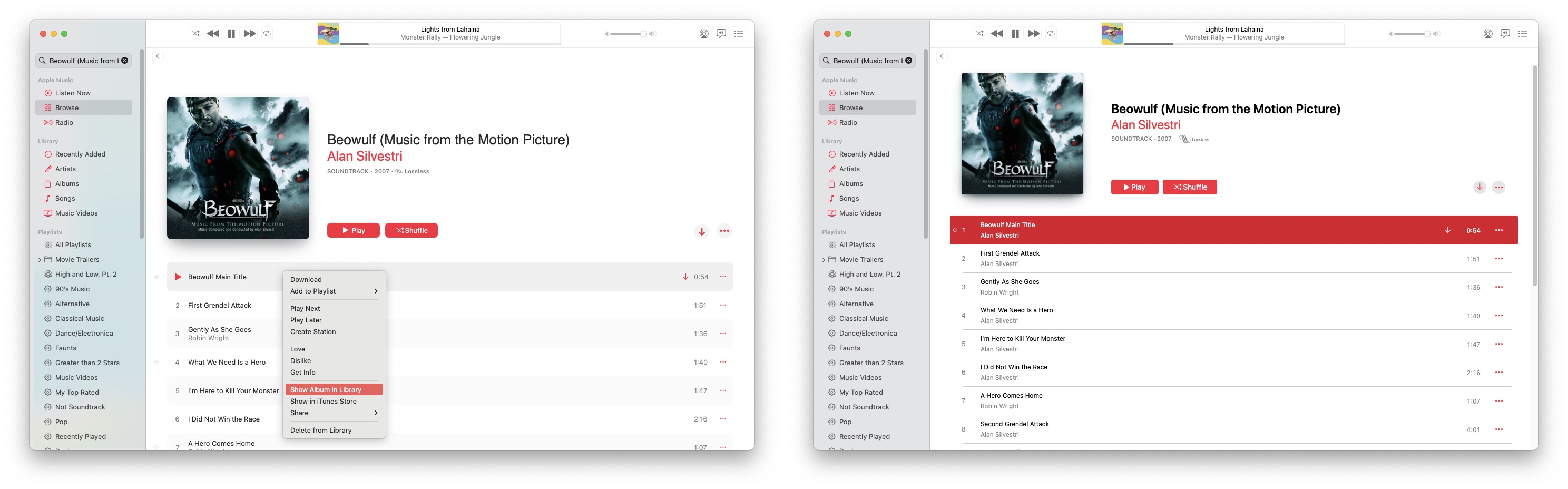
You can also search in Apple Music and then go to your library version of an album or song by right-clicking on the tracks and picking “Show Album in Library” which also does a neat thing where you can see that whatever they use to style the album interface is different between the two for no good reason at all.

Two screenshots of the album view in Music on the Mac, from a music library and from Apple Music.
The same album viewed in Apple Music (left) and the Music.app library (right). Enlarge

If you want your own version of the album and isn’t exactly what Apple Music has, then you must use the toggle in the browse interface before searching. I have a version of the Tron: Legacy soundtrack that I bought from Amazon because it had an exclusive track. It’s in my library and I can manually navigate to it, but I can’t use Apple’s search to get to it at all, only the versions of the album in Apple Music. Doesn’t seem like a huge deal, right? Well at some point I “loved” a track in Apple Music from this album, and now I have a version of the Tron: Legacy soundtrack in my library that has one track in it.*

Look at the stars, look how they shine for you

Speaking of “loving” music, some of us prefer a more nuanced system for rating music. Sure, five stars is overkill and most people are either ranking their music either zero stars or five stars, but there are those of us with a rating system that we’d like to keep using because we were using it already. Even though the stars have been eradicated from the interface, you can still right-click on a track to see its star rating metadata or to even to rate it. Like when you go two levels deep in Windows’ Settings and you get that Windows 95-looking dialog about a network adapter—that’s where your stars are buried.

Some of my albums have had their star ratings wiped out, which I can only assume is from some iCloud Library sync issue at some point in the last eight years, so it’s no longer something I can reliably use or invest additional time in. It does, however, drive some of the features I like to use, like Smart Playlists.

What, you’ve never heard of Smart Playlists? Gather ’round, kids and let me regale you with how they work: They’re basically saved searches that filter your music library by the file metadata, and they’re super neat. Unfortunately, having a library is kind of the enemy of using a music streaming service. Apple would much rather you use stations or their human-curated playlists, but I don’t like to rely on those because at any point the human-curated playlist could be changed by a human who isn’t me. It’s not versionable and it’s not mine—it’s the service’s.

C’est la vie! I can make my peace with Apple product managers who the stars made sad, but not so much with the slow erosion via data loss of something that I use to play the music I want.

You’re getting closer to pushing me off of life’s little edge

As a long time user of iTunes, and now the Music app, I’m at a loss for why all of this is so bad, other than that Apple makes too much money to care. Why is this a streaming-first experience that is executed like a standalone music player? Why does my library even exist if I’m not really supposed to use it?

There are a thousand other things I could needle Apple Music product managers about, but let’s just start with playing what I want. A high bar.

[Joe Rosensteel is a VFX artist and writer based in Los Angeles.]


By Joe Rosensteel

How many Home updates does it take to turn off a light bulb?

four homekit switches
You may be surprised to discover that inside each of these buttons is a different button.

At some point, when I was reconstructing the automation that turns on and off the floor lamp in my living room for the third or fourth time, it dawned on me that I was sold a bill of goods regarding HomeKit.

I had set the bar for HomeKit so low: It just needed to turn on a switch at a time of day, and turn off the switch at another time of day. Even that stopped working, and here I was trying to coax it, to massage it, to just tell me what I could do to fix it. Pleading with the invisible force that controls my home to just give me an error message, to show a notification, anything at all.

That was how I closed out my relationship with Apple’s Home app, and HomeKit, in December of 2022. I hadn’t even upgraded to the new Home architecture that was breaking other people’s home setups. No, I was too smart to ever do anything like that, but I was unprotected from whatever piece of code of was introduced to iOS, or tvOS, that borked some but not all of my Home automation in December. Whatever “we did it guys, we hit our 2023 roadmap target, let’s pack up for Christmas” software release that was put out into the world messed things up.

Last week, my two Apple TVs updated to the latest tvOS update available and then the automation for the floor lamp started working again. Why? I don’t know. Was the code fixed? Was it just because the Apple TV devices restarted and reshuffled something completely intangible? I’ll never really know.

Fixes for Home, and HomeKit, are always just around the corner too. Not in a “this thing that works great is getting more stuff” way but in a “this thing that doesn’t work as advertised will work a little more like it’s advertised, maybe” way.

We’re coming up on nine years of this. For all that time we’ve been suckered into thinking that some future software update, a bit of firmware, a new device with new radios would somehow fix what ails our abodes. There’s not much to show for it other than broken promises and haunted electronics.

We don’t have a full grasp on how large or small problems are, because all we ever have to rely on is anecdotal statements from all the other suckers using this stuff. When something breaks for me, I can ask around—but unless someone somehow has my exact combination of devices, then nobody has an answer. I can’t take my home (or its constituent bits) into the Apple Store. There’s no error reporting, so I can never tell if something is failing because of a third-party device, Apple, my network, or all of the above.

In 2022 we were promised that new Home app—which we unfortunately got. And we were promised that new Home Architecture with Matter support—which some people also briefly had.

Continue reading “How many Home updates does it take to turn off a light bulb?”…


By Joe Rosensteel

You don’t have to go home, but…

Someone bought the bar we were all hanging out in, and they started interrupting the music with edicts about bar rules, fired most of the staff, aren’t paying their bills, installed a velvet rope where VIPs can spit on the other bar patrons, had bouncers start to randomly remove people, and are bricking over the fire exits.

I’ll get my coat.

There are other bars, of course. There are communities on Discord or Slack, and microblogging services like Mastodon and micro.blog. People with big audiences might build their own Substack, or ask people to follow their Tumblr, or set up a blog via WordPress.

Or maybe just chill out and read a book? Imagine a main character who isn’t getting milkshake-ducked or bean-dad-ed into oblivion, for once.

Gather up your jackets, move it to the exits

One reason a lot of people have a hard time walking away from Twitter is because it’s where we’ve invested all our valuable time and resources crafting bespoke non sequiturs, and hewing reaction memes from the finest 12th generation copies of JPEGs.

Fortunately, the previous management at Twitter offered us all archives of our posts, and no one has removed, or broken it yet. Get that archive, if you haven’t already. That archive works locally, except all the URLs are t.co URLs, and those will stop working if you delete your Twitter account, but it has important things like media. It’s not easy to share anything from this archive, if you have something old you want to link to elsewhere.

Screenshot of Twitter archive showing a tweet to

One solution, from Darius Kazemi, is a lightweight static site generator that can be uploaded basically anywhere on the internet and work, his example is here. You don’t have to upload it at all, and it can just live on your hard drive. Like I just used it to find the time I uploaded an image of a shark from Jaws with the human-like teeth from the original Sonic: The Hedgehog trailer. Normal stuff I tweeted.

The whole thing runs in javascript in your browser and doesn’t upload your archive to any service, or require you to install node or python or anything. If you have a large archive, like I do, you’ll need to unzip it, move the media directory out, and re-zip it. Instructions are straight forward. The result works as expected, and you can modify the CSS however you see fit. Like I commented out the height restrictions in the CSS because that’s just how I wanted to see it.

This is also useful for preserving my very long Twitter thread of all the times the iOS Photos widget has put text over my boyfriend’s face. Now that important work can live forever anywhere I decide to host it.

Screenshot of a twitter archive of one of the many tweets with screenshots of the iOS Photos widget showing text placed over the same photo of my boyfriend's face of him at California Adventure at dusk with the ferris wheel behind him.

I hope you have found a friend

A difficulty with moving to new services, that has basically stifled all newcomers in social media, is that there’s no easy way to coordinate where you’re moving to without losing people along the way. There’s too much friction and people give up, or even if they all move, they don’t see each other. There are solutions to that which require some data to be present in your Twitter profile to work out what other people also have that data and draw that connection elsewhere. You need to periodically check because someone might show up, but hopefully if they’re late to the party they’ll check and find you first.

One of the heavily recommended services for finding friends on Mastodon, movetodon.org by Tibor Martini, works pretty well for this. Of course, at any moment this app could break. (If, for example, Twitter crafted another sudden policy decision to kill links to other social media sites.)

Use this time to follow people to other sites they link to besides Mastodon instances. Mastodon isn’t a crowd pleaser—so don’t expect, or demand, that people try Mastodon just so you can mirror your relationship from Twitter to Mastodon.

Time for you to go out to the places you will be from

No matter where you go after Twitter, it’s important to not try and reproduce the same social patterns from Twitter. As tempting as it is to blame Elon Musk for everything, it’s not like Twitter was the optimum social experience beforehand. We’ve all been trained to take a photo, screenshot, or link and post it to dunk on. Certainly one of the difficult things to get used to with Mastodon is the design decision to not have quote tweets because of the bad behavior that they can, but don’t always, encourage.

If you’re logging into your Discords to throw in a link and ask “can you believe this?”, maybe you should also think about how you’ve got the space, and the social skills to talk about it with appropriate context and nuance. To treat the space you’re going into like it’s for conversation with people that also want to talk with you, and not just be outraged.

We should also all be conscious of moderation in all of these other social settings. Moderation was a nebulous thing that Twitter management hired contractors to do to other people, but in smaller social settings, it can be the thing your buddy has to say to you about your behavior. People of a certain age know something about that from Usenet, BBSes, and various web forums. We might all be so used to shouting in overcrowded spaces we’re not paying attention to how we talk in the smaller ones.

Every new beginning comes from some other beginning’s end

I met some great friends, acquaintances, and interesting people through Twitter. I’ll find more in other places too—we all will. No one owns that, even if they buy up and ruin the spot where it happened in the past.

[Joe Rosensteel is a VFX artist and writer based in Los Angeles.]


By Joe Rosensteel

tvOS 16 is better at search–Siriously

One of the banner features of Apple TV and tvOS, is the ability to use Siri to get to what you want without having to remember which app it’s in, or where it is. Unfortunately, it hasn’t always lived up to that sales pitch. But as of the latest version of tvOS, it’s gotten a lot better.

Apple has slowly tweaked accuracy over the years (requests for “The Thing” now sensibly display The Thing you expect, and not Fantastic Four movies.) It was also a pain that if you clicked/tapped on a result there was no way to get back to those search results if that item didn’t turn out to be what you wanted. Now you can!

The results pages were have also been cleaned up a little, to make those first few options as relevant as possible. It’s less optimal if you stay on the page too long, because tvOS will start playing a trailer in the top two-thirds of the screen. If you swipe or tap down to get away from the trailer it’ll stop. (Who really believes that people love autoplaying videos with sound?)

Streamlining options to Play, Play Again, and Add to Up Next are clear improvements over Buy In Store, or Play In—where you had to figure out the app that actually had the content in it. Instead, Play takes its best guess about where you want to play the content—for example, you probably want to watch that HBO show with the HBO Max app, and Star Trek with your Paramount+ app.

I’ve criticized the inaccuracy of of the How to Watch and Play In features before, and they’ll still show you ways to watch things that are not ways you can watch something. When I search for Westworld, the top portion of the results will offer to Play—and since I have HBO Max, that is perfect. But down on the page there’s an option to watch it with Hulu. What? Yes, technically you can subscribe to HBO through Hulu Plus Live TV and watch things there, but that’s a real edge case. Ideally, tvOS would know that I don’t have that service and not show it, but pushing the option way down in the list is a nice fallback.

tvOS also remembers where you left off in watching something, so long as the app shares its viewing history with the TV app. So when you ask for the show with Siri, it displays the episode where you last left off, and not the whole series starting from episode one. This is also true if it’s a show that you removed from your Up Next list in the Apple TV app. For instance, I rewatched an episode of Star Trek: The Next Generation, but didn’t need it to always be in “Up Next” because I only wanted to revisit that one episode. The Siri results for Star Trek: The Next Generation show the episode that would have been Up Next. That’s, handy because you can still pick a different episode to play from right there in the search results.

Unfortunately, Apple seems to have decided that the ideal form to display a list of episodes of a TV series is a horizontal row. At least there’s a Season row to aid in navigation, but the idea that an entire TV series can only be viewed as one long ribbon of thumbnails is just baffling. Only three thumbnails are visible at a time, and the interface seems to load about six thumbnails at most, so if you swipe too fast you’ll have to wait for the system to catch up with you. On my otherwise fast fiber internet connection, it seems to take an eternity.

You still can’t tell Siri to play a specific episode by episode name, or by season and episode number. Attempts to ask for those things will just lump the words in with searching for the show title. Fixing that would bypass the bad episode interface in the search results. If I want to watch “Star Trek: Voyager Threshold” then don’t get in the way of that sweet, sweet lizard action.

While I have quibbles about many of Apple’s interface choices, at least they’re consistent. And I otherwise appreciate all the changes to Siri in tvOS. It’s much less fiddly to watch something by asking Siri for it now than it used to be. That’s a great thing.

Many people I’ve talked to have been burned by bad experiences trying to get to what they want with Siri, and have given up using it on their Apple TV. With tvOS 16, it’s worth giving Siri another shot. Even if you have to grope for that button on the side of the remote to make it happen.

[Joe Rosensteel is a VFX artist and writer based in Los Angeles.]


By Joe Rosensteel

Up Next? Disappointment.

Note: This story has not been updated since 2022.

Today I fired up my Apple TV and opened the Apple TV app to be greeted with a revised Watch Now tab. Much to my shock and horror, they made it worse than it was before! I hopped online and came across Chance Miller’s post for 9to5 Mac, and Jason Snell’s post, where he reacted as negatively as I have. This is not what I had pitched at all when I wrote a few months ago about how Apple TV, the device and the app, needed a revised and unified home screen experience!

This new development is bad for a few reasons, starting with the fact that the Up Next list was the only part of the TV app interface that a user could really customize or control to plan their viewing experience—everything from being aware of the latest episode popping up online, to deciding you weren’t that interested in a show any longer. That personalization is important because the act of viewing TV is a personal experience in your living room.

This change pushes that off of the screen so the information isn’t even available to them at a glance without moving the interface down. This is another hostile layer, because remember that if you don’t subscribe to Apple TV+, the app will load with a splash screen telling you to subscribe to Apple TV+, and when that is dismissed it will deposit you on the Apple TV+ tab of the Apple TV app interface which you need to navigate away from to Watch Now. Now you need to go down, too. Obviously, Apple TV+ subscribers have fewer layers to get through because they don’t need the sales pitch, but they’re still getting the other shows pitched to them whether they like it or not.

What is featured?

The editorial layer Apple adds to their interfaces, across all their operating systems and services, leaves a lot to be desired. I don’t reject efforts to be told about other content that exists outside of my personal bubble—but what Apple provides is usually irrelevant to me, either because I don’t want to watch it or because I’ve already seen it!

Right now, for example, the list of titles in the Featured row that takes up most of this interface is almost entirely made up of things I’ve already seen. Some of them are, in fact, in the Up Next view right below it—but the view of the title in the “Featured” row is the same view everyone gets, whether or not they’ve ever seen the show. For shows that I’m watching, it doesn’t even offer me my next episode. There’s literally no personalization.

If Apple has a list of titles they want in Featured and a list of titles they want in Up Next, am I to believe that they lack the raw computing horsepower to remove duplicates from those lists? Or to override the unpersonalized button with a more personalized one?

How does any of this benefit me as a user? You’re going to take the brave, bold stance of recommending “Ted Lasso”—a show I’ve seen all of and which isn’t going to a have third season until some indeterminate time next year, maybe? What brain trust thought that the cultural zeitgeist around Ted Lasso was so strong right now in November of 2022 that it merited a featured position?

For Apple

For a long time, the Watch Now page has had a very, very, very bad For You row. Whatever logic is running behind the scenes seems to just make random associations out of a grab bag of anything I’ve ever seen. To solve this problem, as Apple often does in the Apple TV interface, they just push it further down. It’s now the 12th row down on the Watch Now screen, effectively about 4 “pages” of stuff away from the top.

That means that we’ve got Featured taking up that first page, the top sliver of the second page being Up Next, and then a bunch of other suggestions for things that some human being picked out of a hat for all users to see. It can be anything from sports, to suggestions for other things I can pay for, to Apple TV content (which is promoted in a thousand other places) and then the height of machine learning has a list of shows and movies I might like which starts with the critically panned TV adaptation of The Time Traveler’s Wife.

Again, what benefit is there to browsing any of this material that has been put together without care or respect for me? If you want to take control of my TV from me, then it better be for a good reason, and not just because you’re oblivious to what I want.

What’s good for… Apple?

What this really comes down to is respect. I do not feel respected as a customer when I see my Apple TV autoplaying an ad for Abbott Elementary in general when it knows exactly which episode is next for me in the series.

If Apple wants to say that the Apple TV device, and the Apple TV app, are worth the money because they provide a premium experience, then they can’t keep sliding down into the same mediocre moves as any other platform owner.

The Apple TV in my living room isn’t Apple’s electronic billboard. If I wanted to own one of those, I’d have saved some money and just bought an Amazon Fire TV Stick.

[Joe Rosensteel is a VFX artist and writer based in Los Angeles.]


By Joe Rosensteel

Apple Store, shut up and take my money

When is a store not a store?

When it’s an Apple Store.

Since their mythic inception, forged in the crucible of Ron Johnson and Steve Jobs and their hippie-dippy retail ideas, the Apple Store has always been an anti-store. It’s not your daddy’s CompUSA! It’s not your grandma’s RadioShack! The Apple Store was a place to chill with your friends, while you looked at all the weird stuff no one was buying until iPods were popular, and then the iPhone.

A number of architectural revisions have occurred since then, and technical reorganizations have reshaped the shop. But the stubborn persistence to be unlike other retailers, often to the point of frustration, remains the same.

By my count, there are three ways to behave at the Apple Store as a customer seeking to buy something:

  1. You approach an Apple Store employee and tell them you want to purchase something.
  2. You approach an Apple Store employee and tell them you want to pick up something you ordered already.
  3. You use your iPhone’s Apple Store app to feel like a thief taking small accessories that are on the shelves.

That’s not getting into the frustration of Genius appointments—this is just simple commerce. Yet two of those options involve tackling a retail employee to the ground in a busy store to have them then do some stuff on their point-of-sale device, and promise something will emerge from a mysterious back room at some future point in time.

You can also enter an impromptu line that always seems to form at the front of an Apple Store, where 1-2 Apple Store employees stand with iPads acting as maître d’s. They are not the employees who will process your transactions, they are the employees that hand you off to other employees who rely on those mysterious backroom employees to bring the items in question.

The Apple Store app can also be used for purchases, but unless an item is there, you still need to ask someone to get the item. It can make the act of purchasing a phone case go a faster, but nothing helps retrieve items from the dreaded backroom.

Is this an improvement on the classic idea of how a store should work? Tasks have been diffused in a pool of staff that isn’t providing a more helpful or personal touch beyond charming anecdotes or congratulating you on the thing you bought.

(That’s not to disparage Apple Store employees. This is a problem way above their pay grade.)

Personal touch

If there’s an improvement to be found here, I guess it’s that customers don’t have to wait in line at the register—but that’s only because the line has moved and is invisible. How long will it take to get an Apple Watch? Who could say? Just go wait over by the Apple Watch table because someone must assist you personally.

Even when they show up they just stand there, because there’s nothing for them to do. You’re still waiting for some unseen force to bring you something so you can leave. You can share the awkward waiting together. Shared experiences can lead to bonding, I suppose. Is this progress?

In any event, it seems like the wrong way to deploy an Apple Store worker. If we’re all out in the front waiting for the product from the backroom, maybe there should be more people in the backroom? My Apple Store already smells like a men’s locker room full of onions—I don’t need more people out in the front standing around and waiting aimlessly without even a line to focus on.

Let me flee into the shadows

One of the worst parts of the shopping experience is when you buy a product that Apple feels obligated to help you set up in the store. When I purchased my Series 3 Apple Watch, I had to wait for one particular employee to become available because he could help me set up my Watch. I did not want to do that even before there was a worldwide viral outbreak, and I sure don’t want to do it now. I want to take my item, like a starved rat clutching a morsel of bread, and flee back into the shadows from whence I came.

When I bought my Series 7 Apple Watch online, and showed up to get it, there were three bored employees ready to clock out at the end of their day standing with me at the table, asking if I was sure I didn’t need help, despite my protestations. They went on to try to upsell me on AppleCare and some alternative bands.

I’m sure that some people aren’t like me, and want that help. But when I say that I don’t want anything but the item, I want to be listened to. If I could communicate to the iPad bouncers out front that I just want to pick something up, and don’t need help so I don’t have to wait, that would be peachy.

Retail technology

It would be really interesting to see Apple experiment with more technological solutions to the problems they’re facing, even if that means someone isn’t handed off between three people with colorful t-shirts for that personal touch. Amazon is perhaps too impersonal, and too invasive in their retail efforts, but it’s had some retail ideas that are worth toying with.

A major obstacle to me buying an iPhone these last two years was how the iPhone would physically arrive in my possession. After I moved in 2020 I haven’t had much faith in parcel services. Yes, ordering for home delivery is the only way to interact with zero people when buying a product from Apple—but it’s also the way that items get delivered at weird unreliable times, and placed in public view. For most orders, it’s not a big deal, but for orders over a thousand dollars? It’s a little unnerving. Particularly if I am not going to be home for more than a day in that wide delivery window.

Amazon solved this problem years ago with Amazon lockers. Other retailers followed suit. Even retailers that don’t have physical lockers will let you ship an item to a store for pick up. Apple doesn’t do that. An item can be purchased from a store if it’s going to be in that store’s inventory, but if that item is not projected to be in inventory then that item can’t be purchased for that store at all.

That leads to the weird situations where a customer must check various iPhone configuration colors and their availability at stores in a certain radius. Visibility into a particular Apple Store location’s inventory is not getting me to purchase an iPhone when that inventory is empty. Can’t we do this like civilized adults?

Your oak table is ready

Another innovation Apple could crib from is appointment reservation systems. I’ve lost count of the number of times my boyfriend or I have shown up at an appointed time to an Apple Store to talk to the iPad employee out front, only to be told that there would be a long wait—often more than an hour.

I like to think that a reservation should mean something, but if things really do start backing up, couldn’t Apple alert me to tell me that my item isn’t ready?

If we want to go absolutely wild with this wishcasting: Even when there isn’t an appointed pick up time, and there’s a broader window, why not let me share my location with the Apple Store so as I park someone can start getting my order ready to go? It’s valet parking, but for iPhone boxes. I really just want my stuff.

This is the core of my ridiculous, unreasonable demand for Apple Store reform: I want to give you money faster and more often. It shouldn’t be this frustrating.

[Joe Rosensteel is a VFX artist and writer based in Los Angeles.]


By Joe Rosensteel

Putting my microclimate in my Menu Bar

Joe's weather hardware
Out with the old, in with the new.

One of the California weather problems that is probably not apparent until one moves to California is that the weather varies wildly in a small region. Microclimates are the name of the game where changes in topology shape the weather. Is it absolutely critical that I know the temperature to the degree? No, but it’s also weird to look at Apple’s Weather app or Carrot Weather, and see a temperature that’s up to 10 degrees off of my outside temperature, and seemingly overestimates the humidity. (Jason Snell gets his specific weather data from his weather station and displays it in his menu bar. As does Dan Moren.)

Previously, I had been getting my weather info from a ThermoPro TP67B that has an outdoor sensor. It’s fine, but it only ever knows what temperature it is right now, and it can only display it on a very ugly, large LCD console that doesn’t fit on my desk. Then I noticed the Eve Weather station was on sale for $60 on Amazon, and that was below my impulse-buy threshold, so… now I have an Eve Weather.

Step One Thing. I decided I would put the weather data up in the menu bar, just like Dan and Jason do it! But I decided to make it hard on myself. I wanted the app I used to be in the Mac App Store—SwiftBar is not—and I wanted something that would just display whatever I sent to it so I could format it how I saw fit without having to write a plugin.

Enter Sindre Sorhus’ One Thing which does, well, one thing: It’ll display any string passed to it. And if there’s one thing I know I can do, it’s pass a string! The instructions are quite easy. You can pass that string via Shortcuts or even the command line.

A piece of cake.

Step cut my weather in two pieces. I really have not gotten along well with Shortcuts, but all the data I would need (coming from HomeKit and Eve Weather) would be handled best in Shortcuts.

Initially, it was a simple matter of using “Get the state of My Home” blocks to individually query the humidity, and the temperature. Then it was a matter of making sure the temperature data was always displayed in Fahrenheit with a “Convert Measurement” block, and a “Round” because 94.46 degrees is not any more or less relevant to me than 94 degrees — this isn’t Celsius.

I also decided to get the UV Index using the weather function in Shortcuts. (While microclimates can cause the temperature to spike, or drop, over short distances the risk of possible skin cancer is pretty uniform across Los Angeles.)

With that done, I formatted the string with the three variables I had, separated by a “/” and displaying their proper units, and used One Thing’s “Set menu bar text to” action to put it into action.

A shortcut!

In the case of UV index, I had wanted to set a color based on the index, but unsurprisingly, the thing that does one thing, does not do that one thing, and not that other thing. C’est la vie. I put a sun emoji just so it wasn’t a naked digit hanging out.

Step Lingon three. I realized I needed something to automate this shortcut. Checking the Mac App Store again, I found a few options for editing launchd plists. I did not want to manually format, and maintain launchd plists because XML is just super weird and I shouldn’t have to do that.

Peter Borg’s Lingon 3 fit the bill. I set it up to run my Shortcut called “Temp?” every 10 minutes. Problem solved. Opening the app shows me exactly where the command is, and I don’t have to remember I did something weird with files somewhere.

Step unFourtunately. Everything was working fine, for several days, and I was not only pleased I was jazzed about it. That’s when the Shortcut started to fail every 10 minutes, and give me a warning dialog that there was a read/write error with the Humidity Sensor.

A shortcut error

This was extremely surprising, as I had done nothing to any of the hardware or the shortcut. There was no additional diagnostic data from Shortcuts. When I opened the Home app on my iPhone I saw the device in the Home app, and could easily see the temperature and humidity. It matched the same data in the Eve app, and the Eve app had no connection issues. My Mac’s home app couldn’t see the weather data, though.

(This is why I wrapped the whole Shortcut in an if/otherwise block so I could just turn it off without having to remove parts of the setup that were working.)

Turns out, after several hours of poking and prodding every piece of electronics I own, that the 4th generation Apple TV in my office, which was the nearest Apple TV to the Eve Weather, had lost its WiFi connection when the Eero updated that morning. The phone was able to see and interact directly with the device over Bluetooth, which is why it produced no errors. This past Sunday everything crapped out again, and I was left wondering why, because that time both Apple TVs were on my Wi-Fi network.

So I did what every normal human being living in the future does: I disconnected my living room Apple TV 4K, and then turned it back on, which seems to have forced the Eve Weather to connect to the office Apple TV instead.

There are no controls to map or specify these connections. There’s also no way to use Thread as an alternative communication path, because the Thread radio in the Eve device, the Eero, Eero beacons, and the living room Apple TV 4K can’t see or work with each other. Neat stuff.

That any one of three devices on my network could restart or drop connection and reshuffle the invisible automation topology of my house is disconcerting, but also something I’m going to have to live with until maybe we get Matter and it’s magical? Maybe? Please?

Micro improvements

Joe's menu bar item

It’s very satisfying to “make” something.

Sure, all I really did was stitch together a bunch of stuff in a pretty inelegant way—and did it in a way that at least two other people wouldn’t bother with. But no one has to know that, other than those two people, and all of you.

All that matters to me is that I can now glance up to my Menu Bar and get an unobtrusive little reminder that the smoldering hillside I’m on is actually five degrees warmer, and slightly drier, than Apple says it is. This makes me feel like I’ve got a really got a handle on things.

[Joe Rosensteel is a VFX artist and writer based in Los Angeles.]


By Joe Rosensteel

Apple TV needs a unified home screen

Apple TV homescreen mock-up
Just imagine. (Mock-up by Joe Rosensteel.)

In my previous column I wrote about the disappointment over the current state of tvOS and the lack of any significant forward movement with the platform. Now I want to focus on one area where I think Apple could substantially revamp and improve the Apple TV interface: a new home screen that unifies the existing home screen and the Apple TV app.

Revising and unifying navigation on tvOS has gone from being sorely needed to being absolutely critical to the platform. Even Amazon, which has had a pretty bad home screen experience for Fire TV users, just heavily refreshed its home screen.

(I wrote most of this this piece just before Amazon announced its revamp… and here it is basically doing what I what I had outlined. You’d think it would be frustrating, but it’s strangely validating. I wish Apple would follow Amazon down this path.)

Over the years, the demands we place on computers connected to our TV have shifted. Here’s what we need today:

  1. The ability to resume the last item watched.
  2. A collection of other items that are in progress, including shows that have new episodes, or media that was partially played on other devices.
  3. A collection of recently used apps or services, including favorite apps that do not directly integrate with Apple’s connected experience, as well as any subscribed Apple TV Channels.
  4. A collection of personalized recommendations based on subscriptions and watch history.
  5. The ability to access watch history.
  6. The ability to view purchased or rented Movies and TV from your library.
  7. The ability to browse live programming, and personalized notifications about live programming.
  8. Quick access to settings.

I know, it seems like I’m asking a lot. But that’s the whole point of the home screen: It needs to be the home where you can do everything you need to do, or get to the place where you can do it quickly. Splitting up these functions between the app-based home screen and the TV app isn’t solving problems for anyone. I know that the current bifurcated approach is familiar, and change is hard, but switching between a content screen (the TV app) and a bunch of app-based silos (the traditional home screen) doesn’t make sense.

The TV app itself presents a lot of information, but very little of it it is tailored to the person holding the remote, so there’s row after row of stuff that isn’t relevant to your interests, or even your subscriptions. Even if you brave the swamps of self-promotional material, and channels for apps that you already have subscriptions for, to finally get to the personalized content you’ll see that it’s not all that personal, or all that relevant. You liked Star Trek: Strange New Worlds? Well here’s Star Wars shows and movies instead of any Star Trek recommendations. You want more like Obi Wan (I don’t, but you do you), well then… here’s The Orville, for some reason?

The functions and contents of any new home screen should also not be set in stone. They should be able to adapt over time as needs change and evolve. The current TV app changes what it shows you frequently, but it’s largely unchanged since its introduction.

Even Apple recognizes this. That’s why it will sometimes turn a row that could all be tiles for different shows or films into a triptych of images for the same thing. The building blocks of design certainly haven’t evolved beyond “grid of three things with some more things hanging off screen right.” It’s time to break out of the tiled-thumbnail list rut.

But let’s start with small steps. Maybe Apple can make a new set of grids that’s a little more relevant and prevents toggling between apps and content. Once that’s done, maybe Apple can start to play catch-up with Amazon on live TV and sports.

[Joe Rosensteel is a VFX artist and writer based in Los Angeles.]


By Joe Rosensteel

The future of TV is… what again?

If you blinked during the State of the Union, you missed it.

I’ve always been fascinated in the quest for the ultimate home-entertainment experience. For every bit that legitimately promises to revolutionize how we watch TV at home, there seems to be a new complication that prevents everything from coming together seamlessly.

I had high hopes that Apple might be the first company to really pull it all together, but its announcement of the 4th generation Apple TV in 2015 kind of botched things. The company been attempting to put things back together since 2015, and every year I’d post a WWDC wish list on my blog with what I’d like to see them do.

But I gave up wishing a while ago. I’ve lost faith that the people managing tvOS think it needs the same kinds of improvements that I do, and it’s just not any fun to create a list of must-have features for a product that seems mostly neglected.

I guess Apple must have felt the same way! Because this year’s WWDC announcements regarding tvOS lack any meaningful changes, and more importantly, communicate nothing about where the platform is going.

What we’re getting

There’s no landing page or list that Apple provides about what’s coming in tvOS 16. I’ve pulled this short list from 9to5Mac with some editorializing from me:

  • Nintendo Switch controller compatibility. Why? Why? Why? WHY?
  • HDR10+ support. Finally.
  • Video-forward featuring on the Apple TV+ tab. “Rich video previews at the top of the Apple TV+ tab help users discover their next favorite Apple Original.” Yuck. Also weirdly just to promote Apple TV+. Best of luck to the folks over at Epix and Acorn!
  • Matter support. Eventually. Later this year.
  • Better Apple Fitness+ integration between Apple TV and Apple Watch.

Go Apple, give us nothing!

The Platforms State of the Union presentation mentioned Apple TV, but only in passing. There’s no articulated vision for the platform at any point in the presentation.

Digging deeper in to the WWDC videos on Apple’s site there’s a 24 minute-long session about designing video interfaces. It’s for iOS and iPadOS, not for tvOS. The tvOS playing experience is only referenced to explain where the title and subtitle elements came from, that developers should use AVPlayerView because AVPlayerView has support for “all” remotes built in (more on that later), interstitial support from tvOS going to iOS and iPad OS, and optional playback speed controls being added to the overflow menu on all platforms.

However, the design decision to focus on content comes at the expense of context and clarity. Metadata being exposed for title and subtitle is fine, but season and episode number have to be encoded into those strings by the developer, there’s nothing in the player that pulls that from a sidecar or metadata file, or any design opinion from Apple over how to format such information for consistency.

There are also brief mentions of tvOS in other videos about metadata and networking for device-to-device interaction, and SharePlay is solving the problems of 2020.

Multi-user support is “improved” this year. As this video mentions, they’ve been improving it since tvOS 13, which gives some idea of the slow pace of progress. The changes this year are more likely to result in at least a few apps implementing it, but so much of it relies on complex interactions that I’m skeptical about both adoption and usage.

The thing that I’ve found that’s the most exciting? Developers can proactively restore an in-app purchase. This was a complaint I had when setting up my Apple TV 4K last year, where none of the in-app purchases, and subscriptions, migrated over. That that is what I’m most excited about either means I’m very boring or the list of features is very boring.

Obviously, I’m not complaining about the few features that are new, or improved, I’m complaining about the fact that they’re few. The platform isn’t in a place where it needs only a few tweaks and nudges.

All the platform is a stage, and the streaming apps are merely players

The major developers develop their own video players. Apple tweaking AVPlayerKit and saying that developers should use it because it has support for “all” remotes really means: Please support the jog wheel feature on the remote we redesigned last year, pretty please, we’d really appreciate it.”

Apple doesn’t meaningfully address any reasons why a developer would chose to make their own player, like offering unified appearance for their app across devices, or providing richer, more interactive options. There isn’t even a punitive reason for developers to alter course. Apple optimizing the player to “get out of the way” of content doesn’t help if there’s no place to put displaced functionality like Amazon’s X-Ray, or Netflix’s very specific controls.

What company, and what developer, is going to argue in favor of ripping out the custom players they’ve spent years building for something that doesn’t help their own interests? There isn’t even a reason for consumers to ask for AVPlayerView, because it might be a more consistent player if it was implemented everywhere, but it isn’t a better player. The benefit of implementing AVPlayerKit is mainly for Apple, not for anyone else.

Two households, both alike in disfunction

The other major thing that’s missing is any meaningful improvement to the TV app. We’re still living with the home screen of apps, and Apple’s TV app, in 2022. Neither are good springboards for users to get to their content, or for developers (other than Apple) to promote content, which isn’t enticing anyone who’s not in the TV app1 to reconsider. None of the data is personalized to users, which is also another reason that profiles and user switching, don’t amount to much.

What Apple should really do is get rid of both. Give us a homescreen that has the top section devoted to Up Next, then a row under it that lets users pin frequently used apps which don’t play nice with anything, like Netflix, with the far right of that row being an “app drawer” for the rest – not dissimilar to what Amazon does with the current (mostly bad) Fire TV home screen. Then under that can be row after row of Apple TV exclusive personalized and relevant suggestions.

Condense services that offer both apps and services into a single entity, so people who subscribe to the Paramount+ app, or Starz app, aren’t presented with suggestions to subscribe to the Paramount+ or Starz channels. Create a way to migrate subscription types for developers. This would also help with the presentation of suggestions to consumers.

If Apple wants to promote Channels still, and doesn’t consider it dead, they should have the same “tab” for each Channel that they have for Apple TV+. That would also entice smaller streamers to keep Channels.

Guide of news, and sports of dogs

Even with all those basic, unaddressed things, there’s still work to be done for live TV, as I’ve said before. Amazon is already at work on integrating live TV offerings from multiple streaming apps and sources on their Fire TV platform and Apple will go another year without any live TV solution other than the grid of sports games for services you might not even have.

The future of TV is app-liances

One assumption I’ve made about the paltry progress is that Apple’s doing that thing where they hold back features, or major changes, to coincide with the launch of new hardware. There have been rumors on the horizon of some kind of lower-priced model, and also a living room teleconferencing nightmare. Perhaps any special magic sprinkles are being saved to demo alongside hardware in one of those strained presentations.

However, that assumption is undermined a little by Apple pushing what they see as a successful player implementation to all their platforms. And the time to really bring developers up to speed on any changes to the home screen, or TV app, is during WWDC, not in a product unveiling.

Also, magic sprinkles aren’t really what the platform is missing. I’d like it if they just made watching TV better.


  1. Cough Netflix cough 

[Joe Rosensteel is a VFX artist and writer based in Los Angeles.]


By Joe Rosensteel

How short can a Shortcut be if a Shortcut is cut short?

Every so often, I get the smart idea that I should smooth over an everyday problem I have with the power of computers. I know some Python. I work in Nuke, which is a big pile of procedural code blobs that operate on inputs. And I’m capable of using Stack Overflow. I also have plenty of repetitive problems — or more accurately, annoyances — that would be easily fixed with silicon and electricity.

However, other than a handful of little snippety bits and bobs, my life is remarkably manual. Everyone else seems to be living longer, healthier, happier lives with Apple’s Shortcuts — Jason Snell has done some really impressive stuff that goes far beyond mending the ordinary paper-cuts of life. Let me explain my issues (in regards to automation, at least) and perhaps someone out there will have some wild idea for one of them.

I love Nodes

Part of a Nuke project. See? Flow charts are powerful. (Courtesy Dan Sturm.)

A common smear lobbed by Real Programmers against Shortcuts (and Workflow and Automator before it) is that it’s just a toy to make tools of colorful blocks, rather than the more alpha-masculine energy of monospaced characters with spaces, or tabs, or semicolons.

This is not a problem at all for me, because I love flow charts populated with colorful blocks (or Nodes, as Nuke calls them). I use them all the time, every day. They’re a great way to do procedural work where data needs to be routed, and the format makes it easy to debug because you can “walk up the tree” to see just where an unexpected result is coming from.

Shortcuts has some of that functionality, but not all. It doesn’t branch into a tree, but is very vertical1. There’s a little gray line that connects actions in Shortcuts, except when it doesn’t, and many connections are invisible because they rely on variables. In Nuke, connections between nodes get a little green line that denotes a connection between parameters. You can also change your perspective on the tree, letting you evaluate from where you’re viewing it. That’s great for debugging, and I wish there was a way for me to do something similar in Shortcuts without having to edit my Shortcut to produce diagnostic stuff.

More bothersome is Shortcuts’ lack of detail on what actions are capable of doing. I was looking into the options for the Focus Mode action and I can set it to a time, but not a duration, or until an event ends. Well, what’s an event? “Event – The event after which to turn off the Focus.” That cleared it up!

These aren’t big deals. Anyone can get around those minor annoyances, and I do—but I’d love it if I didn’t feel so vertically constrained.

Trigger unhappy

The real place where Shortcuts falls down for me is a lack of triggers and actions that apply to my needs. I want my automations to leap into action when certain events occur—and that’s frustratingly difficult, if not impossible. This is largely the fault of app developers not providing any useful Shortcuts functionality, but even when I find workarounds for that, I still run into issues with triggers.

Example 1: On the day a new episode of a TV show was available, people would tweet about the TV show, and if I didn’t have the chance to watch the show yet, then I would see stuff from the show. Some people would tweet the show name, or a hashtag, which could be easily filtered, with the assumption being people set up and remove filters on a weekly basis timed perfectly to coincide with when they watched the media and expiring when the have finished watching the media.

That’s not a good assumption that those people were making, of course, but it is the kind of thing that could be automated. However, the official Twitter app doesn’t expose any actions for setting or deleting mutes. Neither do Twitterrific or Tweetbot. It can be done with the Twitter web client if you do automated web page navigation hacks and use something like Keyboard Maestro, but that would be ridiculous. That’s not Apple’s fault at all, but it does show the dearth of useful actions.

Example 2: I want to set the Focus Mode on my Mac and iPhone to Do Not Disturb when I received a call on Microsoft Teams on my Mac. That’s not possible at all! The iOS version of Teams exposes four Shortcuts actions for Teams:

  • Call
  • FaceTime
  • Open Cortana in Teams
  • Join my meeting

There’s no way to trigger an automation based on receiving a call, and no way to incorporate automating answering a call other than joining a meeting (which is not, strictly speaking, the same thing as a call). Why Cortana is there at all is a complete mystery.

Even those few actions aren’t available on the Mac version of Microsoft Teams. Nothing for AppleScript either. So no way to automate or trigger anything at all, right? Well… There’s the orange dot. You see, macOS knows my microphone is active and audio is being used, because that’s how it can show me that orange dot in the corner. Apple hasn’t exposed any automation triggers for that, though, so I can’t change Focus when the microphone is in use.

I can do things like make a menu option that turns on Do Not Disturb — but that’s already in Control Center, so why make a Shortcut for that? Why make a keybinding for it? Why can’t I hook into something and use that to drive something else?

Example 3: I want to unmount my Time Machine volume during the day. I don’t need to hear it churning away cleaning up files while I’m working over a remote desktop connection to my office. It’s not doing anything, but also doing everything.

There is a Disk Utility action to unmount the drive. There’s no Disk Utility action to remount the drive. Why? But I can do it on the command line with diskutil. Great. I’ll just add it to a personal automation in Shortcuts… except that the macOS version of Shortcuts doesn’t offer personal automations. Why can’t any of that be consistent? It’s just mounting and unmounting a Time Machine volume at certain times.

Maybe after WWDC?

It’s early days for Shortcuts on the Mac. But those early days are painful. I’m finding it hard to discover situations where I can use Shortcuts to solve all those little issues in my life. I hope that this year’s WWDC announcements offer continued forward momentum for Shortcuts on the Mac.

That includes more ways to fire off triggers based on the state of the system. And more outreach to small indie devs like Twitter and Microsoft to get them to support Shortcuts properly.

Because there’s nothing worse than knowing you have this annoying little thing that could be automated away, that should be automated away… and finding out that it just can’t be.


  1. You can build subroutines into separate shortcuts, and execute them from the main shortcut, but this can get messy in a hurry—and they’re completely separate visually. 

[Joe Rosensteel is a VFX artist and writer based in Los Angeles.]


By Joe Rosensteel

Searching for a better guide: Live TV in the age of streaming

As a so-called elder millennial, I remember our 19″ Zenith television, with an actual clicker, that sat in the oak armoire in the family room. It would display whatever happened to be broadcast, and that was it. You could buy a TV Guide from the grocery store, and it would have a printed listing of what would be on TV and when, so people would plan to watch a channel at a certain time or set their VCR to record something on tape.

Then we had cable, and eventually a cable channel that just showed a programming guide that slowly scrolled through all the channels. Eventually, we got an interactive programming guide, where you could click to move around in a grid of channels. Finally came the ability to set a DVR recording from the grid.1 The important thing is that we offloaded the burden of managing live TV viewing to computers.

We’ve lost some of that simplicity because of the innovations in on-demand TV. On-demand TV is great, and it lets us live our lives unencumbered by any viewing schedule. However, there are still live events, news, and other situations where I prefer to leave the decision-making up to network programmers while folding laundry.

“Live” TV is rarely live, but it is linear in that there are discrete blocks of programming, TV or movies, arranged sequentially. Think of it more like a playlist, and that playlist is linked to a specific point in time and can be compared with other playlists.2

But sometimes, the channels aren’t quite linear. Some let you restart a show that’s already in progress—making the linear channel more like a showcase for on-demand video content. You might also record an upcoming program or receive a notification that an event is happening live.

In the world of streaming TV, even “traditional” TV is complicated.

Live on Fire

The gateway to Amazon’s live TV interface.

Amazon recently revamped the Fire TV’s Live TV viewing. While this latest Fire TV update made a host of awful additions to the Fire TV home screen, Amazon’s live TV interface revision is interesting, and something Apple could learn from.

To access the new Live TV view on Amazon Fire TV, you go to the top row of the (very bad) home screen. Once you select Live, you’ll see a Guide button, a few recently watched or favorite programs, and some suggestions for live programming. The guide button opens a very traditional interactive guide view. The guide is populated based on which apps on the Fire TV offer live TV integration. (All recently updated Fire TVs will already have IMDb TV and Fire TV News synergistically integrated.)

The Menu button on the Fire TV remote will bring up options to add the currently selected channel to your Favorites, Add Channels, Manage Channels, and More Info. Previews are displayed of what’s on a channel if you hover over it. If you’re already watching something and looking through the guide, that channel’s content will appear in a picture-in-picture box. Add Channels isn’t really about adding channels—it’s a list of apps available on the Fire TV store that offer guide integration.

Unfortunately, everything in the guide’s grid view is categorized by what app it’s in, which makes it feel more like several guide views were glued together. It isn’t sorted based on content type (for example, all the news offerings from all the services in one spot)—for that you’d need to look at the main “Live” view of the home screen, not the guide view. Most importantly, it doesn’t do anything with duplicate channels offered by different apps.

(If you favorite America’s Test Kitchen on Pluto, it’s different from favoriting that channel under IMDb TV. Why? Because these are ad-supported offerings—so it matters very much which service your eyeballs are going to.)

Amazon’s guide mostly suffers because it lacks integration with cloud DVR services. You need to use the guide available inside of each of those discrete apps for those. The same goes for notifications about upcoming programs. There is no convenient way to jump between the Fire TV guide, or live view, to the streaming app’s version of that guide. So you need to back out and navigate to the thing you’re already looking at.

Apple, far from the tree

All those pros and cons for an integrated guide sure sound tough to manage, don’t they? Well, what if you didn’t do anything at all to manage that? Welcome to Apple’s TV app!

The TV app does offer a row of live news channels, it’s not filtered by what you’re subscribed to, drastically reducing its utility. Instead, the crown jewel of live TV in the Apple TV app is found in the Sports tab.

There are many sports.

The Sports tab lists upcoming events organized by sport. But no attempt is made to filter results based on compatible subscriptions. Presumably, the logic is that if you see a game you want to watch, click through on it, see that it requires ESPN+, then you’ll subscribe to ESPN+ and not just say, “Why the hell are you showing me something I can’t watch?”

Plenty of room for improvement

While Amazon could certainly do a better job of cleaning up their unified view to be more fully-featured and useful, it’s an impressive attempt all the same.

Apple, meanwhile, has really fallen behind. The TV app itself has done a decent job of presenting itself as a catalog of individual on-demand programs (except for Netflix!) and live sports. Still, the last few years have resulted in an explosion of apps offering live, linear TV channels—and Apple needs to react.

Certainly, if the Fire TV interface is any guide3, Apple has an opportunity to create a better, more unified experience for presenting all the live TV options a user currently has access to.

Sometimes you just need to put something on while you fold laundry.


  1. To take the ferry cost a nickel, and in those days, nickels had pictures of bumblebees on ’em. “Give me five bees to a quarter,” you’d say. Now where were we… 
  2. Some services (like Sling, YouTube TV, and others) encapsulate the entirety of the linear cable TV experience into an app. But there are also many free streaming-only linear TV services supported by ads, like Pluto TV and Tubi. And some on-demand services (Peacock, Paramount+) also offer linear channels. 
  3. Jason put that in—don’t blame Joe. 

[Joe Rosensteel is a VFX artist and writer based in Los Angeles.]


By Joe Rosensteel

When Apple TV’s ‘Universal Search’ is a black hole

I have to search for a lot of movies to watch on my Apple TV because I have a movie podcast. If a movie is located within a service that I’m already paying for, then I’d like to get that. I don’t want to browse all of the services, and I don’t use websites that claim to have a complete catalog of where movies are available because that’s not always true, and they also can’t take into account movies that I have already paid for in my library.

It’s not an easy problem to solve, but Apple at least seemed interested in solving it when they introduced Universal Search for Apple TV. Unfortunately, Apple doesn’t seem so interested in this problem anymore—and Universal Search has become increasingly useless and frustrating.

Play me a movie, please?

Recently, I asked Siri to display “Fight Club,” and was presented with a button to start watching it right away in Prime Video. So easy!

Unfortunately, when it started playing, it was a very compressed, blocky stream, and I could immediately tell something was amiss. I pressed the back button and discovered that what I had clicked on was actually “Popular Movies and TV — Free with ads” within Prime Video. In other words, Amazon had embedded its ad-supported IMDb TV service inside of Prime Video, with very little to differentiate the two very different presentations.

Let’s try another example: David Lynch’s 1984 “Dune.” Universal Search said I could watch it on Hulu, but it’s not really available on Hulu.

Because of Apple’s infamous App Store rules, Hulu can’t actually tell me what I’m missing. Searching within the Hulu app on my iPhone will show “Dune,” which is why it’s being indexed for universal search… but tapping on it for more info only generates this error message: “Sorry, but your subscription doesn’t include that movie. You can manage your subscription from your account page.”

Next to Hulu in my “Dune” search results is the button to get the Starz app—allowing me to deduce that perhaps I need to add Starz to Hulu for an extra $9/month, or subscribe to Starz through Apple for $9/month. But what’s the point in Universal Search if it leaves room for this ambiguity?

This happens again and again. Services like Prime Video and Hulu include an array of films and TV shows in their search indexes, when they’re not really available on those services… but on extensions to those services that might offer degraded quality or an upsell to a product I’m not buying.

What a mess! But it turns out that Apple does provide third party developers with the ability to tag a tier identifier to the indexed content that Universal Search, and Siri, ingest. It’s just that these developers aren’t doing it, and Apple doesn’t seem to care. Instead, it’s up to me—the guy paying these mega-companies money every month—to individually verify whether or not a movie is available.

Something’s very wrong with that system.

The bait and switch

Of course, even if a developer correctly labels their video tiers, it wouldn’t address issues such as mixing low-quality ad-supported streams with paid streams, meaning there’s no way to distinguish what kind of viewing experience one can expect until you click on a tile in Universal Search and start playback.

And it’s hard to imagine that this inaccurate data is really just there by mistake. It’s far more likely that this is an attempt to drive unsuspecting users into viewing their video ads, or inducing them to sign up for their add-on services (that can’t actually even be referenced on Apple’s platforms). Why not degrade the user experience a little bit in exchange for bumping up the quarterly numbers a little bit?

But in fairness, it’s also possible that some of these cases are simply caused by underfunded tech staffs at billion-dollar companies where money is spent wildly on the next big swords-and-sorcery streaming series but not on the developer who has to maintain an AppleTV app and interact with a huge back-end media database. That poor developer at Amazon who decided to cram IMDb TV listings into Prime Video might have only had the best of intentions. (But probably not.)

Beyond ads, there are the issues of variable quality. Is a film in 4K, HDR, HD, or standard def? Is the streaming service buttery smooth, or chunky Paramount+? Is the film edited, or presented in an alternate cut? If a film exists on several services, it’s incumbent on Apple’s interface to give us more information so that we can pick the version of the film we actually want to see.

It’s like a special, pay-for-access library… where some of the books are missing, others chopped up, random pages might be glued together, some have water damage, and on a bunch, the interior pages have been replaced with a pop-up diorama indicating that the regular version of the book is also available—but the pop-up book is sadly not allowed to tell you where it’s located.

The librarian shouldn’t shrug and say it’s up to the book publishers to put properly printed books and place them on the right shelves, and not print empty books with coupons to buy the real book in a nearby bookstore. It’s the job of the librarian to curate their collection and make sure that their books are readable and available, and to direct their patrons to right where they want to go.

I appreciate Apple’s desire to present users with simple choices. Simplicity is good. But in this case, it has led to a bizarre guessing game about what will happen if I pick one app over another. It calls into question the accuracy of Apple’s search results.

In other words, it all comes back to Apple. Universal Search is Apple’s product. It’s up to Apple to verify that their search results are the best results for their users—and right now, Apple is failing.

[Joe Rosensteel is a VFX artist and writer based in Los Angeles.]


By Joe Rosensteel

The future of the TV app is still unclear

Tim Cook, five years ago.

It’s been five years since Apple announced the TV app—auspiciously on the same day it unveiled the first-generation Touch Bar MacBook Pros. A year earlier, Tim Cook first declared that “the future of TV is apps,” but in short order Apple realized that the future wasn’t hunting for different TV shows and movies across a half-dozen different apps, all with completely different navigation experiences.

So in came the TV app. Apple was so confident about it, the company changed the behavior of its own remote control so that the home-screen button no longer went to a home screen full of apps, and instead just launched the TV app.

Unfortunately, the TV app still hasn’t replaced the home screen—in part because it still doesn’t represent all the content that is available on Apple’s devices. Some wheeling and dealing brought Amazon’s Prime Video app into the fold, but Netflix remains separate—probably forever. (Netflix knows that its subscribers will open up its app to browse and watch something, and sees only disadvantages in mixing its content in with other services and providing Apple with valuable viewing data.)

The TV app experience is also subpar. It’s largely presenting links to other apps, meaning the other apps need to properly handle your login status and play back video. I still periodically run into dead-ends, where an app just dumps me onto its home screen rather than playing what I selected. But more often than not, you’ll eventually get to the video you selected, after your TV flickers and makes you choose a user profile (because most of these apps don’t integrate with tvOS’s user profiles system).

There are also occasions where these linkages just completely break. Recently, HBO Max stopped being integrated with my TV app and wouldn’t display anything in the Up Next area, or show any suggestions. It turns out that HBO Max had been disabled in Settings, but I don’t recall doing that. It seems to have just happened. And what’s worse, I only figured this out by digging down several levels in the Settings app. (It’s also a completely different path from how the same authorization handled on iOS.)

Speaking of inconsistencies, the TV app provides information about suggested programming based on what apps you have installed on your device. If you have apps on one device and not another, the TV app will make different suggestions.

Then there’s the inconsistency of video playback across apps. Apple’s fancy jog-wheel-like ring on the new Apple TV remote hasn’t been adopted by most of Apple TV apps five months after it was made available. The TV App has unified content on the Apple TV, sort of, but playing back, pausing, and scrubbing through your video will be different on almost every app.

To get around a lot of these app issues, Apple took a page out of Amazon’s playbook and announced Apple TV Channels in 2019. (“The future of TV is one app!” Tim Cook didn’t declare.) A provider could elect to not build an app at all, and instead supply Apple with video and data that would populate the TV app for anyone subscribed. All payment processing and everything else would be handled by Apple. This is theoretically a way to offer a better experience to subscribers if the content provider—let’s say Paramount+ (née CBS All Access)—happens to be pretty terrible at building apps, and isn’t really a destination for browsing.

It’s not a bad idea, but Apple TV Channels hasn’t replaced apps. Every content provider with an Apple TV Channels subscription still maintains a separate app, and HBO abandoned ship when it launched HBO Max. Also if you choose to use an app, you’ll still see offers to subscribe via Channels inside of the TV app alongside the material you already have access to. To Apple, the app and the channel are separate products.

Despite swimming in an ocean of data, the TV app’s suggestions are often for things that are for a broad audience rather than being targeted to individual tastes—and often feature content you’ve already watched. This is like opening up a TV Guide, or a newspaper, not like a 21st century app for managing your TV viewing experience.

That brings us to the one Apple TV Channel that has some, shall we say, special privileges: Apple TV+. Apple’s own streaming service was announced at the same event as Apple TV Channels. I mentioned earlier that the TV app is very sensitive about what you do and don’t have installed. But after my Apple TV+ subscription lapsed the other day, more than half of the TV app is still guiding me toward content available on Apple’s service.

After five years, it’s a letdown to have this universal menu of offerings not be universal, not accurately represent what’s available to the user, provide links to inconsistent and unreliable apps, and be skewed by promotion of for Apple TV+. It’s enough to make you wonder why any video provider would want to participate in an app that buries its best content under a giant carousel of buttons devoted to promoting “The Line,” coming November 19 to Apple TV+.

[Joe Rosensteel is a VFX artist and writer based in Los Angeles.]


Search Six Colors