

By Glenn Fleishman
AirDrop codes allow temporary persistent contact

With the release of iOS 26.2, iPadOS 26.2, and macOS 26.2, Apple has tweaked its AirDrop protocol once again, adding an additional bar to sending items to other people through this wireless service when you are not in their contact list. Instead of just tapping or clicking, you must exchange a code. The new AirDrop code provides more privacy (and security), and even creates a temporary contact entry for a party agreeing to receive material.1

However, it makes it even harder to use AirDrop in an ad hoc fashion—sending or receiving items quickly with another person a single time or a few times when permission is granted.
How did we get here? And how does AirDrop code work in practice? Let’s dig in.
I will turn this plane around
Apple had a problem with AirDrop. Even as the company made the proximity-based protocol for sending files, links, and images work consistently—after years of complaints—people persisted in using it for harassment or trolling. If you left AirDrop’s receive setting tuned to Everyone, you might get unwanted images, including photos of private parts.2
In 2022, a Southwest Airlines pilot told passengers he was going to return the plane to the gate if they didn’t stop using AirDrop to send unsolicited nude pictures. “Whatever that AirDrop thing is — quit sending naked pictures. Let’s get yourself to Cabo,” he was recorded saying on a TikTok video.
Possibly in response to that, and possibly due to reported but unconfirmed demands by the Chinese government, Apple changed the iPhone and iPad receiving option “Everyone” to “Everyone for 10 Minutes.” After 10 minutes, the setting reverted to Contacts Only. (You can also disable receiving items via AirDrop entirely.)
That 10-minute period ostensibly let you provide an opening for someone else to transmit something to you via AirDrop without providing a longer time period in which you might receive unwanted images. (I have to expect that most trolls and creeps using AirDrop to send such stuff gave up on it when there wasn’t a massive list of available destinations anymore.)
(In iOS 17, Apple also added a way to verify that two iPhones can exchange AirDrop transmissions by holding them next to each other. That proximity generates a bubbly visual effect and grants permission for a transfer, so long as you have Start Sharing By Bringing Devices Together turned on in Settings: General: AirDrop.)
With the introduction of AirDrop codes in the 26.2 releases last week, the AirDrop verification process has changed further. Instead of a recipient enabling Everyone for 10 Minutes on an iPhone or iPad or Everyone on a Mac and then being able to accept items one at a time after that, you have to take an additional step to send or receive material.
One more step in the permissions dance
An AirDrop code effectively prevents an unknown party from sending without authentication, as the code is now required for any attempt to transmit an item to someone who doesn’t have the sender in their contacts.

The requirements for an AirDrop code are as follows:
- Both parties have a 26.2 release installed.
- The recipient has enabled Everyone for 10 Minutes/Everyone.
- The sender is not in the recipient’s contacts by the identity used with AirDrop.
You cannot disable the use of an AirDrop code.

Here’s how the process works:
- The recipient sets AirDrop to Everyone for 10 Minutes (on iPad or iPhone: Settings > General > AirDrop) or Everyone (on Mac: System Settings > General > AirDrop & Handoff). (You can also use Control Center’s AirDrop widget.)
- A sender tries to send a file, image, or other item over AirDrop to the recipient.
- The recipient has a notification appear on their device. Tap or click Get AirDrop Code. To turn down the request, tap the X close button on an iPhone or iPad, or click Not Now on a Mac.
- If you chose Get AirDrop Code, the recipient sees a six-digit code appear with a message that lists the other party’s name as it’s shared. The recipient provides that code to the sender to proceed.
- The sender enters the code (or taps or clicks Cancel to exit). In testing, I was able to get a Mac to accept a code generated on an iPhone, but no matter what I did, the iPhone would not accept a code generated by the Mac; I assume this is either particular to my system or a bug soon to be fixed.
- Once the code is accepted, the normal Contacts Only style of AirDrop ensues, where the recipient must accept or deny the incoming item.
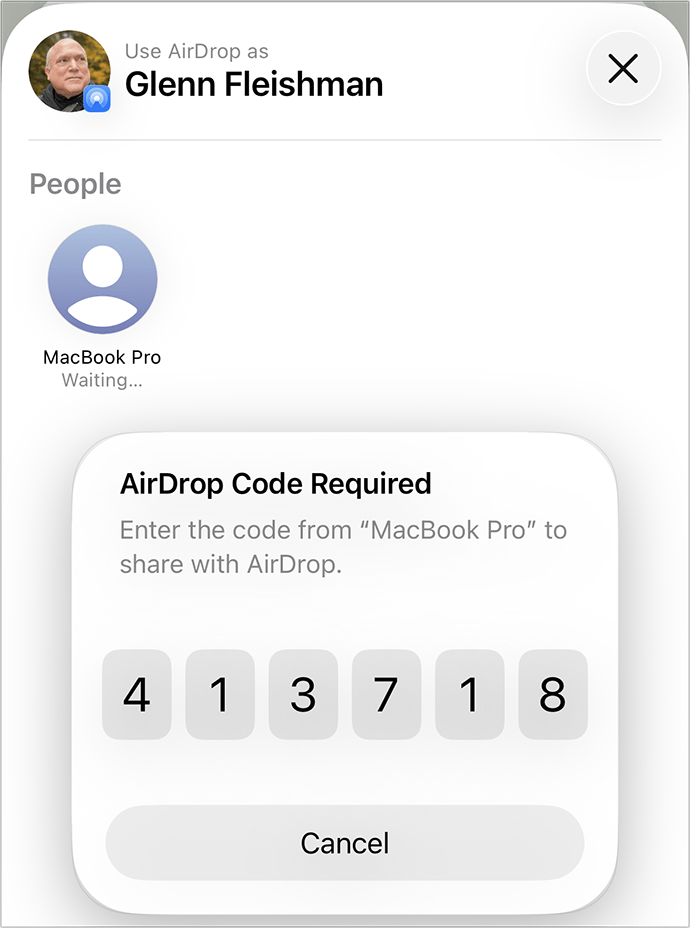
With the process successful in step 6, the sender is added for 30 days to a Other Known list within contacts, allowing future AirDrop transmissions within that period when the recipient’s AirDrop is set to Contacts Only. This list includes any contacts in FaceTime, Messages, or Phone that you’ve marked as known from the Unknown Callers/Senders or Spam categories.
To remove the contact before 30 days is up, go to Settings > General > AirDrop and tap Manage Known AirDrop Contacts or System Settings > General > AirDrop & Handoff and click Manage next to Known AirDrop Contacts.
Extra friction in a service designed to be smooth
Adding friction to AirDrop seems to run counter to the simplicity of how it is supposed to work. For sending in circumstances like protest rallies or other semi-anonymized gatherings, it definitely provides more grit, something desired by authoritarians. Is this another potential nod by Apple to repressive governments? There’s a case to be made, though the 10-minute limit already restricted AirDrop’s utility in such cases tremendously.
Because this code method allows 30 days of sending after using a code, it offers some balance between unwanted contact and persistent availability in the vast majority of cases in which AirDrop is used.
[Got a question for the column? You can email glenn@sixcolors.com or use /glenn in our subscriber-only Discord community.]
- Apple’s first pass at the documentation of an AirDrop code is incomplete and, in some places, inaccurate. The company also left errors in place, such as using Settings instead of System Settings for the macOS notification for a generated code (see below). ↩
- One Six Colors staff member reports receiving a photo of Dick Van Dyke via AirDrop as a gentle nudge to close the wide-open door to AirDrop transfers. ↩
[Glenn Fleishman is a printing and comics historian, Jeopardy champion, and serial Kickstarterer. His current books in preparation, which you can pre-order, are Flong Time, No See, and That One Matt Bors Comic. Other books include Six Centuries of Type & Printing and How Comics Are Made.]
If you appreciate articles like this one, support us by becoming a Six Colors subscriber. Subscribers get access to an exclusive podcast, members-only stories, and a special community.