Presenting Upgrade 360, a new program designed to improve your podcast listening experience by letting you choose the level of podcast quality you wish to receive. Perhaps you want to hear us talk about the podcast bubble without any audio artifacts! Maybe you’d like our discussion of the macOS Public Beta to be delivered at a shockingly low bit rate! It’s the same old Upgrade, but delivered in a few new ways—plus the usual way, we should be clear it’s also just being delivered the usual way.
Just a few years after completing the multibillion-dollar Apple Park headquarters in Cupertino, California, Apple Inc. is ramping up efforts to decentralize out of Silicon Valley. I’m told that executives at the highest levels of the company recognize that hiring and retaining talent will be one of the biggest challenges to its future success, and reducing its reliance on the Valley is a key step in mitigating that issue.
Apple has traditionally operated on the principle that ambitious technologists yearn for a place in Silicon Valley where they can put their mark on the next iProduct. The company’s top brass for years fought against decentralization. But that thinking has changed for several reasons based on what I’ve heard from Apple employees.
Spreading outside of Silicon Valley is smart. The question is, will the company embrace remote work and geographically dispersed workgroups as some of its competitors have, or will it just set up groups for in-person work in different cities?
One of the features I’m most excited about in Apple’s latest platform updates is the ability to save two-factor authentication codes into my iCloud Keychain. That means (hopefully) no more having to jump to a separate app—or even a separate device!—just to get one of those good old six-digit codes.
To date, I’ve relied upon Authy, an excellent app that not only makes it easy to store all those disparate account credentials, but also syncs them between devices as well as letting you back them up and easily restore them when you move to a new device. In fact, Authy made it so easy that whenever I could enable 2FA, I did. As a result, I have more than 30 accounts with two-factor codes.
So what I was not looking forward to was migrating all those codes from Authy to Apple’s new password system, a process that promised to be mind-numbing in the extreme, since I figured I would have to essentially log into each account, disable two-factor authentication, and then re-enable it. To boot, since Apple’s new platforms are in beta, it seemed like I should probably make sure Authy continues to work, just in case something goes wrong, which means doing the setup process twice.
Nice as it would be if Apple’s new system could simply import all your codes from Authy—or other apps like Google Authenticator—it doesn’t seem as though that’s an option for that at present, which isn’t entirely surprising given the security issues involved. (There is an import password option for Apple’s new system, but it’s mainly aimed at other browsers or password managers.)
The new password manager in the Safari Technology Preview
However, I found a couple of things that helped me speed up the process, shifting it from mind-numbing to purely tedious. First, Apple’s recently released Safari Technology Preview for Big Sur includes the new password manager, so you don’t have to upgrade to the macOS Monterey beta to get it. (Or deal with the iOS/iPadOS versions, which are a little more cumbersome.)
The end result was that I spent about an hour laboriously copying each setup code into the appropriate password entry in the Safari Technology Preview’s Password section and—just to be on the safe side—logging in to each website to make sure it worked. The biggest challenge was often figuring out which code went with which sites, since I often relied on Authy’s helpful icons rather than labelling them clearly.
But now I’ve got pretty much all of my accounts set up in Apple’s new system. Some websites are better than others about letting you autofill the verification codes, but most are pretty seamless already. (If the site worked with codes that were texted to you via SMS, then it ought to work with TOTP codes pretty seamlessly as well.)
The only downside is that it doesn’t work in the standard version of Safari on Big Sur, but in that case I’m no worse off than I was before: I can still refer to either Authy or Apple’s beta software to retrieve a code.
[Dan Moren is the East Coast Bureau Chief of Six Colors, as well as an author, podcaster, and two-time Jeopardy! champion. You can find him on Mastodon at @dmoren@zeppelin.flights or reach him by email at dan@sixcolors.com. His next novel, the sci-fi adventure Eternity's Tomb, will be released in November 2026.]
My thanks to Rogue Amoeba for again sponsoring Six Colors, this time for Loopback. Loopback has become an essential tool in my Mac audio toolbox. Loopback passes audio between Mac apps, so if you need to play a recording into Zoom or include music in a streamed event, you can do it with just a few clicks.
Loopback creates virtual audio devices, which you can set to originate from different apps and input devices. They appear on your Mac just like a real, physical device, and can be selected as an input for any audio app on your Mac.
If you move audio around on your Mac—whether you’re podcasting, streaming, or even just enlivening a Zoom call—Loopback will solve your problems. You can try it for free, and through July 15 Six Colors readers can save 21% on purchase by using the code RAINBOW21.
July 2, 2021
A week of public betas: Safari, Shortcuts, Focus, and more.
Stephen Hackett, Six Colors contributor and collector of vintage Apple Hardware, has launched a Kickstarter for a 2022 wall calendar featuring his original photography of items from his large collection. The days of the year are marked with key dates from Apple history.
Hackett = Quality. I bought one immediately, and I suspect many Six Colors readers will be in the market for one too.
More than ever, the Mac is Apple’s power tool. Today’s Macs running Apple silicon can use the complete library of macOS apps, and apps from iOS via Catalyst or unmodified directly from the App Store. And then there’s everything that’s under the hood, from app scripting to Unix-based tools of all sorts.
But with the move to Apple silicon and Apple’s announcement in June that Shortcuts is coming to the Mac as a part of a multi-year automation transition, things are changing. While the Mac isn’t going to stop being a power tool, the next few years will change its nature in some fundamental ways.
If there’s a theme of Apple’s operating-system releases in 2021, it’s platform unification. This development is most significant for macOS, which tended to lag behind iOS in the 2010s, missing out on some or all of the year’s exciting innovations.
Apple has spent the last few years getting the base technology of iOS and macOS back in sync, removing 32-bit software, adding Mac Catalyst and support for iOS apps on Apple silicon, and introducing new cross-platform development technology via SwiftUI. And with macOS Monterey, you can see the fruits of all that labor: The big new features of iOS 15 and iPadOS 15 are also the big new features of macOS Monterey.
The Mac is also getting a boost with older iOS features finally being brought to the other side, most notably Shortcuts, the iOS automation tool that is the first sign of a renaissance of user automation on macOS.
The good news is, for all the recent fears among Mac users that Apple might be attempting to collapse Mac, iPhone, and iPad into a single amorphous product, macOS Monterey still feels unreservedly like a Mac. Apple wants its platforms to share features, but it also recognizes that each serves a different (albeit overlapping) audience.
With the release of the first public beta versions of macOS Monterey (as well as iOS and iPadOS 15), everyone now has the opportunity to give these new operating systems a try. As always, be warned that they’re not ready for release for a reason, and you should never install beta operating systems on devices that you depend on to do your job day-to-day. For those with patience, consider this a preview of what your Mac might look like this fall. For those without patience, well, let’s take a look at Apple’s work in progress that will be taking shape this summer.
Every manager/executive… who is good at their job and works at a company with employees who aren’t broadly miserable employs a similar strategy: they listen to their employees. They listen and they do it regularly. I don’t mean sending out end of year feedback forms and having HR compile long reports nobody reads — I mean they actively seek their employees out and, humbly, listen. They listen not to confirm their priors, but to gain some new understanding. They do this, in part, because they give a shit about their employees, but also because it’s good business. It turns out that your employees — the ones doing the day to day labor of making the business run — are quite good at sending signals about the real status of the company’s culture. You just have to be willing to listen.
The issue of how a company should structure its workspaces and work policies post-COVID is incredibly complex. There’s no single right answer because every company and every job is different. It’s true that most Apple employees took their jobs with the knowledge that they’d be required to be present in Cupertino (even if that didn’t necessarily make sense, even at the time, for many groups). But surely the last year has changed things, at least somewhat?
More broadly, is Apple’s corporate culture1 the secret to its success, and should it never change?2 Are some aspects of it more important than others? If Apple changes its culture in any way, does it risk not being the company that made it so successful?
The truth is, no memo could ever truly change Apple’s culture. That’s not how corporate culture works. Corporate culture (for good and ill) is an invisible force built into the structure of a company. It exerts its power even when all the individuals in the company agree that changing the culture is appropriate. It takes real effort, and commitment, and time to change corporate culture.
At this point, if Apple’s work culture changes, it’ll be because circumstances force it to. Apple will have star employees who insist on being remote, so the company will make exceptions for them. It will try to hire talent and fail because of its insistence on everyone being in Cupertino, and that failure will lead to a readjustment of policies. The existing policies, when compared to those from other tech companies that have embraced remote work, will likely lead to a brain drain within Apple—and those in charge of hiring and recruitment will realize they need to counteract those effects by offering jobs that don’t require spending three-ish days a week in Cupertino.
But unless the world reverts back to a pre-2020 state as if nothing happened, Apple’s culture will probably have to change, regardless. And the pain of that change will be magnified by the fact that Apple’s executives seem so resistant to it. Maybe they should listen—really listen—to what their current employees are trying to tell them.
Apple is so concerned with company culture that it has an entire group, Apple University, designed to codify and reinforce it. ↩
An argument for change and flexibility: Steve Jobs’s last advice to Tim Cook was “never ask what he would do. Just do what’s right.” ↩
Here at Apple, we are delighted that America’s excellent progress in combatting COVID-19 means that we will this fall be able to welcome our employees back to Apple Park in person.
Face-to-face collaboration has always been key to Apple innovation and creativity, and that’s one significant reason why we created Apple Park in the first place, despite what you might have heard from other, less reputable sources.
As a result, we are encouraging our employees to prepare for a return to the office starting in September, on Mondays, Tuesdays, and Thursdays. Also Saturdays, half days on Sundays, Blursdays, and some holidays. We’re sure you’re as excited as we are to reconnect with old friends and co-workers, catch up on podcasts during your lengthy commute, and generally sit at a desk for hours that you would have once been forced to spend at home, able to share more time and experiences with your loved ones. We’re saving you from that, just as we do by not offering daycare, so you can leave your home at home.
Of course, we’ve accomplished a lot while separated these past eighteen months. We’ve introduced new products, we’ve held two virtual developer conferences, and Craig has very nearly finished construction of a ziggurat made almost entirely out of dry macaroni.
But through all of that, something has been missing: your smiling faces. Joyful. Happy. Like the old Finder icon. Because you are happy. You are smiling. Yes? Right? Aren’t you? There you go. Good. Now just hold that expression. I’ll tell you when you can stop.
We realize that not all of our employees are ready to make the transition back to the office, which is why we’ll make the process as easy as possible. Because at Apple, we’re not about rigidly adhering to a dogmatic approach set out by a former leader more than two decades ago—we’re about adaptability. Flexibility. So to ease back our employees, we’ve created something we call a hybrid workspace. In simple terms, we’ve built replicas of each and every one of your work-from-home spaces right within Apple Park to make you feel right, well, at home. (It’s not like we spent all that money on that virtual house set to show off smart home tech, right?)
And for those who still worry about adjusting to life back at work, we’re going the extra mile. By deploying one of our elite Human Resources teams to enter your home at night (thanks, HomeKit smart keys!) while you sleep (tracked via your Apple Watch, naturally), tranquilize you, and transport you to your replica office, so that you wake up refreshed and ready to work a full eighty-hour week from the comfort of your own “home.” This is how much the health and wellness of our employees means to us.
Most of all, it’s important that we remember why returning to in-person work is so important to Apple. It’s not just because you cannot replicate over WebEx those serendipitous moments that spark pure unbridled creativity. Nor because we want to foster a sense of community between all our employees that makes our products stronger. It’s not even to appease the dread god Glog-Raggopth, long may they reign, by stocking the larder that is Apple Park with fresh souls for their consumption.
It’s because we spent five billion dollars building this gigantic donut of a campus, and it wasn’t so Phil and Eddy could race laps through the office in their Ferraris.
You’re welcome.
[Dan Moren is the East Coast Bureau Chief of Six Colors, as well as an author, podcaster, and two-time Jeopardy! champion. You can find him on Mastodon at @dmoren@zeppelin.flights or reach him by email at dan@sixcolors.com. His next novel, the sci-fi adventure Eternity's Tomb, will be released in November 2026.]
After a couple of developer betas, iOS 15 and iPadOS 15 are now available as part of Apple’s Beta Software Program, alongside beta versions of tvOS 15 and watchOS 8. A macOS Monterey beta is listed as “Coming soon.”
Let me cut to the chase: I don’t think iOS and iPadOS 15 are massive updates like iOS and iPadOS 13 or 14 were. There are dozens of interesting new features in both updates, but none of them feels “obvious” to demonstrate to average users like, say, dark mode and iPad multiwindow in iOS and iPadOS 13 or Home Screen widgets in last year’s iOS 14. And, for the most part, I think that’s fine. The wheel doesn’t have to be reinvented every year, and the pandemic happened for everyone – Apple engineers included.
Over at Tom’s Guide, our old Macworld colleague Philip Michaels has similar thoughts:
iOS 15 poses a challenge that recent iPhone software updates haven’t had to face. Those recent iOS updates were pretty easy to sum up. Sure, each update contained its fair share of new features and enhancements to existing capabilities, but it was usually easy to pinpoint the biggest changes and summarize them in a couple bullet points.
Try doing that with iOS 15, and you’ll soon spiral into madness.
iOS 15 and iPad 15 are kicking off their public betas today, and after a few weeks with the developer betas of the new software, Apple’s OS updates feel like more of a grab bag of new features than ever before.
A major rethinking of either platform, this year’s updates are not. The two updates were clearly born in 2020’s norm-shattering pandemic. The feature list at WWDC and on Apple’s website wears last year’s remote-first influences firmly, from the heavy emphasis on FaceTime features to a better system for corralling notifications into “work” and “personal” buckets.
There are at least two months before Apple releases these updates, and while that time will probably largely be spent squashing bugs, there’s always the possibility of changes and tweaks along the way. Of course, you can always find out for yourself—though, as usual, we recommend being careful about what devices you install this software on: it is, after all, a beta.
How we handle email, the potential of Shortcuts on the Mac, our latest tech delights, and whether we prefer our social media to be fed to us by the algorithm.
Old habits are hard to break, and when it comes to my very online life, there's no habit older than email.
I've had an email address since roughly 1994, and over the quarter-century since, I've used everything from command line programs1 to webmail to native apps for reading, sending, and organizing my mail. But since around 2001, my mail client—Apple's built-in Mail app—hasn't changed.
Also, Apple Mail, well, it hasn't changed.
That's one big reason I was so eager to check out Big Mail, an app for the Mac, iPhone, and iPad which aims to use AI and machine learning to improve the email experience. Because, believe me, the email experience could stand to be improved.
Unfortunately, after the better part of a week of using Big Mail—even making a game attempt by replacing Mail in the dock on all my devices—my general conclusion is that while its full of good intentions, it's hampered by an (admittedly somewhat Apple-like) insistence that it knows how to make your email work better. In sum: I don't think it's quite ready to be my email replacement yet, but what it's doing ought to push the needle for mail apps everywhere.
Running a shortcut via the command line on macOS Monterey.
Last week, Dr. Drang wrote an excellent post summing up where Shortcuts on the Mac fits in with all of the Mac’s existing automation frameworks:
Two years ago, shortly before WWDC 2019, Guilherme Rambo told us that Shortcuts was coming to the Mac as a Marzipan app. I wrote a post about the levels of automation on the Mac and how a Marzipan Shortcuts would add a new level. I was concerned with whether Shortcuts would carry on the tradition of allowing communication between the Mac’s different levels. Since Shortcuts didn’t come with Catalina—or with Big Sur, for that matter—I haven’t had to revisit that post. But with WWDC 2021 and the official announcement of Shortcuts coming to Monterey, it time for an update.
The post comes with some helpful visuals about how all the layers in macOS interact.
When I started imagining Shortcuts coming to the Mac, I steeled myself for disappointment—namely that Apple would ship a version of Shortcuts that didn’t do much more than talk to Catalyst apps and iOS apps running natively on Apple silicon.
That didn’t happen. What happened is much better.
Running a Perl script inside a Shortcut on macOS Monterey.
Shortcuts in macOS Monterey lets you run AppleScripts and shell scripts. It comes with its own shortcuts command-line utility that lets you list, run, and open shortcuts. And now in developer beta 2, which was released Monday, is the “Shortcuts Events” process, which lets AppleScript scripts run shortcuts, including passing and receiving input.
A script that passes BBEdit text to a shortcut.
Add this to the fact that I could get some complex shortcuts running on the Mac with no modification, and things are looking good. I know it’s just the beginning of a longer transition, but macOS Monterey is shaping up to be a great release for anyone who wants to use automation to make Mac tasks easier.
The Upgrade Summer of Fun kicks into gear with new beachwear, a very special summer-themed edition of Ask Upgrade, dreams of larger iPads, and a bunch of streaming news. On the less fun side, we discuss why Apple has reacted the way it has to threats of new laws and regulations that might change how it does business.
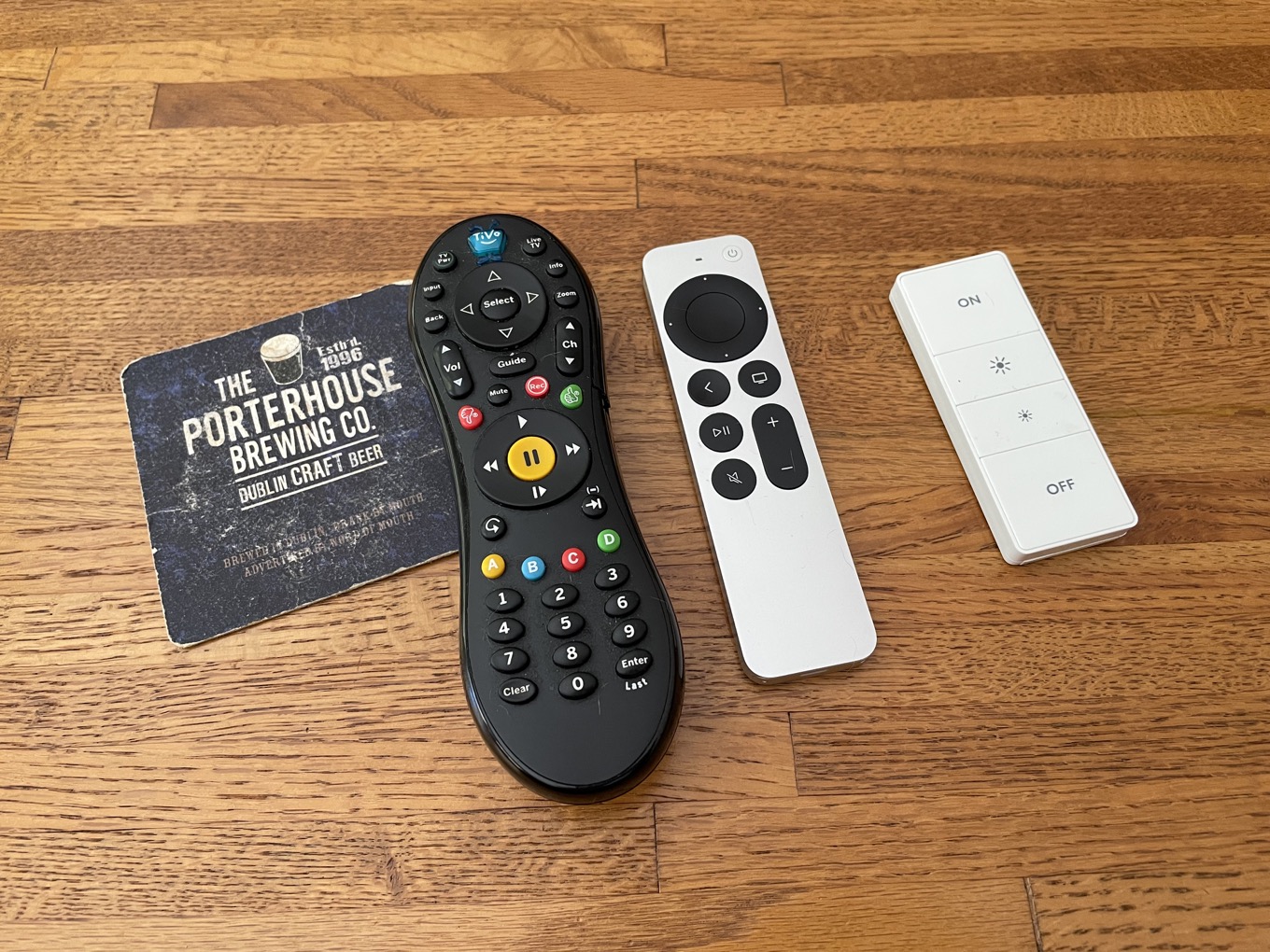
This is the story of how the new Apple TV remote cost me hundreds of dollars, but in a good way.
We were happy earlier this month to take delivery of a new Apple TV 4K, to replace one that I had given to my daughter when she returned to college last fall. (I thought a new model might have been imminent—oops.) And along with that new Apple TV box came a new remote, which has earned a lot of praise for not being the old Apple TV Siri Remote.
It was a single button on that remote that started it all: the new Power button. While the Apple TV has been able to control external devices for a while now, the Power button is so much more explicit: You should be able to use this button to turn your TV on and off.
Which is great, except that I have a complicated setup that includes a home-theater receiver and a TiVo, neither of which can be controlled via HDMI-CEC1, the protocol that Apple TV uses to control other devices.
I’ve also been frustrated by the number of remotes we have to keep around. We’ve got a TiVo remote, an Apple TV remote, a Logitech Harmony remote, and even a Lutron Caseta remote for our living-room lights. Plus, occasionally we need to use the remote that came with our TV. It’s a lot.
So, inspired by the Apple TV Remote, I ripped up my entire living-room setup and tried to build something better. It started with a new receiver, one that supports HDMI-CEC, AirPlay, (and—via a Homebridge plug-in—HomeKit).
With a new receiver, I was able to use the Apple TV remote to turn my TV, receiver, and Apple TV on and off, adjust the volume, the works. This is great, except we still use the TiVo for a few things, mostly Jeopardy! and live sports. I’m not ready to give up on the TiVo, and Logitech has given up on the Harmony, so I decided to see if I could find an alternative way to control the TiVo using HomeKit.
Here’s my solution, at least for now: I replaced the Logitech remote with a HomeKit-compatible Remote I had laying around. I reprogrammed the top button on the remote to turn the receiver on and set it to the input being used by the TiVo. (The receiver, when it powers on, uses CEC to turn on the TV itself.) The bottom button I set to turn everything off.
I had two buttons left, so I set them to control our living-room lights at two different levels of brightness generally associated with TV viewing—dim and off.
With all that done, I’ve reduced my remotes on the coffee table to three: the simple smart remote, the TiVo remote, and the Apple TV remote. Yes, I would greatly prefer to simplify further—if I can train the TiVo remote to fire off the right infrared signal to the receiver, it might be able to kick off the whole thing without needing that third remote.
Still, not only is my living-room setup simpler than it was—there are fewer remotes, and they’re easier to use!—but I got a more modern, full-featured receiver with Dolby Atmos support out of it.
And all because of the Power button on the Apple TV remote.
Newer versions of the TiVo software do support CEC, but those new versions are awful, and I refuse to upgrade. ↩
In iPadOS 15, Apple is making another round of changes to iPad multitasking. It would be easy to consider this yet another spin on the merry-go-round as Apple struggles to figure out how to break the iPad out of the iPhone’s fundamental one-app-at-a-time interface.
But I don’t. Instead, I think Apple is finally assembling all the pieces of the puzzle that will allow the iPad to become more Mac-like than ever before—all the while retaining its unique position in Apple’s ecosystem.
Is Apple waiting for the right moment to unveil proper external-display support on the iPad, perhaps alongside the release of a new Apple display? I’m not saying it will definitely happen, but I want to believe. So let’s look at the evidence.
As of iPadOS 15, all apps now include those three-dot multitasking controls at the top. It’s certainly an improvement over the previously existing flat bar: tap on it, and you get options to put the window in Split View or in Slide Over1—illustrated using glyphs that are nearly identical to what you’d see on the Mac if you hover over a window’s green “full screen” (formerly Zoom) control.
Familiar-looking glyphs.
But what hit me was something so obvious it was a bit like missing the nose on your face: this multitasking widget is always there. Always. Even in apps that don’t support Split View or Slide Over. In those cases, tapping on the multitasking control will still show the Split View and Slide Over icons, but they’re grayed out.
Now, that might seem obvious, but if you think about it a little more, it’s also remarkably telling. Because in the past, given that multitasking was kind of hidden away—or, at least, a power feature that appealed mainly to savvy users—an app that didn’t support Split View or Slide Over was mainly an annoyance only to those aware that it was even an option.2
Name and shame: iPad apps that don’t support multitasking are now much more obvious.
In iPadOS 15, by contrast, multitasking is now way more obvious than before, which will likely lead to greater adoption. And that means that any user who taps on that control will see when an app doesn’t support these features, letting them join in on the frustration.
To me, this reads as Apple providing a tacit encouragement to all developers that they’d better start thinking about embracing Split View/Slide Over/windowing, because users are going to notice when they don’t.
That makes even more sense when you think about this as part of a gradual transition for multitasking on the iPad. If Apple had, by contrast, implemented a full-fledged windowing system in iPadOS 15, a lot of developers who hadn’t implemented these multitasking modes might have had to hustle to make their apps work properly.
Instead, the next year is going to introduce multitasking capabilities to a lot more users, which may in turn drive app developers who had not previously enabled Split View and Slide Over to build support into their apps. With the end result that when iPadOS 16 (or 17) rolls around and Apple takes multitasking to the next logical step, the company can pull out its time-honored method of saying “And hey, if your app already supports Split View and Slide Over (and, say, multiple instances), you don’t have to do a thing—your app already works with all these new windowing features!”
It also makes sense from the perspective of using these controls as drag handles, because it implies a future where even apps that don’t support multitasking will need these controls—say, if apps need to be dragged or sent to an external display. Look back up at the Mac full screen widget and its support for Sidecar, which lets you send any app to a connected iPad. Not hard to imagine that the iPad version might some day let you send an app to another monitor.
All in all, it’s a good old traditional Apple slow pedal. There are those amongst us—myself included—who had been hoping that this year Apple would just rip the band-aid off in one fell swoop, but the company has demonstrated in the past that it’s perfectly capable of slooooowly peeling it off when it wants to.
One odd choice: when you go from full screen to Split View on iPad OS 15, you only seem to have the option to put the current app on the right side of the screen. Why can’t I choose whether a window be in the left or right Split View or Slide Over? I get that it provides fewer options, and is thus less overwhelming, and I can always change it later, but it seems weirdly arbitrary. ↩
Looking at you, Google apps. Took you long enough. ↩
[Dan Moren is the East Coast Bureau Chief of Six Colors, as well as an author, podcaster, and two-time Jeopardy! champion. You can find him on Mastodon at @dmoren@zeppelin.flights or reach him by email at dan@sixcolors.com. His next novel, the sci-fi adventure Eternity's Tomb, will be released in November 2026.]